Support matters, but it is not the same as useful life
A laptop can remain useful and continue to turn on after it stops receiving updates. It may also need repairs, prove inadequate for a particular task, or lose compatibility with an application while its operating system is still supported. When comparing computers, software support is therefore one part of the decision—not a promise about the product’s total lifespan or a single measure of quality. The practical question is not just “How many years will it last?” but “What support will this model receive, under what conditions, and how far ahead can I verify it?”
The phrase “receiving updates” can mean several different things: new operating system versions, security fixes, or maintenance for a particular version. The policies and ways to look up this information also differ across Windows, macOS, and ChromeOS. As a result, a published Chromebook date cannot simply be compared with the end of a Windows version’s lifecycle or with a list of Macs compatible with a macOS release. A specific date can narrow down a question; on its own, it cannot establish which platform lasts longer.
Windows: the version and edition are part of the answer
For a Windows computer, knowing that it runs “Windows 11” is not enough. Microsoft publishes lifecycle information for versions and editions, and support availability depends on which one is installed. The Windows 11 Home and Pro page, for example, identifies those editions and gives support dates by version. Before buying a used computer, or estimating how long it may remain covered, identify its installed version and compare it with the relevant entry in Microsoft’s official lifecycle information. The operating system’s general name does not replace that check.
You should also distinguish support for a particular version from the ability to install a later one. Microsoft publishes minimum requirements for running Windows 11; meeting them is a compatibility condition, not a guarantee that every application, component, or peripheral will work as the buyer expects. Microsoft also warns that installing Windows 11 on devices that do not meet the minimum requirements is not recommended and that those devices are not supported by Microsoft. When buying, it is therefore important to confirm that the model is eligible rather than relying only on a seller’s claim that Windows is installed.
A useful check is specific: identify the current edition and version, consult their official lifecycle, and verify that the hardware meets the requirements of the version you intend to install. If a computer is advertised with an unsupported installation, or with an upgrade performed despite unmet requirements, treat that as a risk—not as a shortcut to assuming future support is assured. Lifecycle pages describe software maintenance; by themselves, they do not verify the physical condition of a particular laptop, its battery, its warranty, or the availability of its drivers.
Mac: published compatibility is not an end date
For a Mac, a practical check is to look up the model in the list of computers compatible with the macOS version you are interested in. Apple publishes compatibility lists for each version, making it possible to check whether a specific model supports that major upgrade. This is useful before buying a used Mac, provided you confirm the exact model and do not assume that a family’s marketing name covers every generation. A computer can share a name with other Macs and still not appear on the same list.
The compatibility list should not be read as a complete support calendar. A model’s inclusion means, according to Apple’s documentation, that it can run that version; it does not by itself state how long each version will receive fixes or when it will stop receiving them. Apple also explains how to identify the installed macOS version and update to a later version compatible with the Mac. Those checks help establish the current situation, but they do not answer every question about future support.
When comparing two used Macs, record the exact model, the installed version, and the most recent version shown as compatible in the documentation you consulted. Then keep the conclusions separate: “compatible with this version” is a verifiable statement; “will receive updates until this date” requires a specific policy or date that a compatibility list alone does not provide. Do not turn a compatibility list into an expiration date. If that date is decisive to your purchase, acknowledge that a comparable figure is unavailable rather than filling the gap with an estimate presented as certain.
Chromebook: check the model’s AUE date
Google provides a different reference for Chromebooks: the Auto Update Expiration date, known as AUE. Google’s help information explains how to find it on the device in ChromeOS settings, under additional details. When buying second-hand, obtain the date for the exact model rather than inferring it from the manufacturing year, the laptop’s appearance, or the software version shown by a retailer. AUE offers a more direct answer about official automatic updates, although it does not describe every aspect of the hardware’s useful life.
Google also says that Chromebooks receive ten years of automatic updates and explains that some devices launched before 2021 may be eligible for extended updates, for a total of ten years from the platform’s launch. There is an important limit: extended updates do not include support for Android apps or the Google Play Store. Therefore, finding an extended date does not necessarily mean that every function or compatibility the buyer associates with the device will be retained.
The responsible approach is to check the AUE date Google assigns to the device and establish whether it refers to the regular schedule or an extended-update option. If you rely on Android apps or Google Play, take Google’s stated limitation on extended updates into account. The date also cannot predict how long the battery will last, whether a hinge will need repair, or whether a particular web app will continue to meet the user’s needs. AUE is a reference for automatic updates, not a universal retirement date for the laptop.
What can—and cannot—be compared across platforms
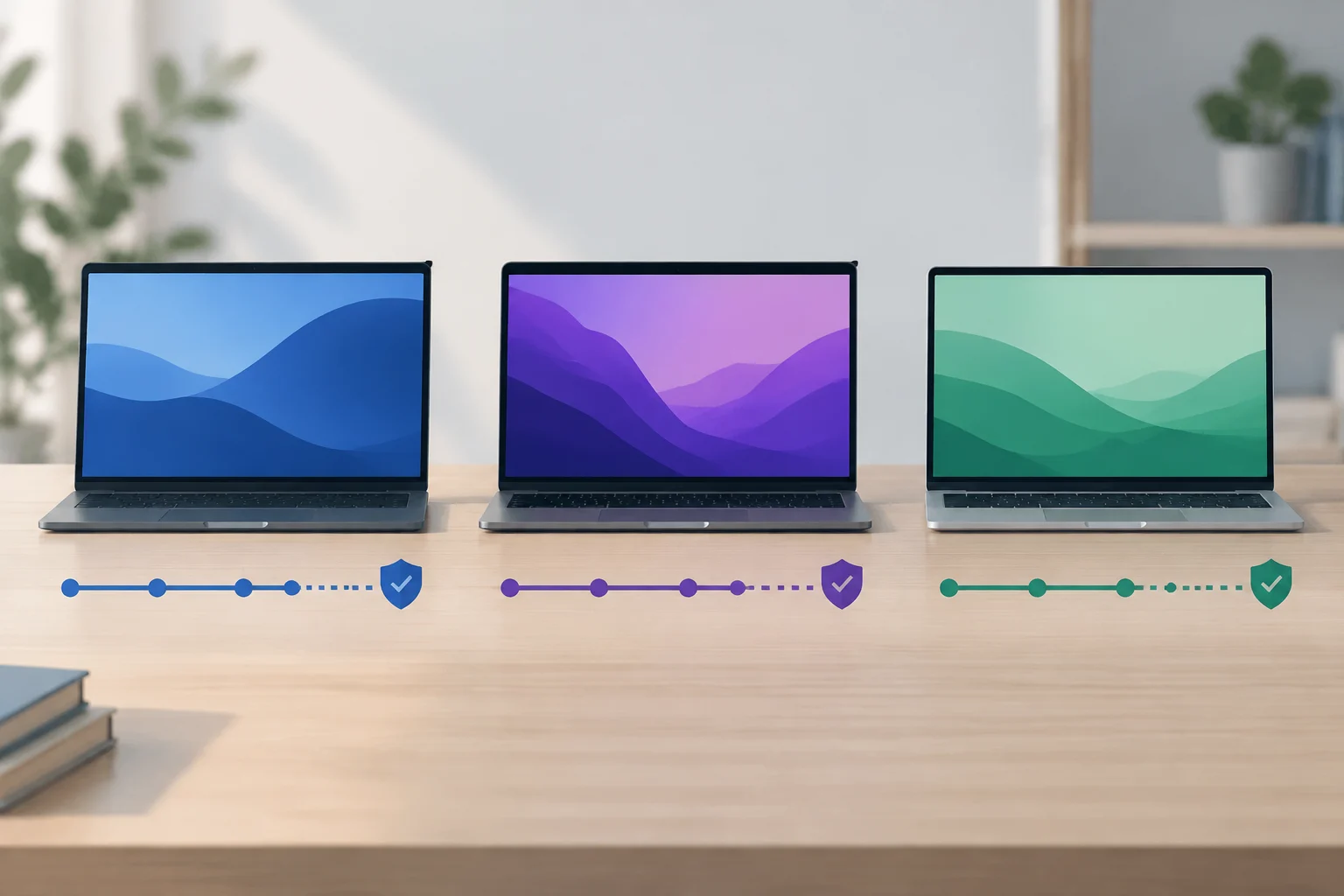
The three types of lookup address related but different questions. For Windows, you compare the version and edition with a lifecycle schedule and check the requirements for the target version. For Mac, you check which models a macOS version supports without turning that compatibility information into an end date the list does not provide. For Chromebook, you check an AUE date for automatic updates, subject to possible conditions for extended updates. Each result describes one part of support, not the product’s total lifespan.
A sensible comparison can record the published information for each candidate, its source, the date you checked it, and exactly what it means. For example: “the installed Windows version has this end-of-service date,” “this Mac is listed as compatible with this macOS version,” or “this Chromebook has this AUE date.” These statements preserve the differences between systems. By contrast, reducing them to one score for years of support would assume that all three measures mean the same thing—something the documentation consulted does not establish.
There are also limits to what these sources cover. Operating-system schedules do not tell you the condition of a used device, whether repairs will be affordable, or whether essential applications will remain compatible throughout the period. The documentation examined here also does not provide a consistent series of end-of-support dates for specific models across all three platforms. We therefore cannot conclude that Windows, macOS, or ChromeOS “lasts longer.” The useful conclusion is narrower: each platform provides different ways to verify certain aspects of support before you buy.
A checklist before you pay
First, identify the laptop precisely: brand, model, and, where possible, its generation or exact product reference. On Windows, note the installed edition and version, find their lifecycle information, and verify the system requirements for the version you want. For a Mac, confirm the exact model and compare it with Apple’s official compatibility list for the relevant macOS version. For a Chromebook, look up the AUE date assigned to the model and find out whether the information depends on extended updates.
Second, decide what kind of support you need. For some people, keeping automatic updates is the priority; for others, it is essential that a professional program or a specific peripheral continues to work. Operating-system documentation does not replace checking those requirements with the software or device manufacturer. If you are buying used, also ask about battery condition, warranty, repair history, and whether returns are possible. These are important buying considerations, but they are not answered by a support date published by the operating-system provider.
Finally, keep the information and what it means—not just the number of years it seems to suggest. Your own comparison table could include the model, platform, current version, official reference consulted, published date or condition, and questions still to confirm. If a page confirms compatibility only, write “compatibility”; if it gives an AUE date, note that it concerns automatic updates; if the lifecycle applies to a Windows version, record the edition too. The best estimate of remaining support clearly distinguishes what has been verified from what is still uncertain.