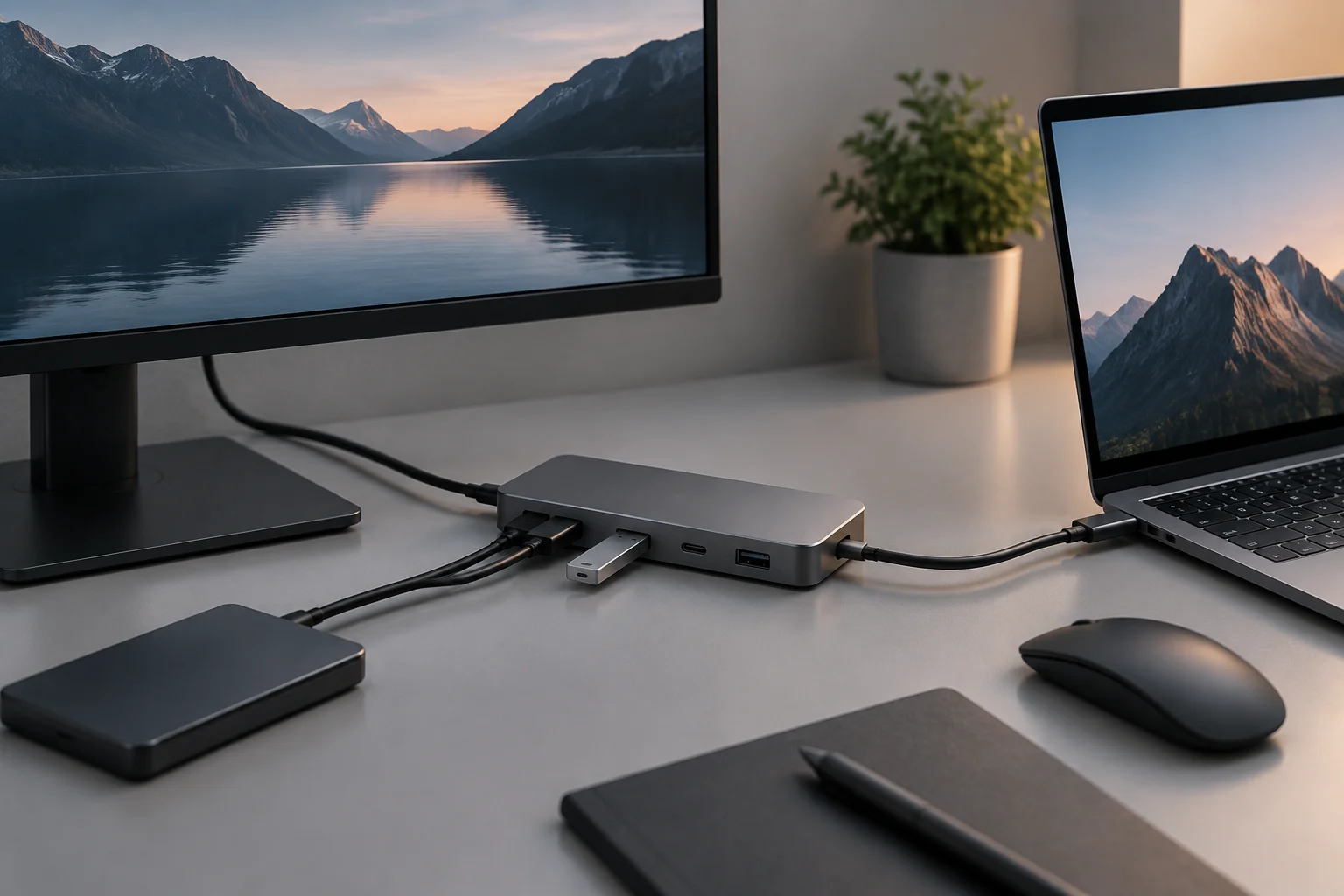
The same connector does not mean the same capabilities
USB-C describes a connector shape and its associated connection system; by itself, it does not promise a particular speed, power level or image output. Two devices with visually identical sockets can therefore have different capabilities. The useful question is not simply “does it have USB-C?”, but which functions the manufacturer documents for that particular port. The USB-IF USB Type-C specification defines the connector and its electrical and functional aspects, while other USB specifications cover data and power capabilities. USB-IF: Type-C specification
In practice, this matters when connecting a monitor, external drive, dock or phone. A connector may allow a basic data connection without video; another USB-C port may support video but not the maximum speed a peripheral can reach. And even when charging is available, the power may be lower than the device needs to operate or charge quickly. The shape of the plug is a physical clue, not a specification sheet. If the documentation only mentions USB-C, do not infer additional capabilities from that alone.
What the connector tells you—and what it does not
The shape identifies the physical connection type, but it is not enough to compare two ports or predict what will happen when they are connected. The useful information is the functions explicitly attributed to the port, cable and device. A bare mention of USB-C does not tell you whether the equipment is designed to transfer data, power another product or send a video signal, nor does it specify the limits of those functions.
This distinction prevents a common misunderstanding: assuming two products are equivalent because their connectors fit. Physical fit confirms that they can be connected in that respect, but does not confirm that the combination will meet the intended need. To make a decision, move beyond appearance and check the documented capabilities of the specific models.
Separate connector, data, power and video
An orderly check distinguishes four questions that are often mixed together in product descriptions: connector type, data speed or protocol, power delivery, and alternative functions such as video output. A specification may describe one without guaranteeing the others. For example, a reference to USB Power Delivery (USB PD) describes a negotiated power system; on its own, it does not prove that the port transmits video or data at a particular speed. USB-IF maintains documentation specifically for USB PD, separate from the Type-C cable and connector specification. USB-IF: USB Power Delivery
For video, check that the computer’s specifications explicitly state display output through that port, and review what the monitor or adapter requires. A USB-C socket alone is not enough to conclude that it supports every video mode. Similarly, USB PD on a charger does not automatically tell you that its included cable supports every combination of power and data. Compatibility means that all the components have the capabilities needed for the intended use, not merely that they share a connector shape. When in doubt, consult the manual for the exact model, not a general page for the product family.
One capability does not stand in for another
Treat each specification as an answer to a particular question. Data-transfer information helps assess that function; power information helps explain charging or energy supply; and a display-output statement lets you investigate video connectivity. None of these details should automatically be taken as proof of the others. If a specification lists only one function, the others remain unconfirmed.
This approach also helps interpret compatibility claims. A charger and computer may both use USB-C and include information about USB PD, but that alone does not answer whether a monitor will show an image when connected to the same port. Keep the questions separate and check each answer against the documentation for the relevant component.
Check every link before you buy
A connection works as a chain: the computer, cable and peripheral must share the capability you want to use. For a monitor, this may include video output from the computer, a cable suitable for that connection and a compatible monitor input. For a drive, the port and cable need to support the transfer mode you want. For power, compare the device’s stated requirements with what the port, adapter and cable provide. USB-IF’s official specifications are the primary reference for understanding the standard; manufacturer pages help determine what a particular model implements. USB-IF: cables and connectors
Before choosing an accessory, look in the computer’s documentation for specific statements about speed, charging or display output, in addition to the USB-C label. Identify the cable by its documented capabilities too: having USB-C at both ends does not, by itself, establish that it supports a particular mode. If the manufacturer does not publish a necessary detail, record it as unknown instead of filling the gap by analogy with another model. A complete specification should let you establish, for the intended use, which function each end of the connection offers and what limits are stated.
Apply the check to the intended use
Start by defining what you want to do: connect a screen, transfer data or provide power. Then find the stated requirements for that use in the computer and peripheral documentation. Finally, verify that the cable and any intermediate adapter are documented for the same function. This avoids choosing an accessory on the basis of a feature confirmed for only one end of the connection.
The check must be model-specific. A detail published for one product does not prove that another device from the same brand—or a similarly named product family—offers the same thing. If the documentation does not answer an important question, retain that uncertainty: identifying an unknown before buying is better than treating it as a confirmed capability.
How to interpret names and technical specifications
USB generation and mode names have changed over time, and some manufacturers use shortened labels or combine several standards in one description. Terms such as “USB 3,” “fast” or “charging compatible” are therefore not enough to compare products unless they are accompanied by a specific capability that applies to the model. USB-IF’s documents page lets you find publications from the organization; Type-C and USB PD documentation address different aspects. USB-IF document library
Independent explanations can help clarify terminology and identify questions missing from a product listing, but they do not replace the manual for the exact computer, peripheral or cable. For example, an educational article may summarize differences between the connector and data standards; even so, any figure or function relevant to a purchase should be checked against pertinent documentation. OnLogic: USB-C and USB explained Prioritize identifiable, model-specific information, and treat generic descriptions as context, not a guarantee.
Read beyond the labels
A short label can be a useful guide, but it may not explain which component it applies to, which function it describes or what limits it has. When comparing two products, look for details that can be clearly attributed to the port or cable in question. If a listing uses a broad label without specifying the capability, do not turn it into a figure or function that is not actually stated.
It also matters to distinguish standard documentation from product documentation. USB-IF publications help explain general specifications; the manufacturer describes how a particular model implements them. Consulting both kinds of source helps you understand the terminology while avoiding the assumption that a particular device has capabilities not confirmed by the general source.
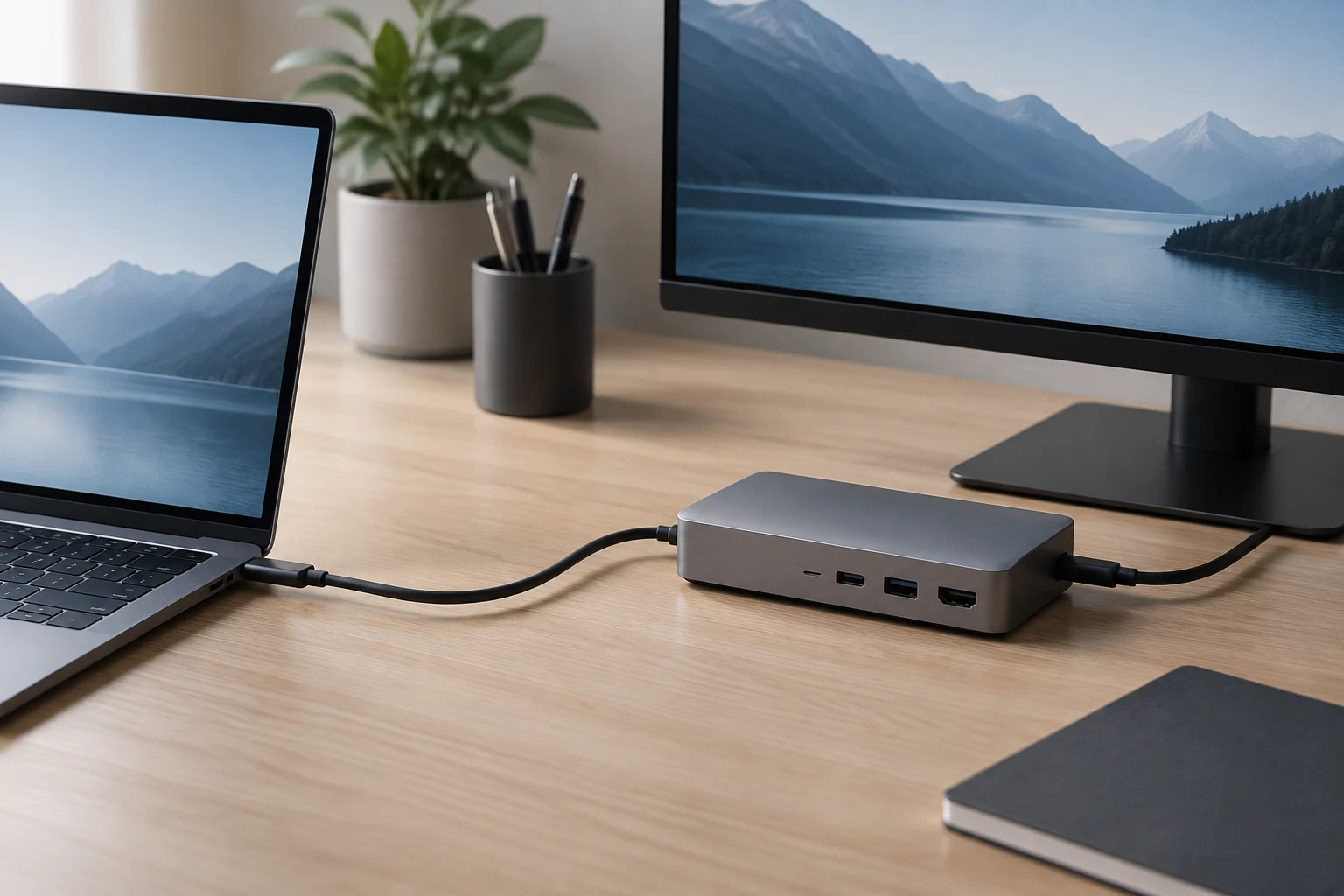
Troubleshoot a connection that does not meet expectations
If a peripheral does not appear, charges slowly or shows no picture, first identify the specific failure: data detection, power or video. This prevents you from swapping parts at random. Then check that the port in use is the one the manual associates with the function you want, that the cable is suitable for it and that the peripheral does not need an additional power source. Temporarily disconnect adapters and hubs to reduce variables; then reconnect them one at a time, checking each component’s specifications.
A useful checklist before buying or continuing to test is:
- Write down the exact make and model of the computer and peripheral.
- Check the documented function of the particular port, not just its connector type.
- Verify the cable and adapter capabilities in their own specifications.
- For video, confirm that the computer provides output through that port and that the monitor or adapter accepts the signal.
- For charging, compare the required and available power stated by the manufacturers.
- If there is no verifiable information about a function, treat it as unconfirmed and ask the manufacturer before buying.
Reduce variables when testing
If the connection passes through a dock, hub or adapter, each component adds a link that may affect the result. Temporarily removing them lets you test the most direct possible connection between the computer and peripheral. If that works, put the intermediate components back one at a time. The change you observe helps narrow down which part of the chain needs its documentation checked, without assuming the cause in advance.
Record which port and cable you tested, along with the specific symptom. “It doesn’t work” can describe different issues: no data transfer, inadequate charging or no picture. Describing the result precisely makes it easier to consult the manual or ask the manufacturer a focused question.
What you can conclude—and what remains outside the scope
The practical rule is simple: USB-C provides a common physical connection, but it does not make every port, cable or peripheral equivalent. Standards and manufacturer documentation let you check data, power and optional functions separately. For a specific decision, the manual for the exact model is more valuable than an inference based on the port’s shape. Compatibility may also depend on hubs, adapters, drivers or particular peripheral requirements, so a general description cannot settle every case.
This guide provides a checking method; it does not certify compatibility for a specific combination or replace testing the models involved. General USB-IF sources describe specifications, but do not say which capabilities each commercially available computer implements. Likewise, a manufacturer’s statement applies to the product it documents and should not be transferred to other models from the same brand. If two specifications omit a capability you need, that absence should remain explicit: it is a limitation of the available information, not a reason to assume the function is present.
A conclusion based on documented facts
A prudent decision relies on verifiable information for every part of the connection and for the specific function you need. If the documents confirm the requirements for all components, there is a basis for assessing the combination. If a detail is missing, compatibility remains unconfirmed until you consult another relevant source or test the models involved. A shared connector shape does not fill that gap.
The goal, therefore, is not to memorize a label or assume all USB-C connections behave alike, but to know what questions to ask and where to look for answers. General documentation clarifies the standards; model documentation and, when needed, practical testing help assess the specific case.