
First, find out what “automate” means in that tool
The phrase “AI automation” can describe very different features: generating a response, consulting connected information, or interacting with an application. Do not assume a tool can carry out actions on its own just because a promotional page uses words such as agent or “action.” The useful question is specific: what can it do, with which account, and under what authorization? Separating those three issues helps distinguish a feature that only prepares information from one that can act on a connected service.
It is also worth clarifying what you mean by “performing” an action. Depending on the feature and its settings, the tool might present a proposal for you to review, or the action might happen directly. Do not assume which possibility applies: look for a specific description of the behavior and the required permissions. If that information is unavailable, keep the uncertainty in mind before granting access. A broad label alone does not settle how the feature works in practice.
OpenAI describes ChatGPT agent as combining research and action; that general description is not enough, by itself, to establish which features are available to you, what permissions they request, or how they are controlled in your account. Capabilities and conditions may depend on the product, settings, and timing. Check the help documentation for the specific product before connecting services or sharing data. OpenAI
Trace the path from instruction to action
Before enabling an automation, identify each step: what instruction it receives, which external tool it uses, what information it consults, and what result it can produce. Distinguish between a suggestion that a person must approve and an action that happens directly. If the documentation does not clarify that difference, treat it as an unknown, not as evidence that the feature is harmless.
You can map the process by asking a sequence of questions: what do you type or select? Which service does the tool address? What data does it need to consult to respond? And what change, if any, can it make? This review does not assume that the automation will make a mistake; it helps you understand the scope of authorization before using it. If a step is unclear, look for information about that specific part rather than filling the gaps with assumptions.
Look for descriptions of integrations, available actions, and authorization requirements in official help materials. For example, Google publishes instructions for viewing and managing the apps connected to Gemini on Android. That documentation establishes that management guidance exists for that context, but it does not let you generalize its steps to other products, platforms, or account types. Verify the route and options in the version you actually use. The interface and instructions may apply to a particular environment, so make sure the help you consult is relevant to your account and device. Gemini Help
Limit access to what is needed and check what data is involved
Make an inventory of the data the automation might be able to reach: files, messages, contacts, calendars, or other account information. Checking which service is connected is not enough; also review whether a permission covers reading, editing, sending, or deleting, where the documentation specifies this. Broad access increases the potential consequences of a mistaken instruction or a configuration you did not expect.
Examine the scope, not just the service name
An integration identified by an application’s name does not, by itself, explain what it can do inside that application. Check the exact wording of the permissions shown and look up in the documentation which actions they cover. If the wording specifies access only to certain data, do not mistake it for a complete description of every capability of the automation. And if the scope is not explained, do not assume it is limited.
Use a simple rule: connect only what the task requires. If you can test the feature with a non-sensitive file, a separate account, or more limited permissions, do that before granting broad access. The aim is to start with the narrowest scope that lets you check the feature, rather than connecting more information than the task needs from the outset. If testing requires broader permissions, review what changes before accepting. This is not about assuming how a permission will be used; it is about knowing what access you are granting and considering whether it is necessary for the intended use. Gemini Help offers an example of guidance for managing connected apps in a specific context, not a rule for every integration.
Check what happens to the data and the authorization
Also review what the privacy policy says about data retention and use; do not infer those details from an integration’s name or from the fact that the connection is official. These are different questions: one concerns the permissions requested by the connected application, while the other concerns what the service says about handling information. Consulting both sources helps avoid confusing technical access with the terms governing data use.
The sources available here do not allow a comparison of providers’ data-handling practices, so any conclusion of that kind requires consulting each service’s current policy. To do so, find the terms that apply to the product and feature you plan to use. Do not turn the existence of a help page about permissions into a claim about how long data is retained or how it is used: verify that information in the relevant documentation.
Before confirming an authorization, read the information displayed on screen and compare it with the task you want to perform. If the permission seems to cover more information or actions than necessary, stop and look for a more limited option or an official explanation. When there is no clear answer, it is better to postpone the connection than to infer how data will be handled.
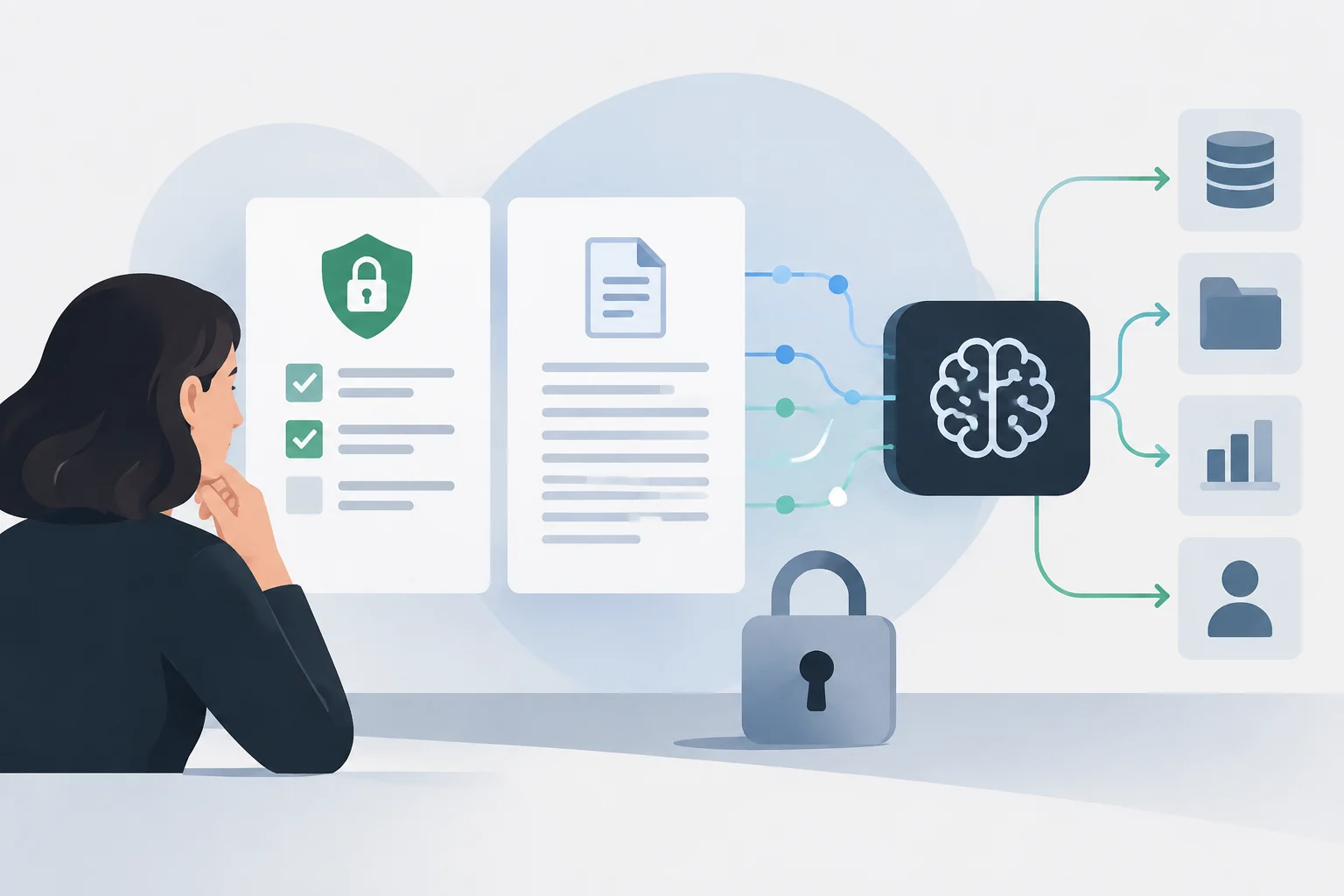
Look for controls to review, stop, and revoke access
Before enabling a feature, find out how to pause or disconnect it and what happens to existing authorizations. Disabling an automation and removing the permission granted to an application may be separate operations. If the help material does not explain whether disconnecting an integration is enough, also check the security settings of the linked external account.
Do not confuse stopping the feature with removing permission
Stopping a task may prevent it from continuing to run, but that does not automatically mean the authorization granted to the application has also been removed. For that reason, locate both options separately: the control that pauses or disables the automation, and the option to revoke access in the connected account, if available. Consult the relevant documentation to learn how these are managed in the specific product.
Carry out a basic check before trusting the tool with an important task: review the permissions displayed, confirm the scope of the action, and see whether the tool asks for approval before making changes. Note where access can be revoked in case you need to do so later. You can also check the steps described in the help materials before enabling the feature, rather than looking for an exit only after connecting it. This preparation does not guarantee a particular result, but it lets you know which controls are documented for that context. Google’s help on connected apps can serve as an example of ecosystem-specific documentation, but it does not show that all assistants offer the same controls or revocation method. Google
Cross-check the provider’s claims and make a cautious decision
The manufacturer’s documentation is the primary source for what it announces and how it describes its controls. It does not always answer independent questions about actual security, incidents, practical limitations, or differences between plans. For a sensitive decision, compare it with reliable independent analysis and look for specific information about the product and feature, not general claims about AI.
When comparing sources, check that they refer to the same tool, feature, and context you are assessing. A general comment about AI agents is not enough to explain how a particular integration works; likewise, a feature description does not, by itself, establish how it behaves across all accounts or configurations. Keep separate the claims a source documents and the conclusions it does not support.
A Microsoft Learn page about knowledge sources in Copilot Studio, for example, concerns a specific product and subject; it is not evidence of how every assistant handles data. Microsoft Learn The research available here does not provide enough independent cross-checking to claim that a particular tool is safe or unsafe, nor does it provide evidence for announcing a recent change. The practical conclusion is narrower: if you cannot identify the permissions, accessible data, and way to revoke access, do not connect a sensitive account until you have clarified them.