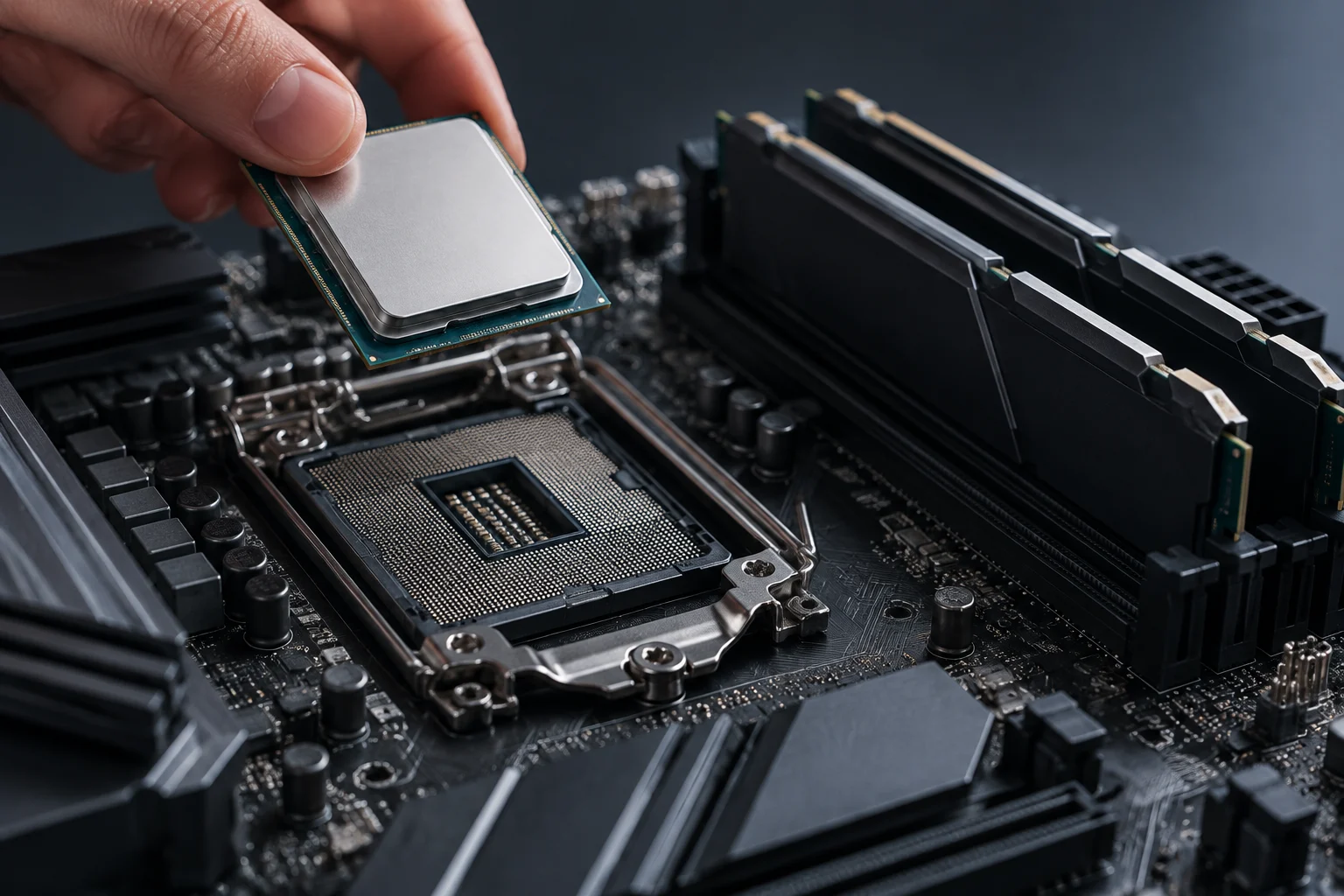
Compatibility is not determined by checking the socket alone
A processor fitting physically into a motherboard socket does not, by itself, prove that the system will boot. The socket identifies an important interface, but documented compatibility also depends on the specific motherboard model, the processor, and the installed firmware. A useful check means matching the exact CPU against the motherboard manufacturer’s support list, rather than relying on a product family or socket name. Intel ARK lets you look up specifications by processor, while motherboard manufacturers publish support pages for individual models. Make sure every detail you check applies to the exact component you intend to use instead of inferring compatibility from a general platform description.
It helps to separate three questions: Is it electrically and physically compatible? Is it recognized by the installed BIOS? Does the memory meet the documented limits? The first rules out combinations from the wrong platform; the second helps avoid buying a CPU that requires firmware the board does not yet have; the third checks whether the RAM type and configuration match what is supported. A product listing or a partial match between names cannot replace these checks. Answering the questions separately also makes it easier to identify what information is missing when the documentation does not let you reach a firm conclusion.
Start with the exact motherboard model
Identify the motherboard’s full name and revision. The name is usually printed on the board itself and may also appear in the system documentation. Do not confuse closely related models, variants with different suffixes, or hardware revisions: their processor lists, connectivity, and firmware may differ. Then open the manufacturer’s official page for that model and find its support or CPU compatibility section. If you are unsure between two designations, confirm which one appears on the board or in the system documents before consulting the table.
The supported processor table is the clearest evidence of whether a specific CPU is listed as compatible. The official ASUS page for the TUF GAMING X870-PLUS WIFI, for example, identifies the model and provides product documentation; consult the CPU support table associated with that model rather than extrapolating compatibility to every motherboard with an X870 chipset. Official model page. The chipset and socket help define a platform, but they are not substitutes for the manufacturer’s model-specific list. In practice, this means looking for the exact CPU entry rather than accepting a match based only on the chipset name.
Check the CPU and BIOS version
When a CPU appears on the list, check any column that specifies the minimum required BIOS version. If the motherboard needs a later version than the one installed, you may have to update the firmware before installing that processor. Compatibility listed for a recent version does not guarantee that the board will boot with an older BIOS. Read the release notes as well to look for support changes or instructions that could affect the update. The minimum version is not a minor detail: it distinguishes compatibility that depends on an update from a board that is already ready to recognize the CPU.
Confirm how the BIOS can be updated in your situation: some models support updating without a compatible CPU installed, while others require the system to boot with a processor that is already recognized. Do not assume they all have the same feature. If the current version cannot be established with confidence and there is no documented update path for the scenario you expect, resolve that before buying or dismantling the system. The update guide must match the motherboard manufacturer and model exactly. This avoids applying instructions for a similar variant that may use a different procedure or have different requirements.
Compare the memory specifications
Memory must be checked at both ends: the motherboard and the processor. Verify the supported DDR type, number of slots, specified total capacity, and any conditions attached to memory speed. Intel ARK’s official listing for the Core i5-10400, for example, provides processor specifications, but those alone do not determine what a particular motherboard supports. The effective documented limit may depend on the more restrictive component and the configuration in use. Intel Core i5-10400 specifications. Therefore, compare a figure on the CPU specification page with the motherboard information instead of treating it as confirmation of every possible combination.
It is not enough for a module to use the same DDR generation. Capacity per module, the number of installed modules, and the advertised speed must also fall within the applicable specifications. The motherboard manufacturer’s page and manual are references for the system configuration; the processor’s specification page documents its own limits. A general DDR guide can clarify terminology, but it cannot confirm that a particular kit has been validated for a particular motherboard. General information about DDR. Accordingly, check type, capacity, and speed against both relevant sources before deciding whether the memory fits the planned configuration.
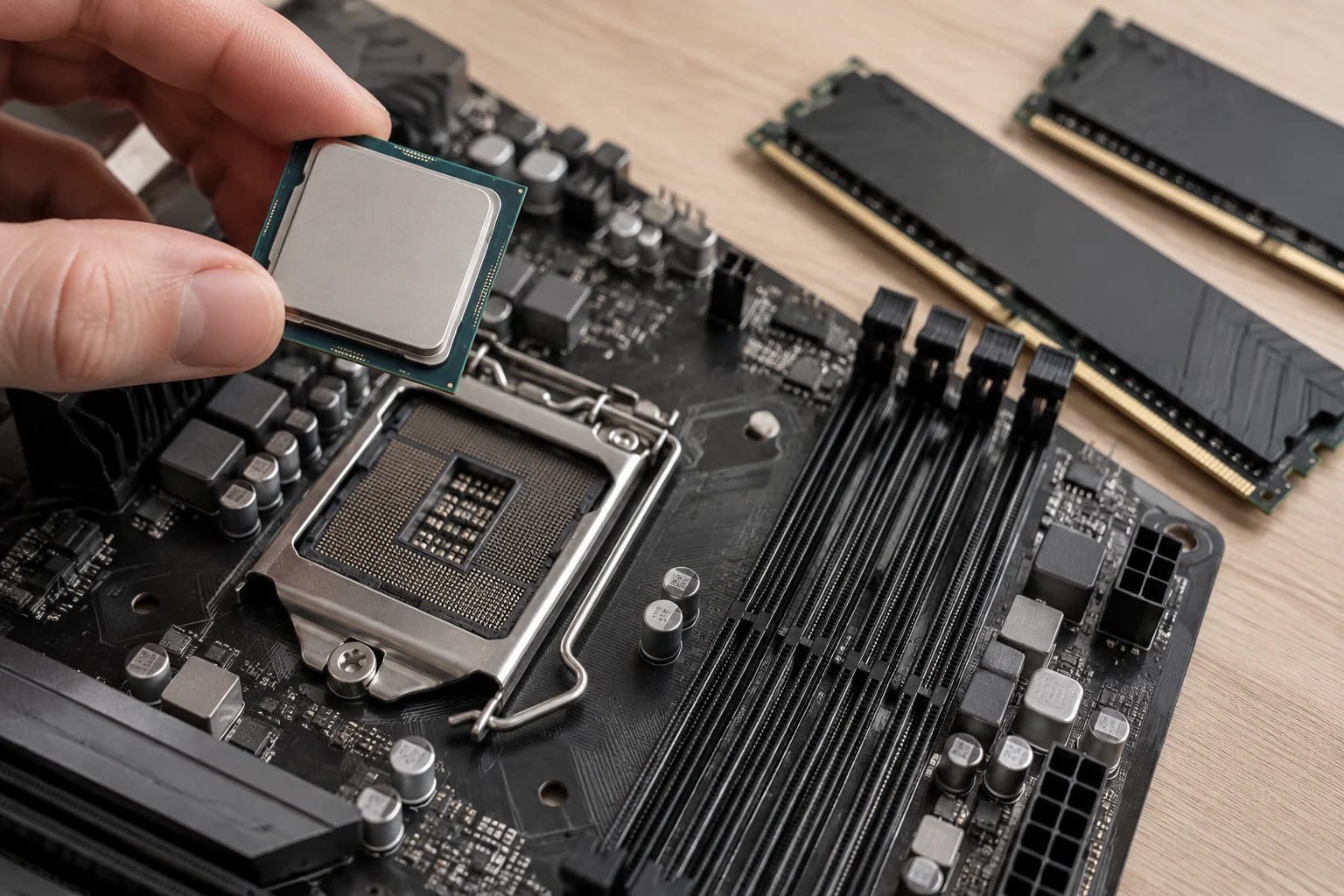
Use the manual to choose slots and configuration
The manual takes you from abstract compatibility to the actual installation. Check the recommended slot order when using two modules, capacity limits, and notes on supported configurations. Many motherboards specify which slots to populate first for a pair of modules; do not assume that every arrangement produces the same result. If the manual includes a qualified memory list, use it as a validation reference, not as proof that every memory product absent from the list is incompatible. Installation instructions help you apply the manufacturer’s stated configuration to the system and avoid mistaking a layout limitation for module incompatibility.
Also distinguish the memory’s standard speed from overclocking profiles such as XMP or EXPO, where applicable. A kit may boot at basic settings and require a profile to be enabled to reach its advertised speed; that profile should not be mistaken for a universal stability guarantee. TEAMGROUP documents troubleshooting steps for boot problems after enabling XMP/DOCP, illustrating that a profile may need to be checked in the specific system. TEAMGROUP guide. Without independent testing of the exact combination, it is not appropriate to promise stability or performance. Advertised speed and the profile’s actual operation are separate matters, so keep that distinction in mind when interpreting the specifications.
Pre-purchase checklist
Before choosing components, gather the exact references and verify each point in official documentation. A practical sequence reduces identification errors and prevents a partial match from being treated as a conclusion:
- Note the motherboard model and revision.
- Find the exact CPU in the official list of supported processors.
- Check the minimum BIOS version and the procedure for installing it.
- Compare RAM type, capacity, and configuration with the motherboard and processor.
- Consult the manual for recommended slots and relevant restrictions.
- If you intend to use a memory profile, distinguish its configured speed from operation at standard settings.
A secondary source can help explain concepts or point you toward the information to look for, but the motherboard and processor manufacturers’ documentation should take precedence when making a purchase decision. If the support page does not identify the minimum BIOS, the motherboard revision is ambiguous, or the memory configuration is undocumented, the correct conclusion is that information is missing—not that the combination is compatible by analogy. In particular, sharing a socket, chipset, or RAM generation is only a partial indication, not certification of the complete combination. In such cases, resolve the question using documentation that applies to the exact model rather than filling gaps with assumptions.
What documentation can and cannot confirm
Official specification sheets and manuals let you check declared compatibility, firmware requirements, and published limits. They do not necessarily certify every possible combination of modules, kits, BIOS versions, and settings, nor do they predict the behavior of an individual unit. Pages may change over time, and a CPU or memory list may depend on the hardware revision. It is therefore worth consulting or saving the current documentation for the exact model before buying. This keeps the check tied to the motherboard and the information actually published, without extending it to variants that have not been reviewed.
This guide is a method for checking documentation, not a practical hardware test. No systems were assembled or stability-tested, and results are not extrapolated between similar models. The safest conclusion is operational: if the CPU appears on the official list, the BIOS requirement is met, and the RAM falls within the specifications of both the motherboard and processor, the combination is supported by the documentation consulted. That does not amount to a claim about specific performance or a guarantee that every extreme configuration will work without adjustment. The conclusion is therefore limited to what the sources can confirm: declared compatibility and published conditions, not the outcome of a test of the complete system.