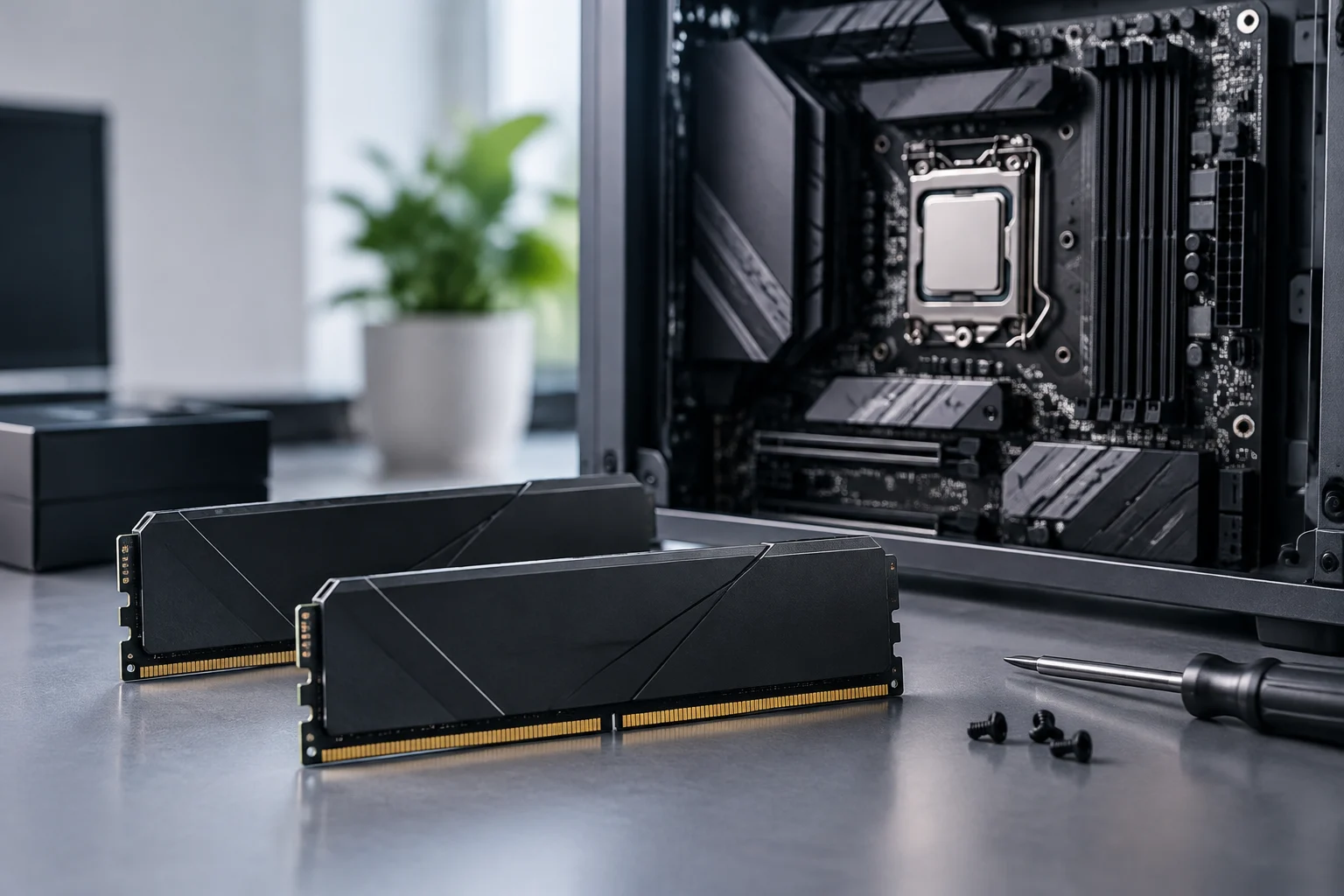
Compatibility starts with identifying the components
Before looking for modules, write down the exact model of the motherboard and processor. On an assembled PC, check the system information or purchase documentation; for a laptop, look up the full computer model, not just the product family name. Precise identification prevents you from relying on general specifications that may not apply to your system. The memory has to match the characteristics of the entire platform, not just a figure printed on the module’s packaging. Start with the actual components so that every later check refers to the hardware you have, rather than a similar product with a different configuration.
First, check the type of memory supported by the platform. DDR5 is a different standard from DDR4: it is not enough for both to be called RAM or for a module to have an appropriate capacity. The applicable standard and the processor and motherboard specifications let you rule out incompatible modules before comparing frequencies. Do not buy based only on the fact that a module is DDR5: supported capacity, module arrangement, and supported speeds also depend on the system. JEDEC maintains the DDR5 specification; Intel, in turn, provides documentation on memory supported by its processors.
Treat these details as an initial filter, not a complete compatibility check. Knowing that the computer uses DDR5 narrows the search, but does not by itself confirm that every DDR5 kit will work in the intended configuration. Recording the exact models from the outset makes it easier to compare official specifications and avoids confusing components with similar names. It also gives you a reliable basis for checking the capacity, module count, and operating settings you are considering, rather than inferring compatibility from the memory generation alone.
Cross-check the processor’s limits against the motherboard’s
The processor specifications list the memory capabilities associated with that model; the motherboard documentation sets out the options supported by the board design and its slots. Do not treat a specification for a processor family as if it described every model in that family. Find the page for the exact component and review the memory section, including the DDR generation, maximum capacity, and configurations listed by the manufacturer. Intel explains how to look up supported memory in its processor specifications, but those instructions do not replace the motherboard documentation. Intel: supported memory.
Review the two components together: a figure in the processor specifications does not necessarily describe every possibility offered by the motherboard, and the motherboard’s features do not override the processor’s limits. Compare the specifications of both components instead of selecting the higher value from one product page and assuming it applies to the whole system. If the specifications differ, take those differences into account when choosing capacity and configuration. The relevant question is not simply what one part can list in isolation, but what the specific combination supports.
Next, find the motherboard’s memory compatibility list, usually called the QVL (Qualified Vendors List). It identifies modules or kits the manufacturer has validated for particular models. The list is a way to reduce uncertainty, not a universal guarantee: it may not include every module that works, and a kit validated on one board is not automatically validated on another. ASUS explains how to consult CPU and memory QVLs on a product’s support page. ASUS: checking the QVL. The important match is between the motherboard model and the kit’s part number, not merely between brands or similar speeds.
Understand advertised speed without mistaking it for a guarantee
Modules are sold with an advertised transfer speed, but that figure is not a promise that every combination of processor, motherboard, and module count will operate at that value. The published processor limit, motherboard specifications, and installed configuration are different reference points that must be checked against one another. If a kit advertises a speed above the official limit of one of those components, do not assume the system will reach the figure printed on the box. Product claims describe the module; they do not establish the result for every platform combination.
The number of installed modules is also part of the configuration to evaluate. Do not interpret the speed listed for a product as a guaranteed outcome regardless of how memory is distributed across the slots. Check the component documentation to understand which configurations are covered, and use those limits as a reference before buying. This helps prevent a marketing figure from becoming an expectation that the specifications do not support. The configuration you intend to install matters, so compare it with the conditions and limits set out for the exact components.
The way the module’s operating profile is obtained also matters. Higher-performance settings may require enabling a profile in the BIOS/UEFI; availability and stability depend on the platform’s specific support. Consult the motherboard manual and the kit manufacturer’s instructions before changing settings. If the profile is unstable, returning to automatic values or a supported speed may be preferable to insisting on the maximum advertised figure. The stability of a particular configuration cannot be inferred from the module’s label alone.
Capacity, speed, and latency answer different questions
Capacity indicates how much memory the system can keep available for applications and data; speed describes the advertised transfer rate, while latency refers to the specified response timings. These characteristics are related, but they are not interchangeable. If a workload needs more memory than is installed, increasing capacity may be more relevant than pursuing a higher frequency. If the existing capacity is sufficient, the effect of changing speed or latency depends on the application and the rest of the system. There is therefore no single capacity recommendation that applies to every use.
When comparing products, separate the questions: how much memory do you need, what speed does the kit advertise, and what latencies does it specify? A product page may show these details together, but each describes a different aspect. Capacity does not by itself indicate transfer rate, and a higher speed does not tell you how much memory will be available to applications. The decision therefore depends on balancing the kit’s characteristics against the requirements of your use, without assuming one figure automatically compensates for another.
Compare complete kits by considering how many modules they include, each module’s capacity, the advertised speed, and the stated latencies. Avoid mixing modules just because they share a generation and capacity: their profiles, organization, and parameters may differ. If you add memory to an existing kit, check whether the manufacturer documents that combination; when it is not documented, treating it as equivalent to a kit sold and validated together adds uncertainty. Do not turn a theoretical specification into a prediction of a noticeable improvement: that claim would require relevant testing of the application and system.
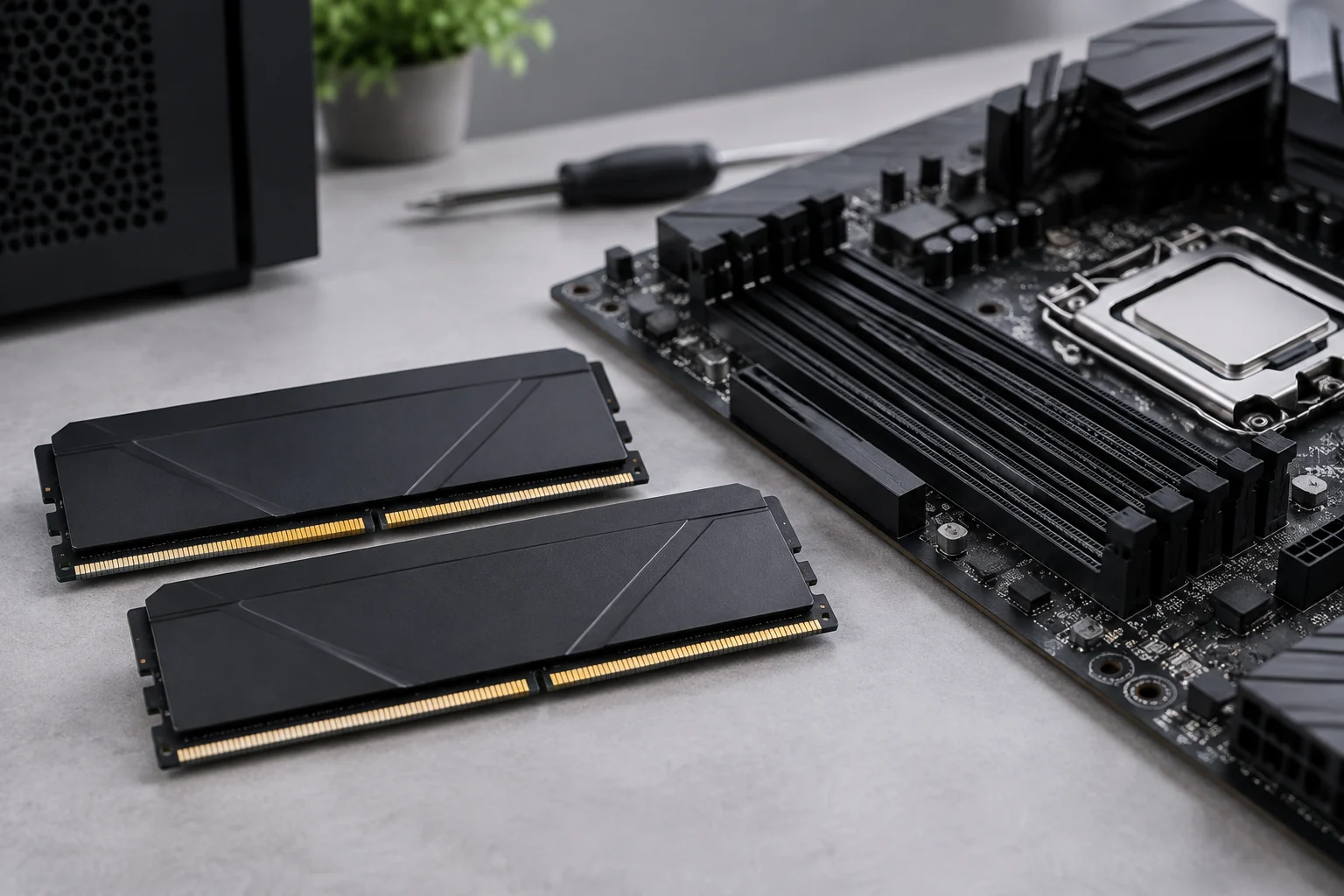
What a compatibility list does and does not demonstrate
A QVL is evidence that the manufacturer has verified a particular combination as part of its validation process. The list is useful only if you identify the exact part number and consult the page for the specific motherboard. Some lists also specify capacity, module count, or memory speed. ASUS, for example, publishes DIMM Flex compatibility information for certain models, identifying boards and compatible module references. This illustrates why it is worth reading the full entry instead of extrapolating from a speed or brand. ASUS: DIMM Flex list.
When checking an entry, verify every detail it provides rather than relying on a partial match. The brand, generation, or a similar speed is not enough to confirm that the product is the validated kit. A complete reference helps distinguish products that may look alike in a shortened listing and lets you determine whether the list refers to the combination you are considering. Read any stated capacity or module-count conditions as part of the entry, not as incidental details.
However, being on a list does not mean the module will guarantee the same result with every processor, BIOS, or configuration. Nor does the absence of a module from the list prove that it is incompatible: it may simply mean the kit is not included in the published tests for that model. A product listing, an independent review, and a QVL answer different questions. The first describes the product; the second may measure it in a particular test; the third documents the manufacturer’s validations. None replaces checking the exact components or makes it possible to promise an identical result on every computer.
Checklist before buying or installing
Gather the details before choosing. Keeping them together lets you check compatibility across the system and compare kits using the same criteria, rather than deciding on the basis of just one specification:
- Exact motherboard and processor models; for laptops, the full computer model.
- Supported memory type and the maximum capacity specified for each component.
- Number of available slots and the planned module configuration.
- The kit’s full part number and, if available, whether it appears on the QVL for the exact model.
- Advertised speed and latencies, checked against the platform limits and documentation.
- The manufacturer’s procedure for installing the kit and configuring supported profiles.
Before installation, compare the configuration you plan to use with the motherboard manual and the kit manufacturer’s instructions. This helps you keep track of which modules will be installed and which profile you intend to use. If you consult a QVL, make sure you checked the page for the exact motherboard model and that the product reference matches; a list for another model does not establish the same validation for your system. This preliminary check cannot eliminate all uncertainty, but it helps you avoid overlooking information that the manufacturers make available to buyers.
Checks after installation
After installing the memory, confirm that the system recognizes the expected capacity and starts with a stable configuration. If you change settings, follow the motherboard manual; do not attribute a failure to a particular cause without checking the configuration and the other components. If the computer does not start or displays errors, return to a supported configuration and contact the manufacturer’s support service.
Make configuration changes with the manual at hand, and check the result after each adjustment. The goal is not to force the advertised speed at any cost, but to find a compatible and stable configuration for the specific components. If the system does not behave as expected, return to supported settings and consult the documentation before concluding that the kit is defective or that a particular part is responsible.
The safest buying decision is not to choose the highest figure, but to find a kit whose specifications and configuration make sense for the exact computer. Checking the memory type, processor and motherboard limits, kit reference, and intended configuration makes it possible to decide with better information. Capacity, speed, and latency provide different details; the QVL adds a useful reference, although it does not replace reviewing the complete system.