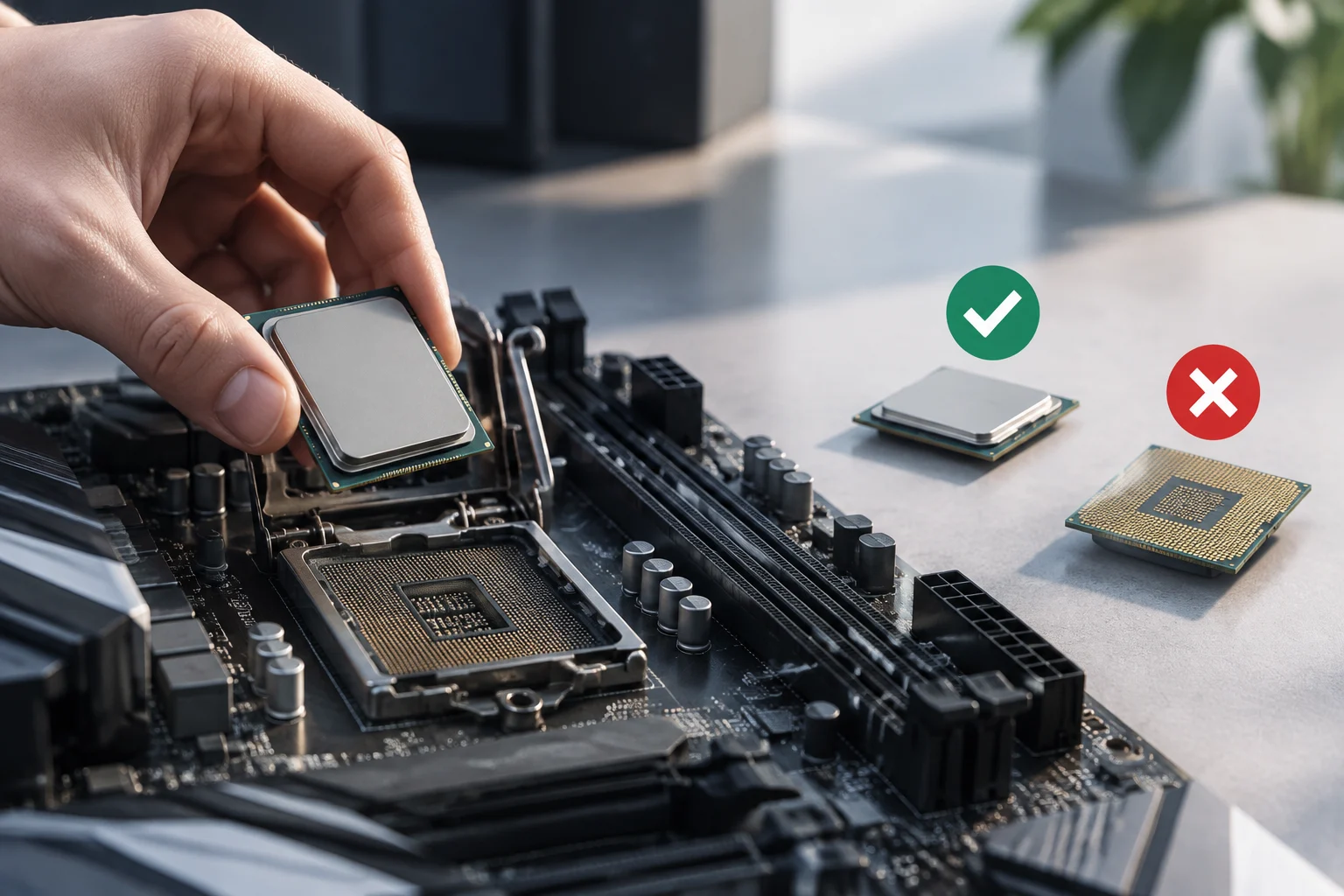
The socket is the first filter, not the final answer
When comparing a processor with a motherboard, checking the socket is a useful first step: it rules out combinations whose CPU package and socket do not match. But two products sharing a socket name does not, by itself, prove that a specific CPU will work in a specific motherboard. Compatibility also depends on the motherboard design, the supported processor family and, in some cases, the firmware version installed.
The chipset does not settle the question on its own either. A chipset designation can appear on many motherboards with differences in design, revision and support. Even within the same brand, a family’s commercial name does not identify the exact model. Treat the socket and chipset as filters that narrow the search, not as a guarantee that the system will work. They help rule out clearly unsuitable options, but they do not replace checking the documentation for the specific motherboard.
There is also a difference between a system being able to start and the combination providing every feature you expect. CPU compatibility does not automatically guarantee a particular memory speed, that every slot will work as expected, or that an advertised feature will be available. Base your decision on the exact motherboard and processor models, then check separately the features that matter for your intended use. This prevents basic processor support from being confused with validation of every system component and feature.
Find the exact model in the official CPU list
Start at the motherboard manufacturer’s support page and find the supported-processor list—it may be called a CPU Support List or something similar. Make sure the page is for the complete model, including suffixes such as “D”, “WiFi”, “R2.0” or regional variants. A page for a similar motherboard is not an adequate substitute: small model differences can mean different lists and firmware versions.
Look for the processor’s full name or identifier. If several variants have almost identical names, compare the product code printed on the box or given by the seller. Do not assume two CPUs are interchangeable just because they share a brand or have similar model numbers. The manufacturer’s list may distinguish revisions and variants that a general search overlooks. Checking the identifier prevents you from applying information about one CPU to another that only appears equivalent by name.
Read the columns and notes as well as the name. The list may state the minimum BIOS version required for each processor, or include warnings about particular versions. If the processor is not listed, do not interpret that as proof of absolute incompatibility—or as implied support. It means you have not found validation in that list. In that case, consult the manufacturer’s support documentation before buying. Distinguish between a CPU that is explicitly listed and one for which the list provides no information: guesses based on similarities cannot replace confirmation.
Check the BIOS version and update path
The BIOS—also called UEFI firmware—initialises the hardware and contains the support needed to recognise different CPUs. A motherboard can have the right socket and still need a newer BIOS version to support your chosen processor. The official CPU list is the right place to identify the minimum required version; then compare it with the version installed on the board or the one the seller can confirm. This links the CPU requirement to the actual unit you intend to buy instead of assuming that every board of the same model is in identical condition.
If the manufacturer specifies a minimum version, do not assume that a stored or second-hand motherboard already has it. Ask which version is installed and, if relevant, confirm the board’s exact physical revision. Also check the notes on the downloads page: a later version is not necessarily recommended for every processor, and the manufacturer’s instructions may specify restrictions or preliminary steps. So it is not enough to pick a version number that looks newer; read the instructions associated with that download and the precise model.
Before buying a combination that depends on an update, confirm how the update can be performed. Some motherboards can update firmware without a compatible processor installed; others require booting with an already recognised CPU or using a repair service. Do not assume an update feature is present: verify it in the manual and the exact model’s specifications. If you have no reliable way to update, practical compatibility depends on the board arriving with sufficient firmware. Checking this in advance helps you decide whether updating is feasible or whether you need the seller to confirm the installed version.
Separate basic compatibility from features
Once the CPU is confirmed on the list, check what else you need from the system. Verify the memory type supported by both the motherboard and processor, the stated capacities and configurations, and whether your desired speed requires specific profiles or settings. A memory module fitting physically does not ensure that it will operate at every advertised speed: consult the specifications and manual for the applicable conditions. If you already have modules or plan to buy specific ones, compare their characteristics with the platform documentation rather than inferring the result from their physical format alone.
Also check the slots and connections you plan to use: PCIe for a graphics card, M.2 for storage, SATA and rear-panel ports. The number or speed of certain connections may depend on the installed processor or on how resources are shared on the motherboard. If a feature is essential, find the explanation in the manual; do not extrapolate from a chipset summary table. Check the connections you actually intend to use, because a general motherboard feature does not always describe every operating condition for each slot or port.
Finally, check the platform’s dimensions and power requirements: motherboard form factor compatible with the case, required power connectors, and the power supply’s capacity for the whole system. These checks cannot make an incompatible CPU compatible, but they can prevent a combination that is correct in terms of socket and BIOS from being unsuitable for the complete build. The useful question is not just “Will it work?” but “Will it work in the specific configuration I need?” Keeping these checks separate helps identify what is confirmed and what needs further verification.
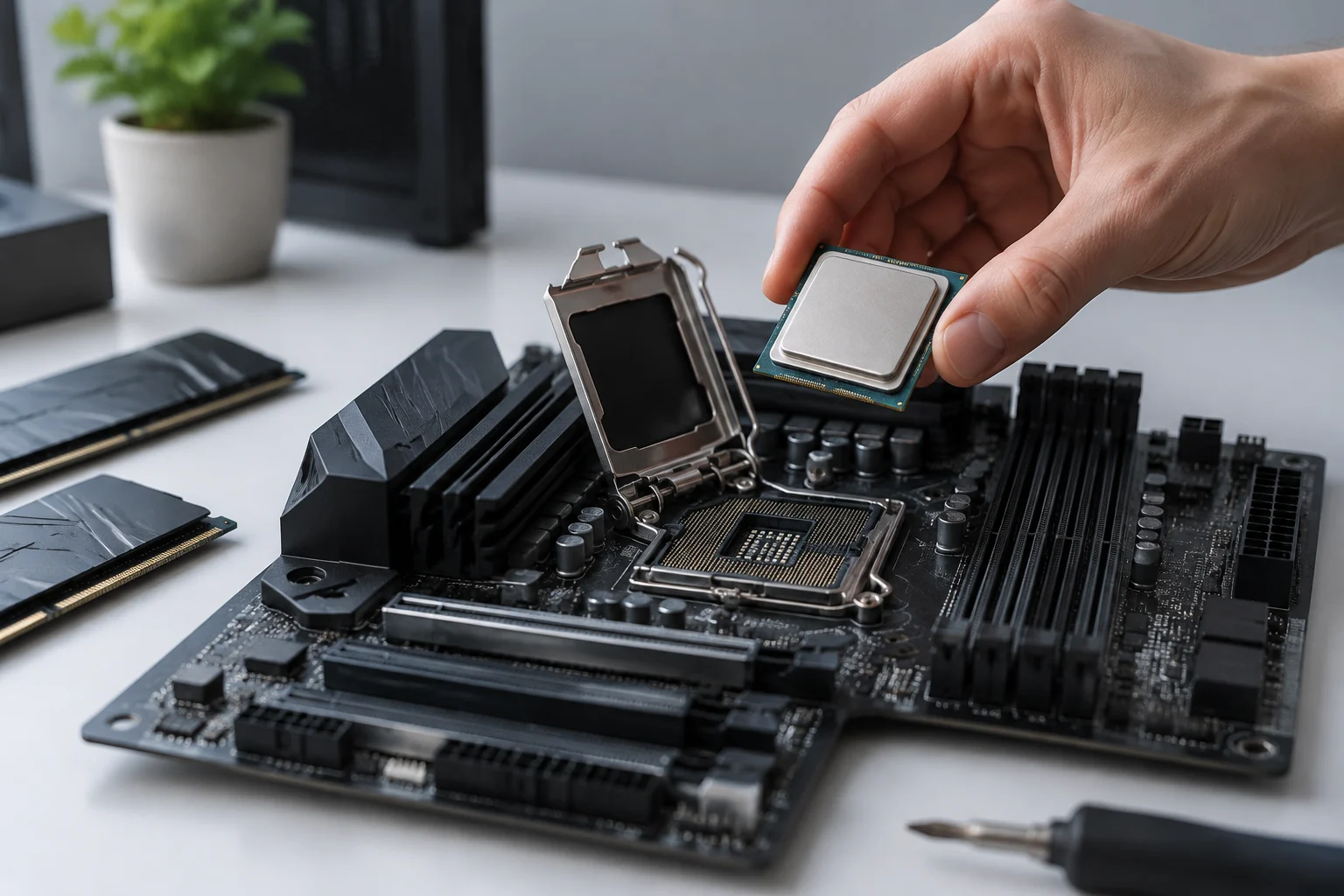
A verification process before you pay
An orderly check reduces mistakes and lets you keep evidence of what you have verified. Follow these steps using official pages and write down the exact model names; if a source is ambiguous, do not resolve the ambiguity by analogy with another model. Keeping the CPU identifier, motherboard model and BIOS details together makes it easier to review the combination later or ask the seller a precise question.
- Identify the motherboard’s exact model and revision, and the CPU’s complete identifier.
- Check that the socket and platform match, without treating that match as sufficient confirmation.
- Find the CPU in the motherboard’s official support list and record the minimum BIOS version stated.
- Find out which BIOS is on the specific unit or what update method the model supports.
- Check memory, slots, connectivity and power against the manual and specifications.
- If anything is undocumented, ask the manufacturer or seller and keep the reply before completing the purchase.
A second independent source can help catch a reading error or differences between revisions, but it should not displace the manufacturer’s documentation when establishing official support. A forum may offer context about an experience or a particular question; it is not equivalent to a compatibility list and does not prove that every unit has the same BIOS. Also check that any page you consult is for the exact variant, not a board with a similar name. If a secondary source seems to conflict with official documentation, use the latter as the reference for declared support and ask for clarification if your particular case remains unresolved.
What you can conclude—and what remains to be checked
The strongest conclusion is specific: a combination has documentary support when the manufacturer includes the exact processor model in the motherboard’s CPU list and the installed BIOS—or one that can be installed through a viable procedure—meets the stated requirement. This reduces purchasing uncertainty, but it is not a physical test of every unit and does not, by itself, certify stability under every configuration, temperature or setting. In other words, it confirms documented support under the stated conditions; it does not turn that reference into a guarantee of every possible outcome.
Specifications and support lists are reference documents, not a guarantee that a particular unit will be sold with a specific revision or firmware. With old stock, used products or mixed batches, the actual version may need to be confirmed with the seller. Documentation can also change, so check the official page again close to the purchase and review its notes. If the seller cannot confirm a version, that uncertainty should remain part of your decision rather than being treated as already resolved.
In short, do not buy based only on a matching socket. The most reliable sequence is to identify both models, validate the processor against the official list, confirm the BIOS and check the features you need. If one of those pieces is missing, the honest answer is that compatibility has not been sufficiently confirmed—not that the combination is certain to work.