Start with the problem, not the biggest number
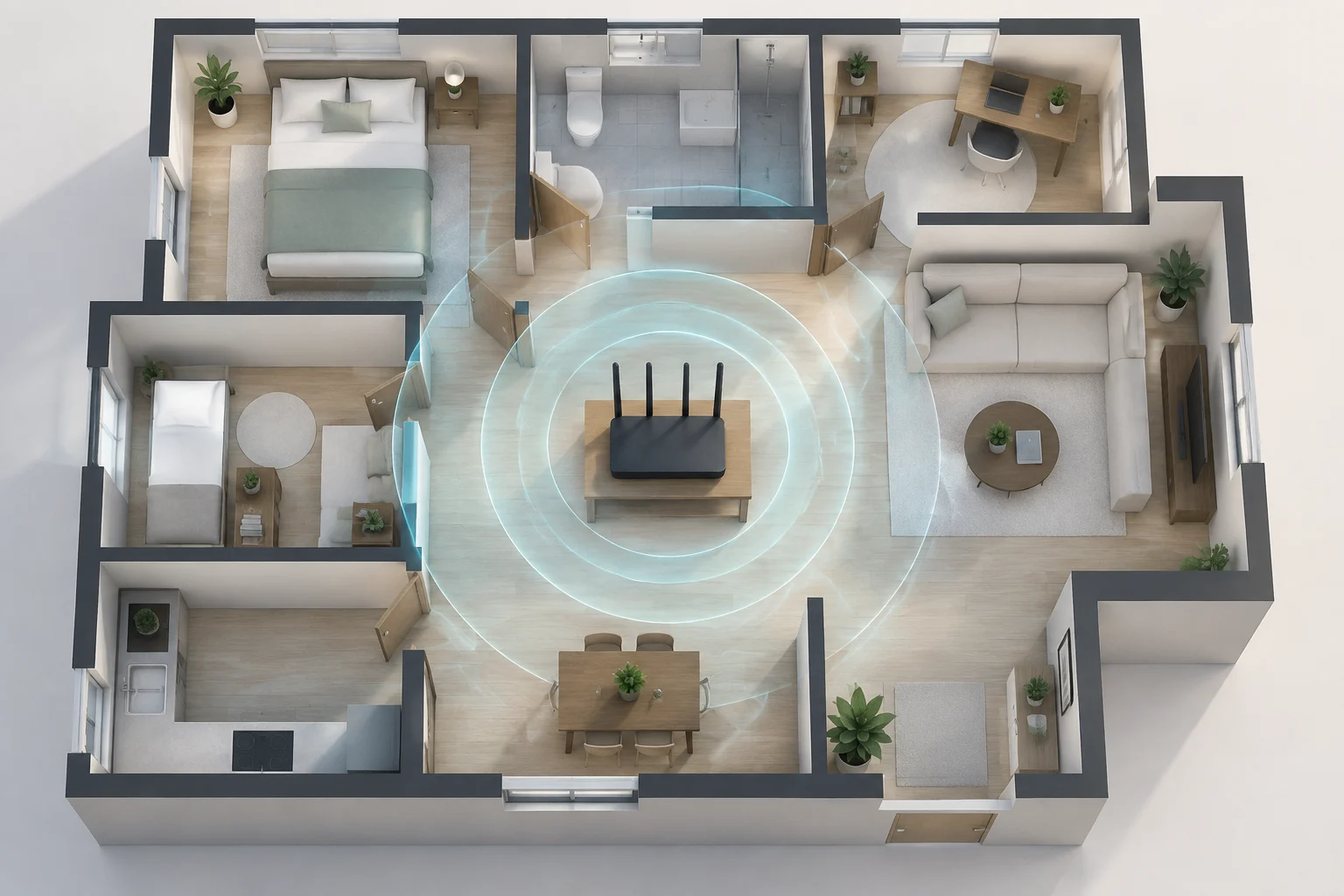
Before comparing models, decide what you want to fix. Replacing your provider’s equipment, bringing a connection to a room with a weak signal and adding ports for wired devices are different needs. A router with more features will not necessarily solve all of them: if the problem is coverage at one end of the house, buying a model with a higher speed figure may leave the cause untouched. Match the purchase to the specific obstacle so you do not pay for features that do not address your needs.
Make a short inventory: the size and layout of your home; the rooms where the connection struggles; the approximate number of devices; the equipment that can use Ethernet; and the services you use, such as video calls, gaming, backups or internet TV. You do not need to calculate an ideal bandwidth from the number of devices: what they are doing at the same time and the limits of your internet plan matter too. For example, note whether problems occur in a particular room or when several people do demanding tasks at once. That observation can help distinguish a coverage issue from a limit related to the service or simultaneous use.
Also establish how the router will connect to the internet. In some installations, the provider’s device combines a modem, fibre terminal and router; in others, your own router connects to a separate device. Check whether your provider allows you to use your own router, what type of connection it requires and whether you need to keep the original equipment in bridge mode or as an access point. The model and provider documentation should answer these questions before you buy. Do not infer compatibility just from the appearance of the connectors: confirm which device handles each function and what configuration your provider requires.
Wi‑Fi compatibility: generations, bands and devices
The IEEE 802.11 standard comprises the technical specifications for Wi‑Fi networks; commercial generations help identify groups of capabilities, but do not directly guarantee speed on every device. A new router may support features that your phone, laptop or TV does not. To use a particular feature, both the access point and the client must support it, and it must be enabled. A generation label is therefore a useful starting point for comparison, but it is not enough to tell you what improvements each device will experience.
Check the router specifications and those of the devices you use most. Look for the supported standard or generation, the available bands and, when relevant, the additional features listed by the manufacturer. The 2.4 GHz band is often useful for compatibility and relative range; 5 GHz and 6 GHz may offer more capacity or available channels in suitable conditions, but availability depends on the device, local regulations and distance. Walls and placement affect the result. Check which bands your most important client devices support, rather than assuming that every device in the house can use the same options.
Do not simply add together the advertised maximum speeds for different bands and present the total as the speed a single device will receive. Such figures usually describe theoretical or aggregate product capabilities; they are not measurements inside your home or the throughput included in your internet plan. The connected device’s capabilities and the conditions of use also matter. The IEEE 802.11-2024 standard documents the technical development of the 802.11 family, but a commercial label does not replace checking compatibility with your client devices.
Ports: check the internet link and your local network
If you plan to connect a computer, console, TV, storage device or access point by cable, first count how many Ethernet ports you need. Check whether the specifications identify them as WAN ports (internet input), LAN ports (local network), or say that a port can be configured in more than one way. Also confirm the rated speed of each port: a multi-gigabit connection is useful only if the equipment at the other end and the service feeding it can make use of it. A fast port does not, by itself, increase the capacity of a device that cannot support that speed.
The WAN connection must match your installation. An Ethernet WAN port is common when there is a modem or other terminal in front of the router; a fibre connection may require the provider’s optical equipment, and you should not assume the router has a fibre connector just because it is advertised for high-speed networks. Ask your provider which equipment must stay in place and whether there are configuration or phone-service requirements. This helps prevent confusing the internet input with the ports used to connect devices within your home network.
A practical way to count ports
List the devices that will stay near the router and reserve a connection for the WAN link where applicable. Count wired devices and available LAN sockets separately, so your comparison reflects your actual installation rather than just the total number of connectors advertised. If you have more wired devices than available LAN ports, an Ethernet switch can expand the network, although it adds another device and more cabling. Also check whether the manufacturer specifies features such as multi-gigabit ports or USB, and what uses the software supports; the physical presence of a connector does not prove that it provides the feature you need.
Coverage and mesh: your home changes the result
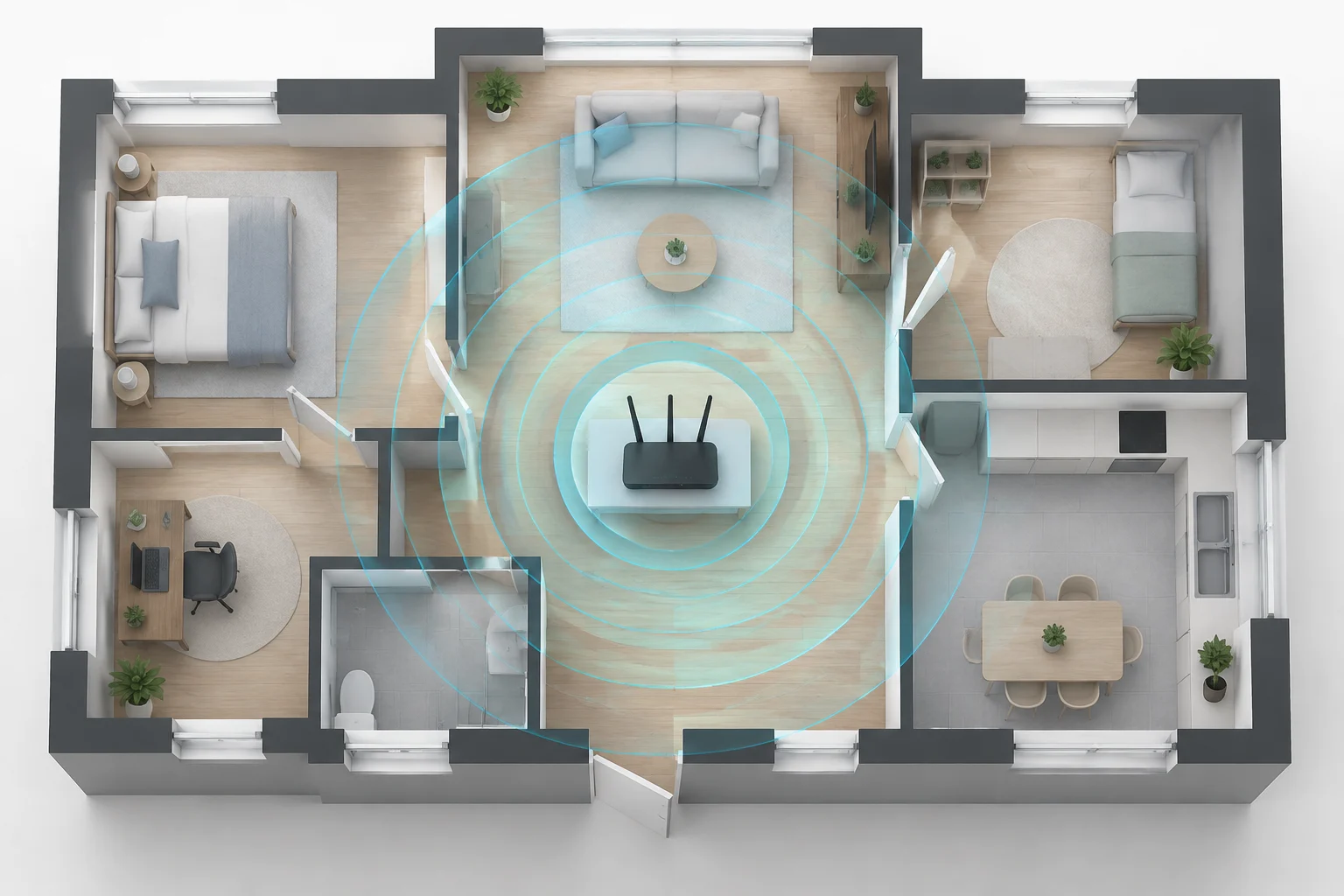
Coverage cannot be inferred from a single speed figure. It is affected by router placement, the materials and layout of the home, interference, the band in use and the capabilities of the client device. A manufacturer may publish product specifications, but those specifications do not guarantee a signal in every room. Without measurements in your home, it is safest to treat coverage claims as points of comparison, not promises. The same spec-sheet figure can produce different results depending on where the router is and what lies between the access point and each device.
Before adding equipment, try a central, unobstructed and elevated location, away from obvious obstacles, if your cabling allows it. If an area still falls outside the coverage, you can consider a mesh system or wired access points. In a wireless system, nodes need to receive a useful signal in order to relay it; placing them in a corner where the network already fails can limit the benefit. Wired backhaul avoids making the link between nodes depend on that same coverage, when the system supports it. Node placement is part of the solution: adding units is not enough unless you consider how they will communicate with each other.
When comparing mesh systems, check node and router compatibility, whether management is handled through an app or a web interface, and which features remain available when you mix generations or models. Do not assume that any repeater creates one centrally managed network, or that products from the same brand are automatically compatible with one another. Look for a specific manufacturer statement and the conditions for expansion. If you already have a router and want to add nodes, explicitly confirm in the documentation which combinations are supported.
Security and support: more than a box-ticking exercise
A useful comparison separates the security options available today from the support the manufacturer says it will maintain. Check which encryption methods the router supports, whether it lets you disable obsolete protocols, how firmware is installed, and where notices and updates are published. A feature list alone cannot tell you how long a model will receive support: look for an update policy or an explicit end-of-support date. Verifiable support matters as much as the options listed on the box, because instructions and procedures can vary by model.
When setting up the router, change the default administrator credentials if the manufacturer recommends it, use a strong network password and update the firmware through official channels. If the router offers a guest network, it can help separate visitors’ devices from everyday equipment; confirm what isolation the feature actually provides. For cameras and other connected devices, the FTC recommends measures such as changing default passwords and keeping software up to date. Follow the manufacturer’s specific instructions to make these changes correctly.
Additional features—VPN, parental controls, device filtering or built-in protection—should be assessed by their scope, requirements and any recurring cost. Check whether they run on the router or require a subscription or external app. Do not mistake a security marketing label for a guarantee of complete protection: security also depends on configuration, updates and connected devices. An advertised feature is useful only if it is available on the model, can be configured as you need it and is maintained according to the manufacturer’s instructions.
Final checklist for comparing models
Once you have identified your need, narrow the comparison to the details that could change your decision. The specifications can confirm compatibility and connections; they do not predict actual performance on their own. If a key specification is missing from the documentation, ask the manufacturer or provider before paying rather than trying to infer it from the product name. Checking the answers against your installation requirements helps rule out models that may look comprehensive but do not suit your needs.
Use this list as a filter, not a universal score:
- Is it compatible with the connection type and configuration required by your provider?
- Does it support the standard and bands used by your current devices?
- Does it have enough LAN ports and a WAN port suited to your service?
- Does inadequate coverage call for moving the router, wiring an access point or expanding with mesh?
- Does the manufacturer publish instructions, updates and a verifiable support policy?
- Are the additional features you value included, or do they require a subscription?
- Can you return it if coverage or compatibility is unsuitable for your home?