
What a password manager solves—and what it does not
A password manager stores credentials in a digital vault and helps you create and use different passwords for each account. This can reduce the need to reuse passwords or remember them all, but it does not by itself make an account impossible to break into. Security still depends on decisions such as protecting access to the manager, keeping devices up to date, and being wary of suspicious links or sign-in pages. In practice, a manager makes it easier to follow a more orderly routine: instead of memorizing every password, you can focus on protecting access to the vault and reviewing how you use it. It is a tool for managing credentials, not a substitute for sound security habits.
It helps to distinguish three functions that advertising sometimes blurs together: storing credentials, filling in forms, and making sign-in easier. A manager may offer all three, but the fact that it fills a password automatically does not prove that the destination service is legitimate. Before accepting a save or autofill suggestion, check the domain and avoid entering secrets on a page opened from an unexpected link. Autofill is a convenience, not a way to confirm a site’s identity; first verify that you are on the page you intended to visit. Treat the saved suggestion as a prompt to check, not as evidence that the site is trustworthy.
A manager also does not replace the security mechanisms of each account. When a service supports multifactor authentication, enabling it may be useful: it adds another sign-in check, although it does not eliminate every risk. CISA’s guide presents multifactor authentication as additional protection to a password; this is a general principle, not a guarantee that every method or configuration provides the same level of protection. (1) So consider multifactor authentication one layer in a set of measures, not a reason to neglect your password or device. The protection it adds depends on the method and how it is configured, and the underlying need to protect access to your accounts remains.
How to read security claims
Terms such as “end-to-end encryption” and “zero knowledge” can be starting points for research, but they are not enough to compare services. Look for documentation explaining which data is encrypted, where encryption takes place, and what information is still needed to operate the account. Also check whether the provider describes its handling of metadata, synchronization across devices, and backups. If an explanation does not distinguish these areas, record that as an unknown—not as proof of a vulnerability or of stronger protection. This lets you compare what each provider documents instead of assuming that phrases used in different contexts all mean the same thing. A useful comparison separates stated product features from claims you have not been able to verify.
A technical description is not the same as an independent audit, and it does not demonstrate how every version of a product behaves. To assess the evidence, note who published the document, which component it covers, and when it was updated. A provider’s own help page can confirm what feature the provider says it offers; on its own, it is not enough to independently validate the implementation or its resistance to every attack. Read it with its purpose in mind: explaining how to use a feature is not the same as providing an external security assessment. Keep those types of information separate when comparing products.
NIST SP 800-63B is part of a set of digital identity guidelines focused on requirements for remote authentication. Its scope helps explain that authentication and password storage are related, but not identical: an authentication guideline does not automatically certify or recommend a commercial password manager. (2) Compare specific explanations, not labels: if you cannot find out what happens to the vault when account access is blocked, treat that as an important missing piece when deciding. Also note what you could not confirm; that distinction helps prevent a lack of documentation from being turned into a conclusion about how the product works. You can then ask the provider for clarification or compare the available information with that of another service.
Recovery: make a plan before you forget the password
Recovery is one of the most important questions to consider before creating a vault. If you forget the master password, a service may have no way to reset it while preserving the encrypted data; another service may offer recovery mechanisms, subject to specific requirements and settings. Do not infer how recovery works from a marketing phrase: find the documented procedure for your account type and distinguish recovering account access from resetting the service’s own password. These are separate questions, and the answer to one does not necessarily answer the other. Check the procedure while you can still access the relevant documentation, rather than waiting until you need it.
Read which conditions apply and exactly what can be recovered. Is it the account, the entire vault, or access to only certain items? Must you set up an emergency contact, trusted device, recovery key, or administrative function in advance? Is the method available in the same way to individual, family, and business accounts? If the answers depend on the plan, verify the terms of the tier you would actually subscribe to. It is useful to review not only the steps involved but also the prerequisites that must be in place beforehand. A recovery option that requires prior setup may not help if you discover it only after losing access.
Before storing important information, prepare a contingency method that does not rely solely on the device you use every day. Store recovery codes outside the vault if the provider offers them, and keep them somewhere protected. Do not share your master password or one-time codes to “test” recovery. Bitwarden’s documentation, for example, has separate pages on account access, the master password, and sign-in methods; this illustrates why you should check the precise procedure for the product rather than assume all managers work the same way. (3) Keeping the relevant instructions to hand can help you understand what options exist before you need them, without assuming that a particular mechanism is available for every account. Record any setup steps you complete, while keeping recovery information itself secure.
Devices, browsers, and passkeys
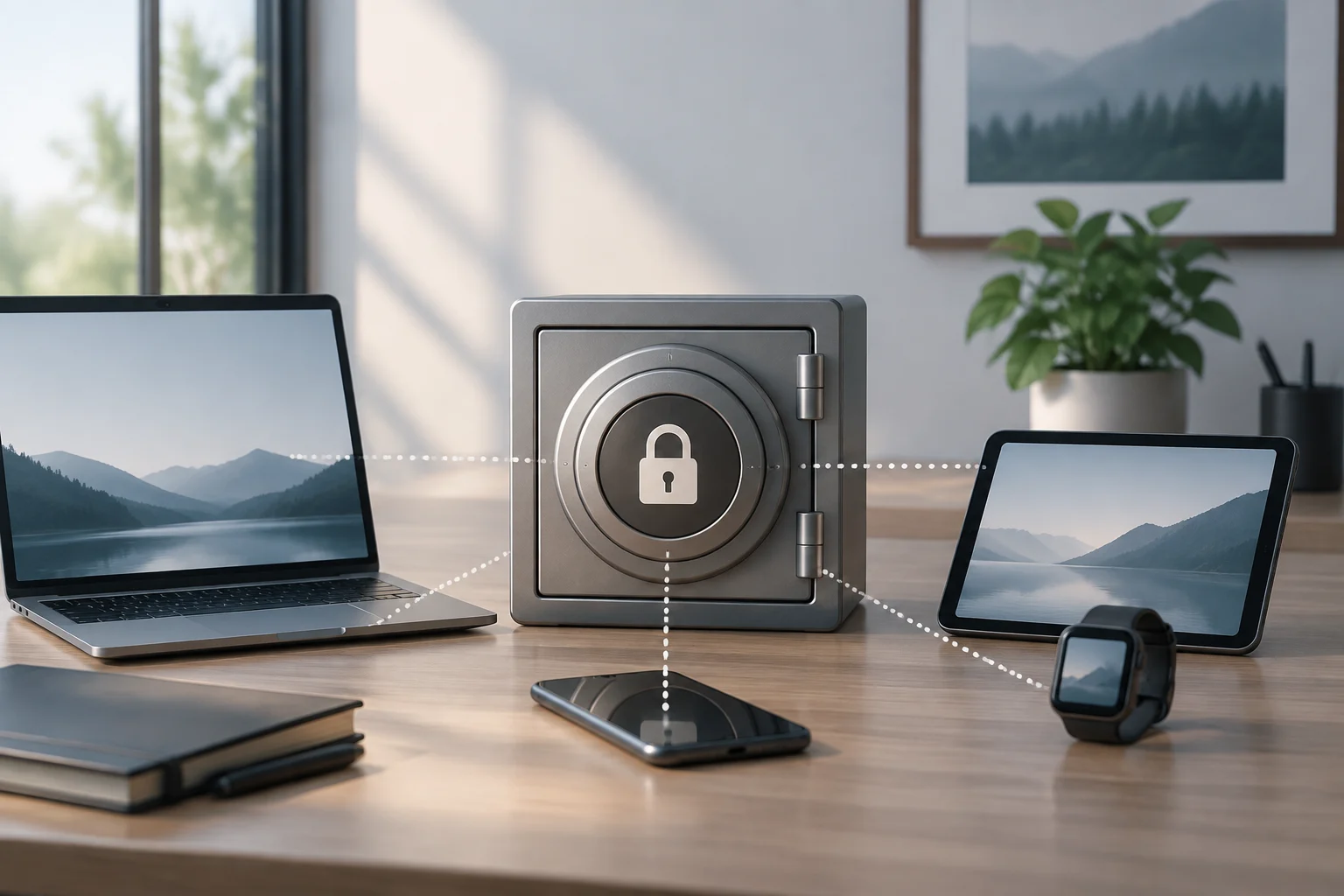
Practical compatibility may matter more than an advanced feature you will never use. Check that there is a maintained app or extension for every environment you use: computer, browser, and mobile device. Also check whether synchronization works across the devices you own and what happens when you change platforms. A list of supported systems should refer to current versions and to the features you need, not merely indicate that a download exists. To make the check useful, compare the stated compatibility with your own devices and the way you actually expect to use the manager. Availability can differ between platforms, so do not assume that one successful installation settles every compatibility question.
Passkeys are credentials that can let you sign in without typing a traditional password, but their availability and management depend on the services and devices involved. Do not confuse saving a passkey in a manager with every website accepting passkeys, or with being able to import or export those credentials in the same way as a conventional password list. If you want to use them, look for specific documentation on creation, synchronization, recovery, and export, and check whether it refers to the operating system, browser, or manager. Separating those components shows where each feature is supported and avoids assuming that a saved passkey can be moved in the same way as other data. Confirm what the documentation means by support rather than relying on a general compatibility statement.
For an orderly comparison, test compatibility without entering sensitive credentials: confirm that the app is available through an official channel, that the extension is for the correct browser, and that the provider describes updates and support. The presence of an app does not guarantee that every feature is available in it. For example, note whether autofill, biometric unlocking, and passkey management are offered on each platform you plan to use; do not assume the features are identical. Checking each feature separately can prevent surprises after installing the manager or switching devices. It also makes it easier to identify a platform limitation before you decide to move your credentials.
Export and import: reduce the cost of switching
Being able to export data is one way to reduce dependence on a provider, but it does not mean a migration will be automatic or risk-free. Find out which items the export includes, what format it uses, and whether the procedure varies by account type. Vaults may contain more than usernames and passwords: notes, custom fields, attachments, shared data, and organizational items may follow different rules. Check the scope before starting the transfer, because the existence of an export option does not by itself clarify what information it will cover. If a particular category matters to you, look for explicit documentation about that category rather than assuming it is included.
Bitwarden’s documentation, for example, describes the export of organization items separately. That document confirms that export scope and permissions may depend on organizational context; it does not show that every plan or manager offers the same options. (4) If you share a vault with family members or colleagues, also check who is allowed to export and how shared items are handled before considering the question settled. That way, you can establish both what can be moved and who is authorized to move it. Organizational access rules may be different from those that apply to a personal vault, so check the relevant documentation for the account you use.
An exported file may contain readable secrets. For that reason, do not leave it unprotected in a downloads folder, email, or shared storage. Check whether the process offers encrypted formats, where the file is saved, and how to delete it after importing the data. Before switching, use a checklist: confirm which items are included, understand format limitations, secure the file during transfer, and verify at the destination that the data you need arrived correctly. Avoid deleting the original vault until those checks are complete. Reviewing the result in the new service—not just confirming that the import finished—can reveal whether an item you care about was left out. Keep the transfer file protected for as little time as possible.
Plans, limits, and a final checklist before choosing
Do not compare only the advertised price. Check which features are included in each plan and which require payment: number of devices, sharing, file storage, recovery options, family management, or support. Limits and terms can vary by country, account type, or date; verify the current pricing page and documentation before paying. If an essential feature is available only at a higher tier, calculate the cost for your actual situation, not for the entry-level plan. It is also worth assessing a plan based on the people and devices that will use it, rather than only its starting price. A low headline price is not a useful comparison if it excludes something you need.
Some features are difficult to compare with a simple “yes” or “no.” A recovery option does not necessarily mean you can reset the master password; exporting some items is not the same as being able to move the entire vault; and passkey support does not mean passkeys are available on every platform. The best comparison explains the scope and conditions of each feature, rather than simply counting checkmarks without context. If a pricing table does not clarify those limits, find the relevant help documentation before deciding. Pay attention to whether a feature is available on your plan, on your devices, and for the type of account you intend to use.
Before deciding, use this short checklist and keep links to the provider’s answers: 1) What does it explain about encryption, protected data, and synchronization? 2) What happens if you forget the master password, and what must you set up beforehand? 3) Does it work on all your devices and browsers? 4) What exactly does its passkey support mean? 5) What can you export, and how do you protect the file? 6) Which limits and features apply to the plan you would pay for? 7) How can you contact support and check for changes or incidents? If an answer is ambiguous, ask for clarification or consider another option; do not turn missing information into a claim about the product’s actual security. Keeping the answers with the date you checked them also makes it easier to revisit them if terms change or you need to compare alternatives later.