What software support means and what to compare
Software support is not a single figure. It can refer to new Android versions, security updates, or fixes and improvements distributed by the manufacturer. A product listing that says only “guaranteed updates” without explaining what that means leaves important questions unanswered: what kinds of updates are included, when the period starts, and which models the commitment covers. To compare phones, look for an official statement tied to the specific model, not a general brand promise or a number repeated in a news article.
The distinction matters in everyday use. A new system version may introduce features or platform changes; a security patch addresses documented vulnerabilities. Android security bulletins show that security information is communicated through notices and periodic updates, but they are not, by themselves, a support schedule for every phone. Do not treat the publication of an Android bulletin as proof that a particular phone has already received the relevant fix. Delivery to a device depends on the policy that applies to its model and on the corresponding rollout.
Write down the conditions you can verify: full model name, start date of the commitment, stated duration, included update types, and any regional conditions. If the documentation says “up to” a certain number of years, preserve that qualification: it does not necessarily guarantee that every variant will receive every update on the same day. Duration is useful for estimating how long you may use the phone, but it does not, on its own, tell you how often patches arrive or how quickly they are delivered. Compare those points only where the manufacturer documents them.
How to check the model’s policy before buying
Start with the manufacturer’s official support page or documentation. Check that the product name matches the sales listing and that the page refers to the same model, rather than to a whole family with different generations or versions. Look for precise wording about system and security updates; if the page does not define the scope, do not fill the gap with a figure you saw elsewhere. General Android information explains the wider environment, but the policy that applies to a product should be confirmed through the sources of the company that sells or maintains it.
Google, for example, publishes software update timelines for Pixel phones on a page specifically about those devices. That document is useful for the Pixel phones it lists, but it should not be extrapolated to phones from other manufacturers. In the same way, an article summarizing another brand’s policy can help you find a statement, but it does not replace the original. The practical rule is to link every promise to the relevant official document and check its date and scope.
If the sales listing and support page do not agree, do not simply choose the more favorable figure. Look for a more specific support page, the official sales terms for your region, or written confirmation from the seller or manufacturer. If you cannot find a verifiable answer, treat the information as unknown and compare the phone with that uncertainty in mind. Do not confuse missing information with missing support: those are different conclusions, and the first does not establish the second. Record what remains unresolved rather than turning it into an assumption.
Model, variant, and region: details that can change the comparison
A single family name can cover different devices. Before paying, identify the complete model and, where available, the variant code. Check that identification against the seller’s listing, the official support page, and the warranty terms. Also check the country or market the device is intended for: availability, network configuration, and support documentation can differ by region. An identical appearance or similar name is not enough to assume that two units have the same terms.
It is worth saving a copy or link to the applicable policy at the time of purchase. That does not guarantee an identical experience in every circumstance; it makes it easier to check later what was announced and which product it referred to. If the seller does not clearly identify the variant, ask for that information before buying. Do not infer it solely from the color, storage capacity, or a photograph. An imported variant may require additional checks for compatibility and local assistance.
For a clear comparison, use a short list and avoid piling up specifications that do not answer the support question: exact model, market, start date of the commitment, update types, and official source. Then separately note anything you could not confirm. This distinction helps prevent an inference—for example, that a family-wide policy must apply to a particular variant—from being presented as a documented fact. If the manufacturer expressly confirms that all variants in your region are covered, cite that confirmation and retain its precise scope.
Prepare the old and new phones before migrating
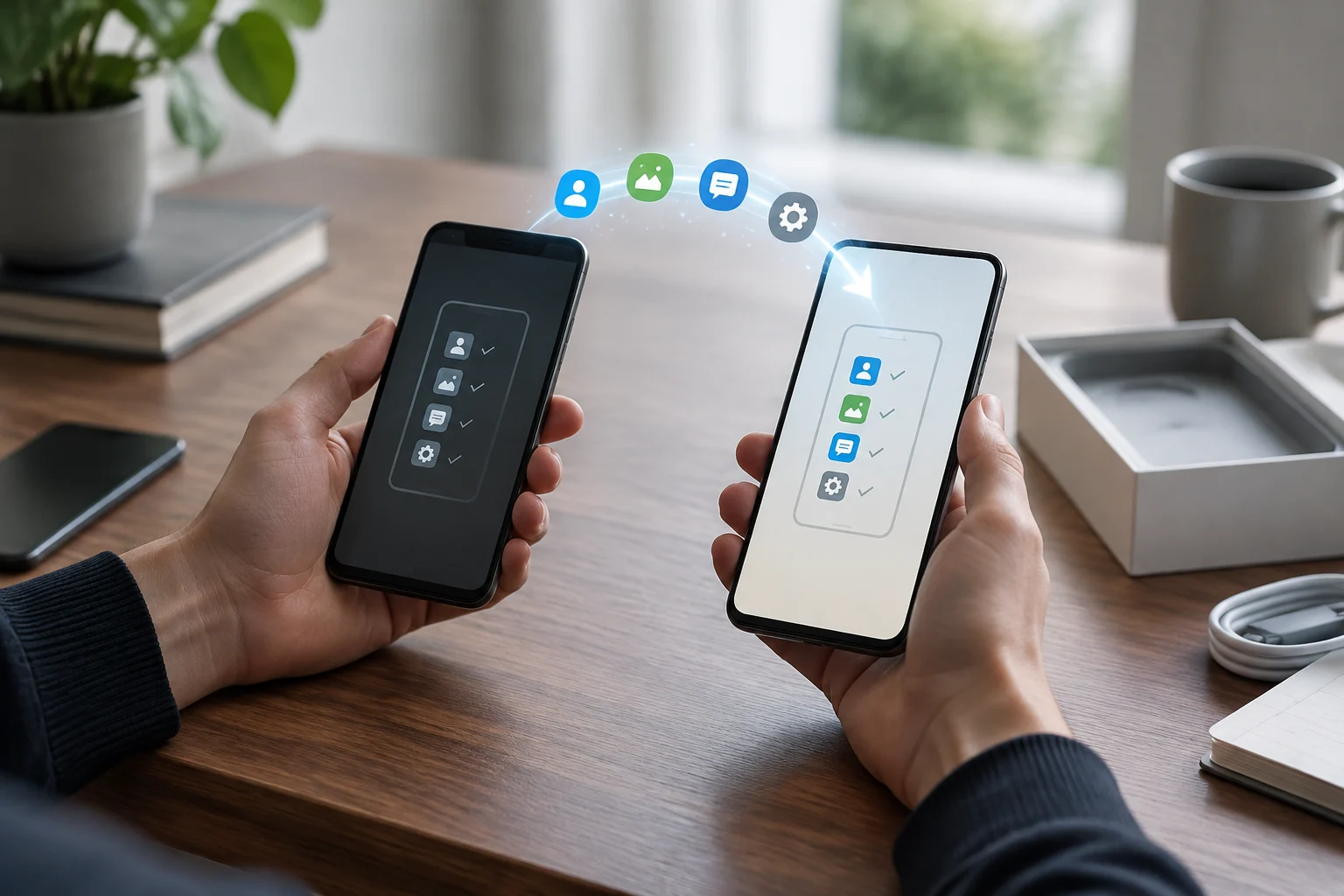
Before you begin, check that the old phone turns on, that you can unlock it, and that you can access the Google Account you use. Charge both devices and, if possible, connect them to a stable network. Check that important data is synced or backed up, especially photos, contacts, and files you do not want to lose. This preparation does not replace a backup: a transfer may not include every item or setting, so it is sensible to know how you would recover essentials if something does not appear.
Android’s guide to copying apps and data during setup explains the migration process between Android devices. The options you see may depend on the phone, the system version, and when you start setup. Follow the on-screen instructions and consult the official guide if an option is unavailable; do not assume that every model offers exactly the same routes. A cable may be an alternative in some processes, but do not buy one based only on an expectation: check the connectors and instructions for both devices first.
Before transferring, make sure you know your sign-in details and can complete the account verification steps. If you use two-step verification, keep the recovery method you configured at hand. Do not share passwords or one-time codes with other people. Leave the old phone untouched until you have checked that the data you need is on the new one. Erasing or handing in the previous device before checking the migration creates avoidable risk, especially if some items were never synced.
Initial setup and checks after copying
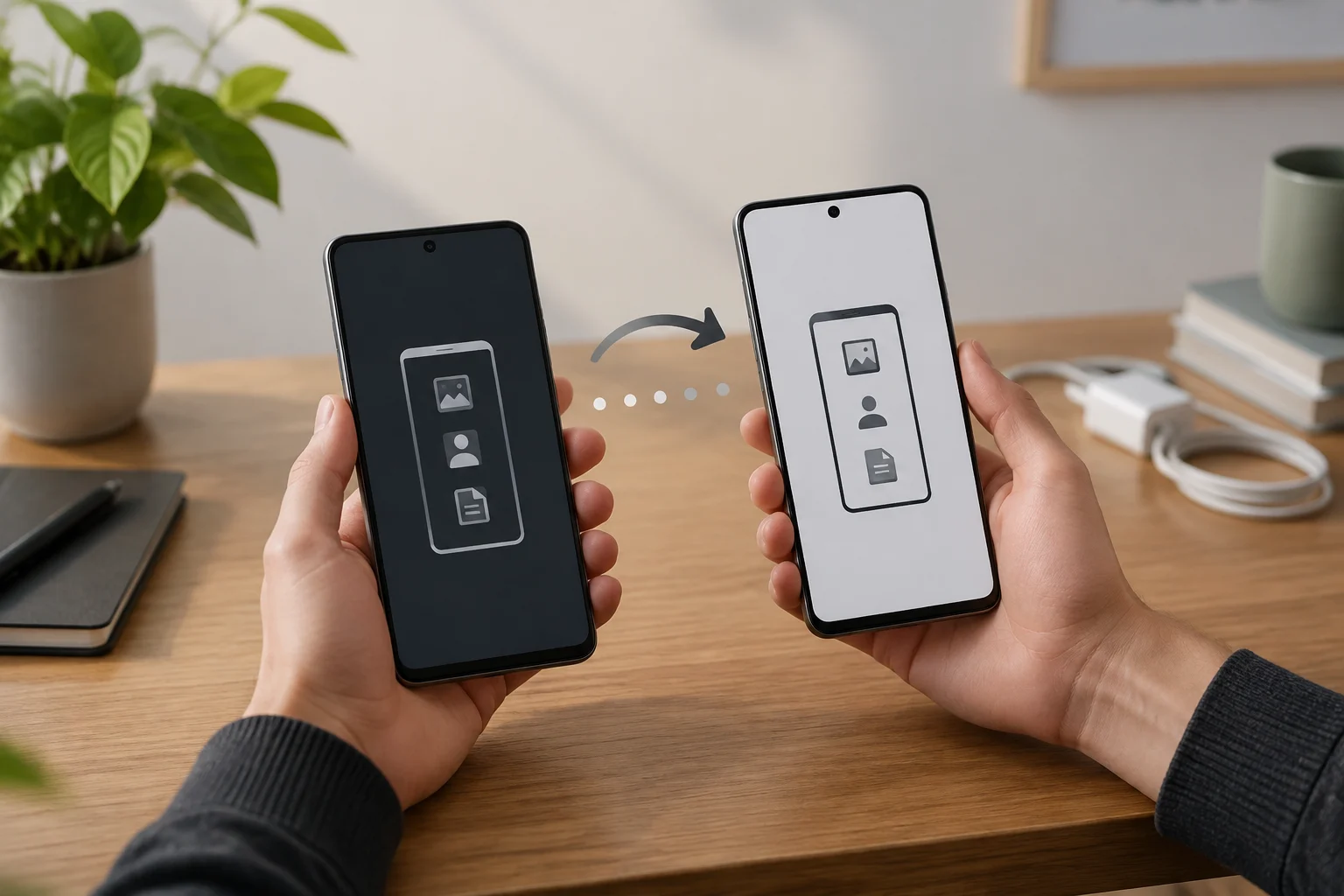
During setup, connect the new device to a network, sign in with the relevant account, and choose the option to copy data when it appears. Select the source phone and follow the instructions on both devices; if more than one method is offered, use the one indicated by the screens and official help for that setup. Google’s guide describes copying apps and data from an old Android device to a new one, but it does not promise that every app, file, or preference will transfer in every case. Separately check services that may require their own activation or sign-in.
When setup finishes, review the essentials before considering migration complete: contacts, recent photos, important messages or files, and access to the apps you use. Do not assume that an app being reinstalled proves that its data was transferred too. For information you cannot find, consult Android recovery instructions and the relevant service’s help. The transfer troubleshooting page may offer guidance if the process fails, but apply its steps to the scenario it describes and to the options available on your device.
Next, open the phone’s software update section and check whether an update is available. That check shows what the device offers at that moment; it does not establish the date of future releases or the full support period. Install updates offered by the phone according to its instructions, and check again later. Android bulletins provide a reference for published security notices, while the security patch level installed on the device and the manufacturer’s specific policy answer different questions. Keep those distinctions in mind when assessing the phone.
Security, recovery, and what can—and cannot—be confirmed
Once setup is complete, review the screen lock and the security options available on the device. Add an account recovery method you can use and make sure your recovery details are still current. Settings names and locations may differ by manufacturer and system version, so it is more reliable to look for the option in the phone’s own settings or official help than to follow generic instructions word for word. Do not turn on a feature merely because it appears in a guide for another model.
If a support date, update, or transfer option is not documented for your variant, note that limitation and ask the manufacturer to confirm it. General Android documentation helps explain common processes; it does not automatically resolve differences between devices. Google help articles about Pixel apply to the phones they cover, and transfer instructions describe procedures that may vary with the device and context. This caution does not make the guide less useful: it sets out what can be checked before purchase and what can only be checked once you have the phone.
For the final decision, weigh support alongside price, compatibility, and your needs, but do not turn an unclear policy into a promise. Before buying, identify the model and region, find the official commitment, and save its terms. When setting up the phone, prepare accounts and backups, follow the guided transfer, and verify your data before erasing the old device. If the manufacturer does not confirm a figure or feature for the exact model, the responsible answer is to leave it unknown, not to fill the gap with another device’s policy.