Evaluate support by model, not by brand
A phone may keep working long after its manufacturer stops providing new Android versions or security updates for it. That is why, when comparing options, it is not enough to recognize a brand, product family, or the version of the operating system the phone ships with: it is worth finding out what support is promised for the exact model you plan to buy. The practical question is not just, “How long does this brand provide support?” but “What has the manufacturer committed to provide for this device, and under what conditions?” It also helps to distinguish concepts that advertising and everyday conversation often blur together. An operating-system version update is not necessarily the same thing as a security update; their features and schedules may differ. This guide does not provide a manufacturer-by-manufacturer comparison table: the Android documentation consulted describes transfer and update operations, but is not, by itself, a complete source for comparing different brands’ commercial commitments.
Announced support is useful when estimating a phone’s expected useful life, but it does not by itself guarantee that every update will arrive on a particular date for every variant and region. Before buying, note the full commercial name, the model number if available, and the country where it will be sold. If a promise refers to a different variant, or it is unclear when the period begins, the stated figure may not describe the phone you are buying. If in doubt, ask the seller or manufacturer for an official link that identifies the model.
How to check the official policy before buying
Start with the manufacturer’s official support page or FAQs; a retailer’s listing can help you identify the model, but should not be your only evidence of an update policy. Find the exact phone name and check whether the information explicitly applies to that device. If the manufacturer describes its policy by series or generation, confirm that the model you are considering is included. Do not automatically assume that a commitment for a recent phone also applies to an older model or one from a different range. Read carefully how the period is defined. Check whether the document specifies operating-system updates, security updates, or both; when the clock starts; and whether it mentions regional, carrier, or variant limits. A phrase such as “up to a certain number of years” may be ambiguous if it does not say what date those years are counted from. If you cannot find those conditions, do not fill in the gaps with an estimate based on the brand’s reputation: note the uncertainty and request official confirmation before deciding.
Save the link and the date you checked the policy. That way, you can tell a documented commitment apart from a commercial claim repeated by third parties, and check again if the manufacturer changes or clarifies its information. If you are comparing several phones, use the same criteria for each: official page, identified model, types of updates included, and the date from which the period runs. This is not a brand ranking or a guarantee that updates will arrive on time; it is an orderly way to compare what each company states for the specific product.
Questions to resolve before you pay
First ask which operating-system versions and security updates are covered. Ask for an answer that identifies the device, not just the brand or the name of a product family. Then clarify when coverage begins: at launch, first sale, or another milestone. If the document does not give an understandable starting point, do not assume that the period begins on the day you buy the phone. Also confirm whether the promise covers the regional variant sold in your market and whether any conditions are tied to the carrier. The name on the box or store listing may not describe every difference between variants. When the manufacturer provides a model number, use it to avoid a basic mix-up between similarly named devices. If the seller cannot resolve the identification, consult official support and keep the answer in writing.
Do not confuse an update that is available today with a long-term support policy. You can check for the first in the phone’s settings; the second requires a manufacturer commitment for that model. Nor should you use the installed Android version as proof of how many future updates the phone will receive. The current version describes the software’s state at that moment, not the schedule the company promises for the following years. A careful comparison keeps those two matters in separate columns.
Prepare your old phone for the transfer
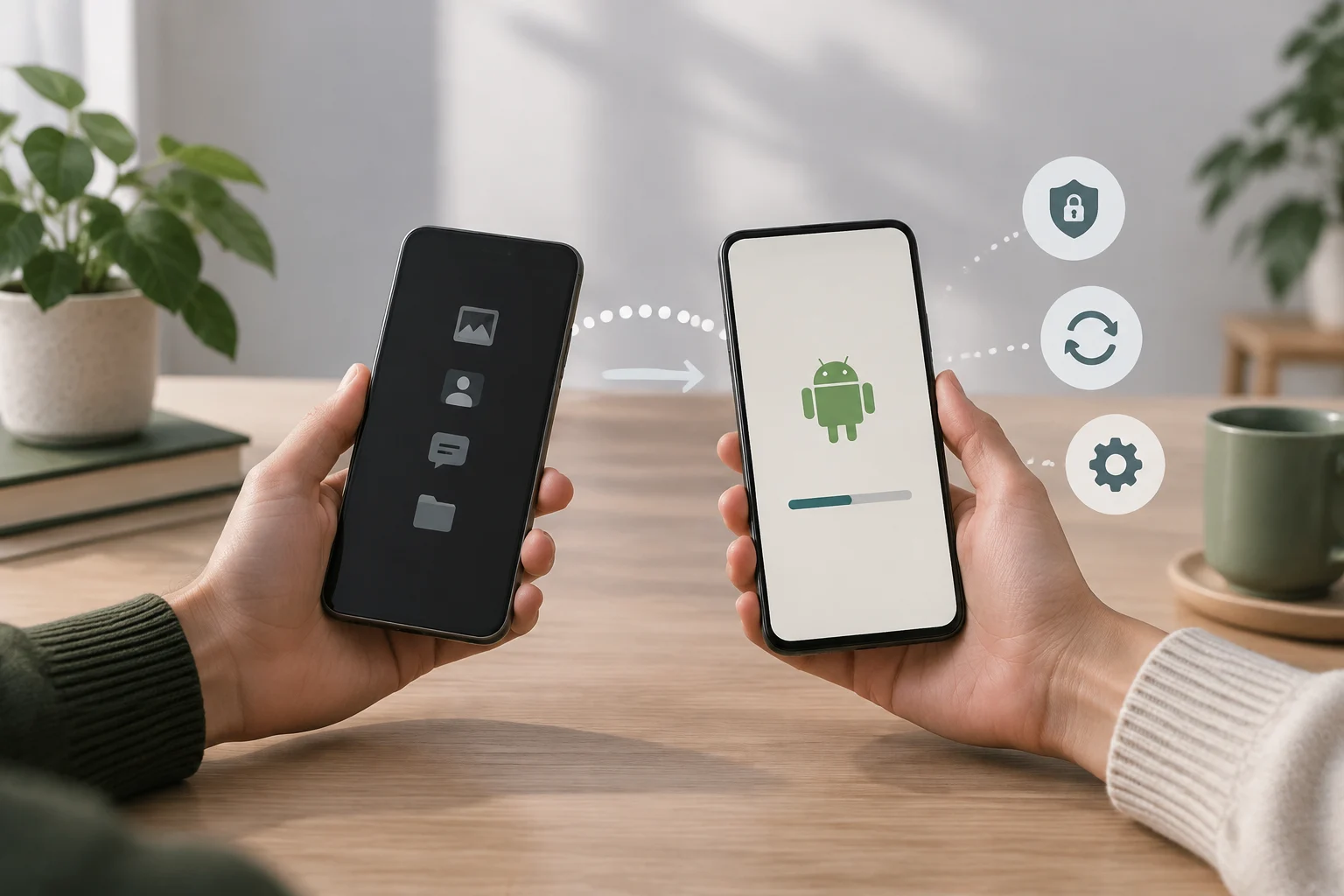
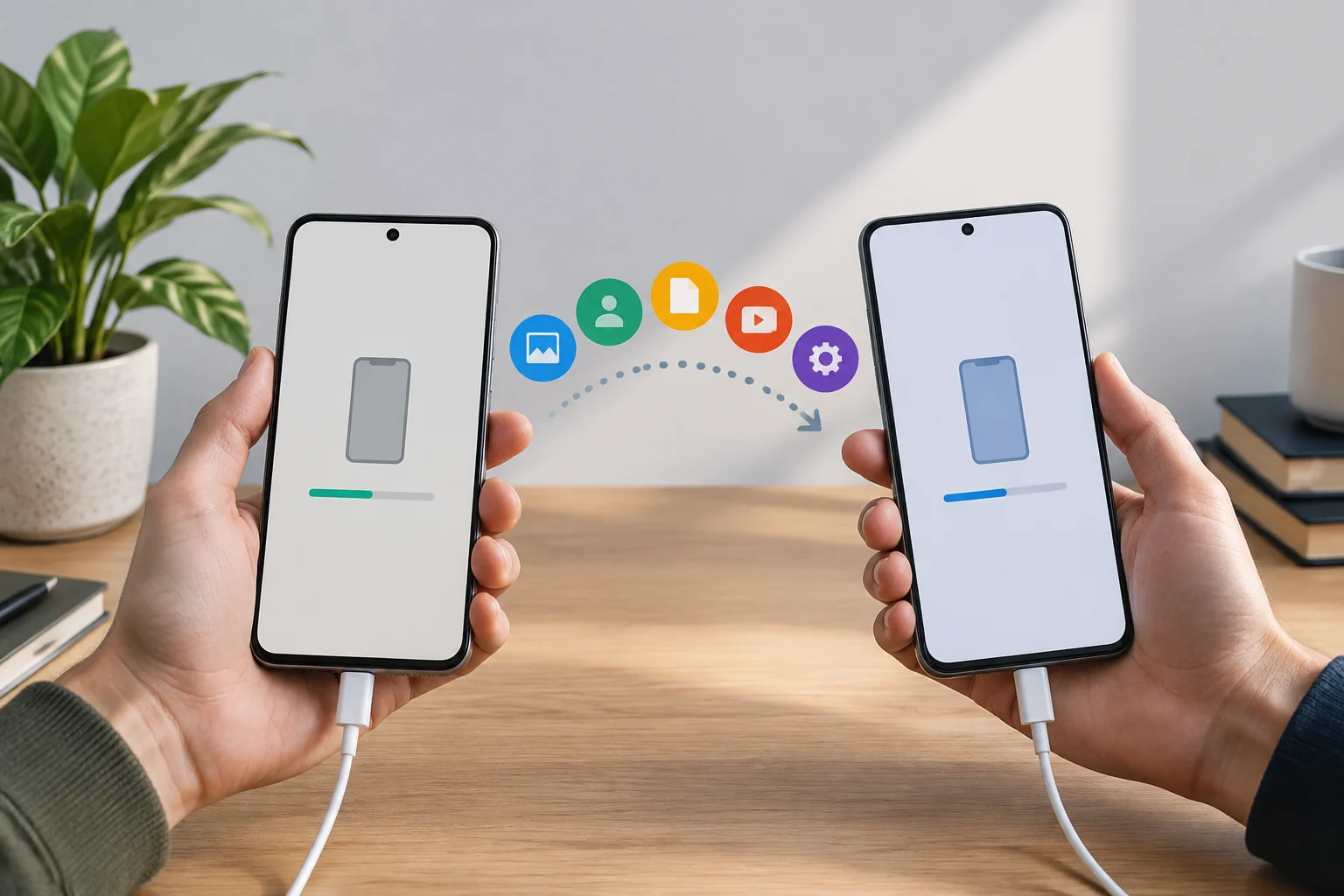
Before you begin setup, charge both phones and make sure you can unlock the old device and access the account you use. Also review what information you want to keep and which apps or services may require recovery or separate setup. Android’s transfer tool can move data, but “transfer” should not be taken to mean that every app, file, or preference will be identical on the new phone. Android describes a transfer between Android phones that can include items such as contacts and messages, as well as apps available on Google Play, with exceptions listed in its guide, including DRM-protected music. Check the official list before you start, and bear in mind that the outcome may vary depending on the content and apps. Do not erase or reset the old phone until you have checked the new one. For important information, keep a separate backup if you already use a reliable method for making one.
Start the process by following the prompts shown during setup of the new phone. Android’s official page presents wireless transfer as an option; follow the instructions that apply to your devices, and do not interrupt the process simply because some apps take a while to appear. If a data category is not listed among the transferable items, check the service or app that manages it separately. Transferring data and restoring an account are not always the same operation.
Look for updates after setup
Once the phone is set up, check which Android version it has and whether updates are available. Android Help explains how to check the version and look for updates in Settings, although the exact path and menu names may vary by manufacturer. If you do not see an option with the same name, search for “update” in Settings or consult the manufacturer’s official guide for your model. Before installing, follow the instructions shown by the device itself. If the system asks you to restart, let the process finish and then check the status again. Android Help notes that update availability and how updates are received can vary by device. Therefore, a phone not showing an update at that moment does not, by itself, prove that it will never receive another one. If you expected a particular version, check with the relevant manufacturer or carrier.
Also check the date of the security update shown in system information, if your phone displays it. This helps describe the device’s current state, but does not replace the support policy you checked before buying. Note the displayed version and date as an initial reference, and check Settings again periodically. Avoid installing files from questionable sources or following instructions on unofficial sites that promise to speed up an update.
Finish the migration with a practical review
When the transfer is complete, check the data you need most: contacts, messages, photos, or other items you selected, as well as important apps. Open critical apps and confirm that you can sign in; some may ask you to authenticate again or keep their data in their own services. An installed app does not prove that all its content moved, so check the essentials inside the app before considering the switch complete. Make sure you still have access to the account linked to the phone and know the recovery methods you use. Do not share verification codes with anyone offering “help,” and do not give a seller your passwords. If something is missing, leave the old phone intact while you investigate the official procedure for that app or service. Erasing the old device too soon can turn a fixable inconvenience into a potential data loss.
As a final checklist, verify that the model matches the official policy you consulted, note the new phone’s version and update status, review the transfer, and test access to important accounts. If a support promise does not clearly identify the model or market, treat it as an open question, not a guarantee. Your purchase is better grounded when you separate what the manufacturer publishes, what the phone shows today, and what you still cannot confirm.