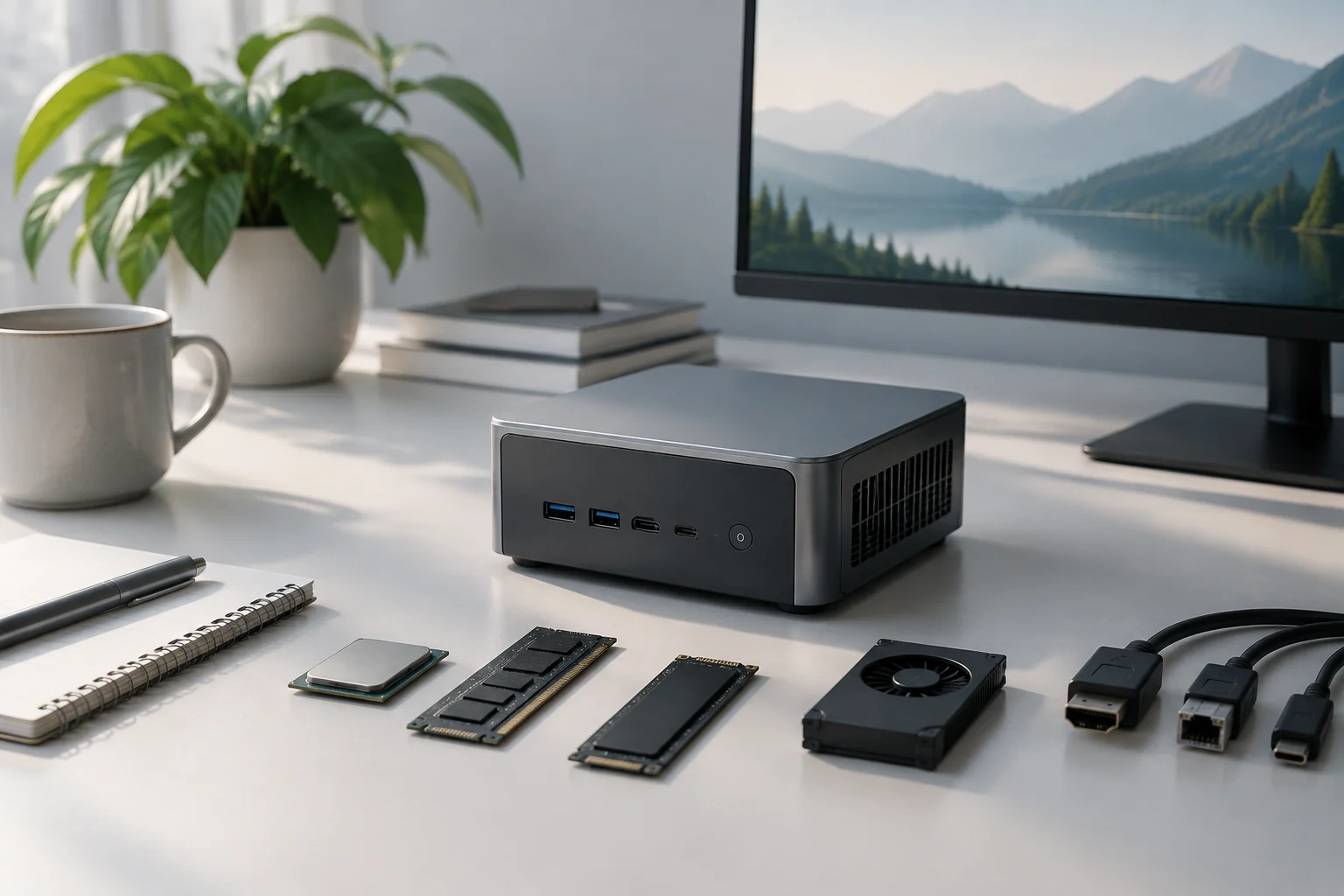
Compact size does not define performance
“Mini PC” primarily describes a compact desktop form factor; it is not a performance scale or a promise that every computer in this category is suitable for the same tasks. The label covers different configurations and designs. That is why comparing products by size, appearance or family name alone gives you an incomplete picture. The useful point of reference is the specification for the particular computer being offered for sale. Compare configurations, not labels. Start with what the actual product includes, rather than assuming that two similarly named systems share the same capabilities or components.
Before looking for a single figure that supposedly sums up performance, work out what you want the computer to do: browsing and office work, video playback, running many applications at once, content creation or demanding graphics tasks. This list cannot predict how a particular model will perform by itself. Instead, it helps you decide which specifications to check and which independent tests to look for afterwards. A light task and a sustained workload can have different requirements even when both are loosely described as “general use”. It also helps you avoid comparisons that do not address your needs: a feature that matters during prolonged workloads may be less important for occasional use. Treat your intended workload as a guide to the evidence you need, not as a substitute for checking the product and its test results.
Identify the exact configuration
Write down the full model name and, if available, its product number or configuration code. Check that the product page, the listing and any reviews refer to the same variant. A product family may include versions with different processors, memory, storage, operating systems or connectivity. Two computers sharing a commercial name should not automatically be assumed to share components. ASUS publishes separate specification pages for the ExpertCenter PN64 and ExpertCenter PN64-E1. Consult the page for the model you are considering, and do not assume that configurations with similar names are interchangeable.
Compare the seller’s description with the manufacturer’s official page, and look for the exact combination of components: processor, installed RAM, included drives and operating system. If a detail is missing or the pages do not match, do not fill the gap by inference. Ask the seller or consult the configuration document linked to the precise product code. A family specification page does not necessarily describe every unit for sale. If you cannot confirm what you would receive, that uncertainty should count in your decision just as much as a favourable feature that is documented. Keep the product code and the pages you checked so you can confirm later that a review or listing covers the same variant, rather than relying on a partial name match. Record conflicting details too; they are a reason to seek clarification, not a basis for choosing whichever version sounds more appealing.
Processor, memory and storage: read the combination
Do not compare processors solely by brand or by terms such as “Core” or “Ryzen”. Identify the complete model specified by the manufacturer and check that it is the same on the product page and in the offer. A similar name is not enough to conclude that two chips deliver the same performance. To assess speed in your applications, look for independent processor tests and, where possible, tests of the specific mini PC. A specification sheet identifies components, but it does not replace a performance measurement under a defined workload. Make sure a test is relevant to the tasks you have in mind instead of treating one result as a universal rating.
For memory, confirm the installed amount, the specified type and whether the computer can be upgraded. Distinguish the maximum supported capacity from the amount fitted at the factory: they are not the same figure. For storage, record both the capacity and drive type, and check how many slots or bays the configuration supports. Do not infer upgrade options from a generic description of the category. Consult documentation for the model and, when available, its manual. Upgrade capacity is a property of the model and its configuration, not a guarantee that any particular component will be compatible. Check the exact documentation before assuming that an additional drive or memory module can be installed.
A larger capacity may be preferable if you work with many files or applications, but it does not by itself prove that the system is faster. Check which SSD interface and form factor the specification lists, and whether the advertised drive is included or offered as an option. If you plan to upgrade later, consult the manual for the exact model to confirm accessibility and supported limits. The information available for this guide does not establish a universal amount of RAM or storage that is right for every use; presenting one as a fixed rule would conceal the differences between tasks and configurations. Record separately what comes installed and what you might add, so that an upgrade possibility is not mistaken for a feature already included. That distinction is particularly useful when comparing prices for systems that may be advertised with optional components.
Graphics and ports: check what you need to connect
The specification may list graphics integrated into the processor or a different graphics solution, but the GPU name alone does not tell you how it will perform in each application or game. For graphics-intensive activities, look for test results for the computer and relevant software, not just promotional claims about capability. Also check whether the manufacturer provides information for the exact configuration: changing the processor or memory can change the system being evaluated. Without that detail, review comparisons may mix computers that are not equivalent. A result is most useful when you can identify both the tested setup and the workload used.
Make a list of the connections you need before considering the design: displays, peripherals, wired networking and the accessories you intend to use. Then check the number, type and location of ports in the official specification for the exact model. The term “USB-C” alone does not confirm every function you may need; check the documentation to see what that port supports. Count the ports that are useful for your setup, not just the total. If you plan to connect several devices at the same time, make sure the documented layout suits that use as well. A port list that does not identify port type or location cannot fully confirm that the arrangement will be practical. Check whether the information applies to your particular configuration, rather than assuming every version in the family has the same connections.

Power use, temperatures, noise and independent tests
A component list alone cannot tell you how much power a computer uses, what temperatures it reaches or how much noise it makes during a task. Those results depend on the computer and on the conditions in which it is measured: the applied workload, its duration, the surroundings and the method. If these factors matter to you, look for a review that explains its procedure and reports results for the exact model. A figure without context—or an impression of noise that does not describe the situation—does not allow a solid comparison between computers. Reviewing measurement conditions helps you judge whether results relate to usage similar to yours, without turning them into a guarantee for other circumstances.
Apply the same caution to performance: a specification sheet documents stated features; it does not demonstrate the speed achieved in a particular application. Look for independent tests that identify the configuration, describe the workloads and make clear what was measured. If your work involves prolonged activity, distinguish a short session from a sustained workload. If no equivalent test is available, note that evidence is missing instead of turning a specification or marketing promise into a conclusion about real-world experience. A review remains an observation made under particular conditions. Understanding its scope helps you interpret it without extrapolating beyond what it measured. Compare results only where the testing conditions and configurations are sufficiently clear to make the comparison meaningful.
A checklist before you decide
Put the exact product code for each computer in a table, along with its full processor model, installed and upgradeable memory, storage type and capacity, graphics and the ports you need. Next to each detail, note the link to the official specification and whether it confirms the unit being offered or only describes a product family. Then compare prices for genuinely equivalent configurations at the time you buy. This guide does not provide verified prices or establish which computer offers better value for money. Make the comparison on a like-for-like basis, rather than allowing differences in included memory or storage to obscure what each offer contains.
Finally, consult independent reviews for things a specification cannot certify by itself: performance under comparable workloads, noise, temperatures and measured power use. Check the model and configuration that were tested, and read how the test was conducted. If the data do not match your variant, use them as context, not as a guarantee. A reasonable decision combines your own requirements, verifiable specifications and relevant test results. When any of those pieces is missing, state the uncertainty explicitly instead of filling it with assumptions. This final check separates what is confirmed from what remains unknown and lets you compare alternatives on a common basis, without attributing more to specifications or reviews than they actually show. Keep the checklist with the product links so you can revisit the evidence if the listing changes before you buy.