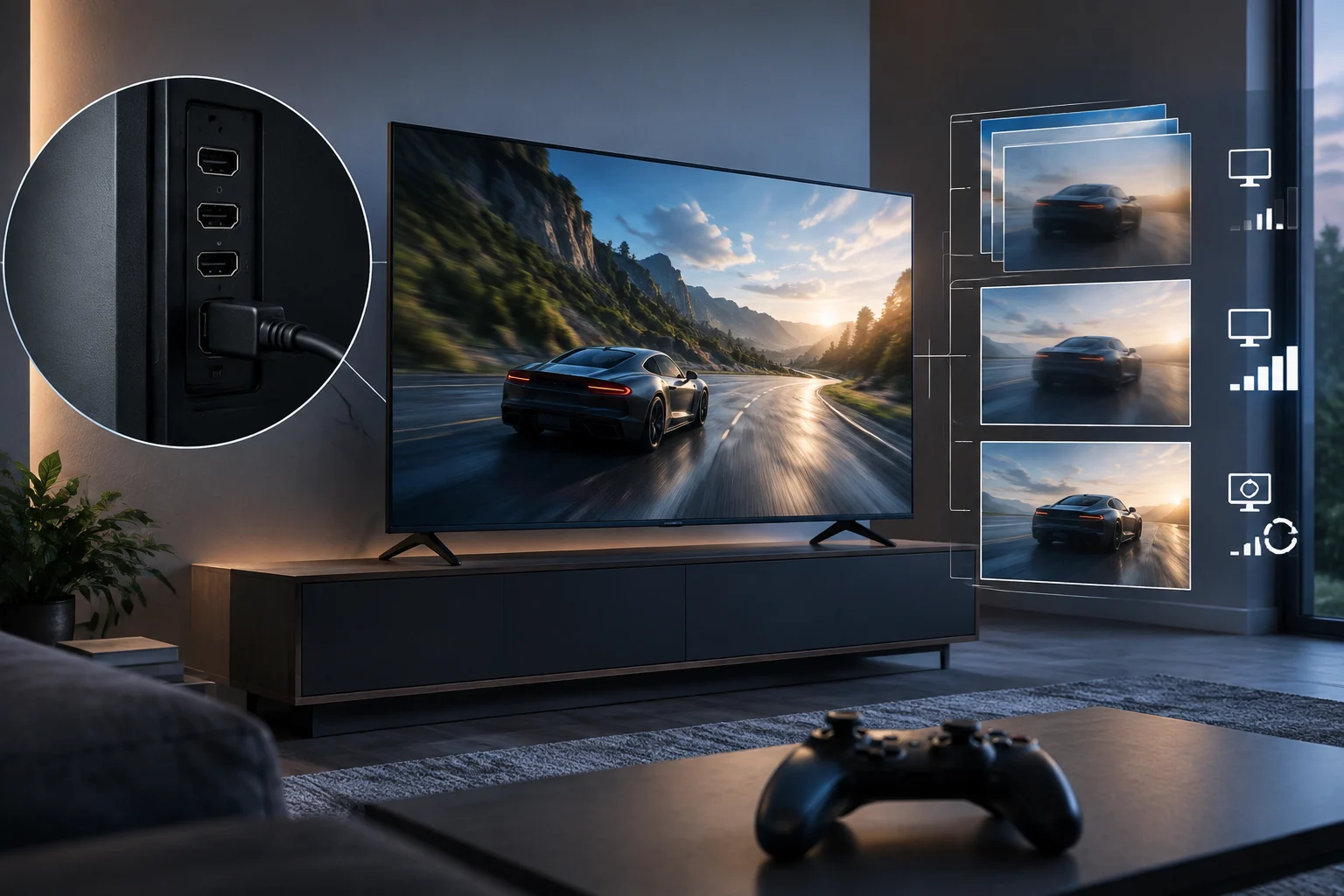
Start with the signal you want to use
Before comparing models, decide what you plan to connect and what combination of resolution and refresh rate you expect to use. Looking for a screen for 4K at 60 Hz is not the same as prioritising a higher-refresh-rate signal from a compatible PC. Actual capability depends on the source, the TV, the port used and, where applicable, the cable. One specification on its own does not describe the entire chain.
It also helps to separate three questions that are often mixed together: does the panel display the resolution you want, does it accept the signal at the chosen refresh rate, and can the console or PC produce that signal in the game in question? A console’s output resolution, for example, does not guarantee that every title runs internally at that resolution or at a particular refresh rate. Compare signal compatibility, not a general promise about game performance.
A practical way to narrow your search is to write down your device and priority features first. If you want 4K at 120 Hz, check that both figures appear together in the TV’s input documentation: a spec sheet listing “4K” in one place and “120 Hz” elsewhere does not necessarily confirm that the TV supports that combination over HDMI. If a smooth experience is your priority, add VRR to your list, but treat it as a feature that must be supported by both the source and the TV.
What HDMI 2.1 means—and what it does not
HDMI 2.1 is the name of a specification that includes various features, among them VRR, ALLM, QFT and QMS. The presence of one does not mean that all of them are enabled on a particular TV. HDMI describes these as distinct gaming features, so when comparing models it is more useful to look for the specific feature you need than to rely on the version label alone.
The decisive information is the stated compatibility of the exact model and port. Check the specifications and, if they do not spell out supported combinations, look for the manufacturer’s manual. See whether the TV lists different limits depending on resolution, refresh rate or input. A port with certain capabilities does not mean the TV’s other ports are equivalent. Count how many inputs support the combination you need, especially if you plan to connect more than one device without swapping cables.
Do not confuse the name of an HDMI version with certification that every specific feature will be available on every product carrying that label. Base your decision on the feature listed by the manufacturer and the conditions attached to it. If the information is ambiguous, ask for confirmation of the exact model and input before buying; do not fill in the gaps by assuming that the maximum capability of a standard automatically applies to every device.
Refresh rate: read the figure in context
Refresh rate is usually expressed in hertz (Hz) and describes how many times per second the image can be updated. But a large number on a retailer’s page does not necessarily tell you whether it refers to the panel’s native refresh rate, motion processing or a supported input signal. These concepts are related, but they are not interchangeable; ask the manufacturer to identify what each figure measures and which formats the HDMI input supports.
In the documentation, look for an explicit combination: resolution, refresh rate and, where specified, any additional conditions. A reference to “120 Hz” alone does not clarify whether the TV accepts 120 Hz at 4K, whether the figure applies to another resolution or whether the TV’s internal processing uses a different measurement. If you cannot find an input-format table, the manual may include one under sections such as specifications, signal modes or connecting external devices.
The TV’s maximum supported refresh rate is no guarantee that the source will constantly deliver that signal. The connected device, game and settings all affect the output. For a console, also check the manufacturer’s video settings documentation: the official PS5 guide, for example, documents options related to 4K resolution. The useful check is to confirm separately what the screen can accept and what the console or PC can output; do not attribute a refresh rate to the TV that the source does not produce.
VRR and synchronisation: end-to-end compatibility
Variable Refresh Rate (VRR) allows a display’s refresh rate to adjust dynamically to a compatible source’s output. Its usefulness depends on both ends supporting the feature and on it being enabled correctly. A spec sheet mentioning VRR is not enough to conclude that it will work with every console, graphics card, connection or refresh-rate range.
Check what the manufacturer calls the feature, which input supports it and whether there are resolution or refresh-rate conditions. Then verify source compatibility in its own documentation. PlayStation announced the addition of VRR to PS5 through a software update; this illustrates why it is worth checking not only the hardware but also the device’s support and configuration. Availability may depend on the system version and the connected combination, so a general claim does not replace checking your specific setup.
VRR is not synonymous with ALLM or other gaming features. HDMI lists these features separately. ALLM refers to automatically selecting a low-latency mode on compatible equipment, whereas VRR concerns changes in refresh rate. Do not assume that a screen offering one feature offers the others, or that enabling them by itself guarantees a particular latency: claims about performance require independent testing of the exact model.
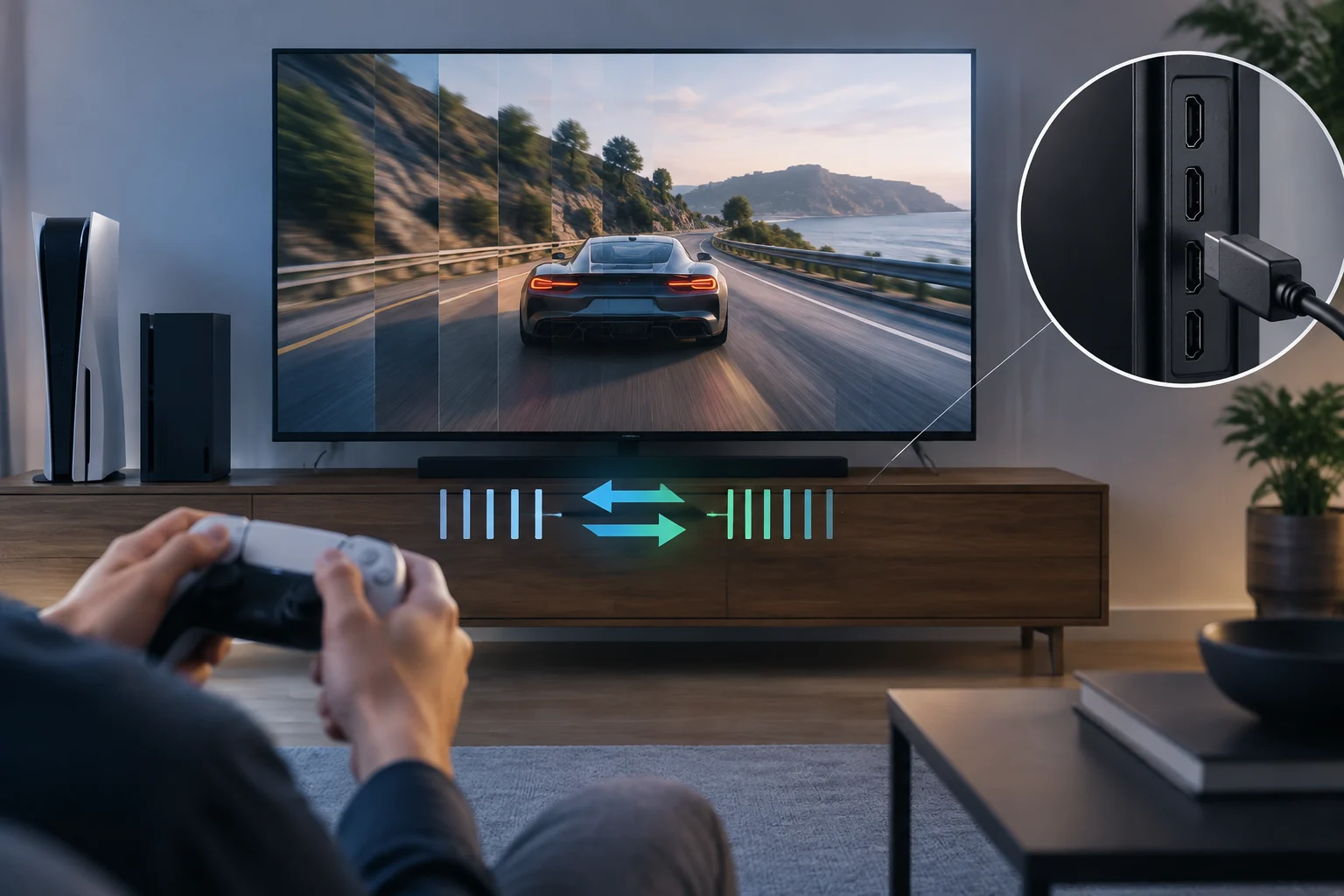
A checklist for each model and port
To turn specifications into a decision you can verify, follow this order before paying. Save the exact model number, including its regional suffix, because similarly named models can have different connections or features. Also check that the information you consult applies to the market where you intend to buy the TV.
- Find the input-format table in the specifications or manual. Confirm that it includes the resolution-and-refresh-rate combination you want.
- Check each port separately. Note which ones support the relevant features and whether the manufacturer sets limits or requirements.
- Verify VRR and ALLM independently. Check which compatible devices are listed and which settings need to be enabled.
- Check the source. Consult the console’s or PC’s official documentation to find out what signal it can produce and which options it offers.
- Resolve omissions before buying. If the documentation does not clarify a combination, ask the manufacturer about the exact model and input.
Independent sources can provide an additional check, for example reviews that measure refresh rate, latency or VRR behaviour on the unit tested. They should cover the same model or explain clearly which variant they evaluated. An independent test is different from the manufacturer’s documentation: the former may measure the behaviour of a sample, while the latter sets out declared features. This article includes no original measurements and attributes no results to specific TVs, because the supplied sources do not document an evaluated TV model or comparable independent tests.
Cable, settings and conclusion: check the whole chain
An HDMI cable can also affect the signal, but it cannot give a TV or console features that they do not support. If the required combination calls for a particular cable category, check the manufacturer’s recommendation and HDMI’s specifications. HDMI distinguishes cable types by capability; choose according to the signal and length required rather than assuming that any cable informally labelled “high speed” offers the same backing.
Once the devices are connected, confirm that the source detects the screen and offers the expected mode. If the resolution, refresh rate or feature you want does not appear, check the selected port, input mode, video settings on both devices and the cable. This is a configuration check, not evidence that one TV performs better or worse than another. If the manual limits certain features to a specific input, connecting the source to another port may change the available options.
The conclusion is simple: buy based on capabilities confirmed for the combination you will use, not a prominent label or a figure without context. HDMI 2.1, 120 Hz and VRR are clues to investigate, not universal guarantees of compatibility. Check the model, port, resolution, refresh rate, synchronisation features, source and cable; if one part of the chain is undocumented, consider that capability unconfirmed until you obtain a specific answer.