The basic difference does not settle the purchase on its own
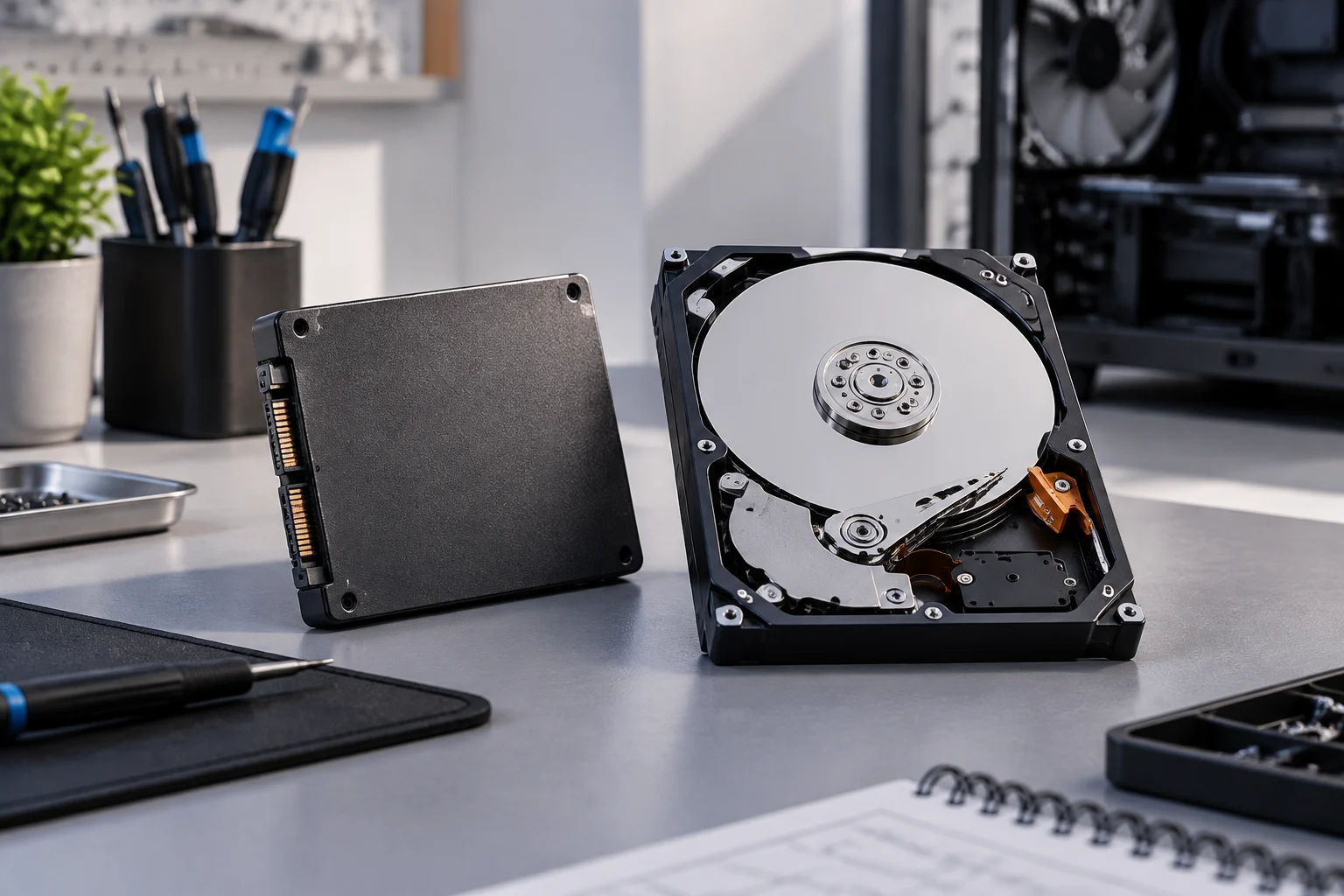
An HDD stores data on magnetic platters; an SSD uses flash memory and does not rely on spinning platters to read and write information. This physical difference describes two distinct technologies in broad terms, but it is not enough to conclude which drive is better for each person. The answer also depends on the capacity you need, the equipment you have, the tasks you perform and your budget. A useful comparison starts by separating what we know from what a promotional figure does not prove.
In practice, it is best to avoid shortcuts such as “SSD every time” or “HDD for everything else.” A model’s maximum speed does not, by itself, describe how a computer will behave in every task, nor does it tell you about compatibility, capacity, warranty terms or cost. The sensible decision is to compare drives that suit the same computer and the same use, rather than comparing technologies in the abstract as if a single feature determined the outcome.
The evidence used in this guide explains the general difference between flash and magnetic storage and identifies the details to check. It does not include comparable tests of SSD and HDD models or an assessment of market prices. It therefore does not aim to measure how much faster a particular computer will be or recommend a specific drive. This limitation matters when interpreting the scope of the guide, but it does not undermine the usefulness of its checklist.
First, confirm that the drive fits your computer
Before comparing performance, identify the types of drive your computer supports and which connections are available. For SSDs, terms such as M.2 and NVMe should not be treated as synonyms: one may describe a physical form factor, while the other is a protocol. You should also check the supported interface and PCIe generation. A product specification might, for example, list M.2 and PCIe, but that does not prove that every computer has a compatible slot or can make use of the advertised maximum speed.
Desktop computers, laptops and compact devices can have different constraints. Consult the manual for your computer or motherboard and check the supported form factor, physical clearance, interface, number of slots and installation requirements. In some cases, using one slot may affect other connectors; do not assume that it will without checking the documentation for the specific model. For an HDD, also check the available space and the type of connection provided by the computer.
A straightforward check before buying helps prevent a valid specification from being mistaken for a promise that applies to every system:
- Write down the exact model of your computer or motherboard.
- Look up the supported form factors and interfaces in its documentation.
- Check the supported capacity limit, dimensions and available space.
- Distinguish physical compatibility from the speed the system can reach.
If the computer’s documentation is unclear, looking only at the drive’s box will not resolve the question. First clarify that uncertainty; only then does it make sense to compare products.
Read speed figures as specifications, not universal results
Product specifications often list sequential read or write speeds, expressed in MB/s. These figures are useful for placing a drive under the conditions specified by its manufacturer, but they are not a guarantee that every task will run at that speed. Copying a large file, opening many small files and loading a program are different operations. Results also depend on the computer, operating system, configuration and workload.
For that reason, a rigorous comparison should look for independent tests that assess products under similar conditions. Check what test was run, what platform was used, whether reading or writing was measured, and whether the review examined prolonged or sustained tasks as well as peak results. If two reviews use different methods, their figures do not automatically make a direct comparison. A high figure in a specification sheet is manufacturer data; it does not replace an independent test or guarantee the same result on another computer.
It is not possible to infer a quantified everyday-use advantage from the evidence gathered here. For example, the published figures for a particular SSD describe that product under its stated conditions, not a controlled comparison of all SSDs and HDDs. When choosing, look for reviews of the exact model and pay attention to their methodology. If you cannot find equivalent tests, record the lack of data rather than turning it into a conclusion.
Endurance and warranty: read the full terms
For SSDs, a commonly used endurance metric is TBW, short for terabytes written: a quantity of data written that the manufacturer publishes as a reference for the product. It can help when comparing specification sheets, but it should not be read in isolation. Check the drive’s capacity, warranty period, applicable conditions and how the manufacturer defines the limit. A TBW figure is not an exact prediction of the day the drive will fail, nor a complete description of every risk of data loss.
Another metric you may see is DWPD, or drive writes per day, which expresses a reference for daily writes over a specified period. TBW and DWPD make sense only in context: capacity, duration, conditions of use and warranty terms. They are not interchangeable measures when those factors are ignored. Vendor documentation, including material that explains these metrics, can help clarify what they mean, but the figure to apply is the one published for the model you are considering.
Read the warranty directly on the official product page as well: check its duration, coverage, exclusions and claim procedure. Do not assume identical coverage across capacities or variants simply because they share a product-family name. Stated endurance and warranty are different criteria: a technical metric does not replace contractual terms, and neither makes backups unnecessary.
Your use case guides capacity and priorities
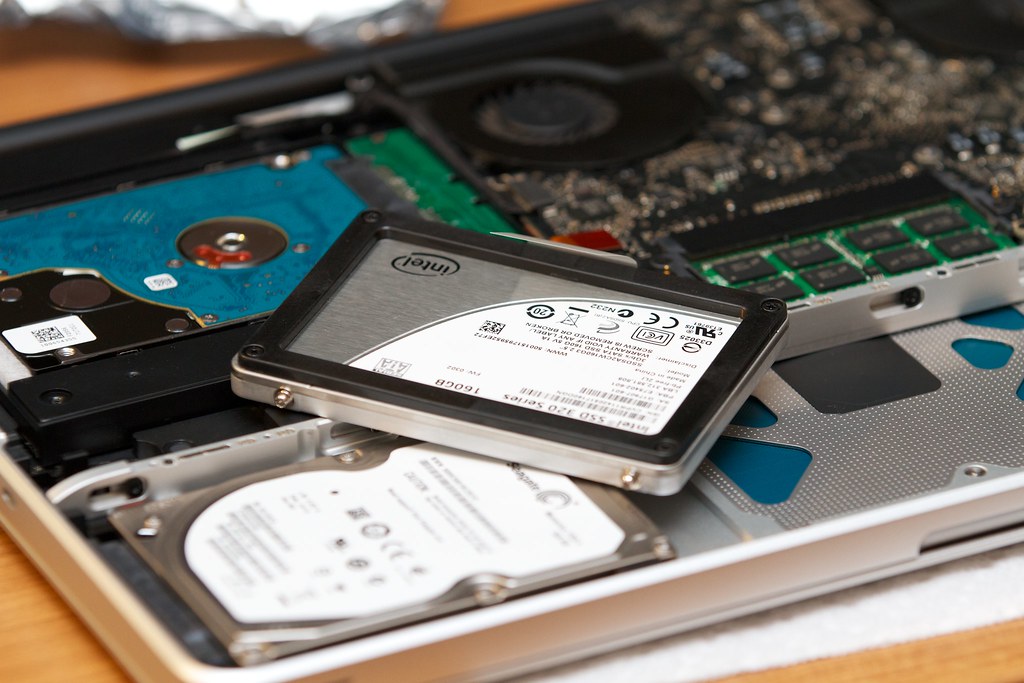
For an operating system and applications, consider how much space programs, work files and updates occupy, as well as the free space you want to keep. For photo, video or large project libraries, calculate current storage needs and anticipated growth. For backups, think about total capacity and how copies will be stored and checked; a storage drive by itself is not a backup strategy.
These needs do not automatically point to a single technology or model. You need to weigh the required performance, capacity, compatibility, warranty and the budget available at the time of purchase. A benchmark focused on sequential transfers might not answer a question about small files; a capacity figure says nothing about speed. Ask yourself which bottleneck you actually want to address and what evidence measures that situation.
It is also useful to distinguish between adding storage and replacing the primary drive. In the first case, the new drive may have a specific role—for example, storing files—while the system remains on the original drive. In the second, data migration, installation and recovery if something goes wrong also matter. Before making changes, keep an independent copy of important data and check the computer manufacturer’s instructions.
Final checklist: compare without getting caught up in one number
Gather the specifications for the candidate drives and the computer’s documentation. Compare only compatible options and record figures in the same units; if test results are available, note the method as well. There is no need to turn the decision into a single score: some criteria are entry requirements, such as a compatible interface, while others can be weighted according to your use.
Before buying, review these points:
- Compatibility: form factor, interface, slot, dimensions and limits specified by the computer manufacturer.
- Capacity: the space you need now and the headroom required for expected growth.
- Performance: advertised read and write speeds, plus independent tests of the exact model using a relevant methodology.
- Endurance and warranty: TBW or DWPD where published, along with warranty duration and coverage terms.
- Cost and purpose: current price, seller and intended use; do not mix prices observed in different markets or at different times.
- Data protection: verified backups, regardless of which drive you choose.
If a piece of information is missing—for example, compatibility has not been confirmed or there is no comparable test—treat it as unknown, not as an advantage. The evidence available here can explain what to check and how to avoid exaggerated conclusions, but it cannot declare a universal winner or quantify a performance difference between models. The best comparison is the one that addresses your computer and workload using verifiable data, while making clear which points remain unknown.