The socket is the starting point, not confirmation
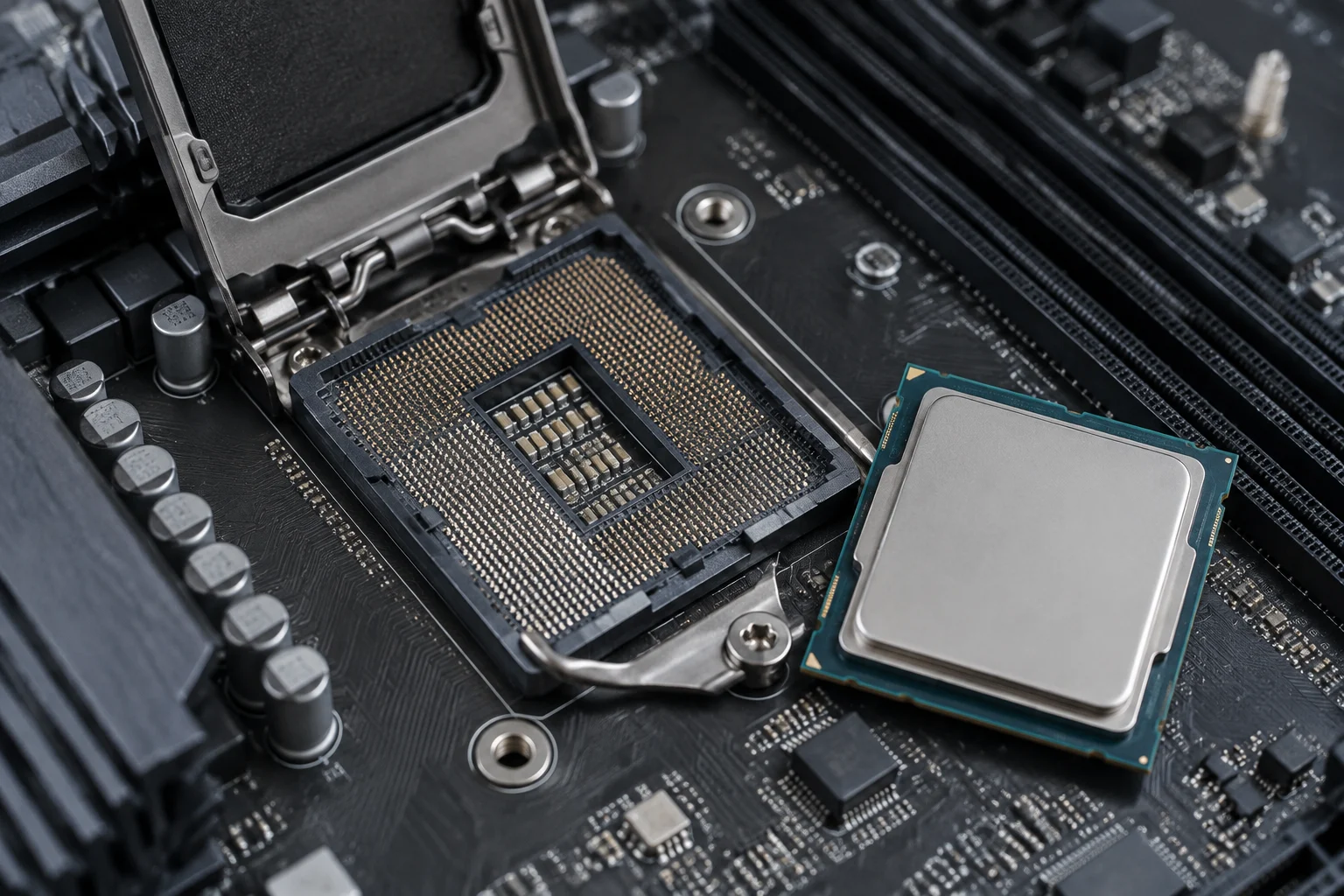
The socket is a useful first check: it identifies the physical interface where the processor is installed and helps rule out incompatible combinations. But two components sharing a socket is not enough to guarantee that the motherboard can recognise and use a particular CPU. Compatibility needs to be verified for the exact processor-and-motherboard combination, not inferred just from a family name or the shape of the socket.
In other words, the socket narrows the search, but it does not answer the decisive question on its own. Two products may share that interface, yet the motherboard documentation may not list the processor you want to install. Treat the socket name as an initial filter, not as permission to buy. Physical fit does not confirm that it will work.
The practical reason is that the motherboard also depends on its design and firmware. A manufacturer may support different processors within the same platform and associate certain models with a minimum BIOS version. So the right question is not just “Does the socket match?” but “Is my exact CPU listed on my motherboard’s support list, and does my BIOS meet the stated requirement?” This check combines two distinct pieces of information: declared processor support and the firmware version needed to use it.
Identify the complete motherboard before searching
Look for the model name on the motherboard itself, on the invoice, or in the system documentation. If Windows is available, system-information tools may offer a clue, but confirm it against the physical label or the manufacturer’s support page. A brand name alone—or an incomplete name such as “A320” or “X470”—does not identify a motherboard. It may refer to different products with different CPU lists and firmware.
When recording the model, keep every detail that distinguishes it. Do not shorten the name to make it easier to search, and do not assume that two boards from the same brand or family share support. A partial name may lead to a valid page for a different product; the information there would not confirm compatibility for your board. The correct page must identify the complete model you are checking.
Also note the hardware revision if the manufacturer distinguishes one. It may be printed on the board, often near the model name or along an edge. Manufacturers do not all display revisions in the same way, so follow the naming used on the official page. Do not fill in missing information by analogy: if several pages look similar, confirm the exact model before interpreting a list. For example, ASUS support pages are organised by specific models such as PRIME A320M-K or ROG CROSSHAIR VI HERO; they are not a universal table for every board from the brand (CPU Support for PRIME A320M-K, CPU Support for ROG CROSSHAIR VI HERO).
Read the official CPU support list
On the motherboard manufacturer’s website, open the page for the exact model and find the CPU compatibility or support section. Check the processor’s full name, including the letters and numbers that distinguish variants. A processor with an almost identical name should not be treated as equivalent: the list may include one variant but not another, or assign them different firmware requirements.
When matching the name, make sure the entry is for the CPU you intend to buy, not merely a similar designation. The letters and numbers are part of the identification you need to check. If the list contains several similar entries, consult the processor documentation to confirm the precise variant; do not select an entry based on visual resemblance alone.
If the table shows a BIOS version for each CPU, treat it as a requirement to compare with the installed version. A model missing from an accessible list does not, by itself, prove incompatibility if the page is failing to load or appears incomplete; it does mean that official support has not been confirmed. If the information is unclear, consult the manufacturer’s support page or ask for confirmation, providing both the motherboard model and processor. ASUS maintains CPU Support pages tied to specific models, such as PRIME A320M-K and PRIME X470-PRO (PRIME X470-PRO). The task is therefore not simply to find a table: you must check that both the product and the information you consulted are the right ones.
Check the BIOS and firmware notes
The BIOS version is the next checkpoint. Find the version currently installed on the motherboard through its setup menu or a system-information tool, and compare it with the minimum associated with the CPU in the official list. If the installed version is older, do not assume the system will boot with the new processor so you can update it. That is exactly the kind of assumption that can turn a straightforward upgrade into an installation problem.
Make this comparison before taking the system apart. First identify the installed version; then check the requirement shown for the processor in the support list. If the two details do not match, or you cannot establish the requirement clearly, do not consider the check complete. Finding a CPU on the list and knowing its minimum BIOS version are related facts, but both must be verified for the specific motherboard.
Read the notes for the relevant BIOS versions as well. They help confirm which changes are documented and whether the manufacturer specifies additional requirements or steps. Do not assume that a newer version automatically guarantees every compatibility: the verifiable standard is that the manufacturer lists the CPU and that its requirements are met. Update before taking the system apart only by following the instructions for the exact motherboard, using files and methods from its support page. If the notes do not clarify an important condition, ask the manufacturer before buying rather than extrapolating from another board in the same series. Firmware notes complete the check; they do not replace the official processor support list.
Cross-check the processor and platform
The main check is the compatibility declared by the motherboard manufacturer. As an additional cross-check, consult the processor’s official documentation to verify its identity and the published platform requirements. If sources differ, do not settle the issue by choosing the more convenient statement. Confirm that they refer to the same variant, the same motherboard model and, where relevant, the same revision. A retailer’s product information may help you locate an item, but it does not replace the manufacturer’s technical list.
This comparison can reveal a naming or model mix-up before you decide. If the processor and motherboard information seem not to match, review the details used in your search: the motherboard’s complete model, its revision if specified, and the exact CPU variant. If uncertainty remains after checking them, request confirmation from the manufacturer instead of interpreting a discrepancy between pages yourself.
Keep three questions separate because they are often confused: compatibility, expected operation and performance, and the practical viability of the upgrade. A CPU being listed as compatible does not show that it will improve every task or that it is more cost-effective than changing other components. A system may also need a firmware update first or a particular installation procedure. This guide does not compare performance or prices; its purpose is to help verify support before buying and installing. Keeping these questions separate avoids drawing conclusions from a compatibility list that it does not provide.
Pre-purchase checklist
Before completing the purchase, gather the information needed to make the check repeatable. The list below helps you review the process and spot missing details instead of relying only on a matching socket:
- Complete motherboard model and hardware revision, if specified.
- Exact CPU name, including suffixes and variant.
- Confirmation that the model appears on the official CPU support list.
- Minimum BIOS version stated for the CPU and the version currently installed.
- Firmware notes and any steps required by the manufacturer.
- Confirmation that the page you consulted applies to the specific motherboard, not a similar family.
Check each item separately. Identifying the motherboard correctly does not prove that the CPU appears on its list; finding the CPU on the list does not automatically mean the installed BIOS meets the requirement. A firmware note may also describe steps worth knowing before starting the change. Keeping the details together makes it easier to see whether the check is complete and avoids relying on a search remembered imprecisely. If any point remains unresolved, pause the purchase until you have a documented answer. Save the link to the list you checked and note the relevant versions: this reduces the risk of confusing a revision or a similarly named CPU. The conclusion is simple: a matching socket means it is worth investigating; the official list and suitable BIOS are the checks that verify support.