The connector is not a complete specification
USB-C describes the shape of the connector; on its own, it is not enough to tell you which features a laptop port offers. Two computers with identical-looking connectors may differ in charging, video, and data capabilities. When comparing models, consider each function separately rather than treating the presence of USB-C as a guarantee that all of them are available. ASUS recommends checking the laptop’s technical specifications or manual; its guide shows that USB-C ports can have different capabilities, including video output (ASUS guide to USB Type-C features).
This distinction matters when choosing accessories, too. The fact that a cable physically fits does not prove that it provides a particular data speed or can carry a video signal. Final compatibility depends on the capabilities supported in common by the devices and their accessories; a product description that says only “USB-C” does not answer those questions. The practical point is not that the connector is unhelpful, but that its shape is merely the starting point for checking what it can do. In a careful comparison, record which function is confirmed for each port and which is not documented: do not turn silence in a specification sheet into an assumed feature.
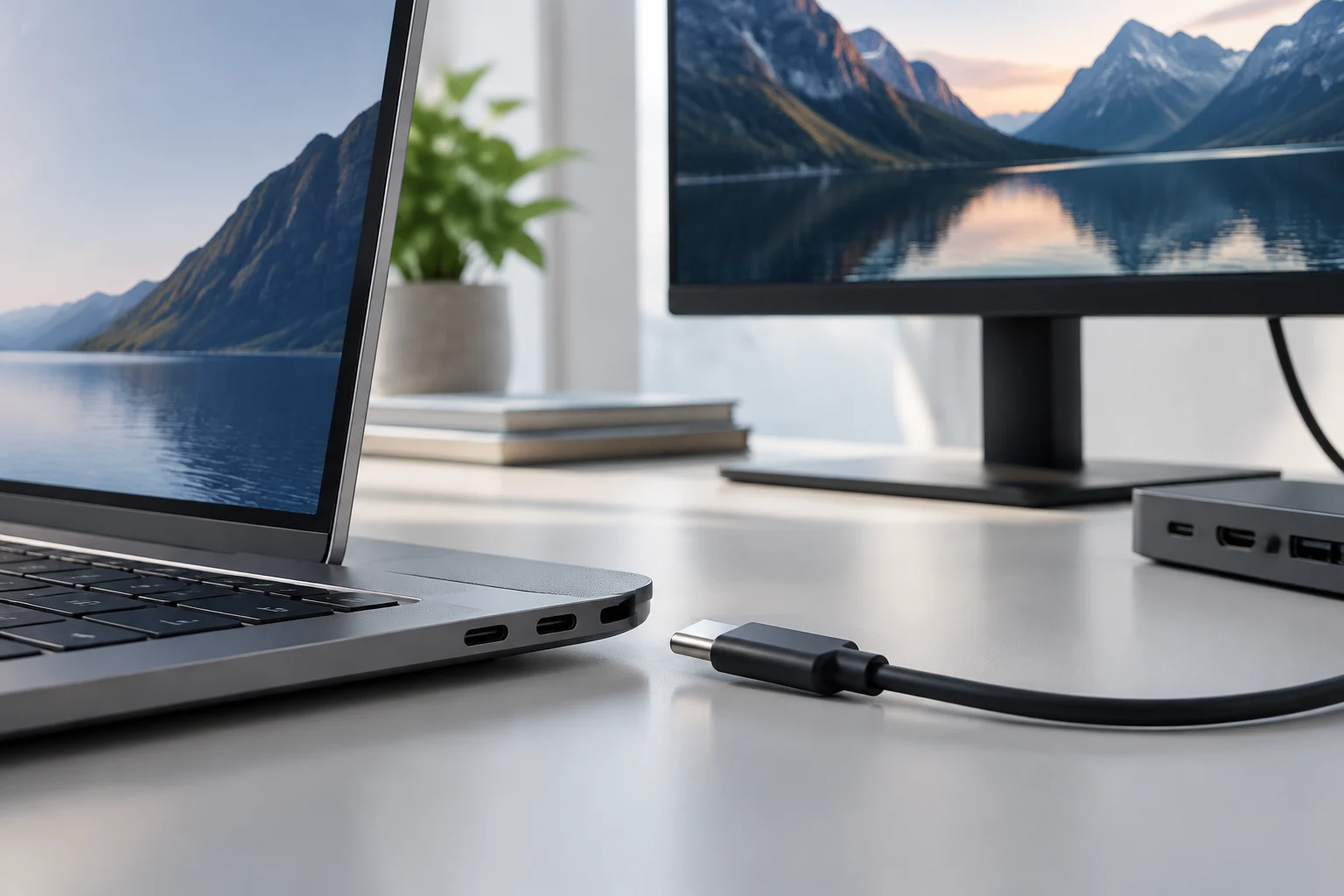
It also helps to separate two questions that are often confused: whether a laptop physically has a USB-C port, and what that port can do in a particular configuration. The first can be answered by looking at the computer; the second requires technical information from the manufacturer. A picture of the laptop’s side or a connector diagram may help you identify where a port is, but it cannot replace a description of its functions. Recording what you can see separately from what is documented prevents a visual feature from accidentally becoming a technical conclusion.
Charging: look for limits and conditions, not just the words Power Delivery
To find out whether a laptop can be charged over USB-C, look for an explicit statement in the technical specifications or manual for the exact model. Also check whether the document identifies which port supports charging: a laptop may have more than one USB-C port without the documentation confirming the same capabilities for all of them. ASUS says that features should be checked against the model’s technical specifications or manual and gives examples of USB-C ports with and without charging support (ASUS guide). If the source mentions USB-C but not charging the laptop, the correct conclusion is that charging has not been confirmed by that source—not that the laptop necessarily cannot be charged.
If the manufacturer publishes power requirements, note the stated wattage and conditions and compare them with those of the charger you intend to use. If the specification does not provide those details, they cannot be inferred from the shape of the port alone. The same applies to a dock or adapter: having a USB-C connector or mentioning Power Delivery does not, by itself, prove what power a particular laptop will receive. For a purchase, make three separate checks: whether the computer accepts charging through that port, what requirements the manufacturer publishes, and whether the selected charger and cable are specified to meet them. This documentation review can reduce mistakes, but it is not the same as a real-world operating test.
Record the information as it appears, without filling gaps by making assumptions about common chargers or other models in the same range. If the manual identifies a port for charging, preserve that connection; if it lists conditions or requirements, note them alongside the source. That way, a later comparison will not confuse the power rating of an accessory with the capability confirmed for the laptop. This check is particularly useful if you plan to reuse a charger you already own: first verify what the computer accepts, then compare the accessory with the published requirements.
Video: confirm display output on the specific port
Video output requires a different check from charging. USB-IF hosts documentation on DisplayPort Alternate Mode over USB-C, which describes that mode (USB-IF documentation). ASUS also distinguishes USB-C ports with and without video output in its feature guide. Neither reference on its own confirms that the mode is implemented on a particular laptop: to establish that, look for the feature in documentation for the model, not at the appearance of the connector.
If DisplayPort is mentioned, check the exact scope of the specification: for example, which output is described and which port it applies to. Do not assume that the name DisplayPort alone settles compatibility with every display, resolution, refresh rate, or adapter. Those details may depend on the published specifications for the computer and accessories, and the sources available here cannot establish them for all laptops. When comparing two models, record the documented capability and leave anything not stated as an open question. A capability contemplated by a technology is not a guarantee of compatibility: without checking the laptop, display, and specific connection, the final result cannot be assured.
When reviewing documentation, look for a statement clearly associated with USB-C, rather than a general reference to connecting a display. If there are several ports, it matters which one is described as supporting video; you cannot simply extend that feature to every connector on the computer. Similarly, if the specification does not clarify a detail important to your use, such as compatibility with a particular display or adapter, record it as something to confirm. That does not mean the connection will fail; it means the documentation reviewed does not let you guarantee the result.
Data: distinguish the connector from the speed
Data-transfer speed cannot be inferred from the USB-C connector either. ASUS documents examples of USB-C ports with different theoretical speeds, including 5 and 10 Gb/s, and recommends checking the specifications or manual for the model (ASUS guide). These figures are examples from its guide, not a description of every laptop or a performance measurement. For a particular computer, find the data version or capability the manufacturer assigns to that port.
When reading specifications, retain the name of the standard as published and do not mix generations or maximum figures from different technologies. A stated figure should not be turned into an estimate of everyday performance: this is about theoretical or specified capabilities, not measurements of the laptop. Actual results can depend on the computer, cable, and peripheral as a whole. Compare stated capabilities with stated capabilities, and do not present an advertised rate as though it were a test of the laptop.
In practice, a speed label on a cable or peripheral does not automatically confirm that the computer’s port offers the same capability. Each component provides information about itself, but attributing a capability to the connection requires considering what is documented for the combination. When comparing laptops, therefore, record the capability the manufacturer assigns to each port. Do not infer it from the name USB-C, an included accessory, or a figure advertised for a technology category. If speed is decisive, a specification that does not identify the standard or capability leaves a question that should be resolved before buying.
A comparison method that reduces assumptions
Start by identifying the exact model, not just the product family. Check the official specification sheet and, if questions remain, the relevant manual. ASUS recommends these resources for determining USB Type-C features and gives examples of differences between ports with video output, charging, and different theoretical speeds (ASUS guide). For each USB-C port listed, create three separate fields: charging, video, and data. Copy into each the function confirmed by the manufacturer and the source supporting it. If the documentation lists multiple connections, preserve the relationship between each feature and its port; a general statement about the computer does not always identify which port it applies to. USB-IF documentation on DisplayPort Alternate Mode describes a video mode; confirmation that it is present on a particular computer must come from documentation for that model.
Then compare only equivalent information. If one specification details video for a model and another does not mention it, that is not enough to conclude that the second model lacks video: it means your information is incomplete. Look for another official source or mark the comparison as unresolved. The same applies to charging and speed: a port list without capabilities, or a marketing description, may not be enough to attribute features to the laptop. Give priority to the manufacturer and manual over commercial summaries, and keep links next to each detail so you can check where it came from. The aim is not to collect acronyms, but to distinguish clearly between confirmed, not documented, and contradicted.
You can organize your notes in a simple table, with one row per port and columns for function, cited specification, source, and verification status. You do not need to interpret every technical term for the table to be useful: preserve the manufacturer’s wording and indicate whether it answers the question you are trying to resolve. If two documents disagree, record the discrepancy instead of simply choosing whichever detail seems more favorable. If a feature is not linked to a particular port, keep it as general information rather than assigning it to a specific connection. This approach makes both confirmed capabilities and information gaps visible.
What you can and cannot conclude before buying
Before deciding, verify the exact model and configuration; separately confirm USB-C charging, video output, and the data standard or speed; check which port provides each feature; and compare any published requirements for a charger, cable, display, or peripheral. If a detail matters to your use and does not appear in the manufacturer’s sources, consider asking the seller for clarification or contacting official support. Do not replace confirmation with the presence of the connector, a generic figure for the product family, or the specification of a different accessory.
This method has a deliberate limit: it is a guide to evaluating documentation, not a compatibility test or a measured comparison between laptops. The sources cited describe standard capabilities and modes, but they do not document two specific models here or validate a particular combination of charger, cable, and monitor. For that reason, the article does not offer recommendations for specific computers, real-world data rates, or experimental results. If a feature is absent from a specification you consulted, describe it as unconfirmed—not as definitive proof that it is absent. That keeps the comparison useful without attributing hardware capabilities that the available sources do not establish.
The most useful outcome of this process will not always be a yes-or-no answer. It may be a short list of confirmed features and questions that still require a better source or clarification from the manufacturer. This distinction allows you to compare carefully and helps avoid rejecting a computer simply because a brief specification omits a detail, or buying one on the assumption that a feature is available when nobody has confirmed it. Ultimately, the connector guides your search; the specifications for the exact model and port are what support the comparison.