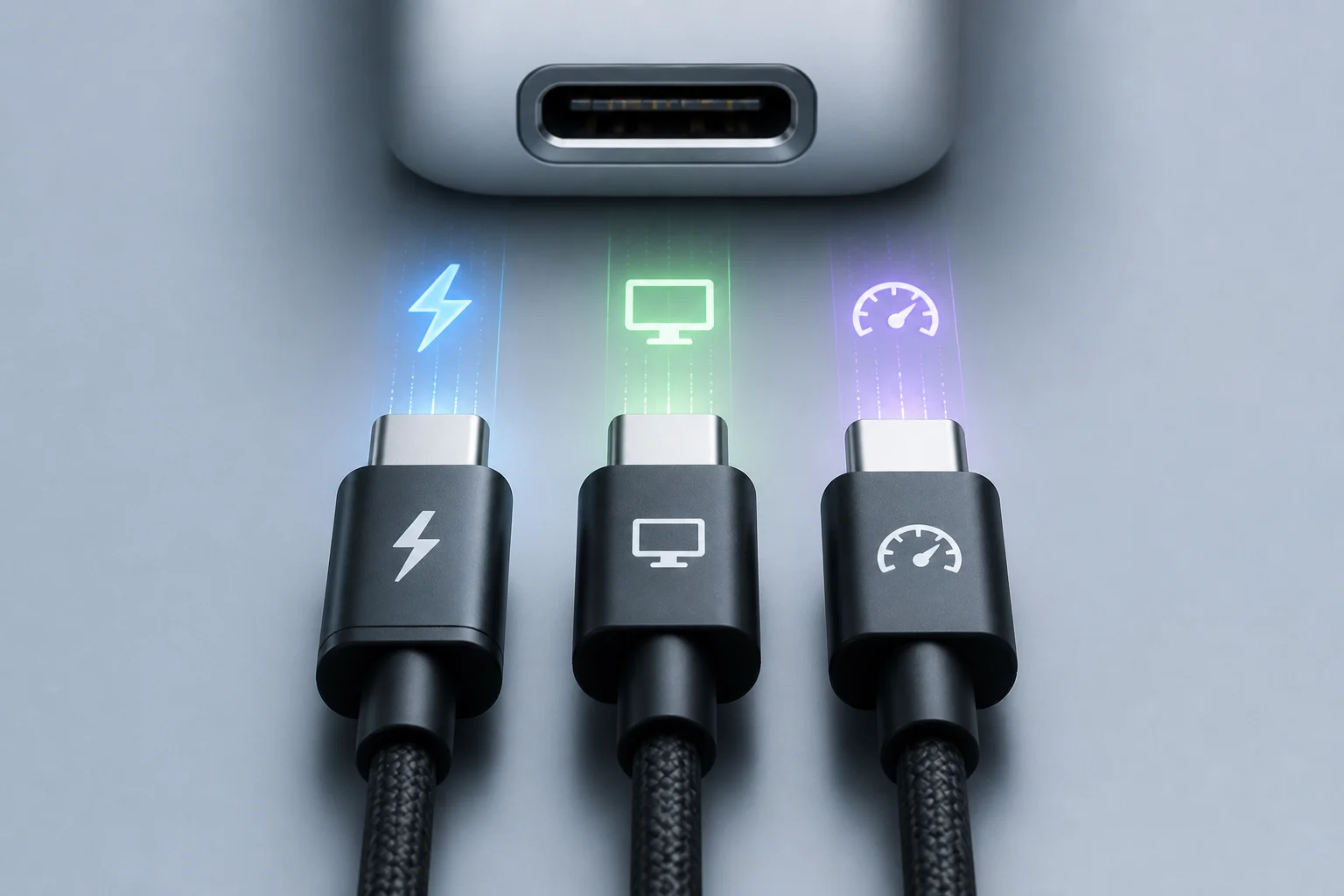
One connector, multiple protocols
USB‑C describes the shape of the connector and the receptacle, not the functions it enables. A port with a USB‑C connector might expose only low‑speed USB 2.0, or it might support high‑speed USB 3.x/USB4; in addition, it may—or may not—carry video through alternate modes such as DisplayPort Alt Mode, and it may—or may not—negotiate charging via USB Power Delivery (USB PD). Actual compatibility is determined jointly by the host device, the peripheral, the cable, and the charger; they negotiate the highest common set of features. If any element limits capabilities, the whole chain steps down—or the function fails outright.
To visualize this, think of USB‑C as a highway with multiple potential lanes. The mere existence of the highway (the connector) doesn’t guarantee that all lanes are open: perhaps only the “slow data” lane (USB 2.0) is available, or maybe fast data lanes (USB 3.x/USB4) are open as well, or lanes are reassigned to carry video (DisplayPort Alt Mode). The system only activates what every component supports at the same time. If any element does not understand a feature or is built for less, everything falls back to the lowest common denominator.
This diversity is not theoretical: products on the market explicitly advertise very different combinations of capabilities. You will see USB‑C cables that only sync at USB 2.0 but support 100 W of PD charging, and others that add data at 10 Gbit/s or 20 Gbit/s, or are certified to carry video when the host supports DisplayPort Alt Mode. There are also USB‑C ports on laptops or motherboards that only offer data and basic charging, with no video; and docks that do combine data, video and charging over a single cable. Assuming “it’s USB‑C, so it does everything” is the shortest path to frustration.
Power and USB Power Delivery: what 30 W, 60 W, 100 W or 240 W really mean
Charging power over USB‑C depends on two factors: the negotiation protocol (for example, USB Power Delivery) and the electrical capability of the cable (especially its current rating). Chargers and devices that implement USB PD advertise voltage/current profiles and dynamically agree on which level to use; if there’s no agreement, charging falls back to basic values such as 5 V/0.5–0.9 A depending on the scenario. In addition, for higher power, the cable must support the required current and, in the case of Extended Power Range (EPR), voltages up to 48 V.
Broken down with an example: if you connect a 65 W charger to a laptop that accepts 65 W via PD and you use a 3 A cable (nominally 60 W), the system will negotiate the closest profile allowed by all—typically 20 V/3 A (≈60 W)—and charging will sit slightly below the laptop’s maximum. In the same situation with a certified 5 A cable, it becomes possible to negotiate 20 V/3.25 A or the exact profile the charger exposes, always within the cable’s limit. This dynamic tuning is intentional: it prevents over‑stressing components and preserves backward compatibility.
In today’s market you will find cables labeled “PD 100 W (5 A) USB 2.0” that charge fast but limit data to USB 2.0. There are also 60 W (3 A) cables that cover most phones and tablets, and EPR cables that reach 240 W for demanding laptops, provided the charger and computer support them. When any link in the chain does not understand PD or cannot reach the advertised power, delivery is automatically reduced. This may translate into slower charging, merely maintaining battery level while using the device instead of increasing it, or certain performance modes on a laptop being curtailed because the USB‑C port isn’t supplying enough power.
Video over USB‑C: DisplayPort Alt Mode and variants
Video over USB‑C is not automatic: it requires the host port to implement an alternate mode, the most common being DisplayPort Alt Mode as defined by VESA. With it, the high‑speed “lanes” of the connector are reassigned to carry a DisplayPort signal to a monitor, dock, or adapter. Support depends on the device controller and firmware; if it’s missing, a passive USB‑C to HDMI/DP adapter will not display an image even though the connector shape matches.
A key nuance: “passive” USB‑C to DisplayPort or HDMI adapters almost always rely on DisplayPort Alt Mode on the host. If the computer does not support it, these adapters do not generate video at all. By contrast, some “active” docks and adapters include a chip that takes data over USB and produces video via an additional protocol; that requires specific drivers and consumes data bandwidth, so it is not equivalent to having native DP Alt Mode. On modern monitors and docks, you will see specs such as “USB‑C (DP Alt Mode) + PD 90 W,” which means the same cable can power the laptop and carry the image and, in some cases, also USB data back to the monitor’s peripherals. The end result depends on the laptop implementing that alternate mode and on the cable maintaining signal integrity at the required speed.
Data speed: USB 2.0, USB 3.x, USB4 and Thunderbolt
When it comes to data, the presence of USB‑C does not set the speed. Many long or inexpensive charging cables advertise “USB 2.0” (up to 480 Mbit/s), even while supporting high PD power. To reach 5 or 10 Gbit/s (USB 3.2 Gen 1/Gen 2) or more, the cable must be built for it and, often, clearly marked. USB4 and Thunderbolt push requirements further and, although they use the same connector, they need qualified controllers and cables to hit 20/40 Gbit/s or higher.
Moreover, end‑to‑end paths can introduce bottlenecks. An external SSD rated “10 Gbit/s” connected to a port that only exposes USB 3.2 Gen 1 will negotiate at 5 Gbit/s at most, even if the cable supports 10 Gbit/s. And if you insert a hub that only runs at 5 Gbit/s, that becomes the ceiling for every device attached to it. Enclosures, hubs, and docks claiming compatibility with “USB 3.0/3.1/3.2, USB4, Thunderbolt 3/4” usually mean physical interoperability with various hosts and cables, not that you will always reach the maximum speed. Real‑world performance depends on the specific combination of host, cable, peripheral, cable length, and build quality.
Cables and labeling: how to read the fine print
A cable’s label should tell you three key things: a) data speed (e.g., USB 2.0, 5/10/20 Gbit/s or USB4), b) power capability (3 A/60 W, 5 A/100 W, or 240 W EPR), and c) whether it is certified by bodies such as the USB‑IF. Some makers sell “charge only” cables or “sync & charge” cables, and within the latter they distinguish USB 2.0 from high‑speed variants. The absence of a stated speed usually implies USB 2.0.
Practical details also matter: length affects signal attenuation; the longer the cable, the harder it is to sustain 10 Gbit/s or more without errors, so many long cables officially limit their data rate. Connector design and shielding influence noise immunity; a good cable usually advertises visible certifications and tends to be thicker to carry high‑quality differential pairs. To minimize ambiguity, look for clear markings on the cable or packaging and, if possible, USB‑IF certification and explicit power specs. Don’t extrapolate: a 100 W cable can be USB 2.0 for data; a 10 Gbit/s cable may be limited to 3 A; and a very long cable may maintain charging yet degrade the data signal.
Checklist before you buy or connect
- Charging? Verify that the charger and device both support USB Power Delivery and that the advertised wattage meets your needs; confirm that the cable supports the required current/voltage (3 A/5 A, SPR/EPR). If you use a laptop that demands 90–100 W, a 3 A cable may not reach the maximum and charging will be slower or insufficient under sustained load.
- Video? Make sure the host port declares DisplayPort Alt Mode (or the required alternate mode) and that the monitor/adapter supports it. Without an alternate mode, there will be no image over USB‑C with passive adapters. If you resort to an active adapter, check its software requirements and the impact on available USB bandwidth.
- Speed? Check the actual data version you need (USB 2.0 vs 5/10/20 Gbit/s, USB4/Thunderbolt) and ensure the cable and both ends implement it. Assume that if no speed is specified, it will be USB 2.0 on generic or long charging cables. Consider length: for 10 Gbit/s or more, use short, certified cables.
Market realities: what the port shape does and does not guarantee
- “USB‑C 100 W, USB 2.0” cable: will fast‑charge a compatible laptop at high power, but transfers data like an old cable; it’s not suitable for high data rates nor does it carry video by itself. This is a legitimate and common product pattern that avoids the cost of extra shielding and high‑speed pairs.
- Monitor or dock “USB‑C (DP Alt Mode) + PD 90 W”: can charge a laptop and receive video over the same cable, provided the laptop supports DisplayPort Alt Mode. If it doesn’t, the USB‑C port may be limited to data/charging with no image.
- Storage enclosure “compatible with USB 3.x/USB4/Thunderbolt”: indicates the physical USB‑C port and a controller that negotiates across standards. The final speed depends on the host and cable. On a machine with only USB 3.2 Gen 1, that enclosure will not exceed 5 Gbit/s even if the cable and drive are more capable.