A NAS Solves Shared Access
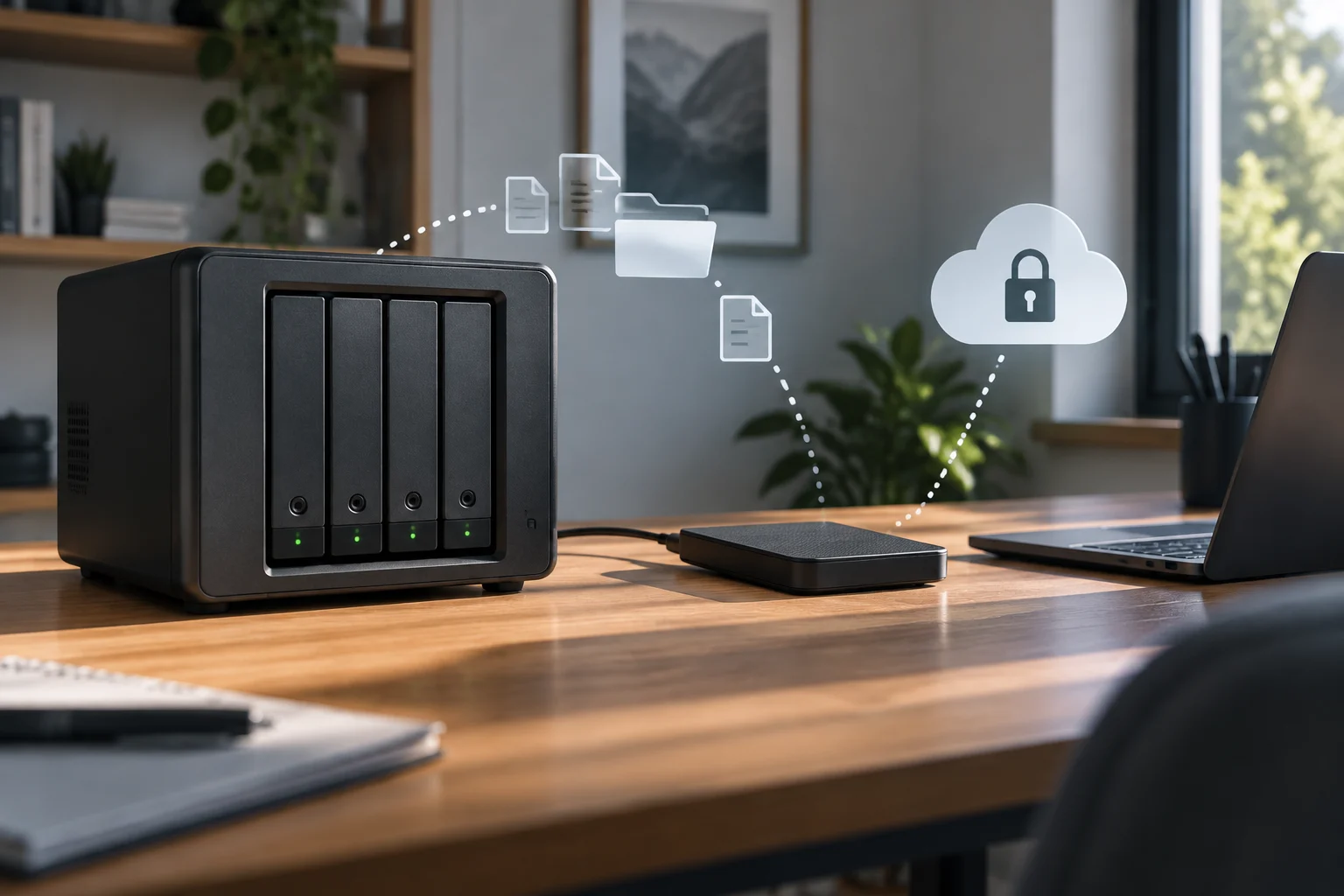
Network-attached storage (NAS) makes files available to multiple devices over a network. At home, it can centralize documents, photos, or a media library; in an office, it can provide shared folders for several computers. Its main purpose is to organize access to data, not to guarantee that the data will survive every incident.
The usual model is file storage: information is organized into files and folders, and users access it according to permissions. That is different from a system designed to keep historical copies or recover entire computers. A NAS being connected, with files visible in a shared folder, only shows that the data is available at that moment; it does not show that an earlier version or an independent copy exists.
It is also useful to distinguish availability from protection. A NAS may remain accessible when a computer stops working, but it shares risks with the devices that rely on it: failure of the NAS itself, configuration mistakes, accidental deletion, or incidents affecting the network. Centralization is not the same as safe duplication: if only one copy of the data exists, the NAS is where the data lives, not an additional copy.
Storage, Redundancy, and Backup Are Not Synonyms
Storage describes where data is kept and how it is accessed. Redundancy aims to keep a service or data available despite certain component failures, depending on the specific configuration. A backup, by contrast, is intended to preserve data that can be restored after loss or modification. These goals are related, but they are not interchangeable.
For example, if a file is deleted and that deletion propagates to every location containing the same set of files, having more than one drive will not necessarily make the file recoverable. The same applies to an erroneous change: if no earlier state was retained, redundant storage does not, by itself, provide that version. Synchronization keeps locations aligned; that can be convenient, but it can also replicate unwanted changes.
IBM’s guide to NAS describes it as storage accessible over a network, while its explanation of file storage focuses on data organized into files and folders. These concepts help identify what the device does, but they do not certify a particular backup policy. The practical conclusion is straightforward: assess primary storage and each recovery mechanism separately.
What a Configured Backup Can Provide
A NAS can be the destination for backups from other computers, and its own files can in turn be backed up to another location. Synology’s Hyper Backup guides document backup and restoration tasks; they also explain how to access backup files with Hyper Backup Explorer. These are examples of software features and workflows, not a universal guarantee covering every NAS, application, or configuration.
A useful task must specify what is copied, when it runs, and how much history is retained. If only selected folders are copied, everything else is left out. If the schedule does not match the pace of work, recent changes may not be included in the latest recoverable point. And if retention is too short for the problem being addressed, older versions may disappear before the loss is detected.
Credentials and permissions also matter. A backup destination that is permanently accessible through the same accounts and computers as the original data could be exposed to an incident affecting both. Specific recommendations depend on the product and environment, so simply enabling an option called “backup” is not enough. The relevant question is what can be restored, from where, and after what kind of failure.
A Second Copy Should Cover Different Risks
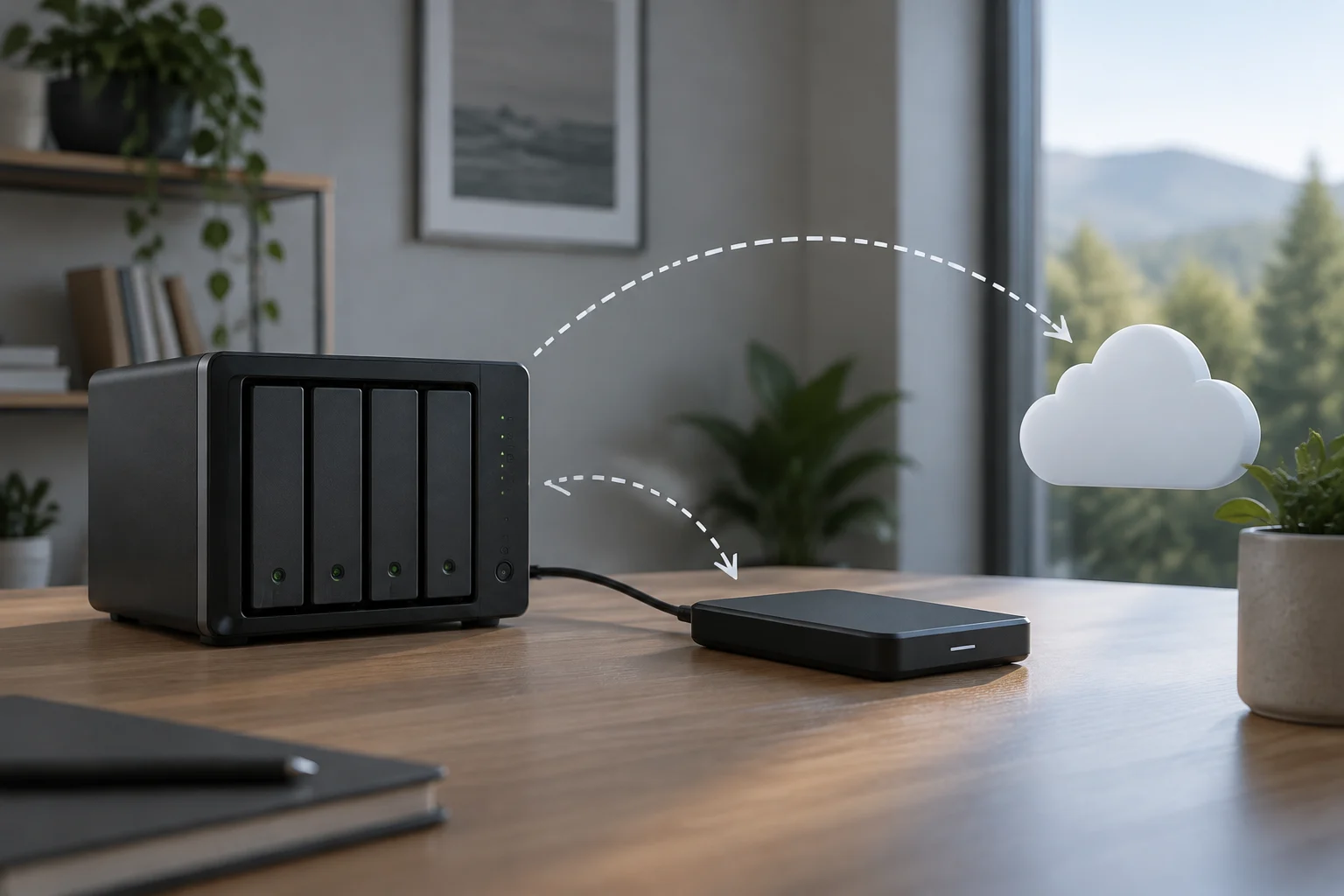
The value of another copy depends on how independent it is. A copy on another volume in the same NAS can help in some scenarios, but it remains inside the same device and environment. A separate location—such as another device or an external service—can reduce certain shared risks, although it introduces its own dependencies, such as connectivity, an account, costs, or retention policies.
Synology documents using Hyper Backup with public cloud services and notes that the first backup can take time. It also provides instructions for restoring data and recovering files from backup archives. These pages help explain possible operations within its ecosystem, but they do not prove that any particular configuration is complete or that data can be recovered quickly enough.
There is no single recipe for everyone. For a home collection, recovering particular photos may be the priority; for a small business, downtime can also have operational consequences. Decide what amount of lost changes would be acceptable and how long recovery can take. These limits—known as recovery objectives—should be translated into a backup frequency and a suitable location, rather than left implicit.
Restoration Is the Test That Matters
A task that finishes without error messages is evidence that something is working, but it does not, on its own, prove that recovery is valid. Files may have been excluded, credentials may have expired, retention may be insufficient, or the steps for finding a version may be unclear. That is why restoration should be tested, not assumed.
Synology’s guides explain how to restore data from Hyper Backup and recover files with Hyper Backup Explorer. Based on those features, a prudent check is to restore a sample to a separate location, confirm that the files open, and verify that the version matches the expected point in time. The originals do not need to be replaced to run this test.
Testing also reveals practical issues: who can access the account or necessary keys, how long the process takes, and whether the destination device has enough space. A backup with no familiar procedure can be difficult to use under pressure. A tested copy reduces uncertainty; a copy never restored leaves the decisive step unverified.
Checklist Before Trusting Your Data to a NAS
Before treating a NAS as part of a sufficient strategy, answer these questions precisely. They are not a security certification and do not replace the manufacturer’s documentation; they help distinguish the device from the measures configured around it.
- Which data is included, and which data is excluded.
- Where at least one other copy is stored, and what risks it shares with the NAS.
- How often the backup runs and how many versions it retains.
- Who can modify or delete both the original data and the copies.
- How to restore a file and how to recover the full set if the NAS fails.
- When a restoration was last tested and what result was verified.
The answers should match the actual need. At home, preserving photos and documents may be the priority; at a small business, shared files may also need to be included, with someone designated to carry out recovery. If you cannot identify another location, a useful history, and a tested restoration method, the system still depends too heavily on its primary storage.
The Device Does Not Replace the Plan
A NAS can be a valuable component: it makes file sharing and centralized storage easier and, if configured for it, can take part in backup and restoration workflows. What it does not automatically do is create an independent second copy, retain enough versions, or prove that data will be available again after an incident.
Assess the whole system: included data, separation between copies, access protection, retention, and tested recovery. The manufacturer documents specific features; the user must verify that the configuration meets their needs and that restoration can actually be carried out. Don’t just ask whether you have a NAS: ask which copy would survive if the NAS became unavailable.
This analysis draws on IBM and Synology documentation about storage, NAS, and backup or restoration tools, together with a QNAP page about backing up system configuration. Features and steps vary by product and version; none of these sources establishes the state of a particular device. That limitation does not change the general conclusion: network storage and a backup strategy serve different purposes.