
Start with your connection and your home, not the number on the box
Before comparing models, write down what you need to solve: inadequate coverage, a wired connection for fixed devices, video-call dropouts or too few ports. A router with more features will not necessarily solve your particular problem. If your internet plan is slower than the capacity of the ports or wireless network, paying for higher figures may offer little benefit. If the limit is a place with no coverage, an advertised maximum speed does not guarantee that the signal will reach it.
Gather a few practical details: your internet service speed and type, the size and layout of your home, the walls between the router and your devices, how many devices are usually connected at once, and which devices need a cable. Also check whether your current equipment belongs to your provider and whether you can replace it or only add an access point. Compatibility with your service and a solution to your specific problem matter more than any single label.
Identify the problem before you buy
- If the connection works well near the router but not in other rooms, look into coverage and ways to extend it.
- If wired devices run out of available connections, count how many Ethernet ports you need to use simultaneously.
- If the problem occurs even next to the router, first compare your plan, your provider’s equipment and the connection conditions; changing Wi‑Fi is no guarantee of fixing an external fault.
These checks are buying criteria, not a technical diagnosis. Building conditions, your provider and your devices can all affect the outcome. Treat specifications as information for narrowing down your options, not as a promise of the performance you will get at home.
Bands and generations: how to read Wi‑Fi labels
Wi‑Fi is the common name for wireless networks based on the IEEE 802.11 family of standards. IEEE describes 802.11 as a standard for wireless local area networks; a router’s specification may also highlight a commercial Wi‑Fi generation or the version of the standard it claims to support. A generation describes standardised capabilities, not a guaranteed speed for every device or room. To interpret a figure, you need to know which equipment supports it and under what conditions it is presented.
Bands refer to portions of the radio spectrum used by compatible equipment. Product specifications commonly list 2.4 and 5 GHz, and some routers also advertise 6 GHz. Do not assume that every device can connect on every band: check compatibility for both the client device and router. Nor should you assume that one particular band will always reach farther or be faster in your home; walls, interference, distance and device capabilities all affect real-world use.
A generation is not the same as a result
The Wi‑Fi name and generation number help identify a set of capabilities, but they are not, on their own, a measure of the speed a phone will receive. A router’s maximum figures may add together links or capabilities from different radios and depend on conditions that a single device cannot reproduce. Compare the figure with the standard, configuration and client-device compatibility, and do not equate it directly with your internet plan’s speed.
Wi‑Fi technologies have evolved through revisions to the IEEE 802.11 family. IEEE documentation explains that evolution and publishes information on standards, but a reference to a standard does not, by itself, show how a specific model will perform. The most useful step is to check which version the router and your existing devices claim to support, then consider whether additional features meet a specific need. Avoid buying on the generation name alone.
Channels and channel width: terms that change the comparison
A channel is a portion of the radio spectrum used for transmission. Channel width describes how much spectrum a transmission occupies. In general, greater width can allow more capacity under certain conditions, but it does not automatically mean better coverage or a faster connection for every device. Channel availability depends on the band, configuration and rules that apply in each country.
In a specification, look for the supported bands and channel widths, and whether the manufacturer mentions automatic channel selection. Do not read a list of channels as a guarantee that all of them will be available in your region. Permitted use of the spectrum is regulated. The ITU publishes documentation on frequency allocations, but an international table does not replace national regulations or the configuration of a particular product.
What to compare
- Compatibility: confirm that the router and devices support the band and width you want to use.
- Region: check the product’s regional version and the rules that apply where it will be installed.
- Conditions behind the figure: find out whether the advertised speed refers to one radio, several radios or aggregate capacity.
- Intended use: do not choose the greatest width just because its number is higher; consider stability, compatibility and the environment.
A product specification is rarely enough to predict interference in a particular home. A channel-width figure describes a possible configuration, not a measurement taken in your home. If the manufacturer does not explain how it arrived at its advertised total speed, treat that as an indicative capacity figure and look for additional technical documentation before comparing it with another model.
Router, access point and mesh system
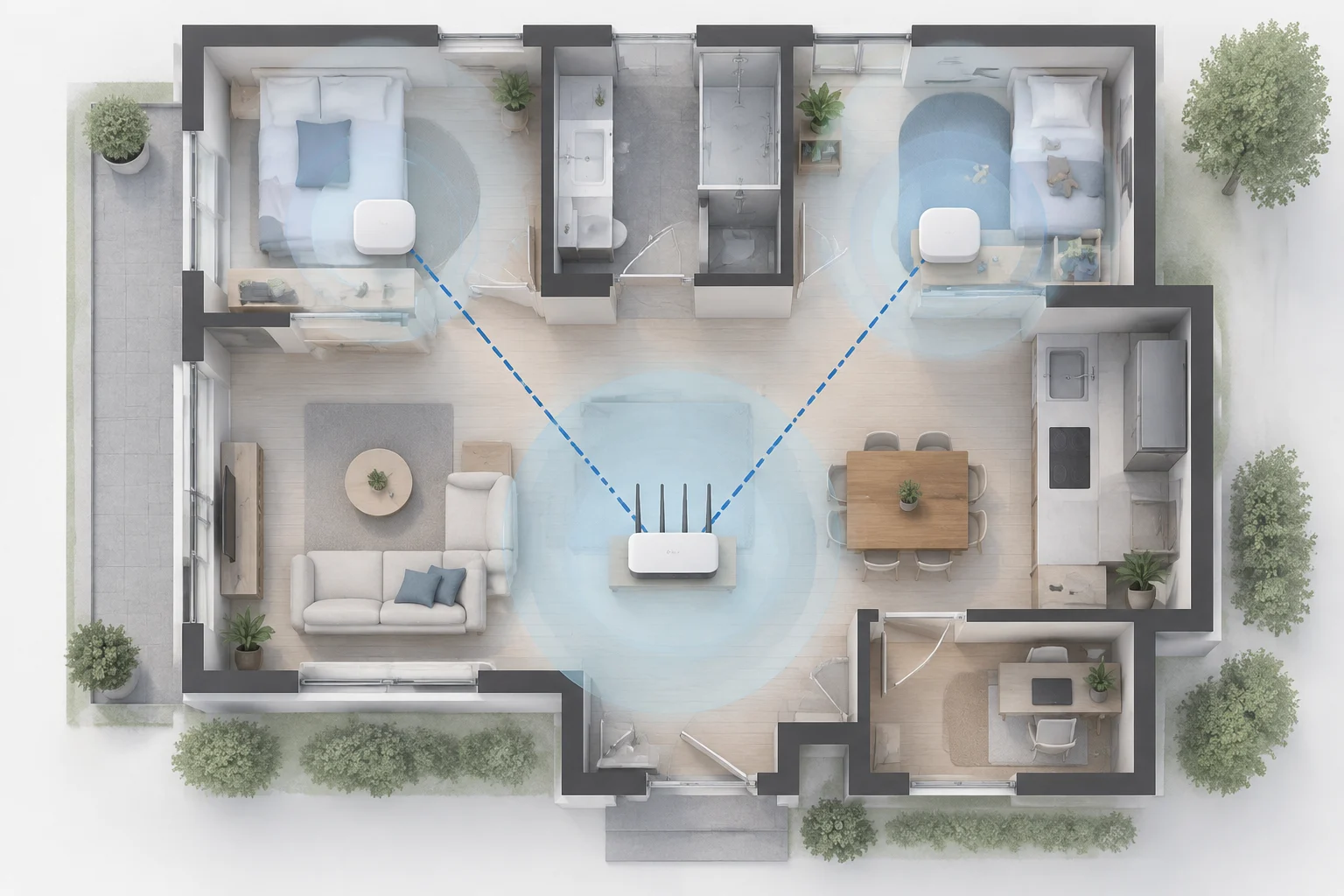
A router connects your home network to the internet connection and usually provides local-network functions too. An access point provides Wi‑Fi connectivity to an existing network; it can be a separate device or a function of a multifunction unit. The word mesh usually refers to several nodes working together to extend coverage. However, the label alone does not specify how they communicate, which functions they share or what needs to be configured.
Before buying a mesh system, check whether the package includes one node or several, whether it can be expanded, and whether the units can operate as a router, an access point or either one. Also find out how the nodes connect: wirelessly or through Ethernet, if the manufacturer allows it. Do not assume that a second node will double your speed or solve every dead zone. Placement, obstacles and the link between nodes all affect the result.
Check the exact function in the documentation
Commercial names can describe very different product families. Find the model’s official product page and installation manual, then verify its operating mode, connection requirements and compatibility between units. If you already have provider-supplied equipment, confirm whether it must continue acting as a router or whether the new device can replace it. Avoiding two devices performing incompatible functions may require a specific configuration; do not assume that connecting any extra device is enough.
In a home, adding nodes may be more appropriate than replacing a router if coverage is the problem, but that is not a universal rule. Available cabling, room layout and the number of devices can all affect the decision. Compare the function and configuration of the complete system, not just the number of nodes on the box.
Ethernet ports and security: read the details, not just the headline
The port list helps you check whether the equipment suits your wired connections. Distinguish the WAN port—usually intended for the link to the modem or internet connection—from LAN ports for devices on your local network. Check how many there are, what speeds each supports, and whether a feature shares or limits any ports. “Gigabit” or a higher figure is useful only if it applies to the port you need and the other equipment in the connection is compatible too.
Count the devices you want to connect by cable at the same time, such as a computer, television, console or network storage device. If the router does not have enough LAN ports, you may need an Ethernet switch; confirm that need and compatibility before buying. Do not confuse a port’s speed with your internet speed or wireless performance. These are different links, and the highest figure in a specification does not, by itself, determine the performance of the whole network.
Security and support
Look for the security options the manufacturer lists, how they are managed and where it publishes firmware updates. Check whether the official page offers manuals, release notes and a support channel for the exact model. An advertised feature alone does not tell you how long the device will receive updates. If the manufacturer does not publish a clear policy or support period, record that uncertainty when comparing alternatives rather than interpreting silence as a guarantee.
Also check whether initial setup lets you change the administrator password, update the software and manage a guest network, if those features matter to you. Option names can vary between manufacturers and versions. Do not assume that two products carrying the same commercial label implement features identically: consult the manual for the specific model number and sales region.
A comparison that does not mix different figures
To compare models sensibly, create a list with the same fields for each candidate: claimed standard or generation, supported bands, number and type of ports, mesh features, security options, support and price in your market. Separate what the manufacturer states from what remains unconfirmed. The IEEE standard helps identify the technical framework, while the manufacturer’s official page is the reference for a particular product’s functions, ports and configurations.
Be careful with speed totals that add together the capacities of several bands or radios. Different manufacturers may present large numbers using different methods or configurations. Check whether the figure is a theoretical sum, whether it depends on multiple clients, and whether the device you will use can take advantage of it. If the specification does not explain those conditions, do not treat the figure as a direct comparison of real-world performance.
Quick checklist before choosing
- Confirm the exact model and regional version on the official page.
- Check compatibility with your internet service and the devices you already own.
- Count WAN and LAN ports, noting the speed listed for each.
- Make sure the bands and standards match your devices.
- Check what a mesh package includes and how its nodes connect.
- Consult manuals, security options and update documentation.
- Compare prices only within the same market, with an identifiable seller and observation date.
If you cannot verify a specification, mark it as unconfirmed and do not use it to justify the purchase. A careful decision is not about choosing the specification sheet with the most figures. It is about ruling out incompatibilities, recognising which figures are theoretical and paying for capabilities you will actually use. Standards information and manufacturer documentation help explain product claims; they do not replace independent testing or guarantee the performance of a particular installation.