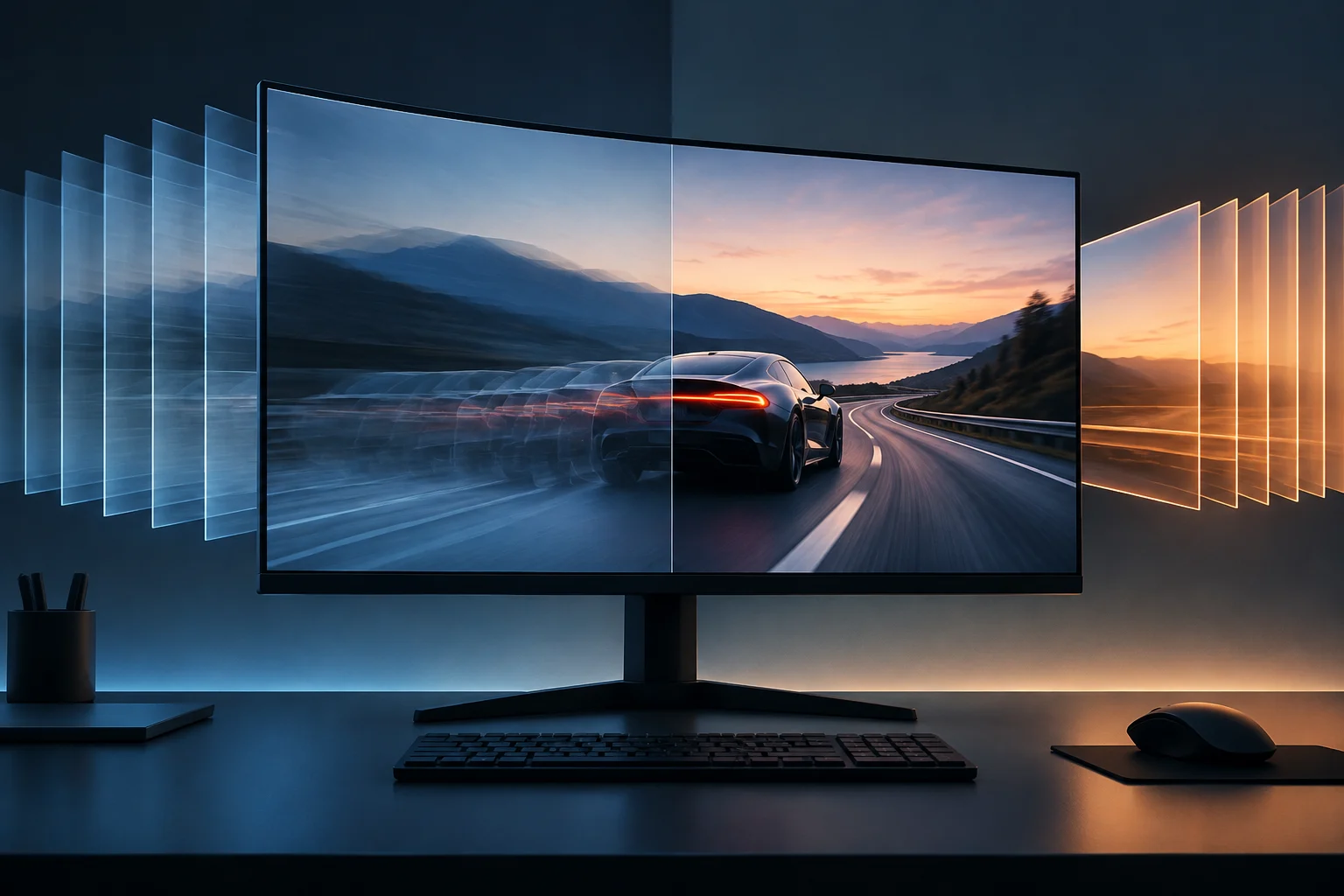
What variable refresh rate does
A traditional monitor updates its image at regular intervals: for example, 60 times per second on a 60 Hz panel. In a game, however, the graphics card does not always produce every frame at exactly the same speed. If the display and video source do not coordinate their timing, tearing—an image split between frames—or uneven presentation that looks like stuttering can occur. Variable refresh rate, or VRR, lets the display adjust when it refreshes to match the signal’s pace within a supported range.
The aim is not to increase GPU performance by itself or guarantee a particular frame rate. VRR coordinates two things: when a frame is ready and when the panel displays it. HDMI describes the function as allowing a game source to deliver frames at its own pace rather than always relying on a fixed cadence. Its usefulness depends on the source, display and link supporting the function and being configured to use it. [1]
In practice, this coordination avoids requiring the display to show every image at a rigid interval when the source has not yet finished producing the next frame. Adjustment is possible only within the limits supported by the active mode; VRR does not remove performance differences between systems or make every frame arrive with identical regularity. Its job is to match the refresh to the signal when both ends can operate compatibly, not to fix every performance or configuration problem. The improvement depends on the system working together, not on an isolated label on the monitor’s box.
What VESA Adaptive-Sync Display adds
That is why reading “120 Hz” or “144 Hz” does not answer every relevant question. Those figures usually indicate a maximum refresh rate or operating mode, not necessarily the full range over which VRR works. Nor do they reveal what happens when the rate falls below the lower limit, whether the mode works at the chosen resolution, or whether it is enabled on every input. The maximum refresh rate and variable range are different pieces of information: look for them separately in the specifications and manufacturer documentation.
VESA Adaptive-Sync Display is an open standard and logo programme for evaluating variable-refresh performance in PC and laptop displays. It is not the name of a physical connection or a universal guarantee about every feature of a monitor. The programme sets evaluation criteria and categories that help distinguish displays tested against its requirements. [2]
VESA has updated the programme since its launch. In 2023 it announced stricter specifications, and in 2024 it added support for dual modes, intended for displays that can operate with different combinations of resolution and refresh rate. These updates matter when interpreting marketing materials: a description may refer to a particular version or capability, and a refresh-rate figure without an associated resolution leaves something unspecified. [3] [4] This is especially important when a display offers more than one mode: an advertised refresh rate alone does not show, without the corresponding resolution, which combination is being described. Read the specifications as a whole rather than separating a figure from the conditions under which it is achieved.
HDMI VRR: an interface feature, not a monitor badge
Certification offers a more structured indication than a generic mention of “adaptive sync”, but its scope is the testing defined by VESA. It is not an independent assessment of every aspect of image quality, ergonomics, contrast, pixel response or the experience with every graphics card. When comparing models, identify the exact level or logo and check which modes it covers. Certification defines what has been evaluated; it does not make all certified monitors identical.
HDMI VRR belongs to the set of features documented by the HDMI ecosystem. HDMI Forum presents variable refresh rate as one of the gaming features in its specification: the link allows a compatible source to deliver frames when they are ready, with the aim of reducing visual interruptions associated with a fixed cadence. This description explains the feature, but should not be read as a certification of a display model’s overall quality. [1] [5]
The practical difference from VESA is not that one technology is automatically “better” than the other. VESA Adaptive-Sync Display is a standard and certification programme with criteria for displays; HDMI VRR is a feature specified for an interface. A manufacturer may say that one HDMI input supports VRR while another input or connection on the same monitor has different capabilities. The feature label alone does not necessarily state the available range in each mode. So knowing that a model includes the feature does not automatically tell you which options are available on all its ports or in every configuration.
Compatibility: check the entire signal path
It is also important not to assume that every product with an HDMI port supports a particular feature. Specific capabilities depend on the versions and implementations at both ends, as well as the selected signal mode. HDMI 2.2, for example, includes VRR among its gaming features, but citing a specification version does not prove that a particular computer, cable and monitor combination will enable VRR at every resolution or refresh rate. Check the specific models and ports, not just the connector name. [5]
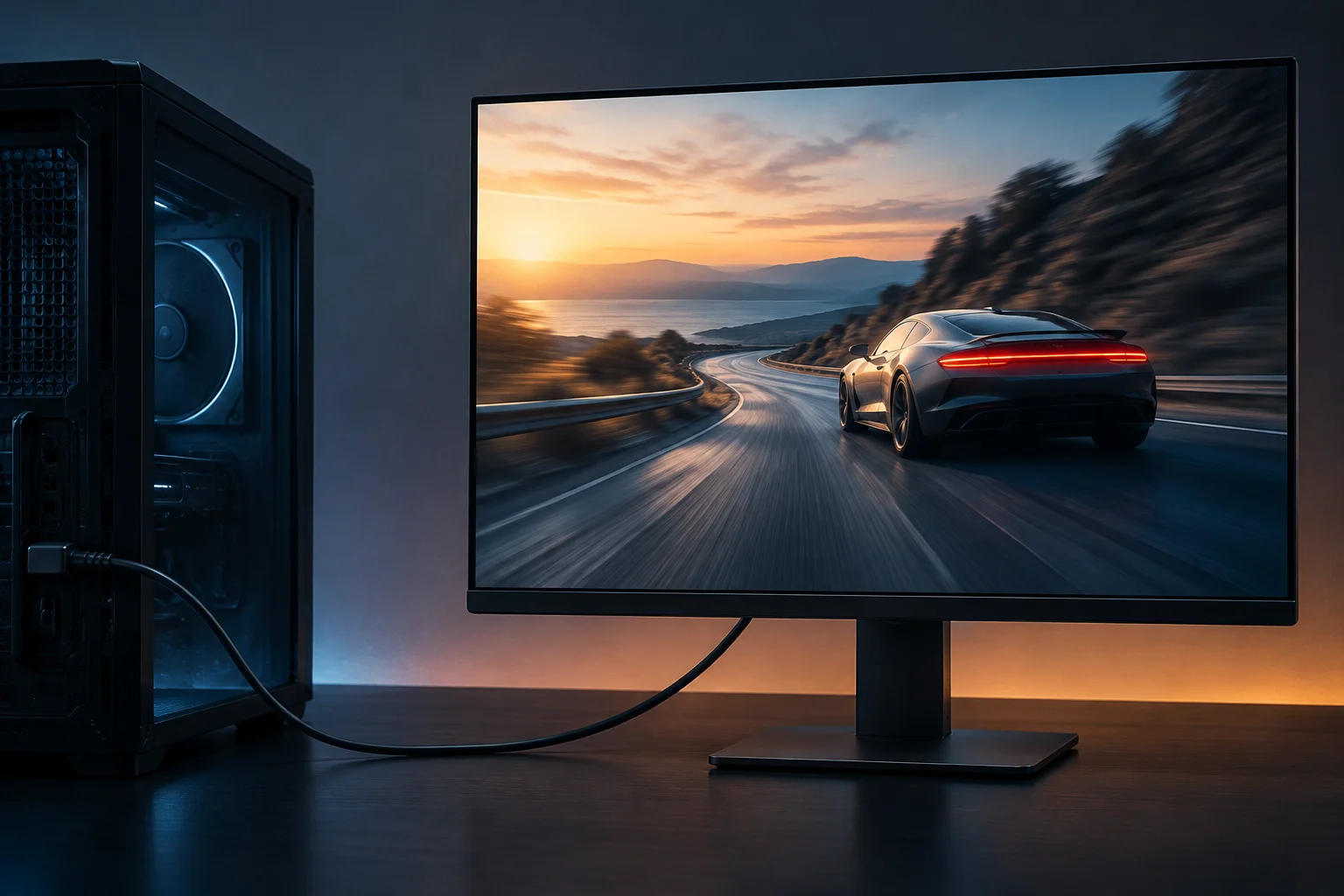
The feature is useful only if the source, display and connection share a compatible mode. On a computer, that means checking the graphics card and monitor, the port in use and the system settings. Software requirements can matter too: NVIDIA, for example, provides activation steps in its control panel for G-SYNC and G-SYNC Compatible displays, and distinguishes validated displays from other VRR screens that users can try to configure. [6] [7]
The monitor’s brand alone is not enough to conclude that it will work with any GPU. NVIDIA explains that its G-SYNC Compatible displays are VRR screens validated by the company for its technology, a category distinct from monitors with G-SYNC modules. Its documentation also states system and GPU requirements for these functions. This does not, by itself, establish what will happen with a particular combination outside the documented conditions: check the model and setup against current lists and manuals. [6] That check helps distinguish compatibility documented for a specific combination from compatibility someone is trying to enable outside it; the marketing name alone does not provide that detail.
Checks before buying or setting up
A practical check before buying or setting up a system can follow this order:
- Confirm which monitor ports support VRR and at what resolution and refresh rate.
- Check that the graphics card or console offers a compatible feature through that output.
- See whether the manufacturer specifies a variable refresh range, and whether it changes by input or mode.
- Enable the option in the monitor menu and in the system or driver; verify that the mode applies to the intended game or application.
- Consult the GPU documentation to see which displays and modes are validated or supported.
This list does not replace testing with the actual system. It helps identify specification and configuration incompatibilities before treating a label as a guarantee of results. Following the steps in order can help locate which part of the chain limits the feature: it may be the selected port, the signal mode or an option that has not yet been enabled. Even so, confirming specification sheets and menu settings is not the same as checking every condition of use; testing the intended source, monitor and mode remains the reference for that particular combination.
Checking resolution alongside refresh rate matters because an isolated maximum figure does not necessarily clarify which mode is in use. Likewise, seeing an option in a menu does not confirm that the selected connection and source are actually using it. This guide helps organise those checks without turning any one of them, on its own, into a guarantee of operation.
How to read the labels and what still needs checking
The labels answer different questions. “Adaptive-Sync” may refer to a technical capability; “Adaptive-Sync Display” identifies a VESA programme; “HDMI VRR” names a feature associated with HDMI; and “G-SYNC Compatible” indicates that NVIDIA has validated certain monitors for its technology. Do not treat them as synonyms or infer that a logo certifies every monitor capability. NVIDIA’s official documentation explicitly distinguishes its validated displays from other VRR displays. [6]
When making a decision, prioritise information that can be tied to the exact model: VRR range, refresh rates available at the resolution you intend to use, compatible ports, and software or GPU requirements. Then look for independent measurements of behaviour at the ends of the range, during transitions and in relation to possible flicker. An academic study of temporal analysis of flicker on VRR displays treats this as an aspect requiring specific evaluation: VRR being present is not enough to claim that every monitor is immune to flicker. [8]
Independent testing can add details that a standard or specification sheet does not provide: panel response, behaviour at different refresh rates and stability with a particular setup. When comparing results, check that the test uses the same image mode and a relevant connection; do not automatically transfer its findings to another hardware revision, firmware version or configuration. The useful conclusion is not that labels have no value, but that they answer only part of the buying question: they identify features or criteria, while actual performance requires context and further checks. The certifications and features described are starting points for narrowing the search; model-specific information and testing under comparable conditions help explain what they mean for the intended use.