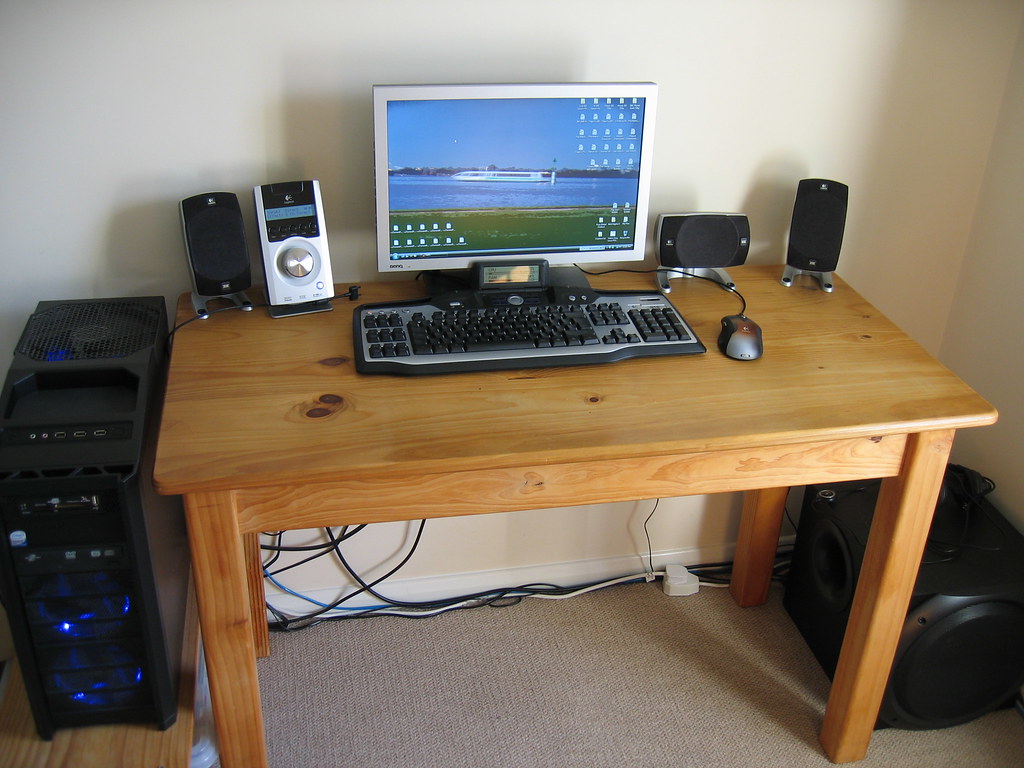
The form factor does not answer the question on its own
An all-in-one PC brings the computer and display together in a single unit. With a conventional desktop PC, the computer and monitor are separate components; desktop PCs also come in cases of different sizes. This describes how the equipment is physically arranged, but does not, by itself, tell you its speed, screen quality, repairability, or useful life. To compare two specific purchases, you need to move beyond the category name and check the exact model number and configuration.
Start by writing down the problem you want to solve. If your aim is to clear desk space, compare the footprint of each complete setup, including the stand, keyboard, mouse, cables and, where applicable, speakers or adapters. If you expect to connect more than one display, external devices, or additional storage, check every connection in the specifications for the model. And if you may want to replace memory or storage later, the question is not whether a form factor is usually upgradeable, but what the service manual permits for that particular configuration. A category can point you in a direction; it cannot replace the specifications.
Turn these needs into things you can check before you start shopping. For example, note the maximum desk space available, which peripherals must connect, and whether you need an external display. That way, the comparison starts with verifiable requirements rather than broad impressions associated with a design. It also helps to separate essentials from preferences: a connection needed for work is not as interchangeable with an aesthetic preference as a general comparison might suggest.
Space: measure the complete setup, not a marketing label
Look for width, height, and depth in the specifications, and confirm what each measurement refers to: the computer, the screen, the stand, or the assembled equipment. The usable surface needed by the base matters too, as does room to plug in cables without bending or straining them. A compact unit may free up floor space or reduce the number of visible pieces, but a fair comparison looks at the installation space required by both complete setups—not the case of a desktop PC on one side and the panel of an all-in-one on the other.
Also note the conditions of the intended location: desk depth, viewing distance, where the power outlets are, and access to ports. Specifications apply to the model and configuration they describe; they do not let you assign those measurements or connections to every all-in-one or every desktop PC. Measure and verify the exact model.
For a useful check, measure the area where the equipment will go and compare it with the dimensions of the assembled product. If the specifications give the screen dimensions without the base, look for the dimensions of the complete setup or the relevant dimensioned drawing. Allow a reasonable margin for plugging in and removing cables and for reaching controls or ports. It is not a matter of one arrangement always taking up less room: the result depends on the particular combination of screen, stand, case, and accessories you plan to install.
Connections: check what each port actually does
Make a list of what you will connect now and what you might reasonably add: an external monitor, USB drive, wired network, headphones, camera, or work peripherals. Then check the type and number of ports, their locations, and the functions the manufacturer specifies. The shape of a connector does not guarantee every capability. A USB-C port, for example, may support data transfer and other functions, but you should not assume those functions without checking the specifications. If you want to use an additional display, distinguish a video input from a video output as well.
Do not use the number of ports as a substitute for checking compatibility. Confirm the supported resolution and number of external displays, along with any conditions stated for video output. Check compatibility in the documentation for the exact model under consideration. If the product listing omits details, look for the manufacturer’s specifications page and manual. If a function remains unclear, mark it as unconfirmed rather than inferring it from a photograph or the connector’s name.
Link every connection on your list to a specific function. For an external drive, confirming the USB type may be enough; for a display, you need information about video output, resolution, and compatibility. If you rely on a wired network or headphones with a particular connector, verify that before buying too. Recording these requirements stops you from treating two connections as equivalent merely because they have the same shape when one may not provide the function you need.
Upgrades and maintenance: look for documentary evidence
Whether you can change the memory, storage drive, or other components depends on the design and configuration. Find the service or maintenance manual for the exact model and look for access instructions, compatible parts, and restrictions. You cannot generalize an upgrade option across every model in a category: check what the specific configuration supports.
Distinguish between a part being technically replaceable and the job being easy, inexpensive, or advisable for the user. The manual may require parts to be disassembled, tools to be used, or precautions to be followed. Check the applicable warranty and repair terms in the documentation for the relevant market. If the manufacturer does not provide public instructions, that does not prove the part is soldered in or that the equipment cannot be repaired; it means the available evidence does not support either claim. Not finding an instruction is not the same as finding a prohibition. Record confirmed upgrades separately from work that requires a service technician and from points that are not documented.
When checking documentation, make sure the manual matches the same model and, where possible, the exact configuration. A product family may include variants with different components or limits, so instructions for one variant do not confirm what another supports. Note which part can be replaced, what capacities the manufacturer specifies, and which steps or conditions are mentioned. If you find only partial information, preserve that distinction rather than filling gaps with assumptions. This keeps a documented upgrade option separate from an expectation about future upgrades.

Total cost: add up what you need to use it
The headline price may not reflect what you will spend to get the equipment ready to use. For a separate desktop PC, check whether the monitor, keyboard, and mouse are included. For either form factor, check whether the webcam, speakers, stand, adapters, or cables needed for your intended use are supplied. Do not assume a category includes particular accessories. Compare equivalent configurations—memory, storage, operating system, and warranty coverage—and list separately any peripherals you would have to buy. The comparison should use offers observed in the same market and at the same time: prices change, and no specific amounts are included here because the available evidence does not support concrete figures.
The cost also includes less visible conditions: insufficient ports that require a hub, an external monitor needed for a particular task, or a memory configuration that the manual says cannot be upgraded. Treat these as conditional scenarios, not universal disadvantages of a form factor. If a feature does not appear in an official source or in the offer you checked, do not turn it into a figure or an assumed saving. A transparent comparison separates the confirmed price from potential costs and unknowns.
To make the totals comparable, prepare a list of necessary items and mark which ones are included with each offer. If an adapter or peripheral would be needed only in a specific situation, identify it as a potential cost rather than a certain expense. Apply the same approach to the warranty: compare the coverage stated in the offers you can see instead of assuming that one form factor comes with better terms. The final figure is useful only if it is based on observed prices and components for the two specific options, in the same market and at the same time.
Checklist for two specific models
Before deciding, identify the manufacturer, full model name, and configuration or product number. Save links to the specifications, user or service manual, warranty information, and retailer offer. Create your own table covering the dimensions of the complete setup, screen type, processor, memory, storage, ports, external-display compatibility, included items, and maintenance options. Do not mix specifications from similar variants: the connections or components in the same product family may differ by country and configuration.
Mark each item as confirmed, not found, or awaiting verification; add its source and date when it depends on a retail offer. For a practical decision, prioritize essential requirements first—for example, that the equipment fits on the desk or supports a particular display—and then compare price and options for adapting it. The evidence assembled for this guide is not a performance comparison between form factors and does not support recommending a particular model. The most reliable outcome is not to declare a universal winner, but to rule out options that fail verifiable requirements and clearly identify what still needs confirmation.
As a final step, review the table and check that each conclusion is supported by the relevant evidence. A dimension may be confirmed while the space needed for cables remains uncertain; a specification sheet may list ports without explaining every function; a manual may describe a procedure without establishing that it is suitable for every user. Keeping those distinctions visible makes the comparison more useful and prevents missing information from being presented as a product feature. With requirements organized and sources recorded, it is easier to recheck any detail that changes before you buy.