What these dashboards show—and what they do not
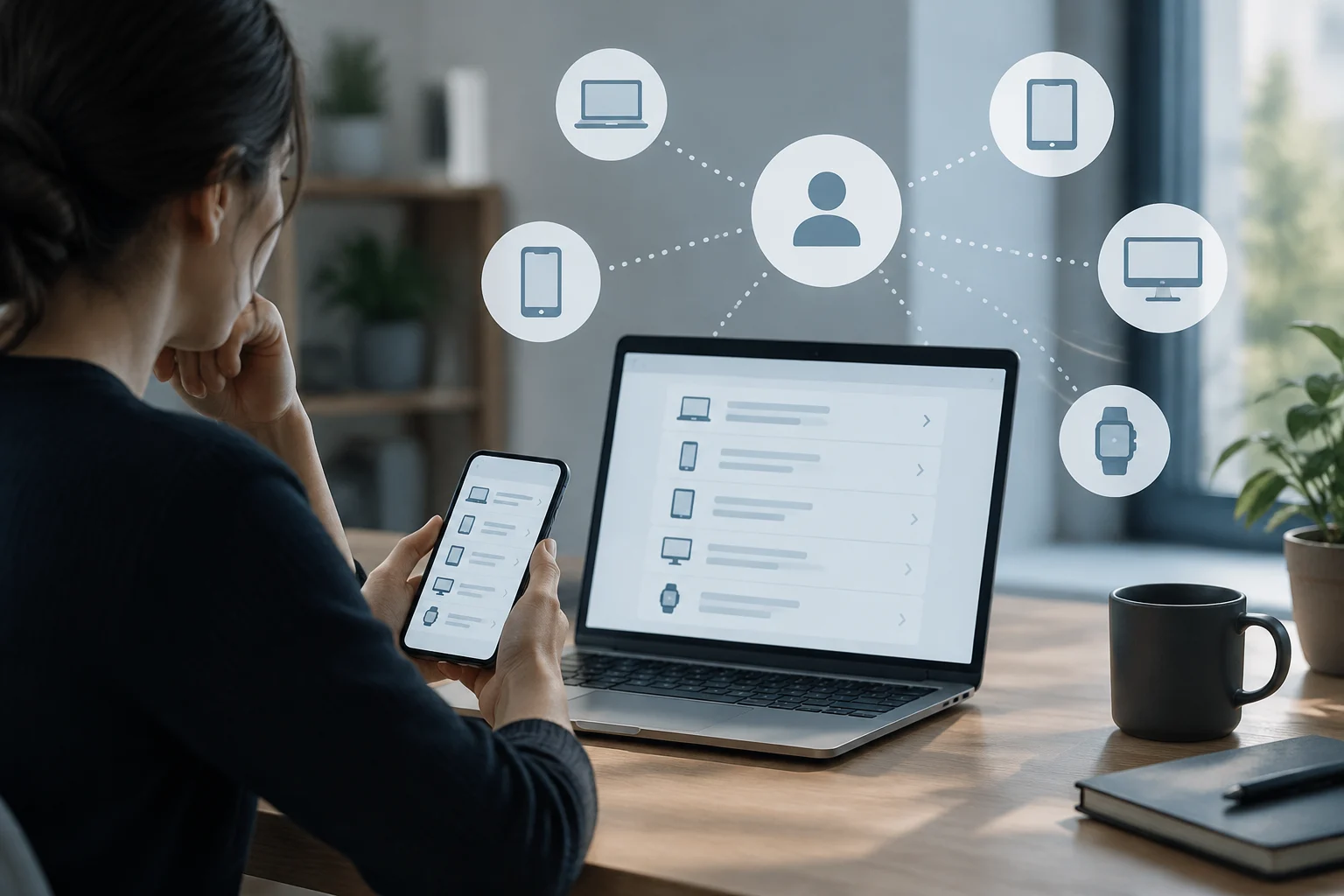
If you use the same account on several phones and computers, reviewing its associated devices can help you spot something unfamiliar. Google offers a page for checking devices with access to an account; Apple lets you review devices signed in with your Apple Account; and Microsoft provides a tool for managing devices used with a Microsoft account. These are useful controls, but they are not a comprehensive security audit. Google · Apple · Microsoft
The important distinction is between what the service reports and what a person infers from it. A device appearing in a list indicates an association or activity linked to the account, according to that provider’s system. On its own, it does not establish who physically had the device, whether anyone acted without permission, or whether the entry represents a connection that is active at that moment. Each page has a different scope, and its labels may change; read the information provided by the service when you open an entry.
Google: list of devices with account access
Google Account Help links to a view where you can check devices that have access to the account. It is a useful starting point for comparing the names or types of devices shown with those you remember using for Gmail or other Google services, for example. The information available and any associated actions appear in the account itself and may depend on the item you select. Google Account Help
Do not treat the list as a complete timeline of every access. The page explains how to view devices, but that does not mean every entry identifies a person or records every interaction with the account. A discrepancy is a reason to check, not standalone proof of an intrusion. If you do not recognize a device, first consider whether it might be an old or shared device, or one you used under a different name. Then use the options Google displays to review access and protect the account. Google: your devices
Apple: devices signed in to your account
Apple provides instructions for reviewing devices signed in with your Apple Account. This lets you compare the devices shown with those you use or have used. If you find one you do not recognize, Apple Support provides information about reviewing devices and the actions available through the account. Apple Support
The label “signed in” describes the relationship presented by the service; it does not identify a person. A family or shared device, one you no longer use, or a name that is hard to recognize may need checking before you conclude that access was unauthorized. Apple’s support page is the reference for finding out what information and options Apple offers at that time; it is not wise to assume that Apple’s view works exactly like Google’s or Microsoft’s. Providers’ lists do not necessarily use the same definitions or offer the same level of detail.
Microsoft: manage account devices
Microsoft publishes a page for managing devices used with a Microsoft account. Its purpose is to help you review associated devices and manage the relevant ones through the account options. The official documentation is the right place to check current features and requirements, rather than assuming that any device shown has the same status or meaning as one shown on another platform. Microsoft Support
Device management does not automatically establish who signed in, either. A familiar name does not prove that access was legitimate, and an unfamiliar one does not, on its own, establish that the account was compromised. Context matters: who else shares the device, whether you used it at work or at an educational institution, and when you remember signing in. Treat the page as a review and management tool, not as a forensic report.
Why an entry does not identify who used the account
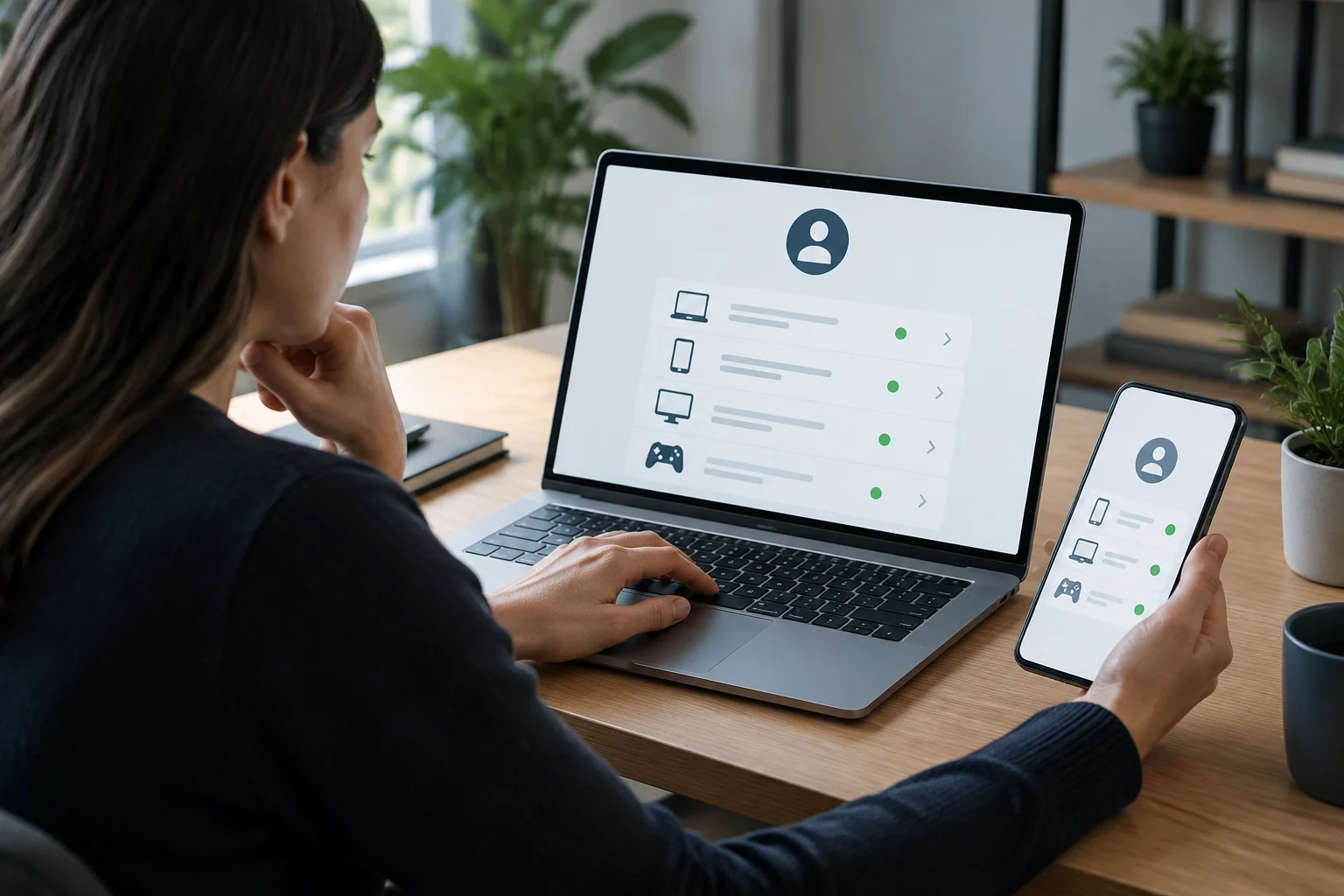
An account can be used on more than one device, and a device can be shared. An association between an account and a device is therefore not enough to attribute an action to a specific person. In addition, these pages are described as tools for viewing or managing devices; they should not be mistaken for complete histories that can reconstruct every access, its purpose, or the identity of the person in front of the screen. This is a limitation on interpretation, not proof that the pages are useless.
It is also important to distinguish “device” from “activity.” Google has separate help on accessing and controlling account activity, which reinforces that checking devices and checking activity are not necessarily the same task. To understand what each view can show, use the service’s specific documentation and avoid inferring details that the page does not display. Google: account activity The absence of a suspicious entry does not certify that the account is completely secure.
What to do if you find something you do not recognize
Before signing out or removing a device, check whether its name could belong to your own device, an old one, or a shared one. If you are still unsure, follow the options provided on the relevant provider’s official page. If you think someone else may have access, review the account’s security settings through that service and use its controls to remove access when available. Do not follow links in unexpected messages: open the provider’s page directly or use its official app.
A careful review can follow this order:
- Check the device against your phones, computers and shared devices, including ones you no longer use every day.
- Open the official help page for Google, Apple or Microsoft to understand what the entry means and which actions it makes available.
- Manage access through the account if you cannot explain the device and the service offers that option.
- Review activity and security separately: a device dashboard does not replace the account’s specific activity or protection controls.
- If it is a work or school account, also contact the relevant administrator or team: the organization may manage devices. Google Workspace: managed devices
A useful check, with clear limits
Google, Apple and Microsoft’s official pages let you review or manage devices related to their respective accounts. Their practical value lies in comparing what each provider shows with your actual use and using official controls when something does not fit. Based on what these guides establish, they do not provide a universal way to identify the person physically using each session or, on their own, prove that an intrusion occurred. Google · Apple · Microsoft
In short, use them as a prompt to review, not as a verdict. An unfamiliar item deserves context and checking; a list that looks normal does not replace security measures or the activity review offered by each account. The scope and details can vary between services and over time, so consult current instructions before taking steps that could cut off access to a legitimate device.