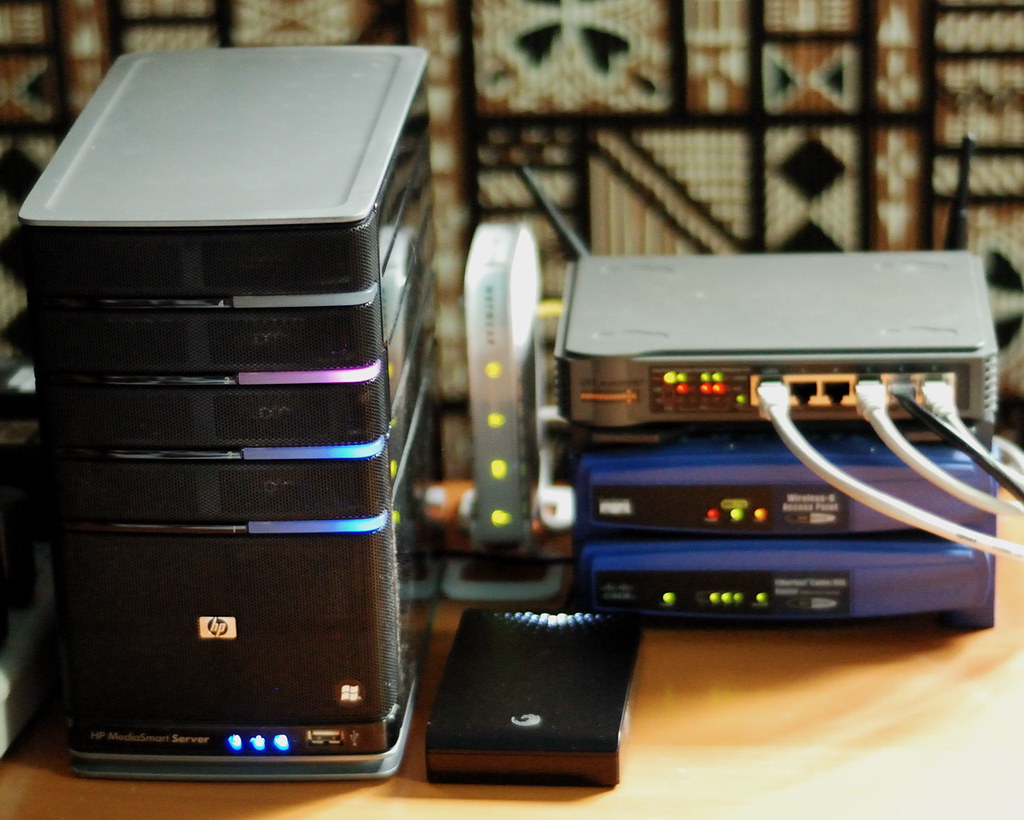
A NAS centralizes files; it does not create an independent backup by itself
A NAS is a network-attached storage device that lets several computers access shared files. This is a practical way to bring documents, photos and other data together in one place: instead of keeping scattered versions on each computer, users can connect to the storage from different devices. But centralizing files is not the same as protecting them. A NAS may be the main place where your data lives without there being a valid second copy anywhere else.
The useful question is not just “Do I have a NAS?” but “What would happen to my files if the NAS became unavailable, a file were accidentally deleted, or an unwanted change spread?” These are different problems, and no single feature solves all of them. RAID addresses one particular kind of continuity after drive failures; an independent backup provides a way to recover data from a separate storage set. Confusing these functions leaves risks without a clear answer.
The difference becomes clearer when you consider what resource you would use to get the files back. If the data exists only on the NAS, the drives inside it are all part of the primary storage, even if there are several of them. An independent backup, by contrast, should let you recover information without relying entirely on that same group of drives. Identifying which copy is the original and which is the backup helps you assess whether you truly have two ways to access your data.
What RAID does—and what it does not promise
RAID organizes several drives into a group using a particular combination of data distribution and, depending on the type, redundancy. QNAP’s documentation, for example, describes configurations with different fault tolerances: RAID 0 offers no protection against a drive failure, while RAID 1 can tolerate the failure of one of the two drives in the group. Usable capacity and operating conditions depend on the selected level and installed drives; the word “RAID” alone does not tell you what protection or capacity you have.
In practical terms, a redundant configuration can help keep data accessible after certain drive failures, provided the group and system continue to work correctly. This is fault tolerance, not a separate historical copy. If a file is deleted or changed, redundancy can preserve the deleted or changed state across the drives in the group. RAID also does not, by itself, protect against losing the entire device, damage at the location where it is installed, configuration errors, or problems that affect all the drives at once.
A distinction that helps you make decisions
Think of RAID as part of storage availability, and of a backup as a recovery path. They are not interchangeable: using both can make sense, but the first does not remove the need for the second. Actual fault tolerance depends on the specific configuration, so before relying on it, consult your system’s manual and check which types it supports, how many drives each requires, and which failures it can tolerate.
This check prevents you from assuming that the protection you want is available when your configuration may not provide it. For example, knowing that a device supports different RAID levels does not tell you which one is active or how much capacity remains available in the group. Distinguish between the options described in the manual and the configuration actually applied to your NAS.
The risks that remain
Accidental deletion is a simple example of why it matters to separate redundancy from backup. If a change is applied to the active set, having several drives does not guarantee that an earlier version of the file is preserved. The same point applies to an unwanted modification or malicious software affecting accessible data: a redundant set is not, by definition, an isolated copy that you can return to. How the system handles snapshots, versions or a recycle bin depends on the software and its configuration; do not assume these features are available or that they amount to an independent backup.
Physical scope matters, too. If the only NAS and the only backup are in the same home, an incident affecting that location could compromise both. A second drive connected permanently to the same device may be useful for some scenarios, but it is not necessarily independent of every risk affecting the NAS. This does not mean a NAS is unsafe; it explains why protection should be designed in layers. The goal is to have at least one recoverable copy that does not depend on the same failure that would affect the original.
When evaluating a backup, therefore, do not just count devices or folders. Ask whether the destination would still be available if the primary NAS were not, and whether a loss affecting the original could also affect the destination. The answer depends on where the data is stored and how the backup is maintained; a label or feature name does not, by itself, prove that the backup is independent.
How to review a backup strategy
Start by identifying which data is irreplaceable, where it is now, and how much work it would take to recreate it. Then check whether a copy exists outside the primary storage. It might be on another device or in a remote service; the choice depends on capacity, cost, available connectivity and privacy requirements. The essential point is to verify that the destination contains the data you want to recover and is not exposed to exactly the same risks as the original.
Also check how versions are retained. A backup that reflects only the latest state may not help if you discover a loss or change too late. Keeping earlier recovery points, by contrast, may let you choose a previous version, provided the feature exists, has been configured and retains versions for long enough. Do not assume that “sync” means “backup”: depending on the service and its settings, synchronization may replicate changes or deletions.
The number of versions and the length of time they are kept also affect what you can recover. If you are looking for a file that was changed or disappeared before the latest backup, an earlier recovery point must still exist. That is why it is useful to check not only whether a history is available, but also how to access it and what recovery window your current configuration provides. Do not assume that a system keeps every previous state indefinitely; check the options and limits in the documentation for your device and software version. This lets you compare what is configured with the kind of recovery you expect to need, without treating an unsupported outcome as guaranteed.
Finally, think about restoring, not just copying. A task that finishes successfully is a useful sign, but it does not, on its own, prove that you can recover a complete folder or a specific file when you need it. Check which data is included in the task, where the destination is, how to access versions, and what steps you would follow to recover information. A controlled restore test is a practical way to find problems before you have to rely on the backup.
A small test lets you walk through the process without mistaking a check for a complete recovery of all your content. Choose an appropriate sample, confirm that you can find it at the destination, and follow the steps needed to restore it to a usable location. This can reveal, for example, that you do not know where to find the backup or that data you assumed was included is missing. The value of the test is that it checks the procedure before a loss makes recovery urgent.
Configuration and documentation: do not forget the system
Files are not the only thing that may matter when bringing a NAS back into service. System configuration can include settings needed for the device to work as you expect; QNAP separately documents the option to back up configuration in QTS 5.0.x. This feature should not be confused with backing up stored data: they are different items, and you may need to plan for both.
When reviewing the manual, confirm that it applies to your operating-system version and model. The guides cited here cover specific QTS versions; they do not guarantee that every NAS has the same options. Check which backup tasks your device supports, whether versions can be retained, which destinations are supported, and what procedure is specified for restoring data or configuration. If you change models or software, review those details again rather than carrying assumptions from one system to another.
Keeping these two needs separate makes it easier to know what has and has not been backed up. A copy of the files does not prove that the NAS configuration has been saved, and a configuration backup does not replace the data. When consulting the manufacturer’s options, identify precisely what each backup task covers and which recovery steps it describes. This helps prevent you from interpreting one specific feature as covering everything needed to put the system back into service.
Checklist before considering your files protected
Before treating a collection of files as protected, review these questions. They do not replace the manufacturer’s documentation, but they help turn the general claim “I have RAID” into a more useful assessment:
- What does the configured RAID protect? Identify the level, the manufacturer’s stated fault tolerance and the group’s limitations.
- Is there a copy outside the primary group? Confirm the destination and whether it depends on the same device or location.
- Are earlier versions retained? Find out for how long and how to access them.
- Which data is excluded? Include application data and system configuration when necessary.
- Can you restore? Check the procedure with a small, controlled selection.
- Do you know whether the backup completed? Review backup task results and resolve warnings before relying on them.
The final principle is simple: RAID can be part of a strategy, but it does not complete one. If the NAS is the only place containing your files, your ability to access them still depends on that device and its surroundings. Adding an independent backup, retaining versions when needed and checking the restore process provides a stronger response to different questions. Measure protection not by the number of drives, but by whether you can demonstrate that you can recover the data that matters to you.