A useful check, not an automatic alarm
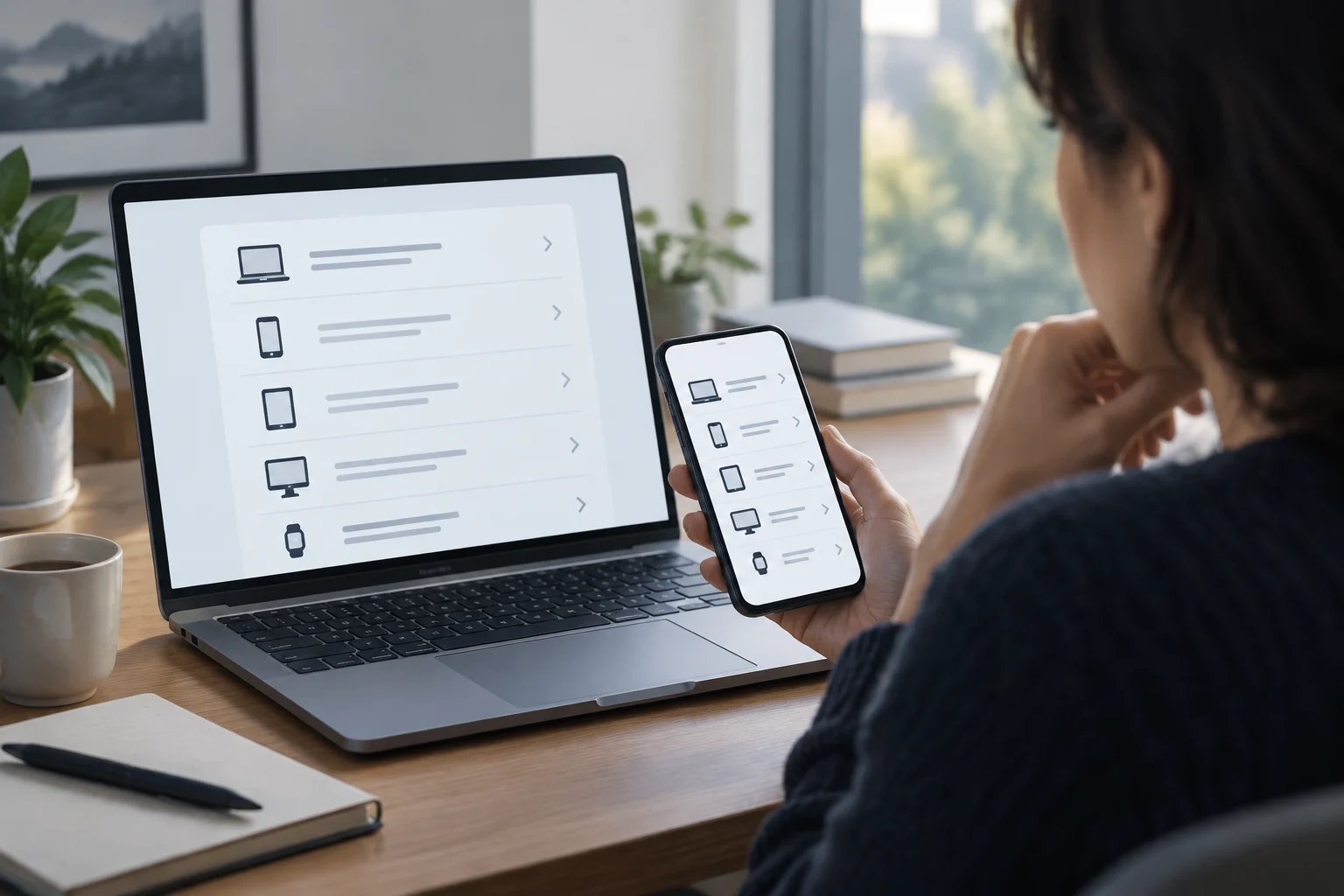
Google and Apple provide pages where you can review devices that are signed in to an account. Checking them can help you spot a session you don’t recognize, confirm whether an old phone is still linked, or make sure you removed a device you no longer use. These are account controls, not tools that certify by themselves who used a device or what that person did with it.
That distinction matters: an unfamiliar item deserves attention, but it does not automatically prove an intrusion. It may be a device you shared, an earlier session, or an unclear device label. It is sensible to verify the details and context before taking drastic action, and to use the provider’s security options if you remain unsure.
The review is most useful when treated as an initial check: it can flag something that deserves a closer look, but it may not answer every question on its own. Rather than deciding based on a single label, gather the details shown in your account and compare them with recent changes to your devices and sessions. This measured approach helps you distinguish a genuinely unexpected session from an ordinary consequence of changing devices, browsers, or apps. The list is a starting point for investigation, not a final judgment about who accessed the account or whether anything harmful happened.
Where to find the lists
In Google, sign in to your account and open the devices section. You can also go directly to the official devices with access to your account page. Google’s help explains how to view devices that have or had access, open an entry to see more information, and manage access. The details available may vary depending on the device and session.
On Apple, check the list in your account settings on an Apple device or on the account website, depending on the options available. Apple’s official device review guide explains how to identify associated devices and remove them. If you do not have a trusted device at hand, you may need to access the account another way; avoid entering credentials on pages that are not official.
In either case, start from the account settings or the official links above, and follow the instructions shown there. This lets you review information where the provider makes its management tools available, rather than relying on third-party pages that may not offer the same controls. The names of settings and the steps shown can differ across platforms or software versions, so follow the current instructions presented for your account. If you are unsure whether a page is genuine, return to the provider’s known official site instead of following an unexpected link in a message.
What information each provider provides
Google displays devices and sessions linked to the account, with information intended to help you recognize them and review their activity. A session may not correspond exactly to one physical device: the same device can create more than one entry, for example, if you signed in using different browsers or apps. For that reason, the number of rows should not be read as an exact count of your personal devices.
Apple lets you review devices associated with the account and identify equipment that may use Apple services. The list helps you recognize and manage that relationship, but it does not replace a full audit of access to every app or service. Both lists are account-management views, not exhaustive records of every interaction that took place on a phone or computer.
So focus on what each entry can help you check—and what it cannot establish. The information may guide a review and help you manage access, but it is not equivalent to a complete usage history. Keeping this distinction in mind prevents you from assigning the lists a level of detail or a purpose that they are not described as having. If an entry seems unexpected, use the available details as clues to compare with your own activity, rather than assuming that the list identifies a person or explains everything that happened during a session.
How to assess a device you don’t recognize
Start by comparing the name, device type, and activity details shown by the service with your own devices, shared accounts, and recent changes. Consider whether you recently changed phones, reinstalled an app, or signed in using a different browser. A generic label or approximate location may not be conclusive: do not treat one discrepancy on its own as confirmation that someone else accessed the account.
The date or recent activity does not tell the whole story either. It may help you work out whether a session appears current, but it does not prove who was at the screen or whether anything malicious happened. A device list is an indicator to investigate, not forensic evidence. If you recognize the device after reviewing the context, there is no reason to remove it just because its name differs from what you expected.
Make the comparison carefully, and consider the details together rather than treating each one as an independent signal that proves something on its own. If a label is unfamiliar, first look for an explanation in your own device changes or in shared use of the account. You might have signed in on a browser you rarely use or given someone access to a device without remembering the label it reports. If the activity still does not make sense after those checks, move on to the provider’s account-management and security options.
What to do if the session still doesn’t make sense
If, after checking the context, you still do not recognize a device, use the account-management options to sign it out or remove its access. Google explains how to review and manage devices in its official help; Apple explains how to remove devices in its guide to associated devices. Follow the steps shown for your account: the options may vary by platform or version.
Next, review the account’s security: change the password if you suspect someone else knows it, check the recovery methods, and turn on two-step verification if available. Do not share verification codes or passwords with someone who contacts you unexpectedly. If the provider shows activity you do not recognize, keep the relevant details and consult its official channels before assuming that removing a session has resolved the issue.
Removing a session is an access-management step, but it does not replace checking the other security controls if your doubts persist. Distinguish the immediate action on the device from the follow-up review of the account. If you do not know how to interpret the information displayed, consult the official instructions for your account. You can also make a note of the entry and the steps you have taken, so that you can describe the situation accurately when consulting the provider’s support resources. Avoid assuming that the account is safe solely because an unfamiliar entry no longer appears in the list.
The scope and limits of this check
Google and Apple document ways to view devices linked to an account or signed in to it, and to manage their access. You can use these tools as a straightforward periodic review, especially after losing a device, selling one, or switching equipment. For the review to be useful, go through the entire list instead of looking only for an entry with the exact model name you expect.
What the lists cover depends on what each service records and the information it presents in a particular case. This guide does not compare the accuracy of their systems or determine whether a specific session was legitimate: that requires examining circumstances that public pages cannot resolve on their own. The practical conclusion is narrower: review, compare, and manage access through the provider, and treat any persistent indication as a reason to strengthen the account, not as an automatic verdict.
In this way, the check can become part of a basic account review without turning every unexpected entry into a cause for alarm. Its value lies in noticing something that may need follow-up, considering the context, and using the controls available. The list provides a starting point; what you decide to do depends on the specific information and whether the session remains unrecognizable. If the details are inconclusive, avoid drawing a stronger conclusion than they support and consult the provider’s official guidance for the options available in your account.