What an Android permission controls
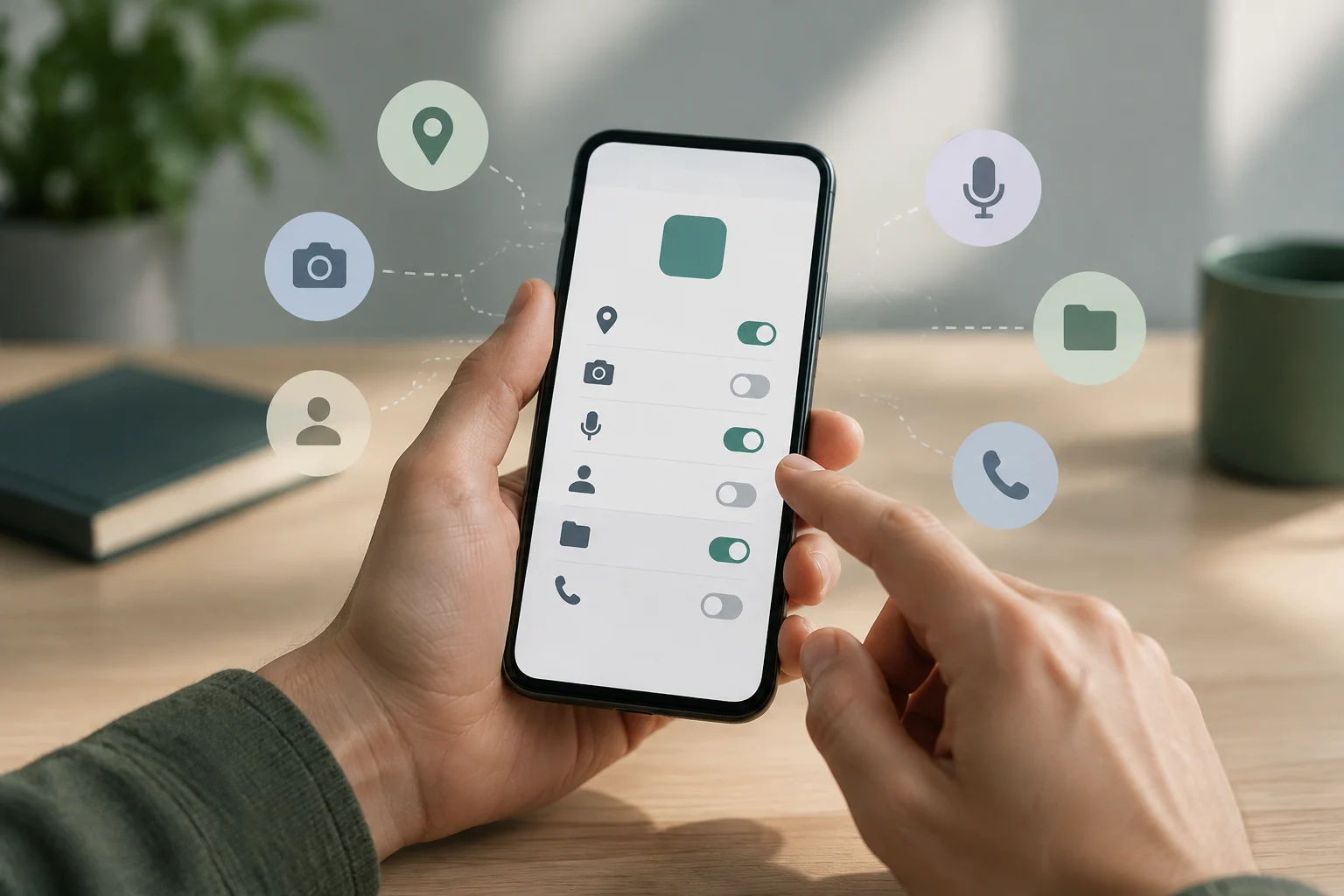
Permissions regulate an app’s access to certain device features or data. Depending on the feature, they can cover location, the camera, the microphone, or contacts, for example. Android lets you review and change permissions that have been granted; the system may ask for your authorization when an app tries to use a protected feature. A permission is a system access decision, not a complete description of everything the app does or transmits. Android permissions documentation.
Assess each request in relation to the task you want to perform. A maps app may need location to provide navigation, while a feature that does not use location may work without it. That alone does not prove that a request is malicious or unjustified: the specific use, the app’s explanation, and whether a less intrusive alternative exists all matter. The practical approach is to grant only the access needed for the feature you want to use, bearing in mind that denying it may limit or prevent that feature. A permission request is therefore best considered in context, rather than judged solely by its name. Before deciding, identify what you are trying to do and whether the requested access appears connected to that task. This keeps the decision focused on the function at hand, without treating a permission as a complete account of the app’s data practices.
Find the permissions list in Settings
A common route starts at Settings > Apps: select the app you want to review and look for “Permissions” or an equivalent option on its app information page. There you can see the access you can change and its current status. On some devices, you can also reach that page by pressing and holding the app icon and opening its information. Screen names and order vary between manufacturers, Android versions, and software customizations; if you cannot find the option, search for “permissions” in Settings. Android’s official help describes the general process, but does not guarantee that every phone uses identical labels. Android Help: Change app permissions.
You can also browse by permission type instead of by app. In the privacy dashboard, where available, you can find permission management and review which apps have access to particular categories. This view is useful for checking, for example, which apps have location or microphone access enabled; you can then open a specific app to decide whether to keep that access. Google documents this option, although the dashboard’s availability and presentation depend on the device. If the menu does not appear under that name, use Settings search or open the individual app’s information page. The two routes serve different starting points: one begins with the app you have in mind, while the other helps you look across apps that share a type of access. Neither route changes what a permission means; each helps you reach the relevant system controls. Android Help: Manage permissions from the privacy dashboard.
Change or remove a permission
On the app’s information page, tap the permission you want to change and choose one of the available options. Depending on the permission, system version, and app, options may include allowing access only while using the app, asking every time, or not allowing access. Some access controls may offer additional choices; not every category is managed using the same set of controls. Android’s permissions guide and its help page about changing permissions explain the general framework. Do not assume a particular option will appear on every phone: check the choices shown on your device. Android Help: Change app permissions.
If you remove a permission, the app may stop offering the feature that depended on it, or ask for access again when you use it later. That does not mean you should automatically agree: check whether the feature is necessary for the task you want to complete. Android has specific location controls, and the options can vary; its official help explains how to manage that access. For a careful review, change one permission at a time and check whether the feature you care about still works. If it stops working, you can return to the app’s information page and reconsider your choice; the setting can be reviewed again. This makes it easier to connect a change with its effect, without assuming in advance that every feature will behave the same way after access is removed. Android Help: Manage location permissions.
Check an app’s information on Google Play
An app’s Google Play listing may include a Data safety section with information supplied by the developer about data collection and sharing, and security practices. It provides additional context before installing or keeping an app, but it is not the same control as Android permissions: changing a permission on your device does not edit the listing, and reading the listing does not grant or revoke access on your phone. Google explains how to interpret the section and notes that the information comes from developers’ declarations. Google Play Help: Understand Data safety.
Compare that declaration with the app’s purpose, but do not treat it as an independent technical audit or a complete inventory of every possible access. The section is intended to help explain declared practices; it does not replace reviewing system controls or the developer’s explanations. Nor should you confuse a list of permissions with a list of data actually sent: a permission indicates a capability the system can control, while the Google Play declaration provides information about data practices. These are different signals and are best interpreted together, without attributing more scope to either than it has. In practice, the listing and the Settings screen answer different questions. The listing supplies declared context, while the device’s controls let you decide whether particular system-managed access is allowed. Google Play Help: Data safety.
What a permissions list does not prove
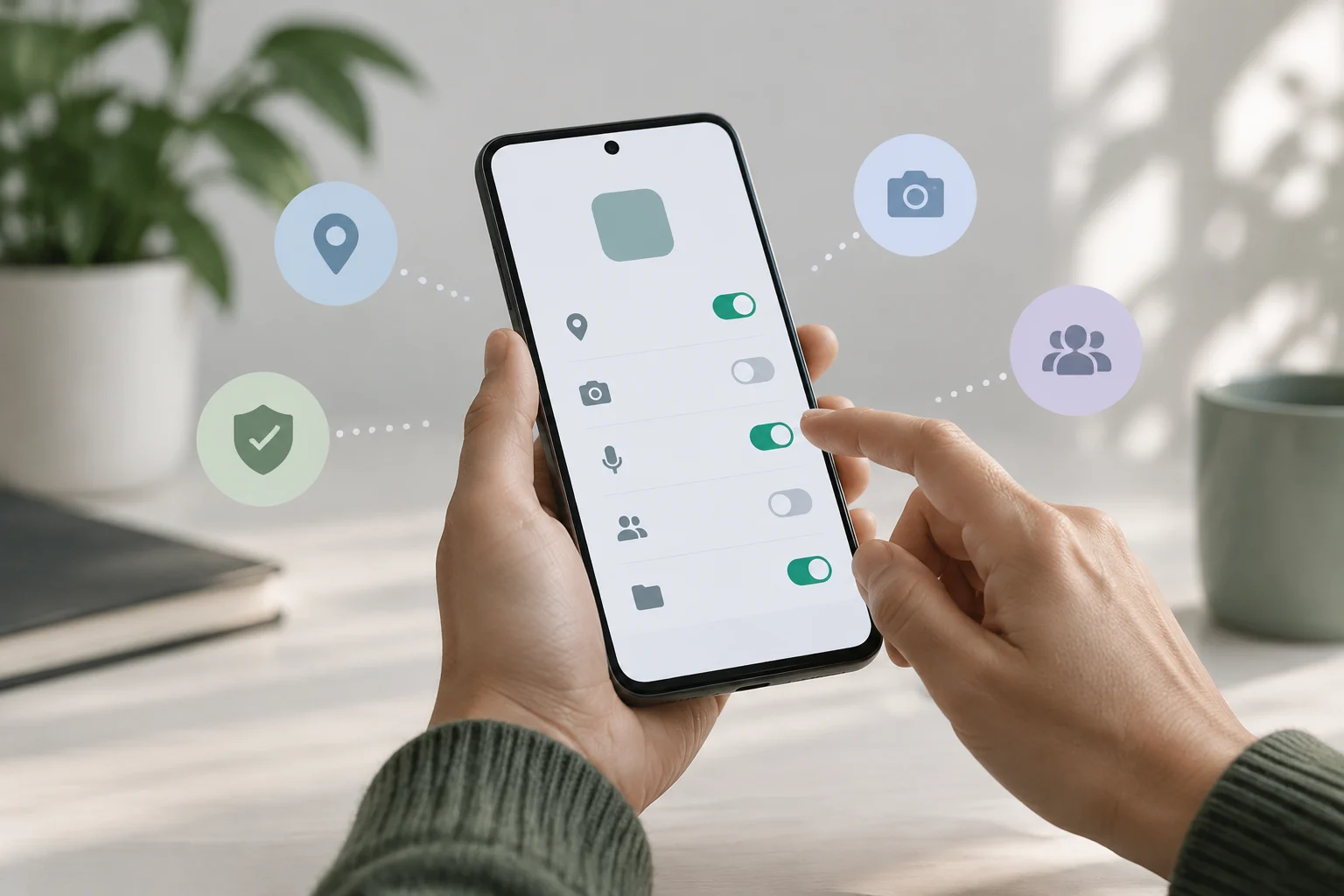
Seeing that a permission is granted does not prove the app is using it at that moment, how often it accesses the feature, what data it obtains afterward, or whether it shares that data. Likewise, the absence of a permission shown as granted does not establish that the app processes no data: it may handle data you already provided, data available through another route, or information that is not covered by that particular control. Android’s developer documentation explains the permissions model, but the screen shown to users is an access control, not a complete activity log or privacy assessment. Android permissions documentation.
That is why a review has a defined scope: it lets you make decisions about access managed by Android and check information declared on Google Play, but it does not itself verify every data operation. For a more informed decision, combine three things: the feature you need, the permissions shown in Settings, and the Data safety information. If a request does not seem related to the task, you can deny it and see which feature is affected, or consult the developer’s explanation. This is a stronger basis for judgment than inferring intent from a permission’s name alone. It also helps keep the limits of each source clear: a system permission describes controlled access, and a store declaration describes reported practices; neither by itself establishes every detail of actual use.
Final checklist before granting access
Before accepting a request, identify the feature you are trying to use and the permission the app is asking for. Ask whether the access seems necessary for that feature and whether the system offers a more limited alternative. If the app asks for permission while you use it, but you only need a one-off action, consider whether a temporary option or “ask every time” is available; choose from the options that actually appear on your device. A permission may be necessary for a legitimate feature and still not be essential to the rest of the app.
For a quick check, open the app in Settings, go to its permissions category, change only what you can justify, and test the relevant feature again. For additional context, consult Data safety on Google Play, bearing in mind that this information does not replace system controls. If menus differ, search in Settings or consult help for your version. This review does not certify that an app is safe, but it can help reduce unnecessary access and support more considered decisions, without confusing authorization with proof of actual data use. If the result of a change is not what you expected, revisit the same controls and reconsider the choice in light of the feature you need. The aim is not to make assumptions about the app, but to make an informed decision about each access request.