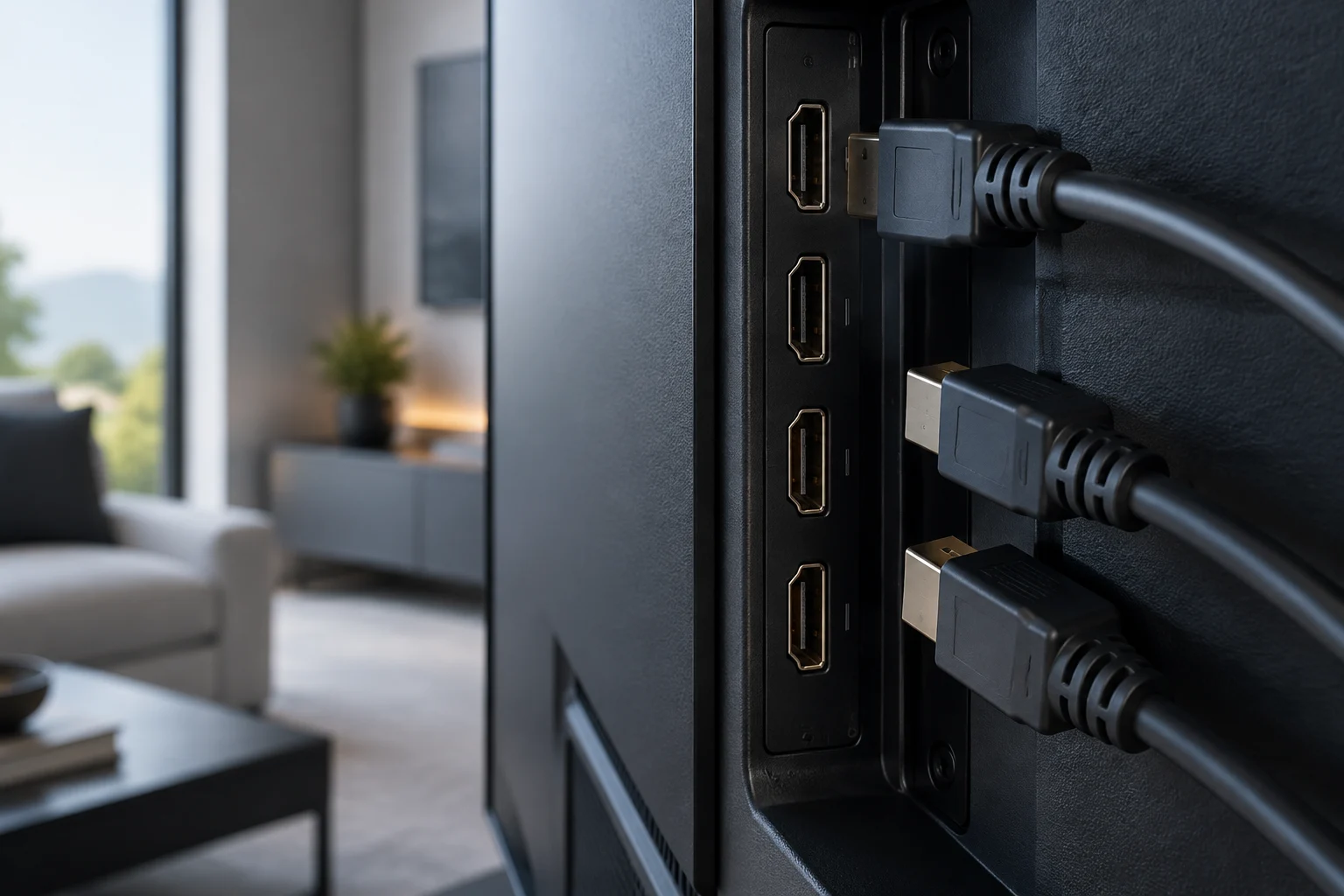
The HDMI 2.1 label does not describe every input on its own
When buying a TV for a console, PC or soundbar, “HDMI 2.1” can seem like a sufficient answer. It is not: to find out whether an input supports a particular feature, check the capability the manufacturer assigns to that port on the exact model. The useful question is not simply whether the TV advertises HDMI 2.1, but what each input can do.
HDMI 2.1 is a specification version that includes features such as Variable Refresh Rate (VRR), Auto Low Latency Mode (ALLM) and Enhanced Audio Return Channel (eARC). Their inclusion in the specification does not mean that every TV implements them all, or offers them on every port. So do not interpret the product label as a list of guaranteed features.
You also need to distinguish the advertised version from the physical configuration. Two inputs on the same TV may have different capabilities, and a retailer’s abbreviated product listing may not explain those differences. Check the manufacturer’s documentation for the complete model code and, where specified, its regional variant.
Start with the specification sheet and manual for the exact model
First, find the TV’s official product page and download its manual. In the specification sheet, look for the inputs or connectivity section; in the manual, search for terms such as HDMI, signal formats, input resolution, refresh rate, VRR, ALLM and eARC. Do not rely on a general page for the product range if you can identify the precise variant: a product family may include different sizes or model codes.
If the manufacturer publishes a port table, check whether it identifies each input by number and specifies what it supports. Labels beside the connectors on the TV itself can offer clues, but they do not replace the documentation: symbols may be hard to read and may not list every condition. The most practical evidence is documentation that links the feature to the specific port, rather than just to the series name.
To avoid confusion, note the full code shown on the rear label, in the information menu or on the official product page. Make sure it matches the model on the support page. Region matters because names and configurations can vary between markets. If you cannot find a detailed table, treat the feature as unconfirmed rather than inferring it from the marketing label.
Check resolution and refresh rate as a combination
“4K at 120 Hz” combines two requirements: a resolution of 3840 × 2160 pixels and a refresh rate of 120 Hz. A specification sheet that mentions 4K does not prove 120 Hz; a 120 Hz display does not necessarily accept that refresh rate at 4K resolution through every input. Confirm that the manufacturer explicitly lists the format or input capabilities for the port you intend to use.
Look in the specification sheet or manual for the resolutions and refresh rates supported over HDMI. Sometimes this information appears in a signal-format table, and it may depend on a menu option that enables a higher-bandwidth signal. If such a setting exists, follow the official procedure and check whether it applies to a particular input. Do not assume that one port’s capability applies to the others.
The source must also generate the requested format. A console or graphics card connected to an input that supports 4K at 120 Hz will not necessarily output that signal if the device, game, operating system or settings do not offer it. The TV, device and cable form a chain: the result is limited by the least capable component or setting.
VRR and ALLM are different features
VRR synchronizes the display’s refresh rate with the variable output of a compatible source, with the aim of reducing irregularities in image presentation. ALLM lets a compatible source request a low-latency mode on the TV. They are different features: confirming one does not confirm the other, and neither alone proves that the port accepts 4K at 120 Hz.
In the manual, look for the exact acronyms and check whether compatibility applies to all inputs or only some. Also check whether the document specifies conditions or preliminary settings. Product listings often compress features into a single line and do not state the combination of resolution, refresh rate and feature; in case of a discrepancy, the model’s table and manual are more useful references than a generic product-range description.
For a console or PC, also consult the documentation for the connected device. Confirm that its output supports the feature and format you want, and check the video settings after connecting it to the specified port. Do not assume that a mode advertised by the console will be available with any cable, input or picture setting.
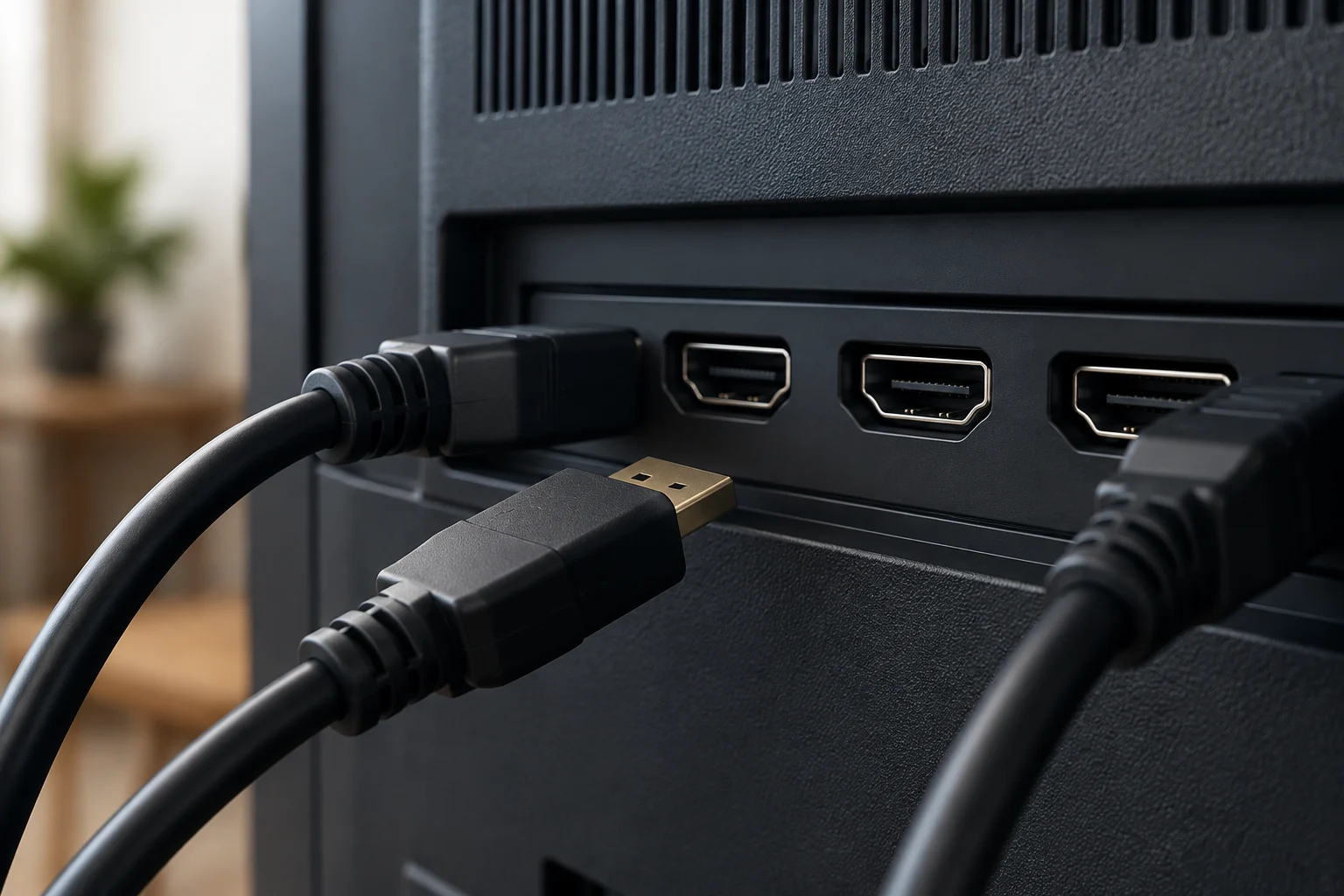
eARC: identify the audio return input
eARC sends audio from the TV to a compatible receiver or soundbar over an HDMI connection. Although a TV may have several inputs, its documentation may identify only one as eARC-compatible; that is usually the one to connect to the corresponding port on the audio equipment. The physical connection and compatibility of both devices must match.
Distinguish eARC from gaming video features. An input designated for audio return is not necessarily the best one for connecting a console, and an input that supports high-refresh-rate signals is not necessarily the one assigned to eARC. Check the manual’s connection diagram to confirm which port connects to the TV and which to the audio equipment.
If you want to use a soundbar and console at the same time, plan your inputs before buying. Check how many ports support the video features you need and which one offers eARC. If the TV has fewer compatible inputs than you have devices, you may need to switch connections or use a receiver; check that the intermediate device supports the intended signals before relying on it.
Cable, settings and a pre-purchase checklist
A standard-size HDMI connector may look the same on different cables, but appearance does not certify the category or advertised capability. For a demanding signal, check the requirements from the source and TV manufacturers and choose a certified cable appropriate for the format. A direct connection helps isolate problems; if you add a receiver, switch, adapter or soundbar to the signal path, each item must also support passing through the relevant signal.
If the expected refresh rate or feature does not appear, first check the selected input, the TV’s signal mode, the resolution configured on the source and the cable. Then confirm in the manual whether the feature requires a particular setting to be enabled. These are general troubleshooting criteria, not a guarantee that a specific combination will work: resolving incompatibilities requires the exact models and conditions of every component.
Before you pay, use this short checklist:
- Note the TV’s full model code and consult its official specification sheet and manual.
- Confirm by input number which ports support 4K at 120 Hz and which support VRR or ALLM, if you need them.
- Identify the eARC port and reserve that connection for audio equipment where appropriate.
- Check that the console, PC, soundbar and any intermediate devices support the required features.
- Verify the cable and signal settings specified by the manufacturers.
If a feature is not clearly associated with a specific port, do not assume it is guaranteed. The safe choice is based on documented capabilities for each input, not on an isolated version label.