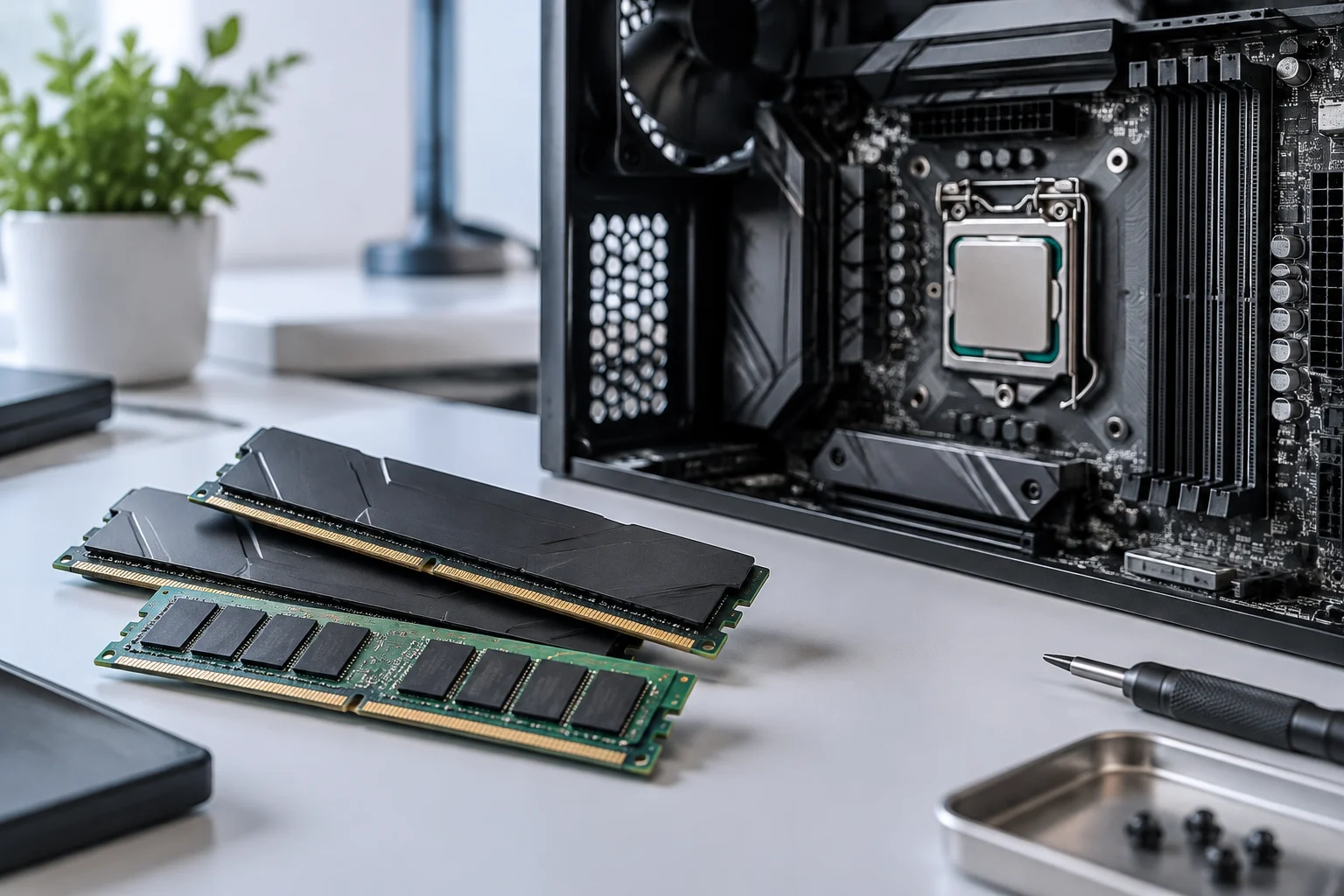
Start by identifying the motherboard and processor
Memory compatibility is not determined by one feature in isolation. It depends, at a minimum, on the motherboard and its platform, as well as on what the processor’s memory controller supports. That is why, before looking for modules, you should note the exact motherboard model and the full processor model. A product family or manufacturer name is not enough: variants with similar names may have different requirements.
First, visit the motherboard manufacturer’s support page and open the specifications for the relevant revision or variant. Find the memory section and note the supported type, number of slots, maximum capacity, and any conditions attached to speed. Then compare this information with the processor specifications. If your PC is a branded system and you do not know the motherboard, look up the exact computer model in the manufacturer’s documentation; do not assume that a specification sheet for a similar motherboard describes your computer.
There are two checks that should not be confused: general specifications state the features the manufacturer declares for a product; a tested-memory list, such as a QVL (Qualified Vendor List), identifies specific modules that the motherboard manufacturer has verified under certain conditions. A kit’s absence from a QVL does not, on its own, prove that it is incompatible, but it does mean you cannot describe it as a model validated by that list.
Check the memory type and physical form factor
The first requirement is the memory type: it must match what the motherboard supports. Do not buy based only on the fact that a module is DDR or appears to fit. Memory generations are not interchangeable simply because they share a general appearance, and a board designed for one type should not be treated as compatible with another. Check the exact designation in the manufacturer’s specifications.
You must also identify the form factor. A desktop computer usually uses DIMM modules, while many laptops use SO-DIMMs, but this general guidance does not replace checking the specific computer. Some computers have integrated memory or limit upgrade options. If the documentation does not clearly specify the form factor and whether modules can be replaced, do not infer the answer from the computer’s exterior size.
Before buying, compare these details with the motherboard or computer specifications: memory type, module form factor, and number of available slots. If modules are already installed, note their labels and current arrangement, but do not assume that adding another module with a different capacity or specification will automatically produce the expected result.
Total capacity, slots, and module arrangement
The maximum capacity advertised for a motherboard does not, by itself, answer every practical question. You need to find out how many slots it has, how much each slot supports, and which combinations the manual covers. Total installed memory is the sum of the modules, but the applicable limit is the one documented by the manufacturer for that motherboard and platform; do not extrapolate from another model in the same series.
Consult the manual to find out which slots to use and in what order. ASUS, for example, recommends following the configuration described in the manual and shows that the appropriate arrangement can vary depending on whether you install one, two, or four modules. This illustrates why the number of modules alone is not enough to decide where to place them: follow the instructions in the manual for the exact model.
If you are upgrading a computer that already has RAM, compare the capacity and characteristics of its existing modules with those of the kit you want to add. Make sure you do not exceed the documented total maximum, and that the planned combination is covered or, at least, does not conflict with the manufacturer’s instructions. The documentation available for this guide does not support recommending a universal combination or setting a capacity suitable for every use.
Advertised speed and effective speed
The speed figure on the box is not necessarily the speed at which memory will run in your computer. Supported frequency depends on the combination of processor, motherboard, modules, and configuration. Compare the processor and motherboard specifications, and check whether the stated speed requires enabling a memory profile in the BIOS/UEFI.
XMP (Intel Extreme Memory Profile) is a profile technology for configuring compatible memory parameters. It does not automatically make any kit compatible, nor does it guarantee that every platform can operate at the advertised speed. Check that the motherboard supports the relevant profile and that the processor and the rest of the configuration are suitable. If the manufacturer makes a speed conditional on a profile or a particular configuration, treat that condition as part of the specification, not as a secondary note.
The prudent approach is to distinguish three figures: the module’s rated speed, the speed the motherboard manufacturer lists for different configurations, and the processor’s memory specification. If they differ, do not conclude that the highest figure always takes precedence. The documentation consulted does not provide a complete platform example that would make it possible to calculate the operating speed of a specific combination.
How to use the QVL and manual
A QVL can help reduce uncertainty when it includes the exact kit model. Find the list on the motherboard’s support page and check that it applies to the correct model; also see whether the documentation distinguishes capacities, module counts, or the processors used for validation. Do not treat a partial match in brand or speed as a model match.
ASUS explains that its memory compatibility list is accessed through the motherboard’s support section. It also recommends consulting the manual for slot configuration. These instructions are useful as a verification procedure, but they are specific to ASUS documentation: for another brand, follow the tools and manuals published by that manufacturer.
A QVL is a reference list of tested modules, not necessarily a comprehensive list of every type of memory that may work. Conversely, finding a product on a list does not remove the need to check the applicable notes and conditions. If stability problems arise, consult the manufacturer’s instructions for the exact model and check whether it recommends a BIOS update; do not update or change settings blindly.
Pre-purchase checklist
Before paying, gather information for the exact model and check each point against official documentation. A brief verification helps prevent basing a purchase on a product label or recommendations that do not apply to your computer:
- Motherboard and processor: confirm the full models and consult their official specifications.
- Type and form factor: verify the memory generation and whether the computer uses DIMM, SO-DIMM, or another documented design.
- Capacity: check the manufacturer’s stated total maximum, available slots, and per-module limits.
- Configuration: follow the manual’s instructions about which slots to use and how many modules to install.
- Speed: distinguish the module’s specification from the platform’s supported speed and the conditions required to reach it.
- Validation: search the QVL for the exact model, if one is available, and read its notes; absence from the list does not automatically mean incompatibility.
- Prebuilt computer: consult the computer manufacturer’s documentation, as the model may have its own limits.
What these details can—and cannot—tell you
The most reliable method is to cross-check the processor documentation with that of the motherboard or computer, then complete the check with the manual and QVL when available. Memory type, capacity, arrangement, and speed are related but distinct questions: confirming one does not establish the others. The documentation must match the exact model, not a motherboard with a similar appearance or name.
The sources collected for this article describe procedures and provide examples of manufacturer documentation, but they are not a complete comparison of current platforms and do not identify each reader’s PC. Consequently, they cannot establish that a particular kit is compatible with an unspecified system or recommend universal capacities or speeds. If specifications conflict or omit an important condition, ask the manufacturer’s support team to confirm before buying.
After installing memory, follow the checking procedure in the computer’s manual. If the computer does not start or is unstable, first check module seating and slot configuration, then contact the relevant support service. This guide does not replace instructions for a specific motherboard or a functional test: it provides a verification sequence to help you make an informed purchase without confusing general specifications with guarantees.