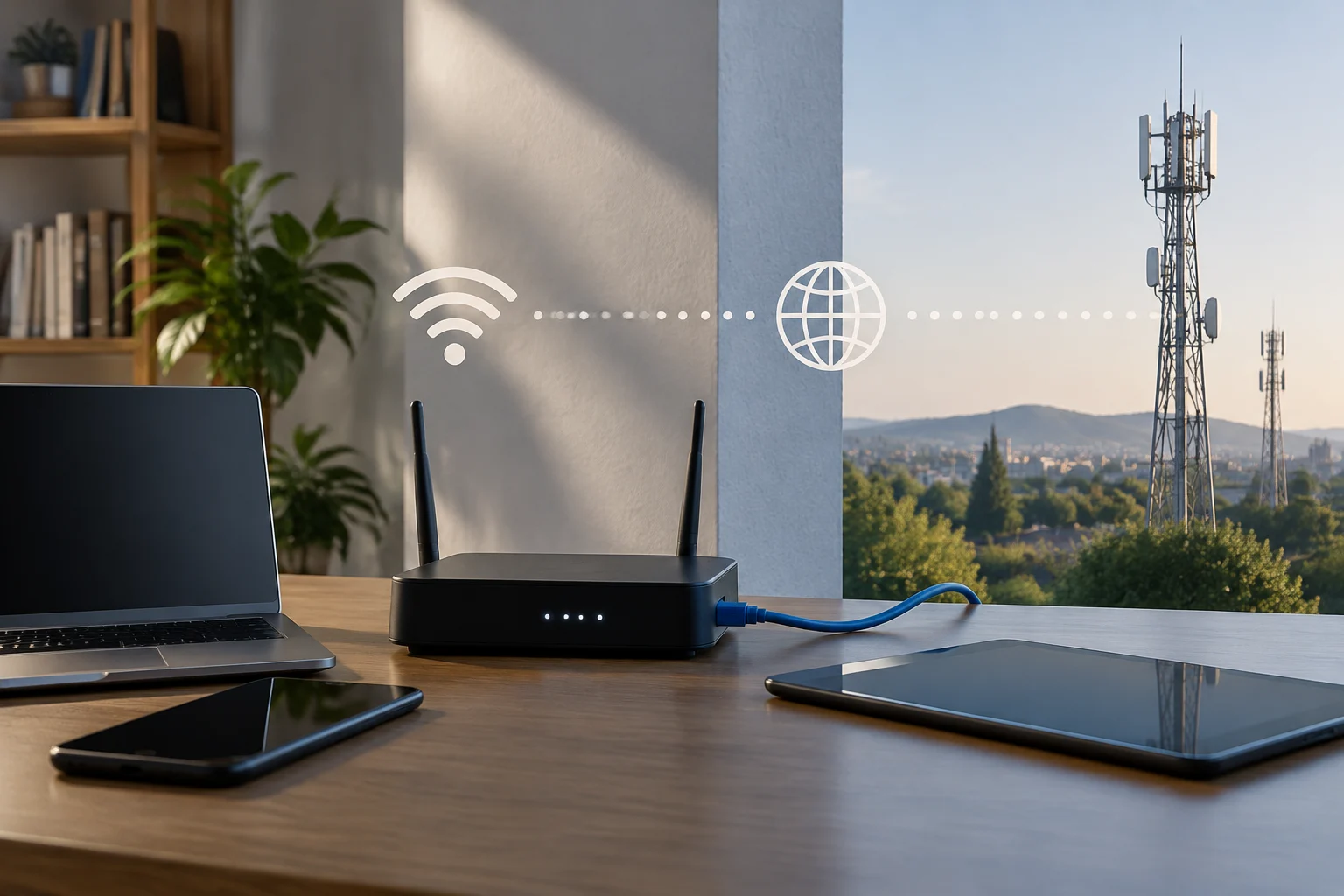
Before changing anything, narrow down the problem
A page failing to load does not necessarily mean there is a general internet outage. The problem could be with one device, your home wireless connection, the router or the provider’s link. A single service might also be failing while the rest of your connection works. The first task, therefore, is to work out what is affected, not to restart equipment at random.
Note when the problem began and what you were doing. Check whether the device says it is connected to Wi-Fi and whether it shows a limited-access or no-internet warning. Connecting to your home network only shows that the device can communicate with the router; it does not prove that the router has a connection to your provider. Conversely, an error in one app is not enough to conclude that the entire service has been interrupted.
Try to avoid making several configuration changes at once. If you change the password, reset the router and restart the device all at the same time, it will be difficult to tell which action had an effect. Check one thing at a time to preserve useful clues and reduce the chance of making a simple problem harder to resolve.
Compare several devices and services
Test the connection on another device, ideally one you already know works normally. If the second device can browse and the first cannot, the issue is more likely to be with the device or its settings than with a complete loss of home internet access. If both fail, a shared component such as the router or access service becomes more likely; this is still an indication, not confirmation.
Also check more than one website or service. If one website will not open but others will, the issue may be limited to that website, an app or a particular route. If no service responds on several devices, the problem appears to affect more of the connection. Some websites may remain available during a partial outage, so a single website cannot serve as definitive proof either.
Keep a simple record of the results: device, connection used, service tested and time. You do not need to install tools or share personal information for this initial check. Asking other people at home whether they see the same symptoms may help establish whether the issue is shared, although devices connected to the same router do share part of the infrastructure.
Compare Wi-Fi with a wired connection
If you have a computer and an Ethernet cable, connect the computer directly to the router and repeat a basic browsing test. If it works over Ethernet but not Wi-Fi, the issue is probably in the wireless segment, coverage or Wi-Fi settings; this does not, by itself, identify the precise cause. If the connection also fails over Ethernet, possible causes include the router, the line or the provider, among others.
The comparison is most useful when the conditions are reasonably similar: use the same device and service, with little time between tests. Ethernet bypasses the wireless link between the computer and router, but it does not remove the other dependencies on your home network or operator. A damaged cable, faulty port or device setting could also introduce a separate problem.
If you cannot test over Ethernet, that is fine: simply note that you did not perform the check. To help guide the diagnosis, it is enough to state how many devices fail and whether they all use Wi-Fi. Valve’s network connectivity troubleshooting guide is a support reference for diagnosing connections, although its instructions are intended for its own services and do not replace guidance from your internet provider.
Interpret speed-test results cautiously
A speed test can provide a snapshot of the connection between your device and the servers selected by the tool. It does not automatically show whether a low speed is caused by Wi-Fi, the device, the router, congestion, the test server or the service you pay for. If the connection is completely down, the test may not complete at all.
If you run a test, note the time, device, whether you used Wi-Fi or Ethernet, and the result shown by the tool. For a more meaningful comparison, avoid large downloads at the same time and repeat the test only if the fault is intermittent. Do not treat a single figure as a diagnosis or compare results without allowing for changing conditions.
A test is a data point, not a verdict. A low result alongside dropouts on several devices may strengthen the suspicion of a wider problem, but it does not pinpoint the cause. If most tasks work normally and only one app fails, the speed result may matter less than checking that app separately.
Check the router and contact your provider
Look at the router’s indicators without changing its settings yet. Note whether it is powered on and whether any relevant light is off, steady or flashing; meanings vary by model, so check the manual or the operator’s official help before interpreting a pattern. A status light may provide a clue, but it does not by itself prove that there is an external fault.
Check your provider’s official channels—for example, its app, website or customer support—for notices about problems in your area. A message from the operator may confirm that it knows about an incident, but no notice does not prove that everything is working: the problem could affect a small area, still be under investigation or be specific to your installation. Avoid basing your conclusion solely on social-media comments.
Before contacting support, gather brief, verifiable information: when the problem began, whether it affects one or several devices, whether you tried Ethernet, which services fail and what the indicators show. Also say whether the connection comes back intermittently. These observations help describe the scope without presenting a suspicion as a confirmed diagnosis.
What to do if the connection does not return
If the provider has not reported an incident and your checks suggest that several devices are affected, follow your operator’s support procedure. Restarting the router may be reasonable if the provider recommends it, but do not perform a factory reset without instructions: it may erase necessary settings and leave you without a connection until you set it up again. Do not disconnect fibre cables or handle the internal installation.
If the problem seems limited to one device, check that airplane mode is off, reconnect to Wi-Fi and consult the operating system or manufacturer’s help. If only one app or website fails, first check whether that service has a problem of its own. INCIBE’s advice on secure connections focuses on digital security; it is not a diagnosis of internet-access faults, so it is worth distinguishing between these two kinds of help.
The most reliable conclusion is gradual: several affected devices, failure over both Wi-Fi and Ethernet, and an official operator notice make a service incident more plausible, but each clue has limits. If only one device fails or the connection works over Ethernet, the evidence points to another part of the setup. Describe what you observed and leave the final diagnosis to the provider, which can check the line and external network.