Executive summary: what to check
An SSD’s generation number is not enough to decide whether to upgrade. Compatibility depends on the specific characteristics of the laptop: the supported form factor, the interface connected to the M.2 socket, the drive’s capacity, and the space available. Before buying, consult the manual or specification sheet for the exact model rather than relying only on the name of the product family or the type of SSD commonly installed in similar laptops. A label on a drive cannot tell you what a particular computer supports.
Your checks should answer specific questions: what module length the socket accepts, which interface is available, and what capacity or installation restrictions the manufacturer lists. An M.2-shaped connector does not, by itself, confirm any of those details. The drive must also be secured properly, and installation must follow the computer’s instructions. Compatibility is a property of the combination of laptop and SSD, not of an isolated label. If the documentation is incomplete, do not fill the gaps by assuming that a related model has the same configuration.
PCIe 5.0 has a higher signaling rate than PCIe 4.0, but that figure alone does not show how a drive will perform in a laptop. The result also depends on the SSD, the available link, and operating conditions. You cannot infer a laptop’s battery life or temperature from form factor, NAND type, or the presence of DRAM alone without specifications and measurements of the complete system. Those characteristics can help describe a drive, but they do not replace data for the specific computer and SSD combination. A theoretical capability and an observed result are not interchangeable.
PCIe 5.0 and NVMe: link rate and the scope of specifications
PCI-SIG documents a speed of 32.0 GT/s per lane for PCIe 5.0. This is a signaling rate, not a promise about a drive’s effective performance. To interpret the figure, bear in mind that useful throughput also depends on the number of lanes, encoding, and the connected device. Comparing generations therefore tells you about one capability of the link, but cannot, on its own, predict sustained performance inside a laptop. The rate is meaningful as a specification of the connection; it is not a direct measurement of a particular workload.
In practice, the advertised generation describes one part of the connection, not the complete behavior under a workload. Link rate alone does not say what performance the SSD will maintain during extended use or what a person will notice in everyday tasks. Supporting such conclusions would require specifications and tests of both the SSD and laptop under comparable conditions. Without those, turning a link-rate figure into a promise of real-world speed would go beyond what that figure documents. Results may also depend on the particular drive and system configuration, so a broad claim should not be substituted for model-specific evidence.
NVMe is defined through NVM Express specifications covering transport over PCIe and other aspects of the protocol. The available source on NVMe transport over PCIe documents that scope, but is not enough to support detailed claims about the entire NVMe 2.0 architecture, the specific features of every drive, or a perceptible benefit in everyday tasks. The term NVMe identifies a protocol or a family of specifications; it does not guarantee that all drives provide the same features or results in every computer. Support for a feature must be checked in the operating system, firmware, and SSD model, rather than inferred from the NVMe label. A protocol name does not establish that a particular function is implemented or enabled in a given system.
M.2 form factors: dimensions and compatibility
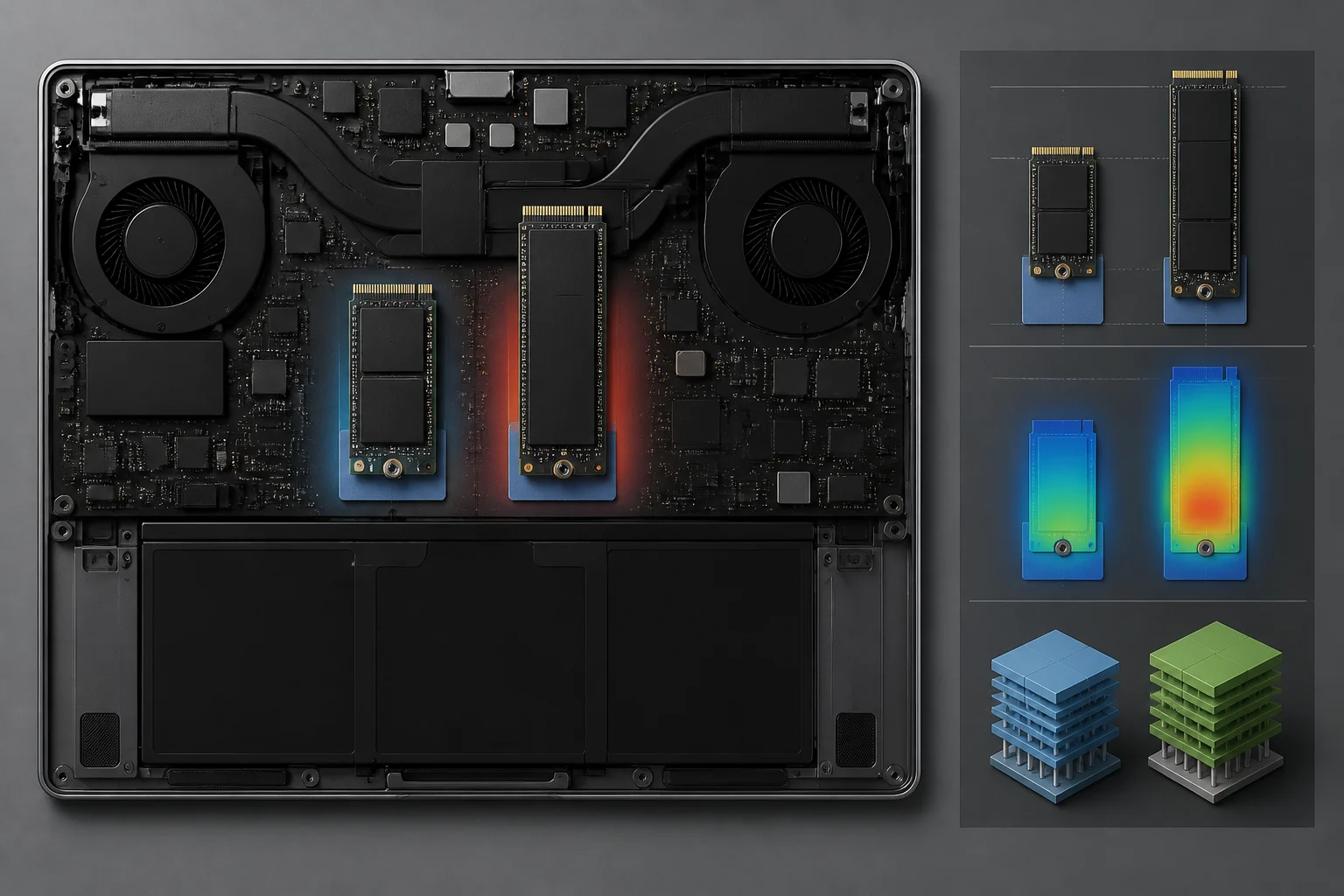
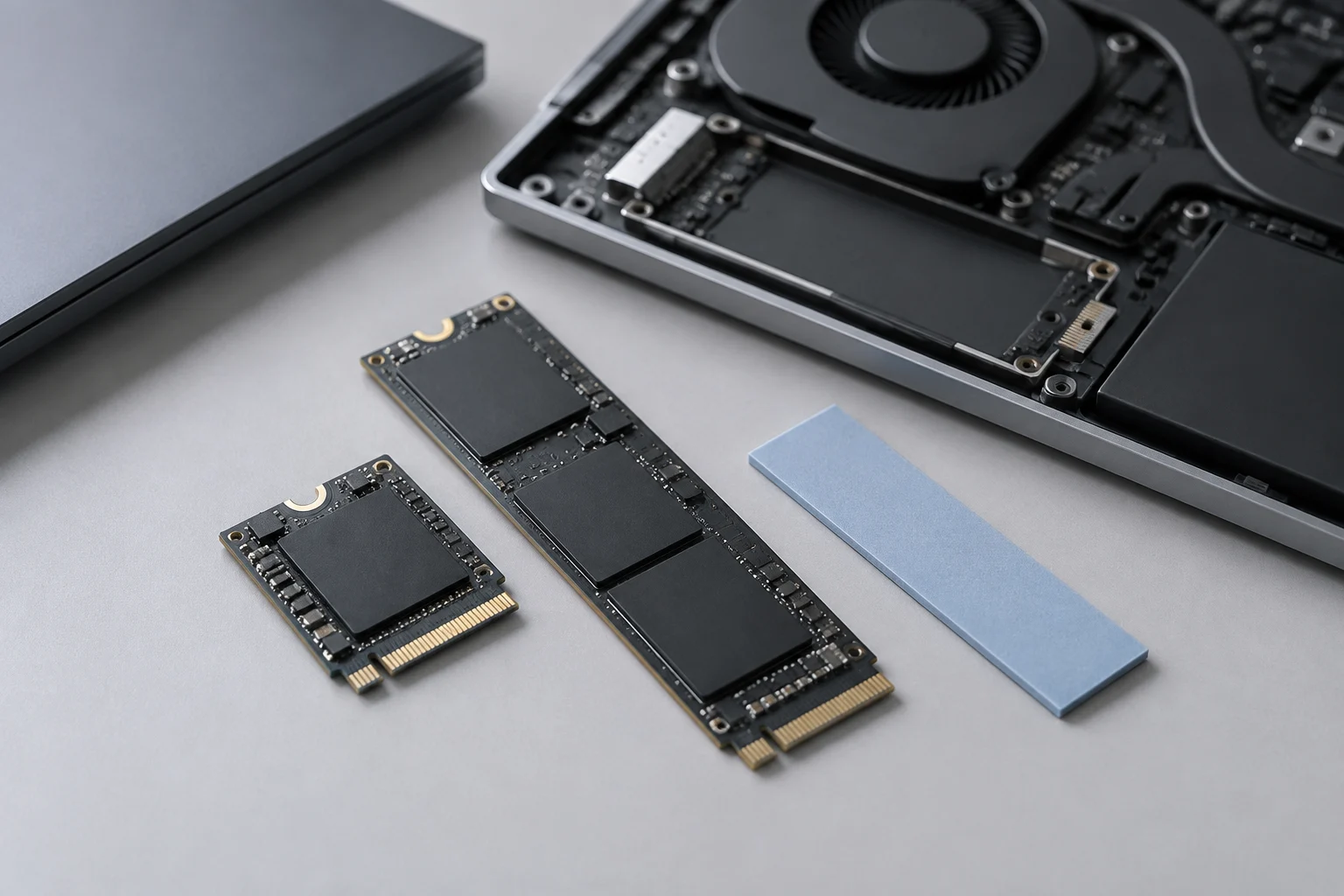
M.2 designations such as 2230 and 2280 indicate nominal dimensions: 22 mm wide and, respectively, 30 or 80 mm long. In these names, the numbers help identify the module’s physical size. They do not describe speed, power consumption, or heat-dissipation capability. A longer drive should therefore not automatically be considered faster, more efficient, or more suitable for a particular laptop. The designation tells you about size, not how the drive will behave once installed.
Even if a computer has an M.2 connector, that does not prove it supports every length or every interface. Before choosing a drive, check the laptop manual to confirm the supported length, key type, interface, and mounting method. The board’s shape and the position of its anchor points matter: the module must fit in the intended space and be secured according to the manufacturer’s instructions. A socket’s appearance is not a substitute for confirming what the laptop’s documentation specifies.
Do not assume that a 2280 fits wherever a 2230 is installed, or that an adapter will resolve an interface or space incompatibility. The possibility of physically adapting a drive does not confirm that the socket supports its interface or that there is enough room inside the chassis. These are separate questions and should be checked separately in the documentation for the model. Size alone also does not show that a drive will maintain better temperatures; that would require specific data for the complete system. Check fit, connection, and mounting independently rather than treating them as a single compatibility question.
Performance and battery life: do not claim effects without data
Microsoft’s StorNVMe documentation lists features and capabilities implemented by the Windows driver, including HMB support. That information applies to Windows and to the capabilities described for its driver. It does not show that every operating system, computer, or SSD uses each feature in the same way, nor does it allow a specific result to be attributed to any drive. On its own, it also does not establish the energy savings of a particular SSD. Driver support is not the same thing as a measured outcome in a particular laptop.
For that reason, a reference to a driver feature is not a battery-life measurement. To determine what happens in a specific laptop, the installed drive and the computer in which it is used would need to be considered; the cited documentation offers no universal conclusion about that effect. Scope matters: it describes StorNVMe capabilities in Windows, not a general answer for every platform or model. A statement about support should not be expanded into a claim about runtime without suitable measurements.
Consequently, claims that PCIe 5.0 necessarily causes higher temperatures, that PCIe 4.0 improves battery life, or that a particular configuration prevents throttling require specific data about the laptop and SSD. Without such data, these are hypotheses and should not be presented as general results. Comparing generation names is not enough to establish a direct relationship with the computer’s temperature or power use. When deciding what to buy, consult the manufacturer’s specifications and look for comparable tests of the exact model conducted under described conditions. This helps distinguish a declared feature from a result observed in a particular test.
NAND, DRAM, and endurance: check the specific drive
The labels TLC, QLC, DRAM, and DRAM-less describe aspects of a drive’s design, but they are not enough to determine sustained performance, power consumption, or endurance. The information available in the source set does not establish a general comparison between these technologies or show that a particular combination is always best for a laptop. It would therefore be irresponsible to turn those labels, by themselves, into a universal recommendation. A category can be relevant, but it does not replace product-specific specifications.
When comparing drives, it is more useful to review the published data for the exact model and capacity than to draw broad conclusions from a NAND category or the presence of DRAM. Relevant information may vary from one drive to another; general labels do not, on their own, provide all of its characteristics or predict its behavior in a particular computer. If the manufacturer describes cooling requirements or operating conditions, consult those details in the relevant specification sheet as well. Avoid treating one design feature as a complete account of performance or suitability.
To estimate endurance, check the endurance rating and warranty published for the exact model and capacity, along with the manufacturer’s stated conditions of use. The JEDEC JESD218 standard addresses SSD endurance requirements and test methods; the supplied copy comes from a secondary repository, so it is not used here to attribute values or generalize about commercial drives. This limitation matters: mentioning that a testing standard exists does not make it possible to assign an endurance figure to a model without reliable, product-specific information. Use the product’s own published figures rather than inferring a rating from a technology label.
Maintenance: what TRIM does in Linux
The fstrim manual page explains that the tool discards unused blocks on mounted file systems when the device supports the operation. In other words, it describes a way of telling storage which blocks the file system considers free. The function depends on the device supporting the operation, so it should not be described as something that will necessarily run in every combination of system and drive. The documented action is specific; any claimed effect beyond it requires separate evidence.
The manual also says that, for most desktop and server systems, a weekly frequency is usually sufficient. This reports what the manual page recommends, but does not turn that cadence into a universal rule for every computer. Configuration and applicable instructions should be read in the context of the system in question, without extending the recommendation to cases the source does not specify. A schedule may depend on the operating system’s setup and the device’s support for the operation.
The tool informs storage about blocks that the file system considers free. This describes its function, but the available sources do not support a claim that a particular configuration necessarily reduces SSD temperature, improves battery life, or lowers write amplification. Keep the documented operation separate from possible effects that have not been measured or substantiated here. For Windows and macOS, check the documentation for the relevant platform; the fstrim manual does not explain how to configure maintenance on those systems.
A smart upgrade: checklist
Before replacing the SSD, confirm the supported M.2 form factor and interface in the laptop manufacturer’s documentation. Also check the installation procedure, any capacity limits stated by the manufacturer, and whether there are specific firmware instructions. Gathering this information before buying helps avoid confusing physical size with electrical compatibility or the computer’s particular restrictions. Use the documentation for the exact model, not a general assumption based on other laptops in the same range.
Do not treat platform compatibility as proof that a specific socket is wired for a particular PCIe generation. The laptop’s specification sheet or manual should be the reference for what is supported in that model. If the documentation does not answer a question about length, interface, capacity, or mounting, do not fill the gaps with assumptions based on another laptop from the same brand. When necessary details remain unclear, seek model-specific confirmation before purchasing.
Then compare the specifications of the models you can actually install: capacity, stated endurance, warranty, and cooling requirements described by the manufacturer. PCIe 5.0 is not automatically the best choice, but there is also not enough evidence here to recommend a Gen4 drive with TLC and DRAM as a general rule. Start with confirmed compatibility and your intended use, relying only on specifications and comparable tests available for those models. This approach avoids turning a generation label or design category into a promise about real-world performance, temperature, or battery life.