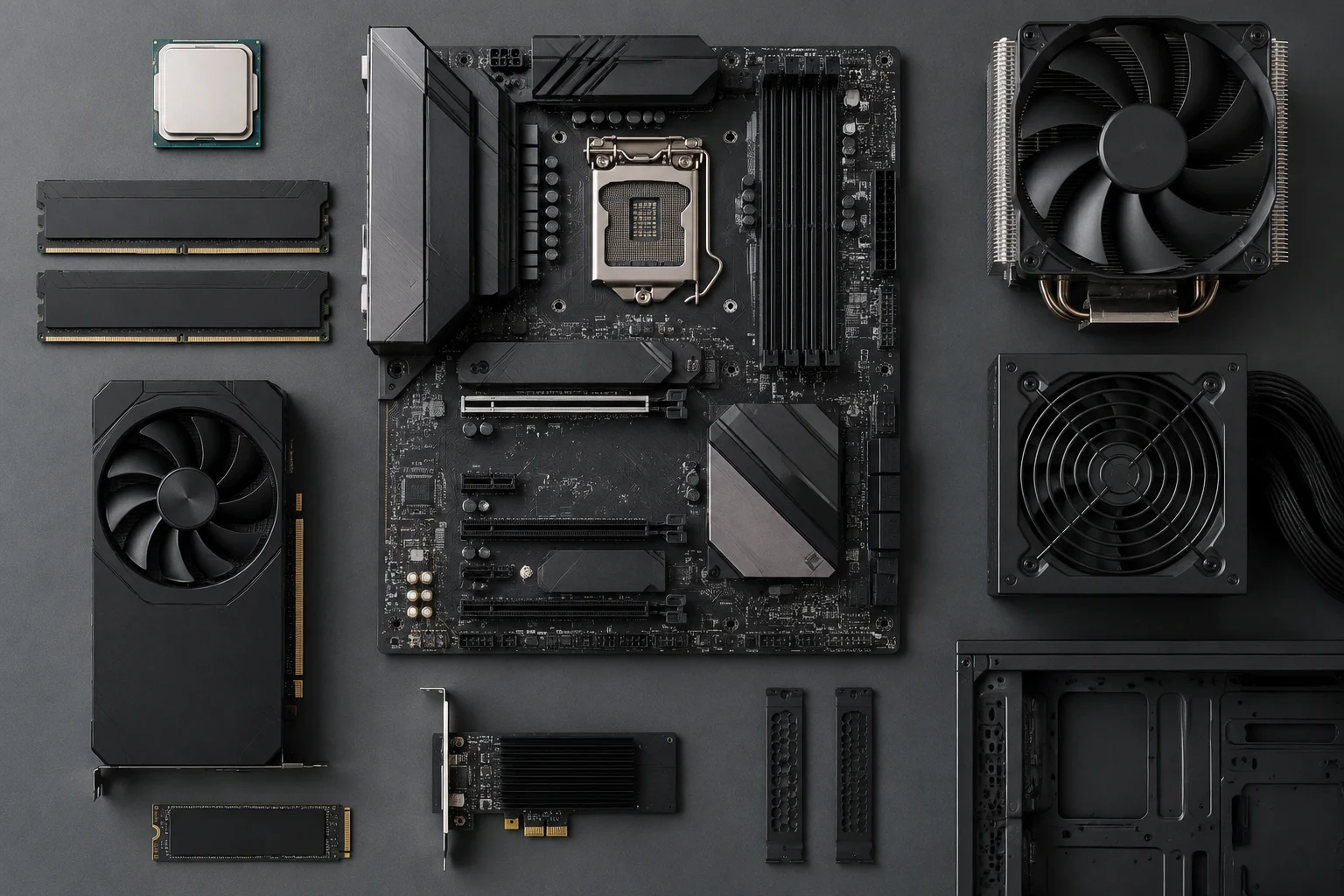
Compatibility has several layers
When choosing a motherboard, it is tempting to start with an easy match: the processor seems to have the same socket, the memory is labelled DDR5, or the graphics card uses PCIe. These matches are useful initial filters, but they do not, by themselves, prove that the combination will work. The practical question is not whether two components share a label, but whether the manufacturer documents the exact model of each as compatible with the rest of the configuration.
It helps to separate four checks. The first is physical: the socket, dimensions and connectors must fit. The second is electrical and functional: the board and components must support the required features. The third concerns support: the manufacturer must list the specific processor, memory and drives, sometimes only from a particular BIOS version onward. The last check is the system as a whole: the case, power supply, cooling and number of devices must allow everything to be installed and powered at the same time. Passing one layer does not automatically settle the others.
Start with exact models and CPU support
Before checking lists, write down the full names of the motherboard and processor, including any letters or model suffixes. A product family may include similar-looking boards with different chipsets, revisions or connectivity; searching for “a B650” or “a model in the series” is not enough. Check the name on the box or product page, then open the support page for that exact board. ASUS describes how to access its CPU and memory QVLs from the support page for the exact model: ASUS QVL lookup guide.
Look for the processor in the CPU support section and check any associated BIOS requirement. The list may say that support starts with a particular version; in that case, a board shipped with an earlier version may need an update before it recognises the processor. ASUS also recommends comparing the required version with the installed one when troubleshooting CPU issues: troubleshooting and error-code guide. Do not turn “it appears on the list” into “it will work as shipped”: note the minimum version and how the BIOS could be updated if necessary.
The socket remains a necessary filter: a processor designed for a different socket cannot be installed correctly. But a physical match is not comprehensive certification. The motherboard’s supported generation, BIOS conditions and manufacturer specifications also matter. For Intel processors, the official Intel Product Specifications (ARK) database can be used to check processor specifications; use it to verify processor details, not as a replacement for the motherboard’s CPU list. The board’s compatibility matrix is what links that CPU model to that motherboard model.
Memory: capacity, modules and QVLs
A motherboard specifying DDR4 or DDR5 is not enough to choose any kit from that generation. Check the memory type, supported total capacity, number of modules and listed speeds in the manual and on the support page. Then search for the kit’s complete part number—not just its brand or capacity—in the validated memory list, if the manufacturer provides one. ASUS explains how to find its memory QVL alongside the CPU QVL on the motherboard support page.
A QVL is a list of combinations that the manufacturer says it has verified; it is not a universal list of all memory that might work. If a kit is absent, that alone does not prove incompatibility: it may not have been tested, or its part number may not appear in the available list. Conversely, its presence does not remove the need to follow installation instructions, module configuration requirements and applicable version notes. Read a QVL as positive evidence that a specific part number was validated, not as an absolute guarantee for every setting.
Write down the kit’s part number and check whether the motherboard recommends installing two modules in particular slots for a dual-channel configuration. If you plan to add memory later, also check the capacity limit and number of slots: populating every slot or mixing kits can change operating conditions. Do not assume that two separately sold kits, even with the same product name, form exactly the same validated configuration. If the manufacturer provides notes for a particular speed or number of modules, those notes are part of the compatibility check, not optional detail.
Expansion and storage slots
Make a list of the devices you want to install: graphics card, M.2 drives, SATA drives, capture or network cards, and any other add-in cards. In the motherboard specifications and manual, identify how many slots there are, their types and whether they share resources. A slot may be physically compatible with a card yet still be restricted by the use of another connector or by the board’s internal layout. Confirm your planned combination in the manual, rather than relying only on the total connector count in a product listing.
For storage, verify each drive’s form factor, interface and the type of connector the motherboard supports. With M.2, physical shape alone does not describe all of a device’s capabilities: check the supported protocol and the manufacturer’s notes for that slot. If you plan to use several slots, see whether the manual identifies shared resources or ports that become unavailable in certain configurations. Do not assume that every slot operates independently at full capacity simply because it is present.
Also check the physical space required by the graphics card and the position of the slots relative to other components. A motherboard may offer a suitable slot, while the case design limits the card’s thickness or length. At this stage, it is useful to sketch the complete system before buying: identify which slot each card will occupy and which storage connectors will remain accessible. The goal is to verify the actual configuration, not to choose each component as if the others did not exist.
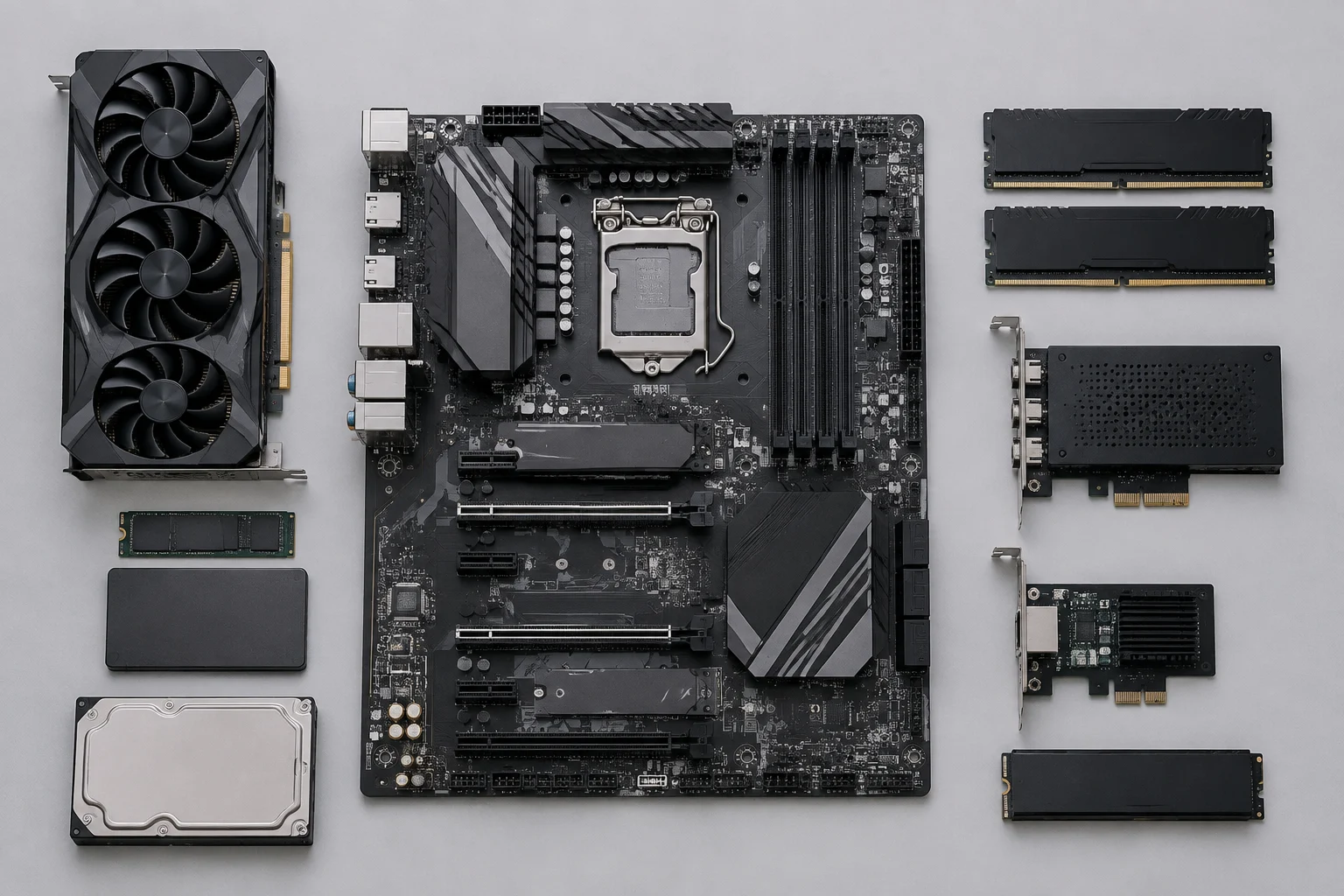
Case, power and physical installation
The motherboard form factor—for example, ATX or microATX—must be supported by the case, but the label alone does not settle whether the parts will fit. Check the board’s exact dimensions and the form factors supported by the case manufacturer; also review standoff positions, cooler clearance and cable routing. Motherboards are sold in different form factors, but a category page cannot replace the dimensions and manuals for the specific models you are considering.
Check which power connectors the motherboard requires and which ones the power supply provides. Do the same for the graphics card and processor: consider how many cables are needed, which connectors they use and whether the supply has adequate capacity according to the manufacturers’ specifications. Do not confuse a plug that physically fits with a power supply that is sufficient for the system. Consult the manuals for each exact model; a general guide can help, but it cannot confirm a particular combination.
A quick checklist before paying can reveal incompatibilities that do not appear in a product name: exact case model, maximum dimensions, room for cards and cooling, power connectors and number of drives. Installation compatibility depends on the measurements and connections of all the components, not on the motherboard form factor alone. If an important specification is missing from a product listing, find the official manual or ask the manufacturer or seller before assuming the answer.
A repeatable verification method
Gather the exact model numbers in one list and first check anything that could invalidate the purchase: CPU against motherboard, minimum BIOS, memory type and motherboard fit in the case. Then check the memory QVL, slots and shared connectors, GPU and cooler dimensions, power connectors and number of drives. Save links or capture the pages you consulted, including the date, so you can revisit them if the product revision or availability of an update changes.
A simple workflow helps avoid jumping between incomplete product pages:
- Identify the exact motherboard model and, where applicable, revision.
- Find the CPU in the official list and record the required BIOS version.
- Compare the memory kit’s part number and module configuration with documented support.
- Check slots, storage and shared resources in the manual.
- Verify form factors, dimensions, cooling and power connectors for the complete system.
- If a decisive detail is missing or contradictory, ask the manufacturer for confirmation before buying.
Official lists and independent specifications serve different purposes. The motherboard support page is the most relevant reference for combinations documented by its manufacturer; the processor maker’s product page helps verify its characteristics; and third-party reviews can provide usage tests, but usually apply to one sample and a specific configuration. No single source proves that every imaginable combination will be stable. This method reduces the risk of documented incompatibility, but it does not replace testing the complete system or guarantee the outcome of manual settings such as memory profiles or voltage changes. If a CPU or kit does not appear in a QVL, the prudent conclusion is “no validation shown in that list,” not automatically “incompatible.”