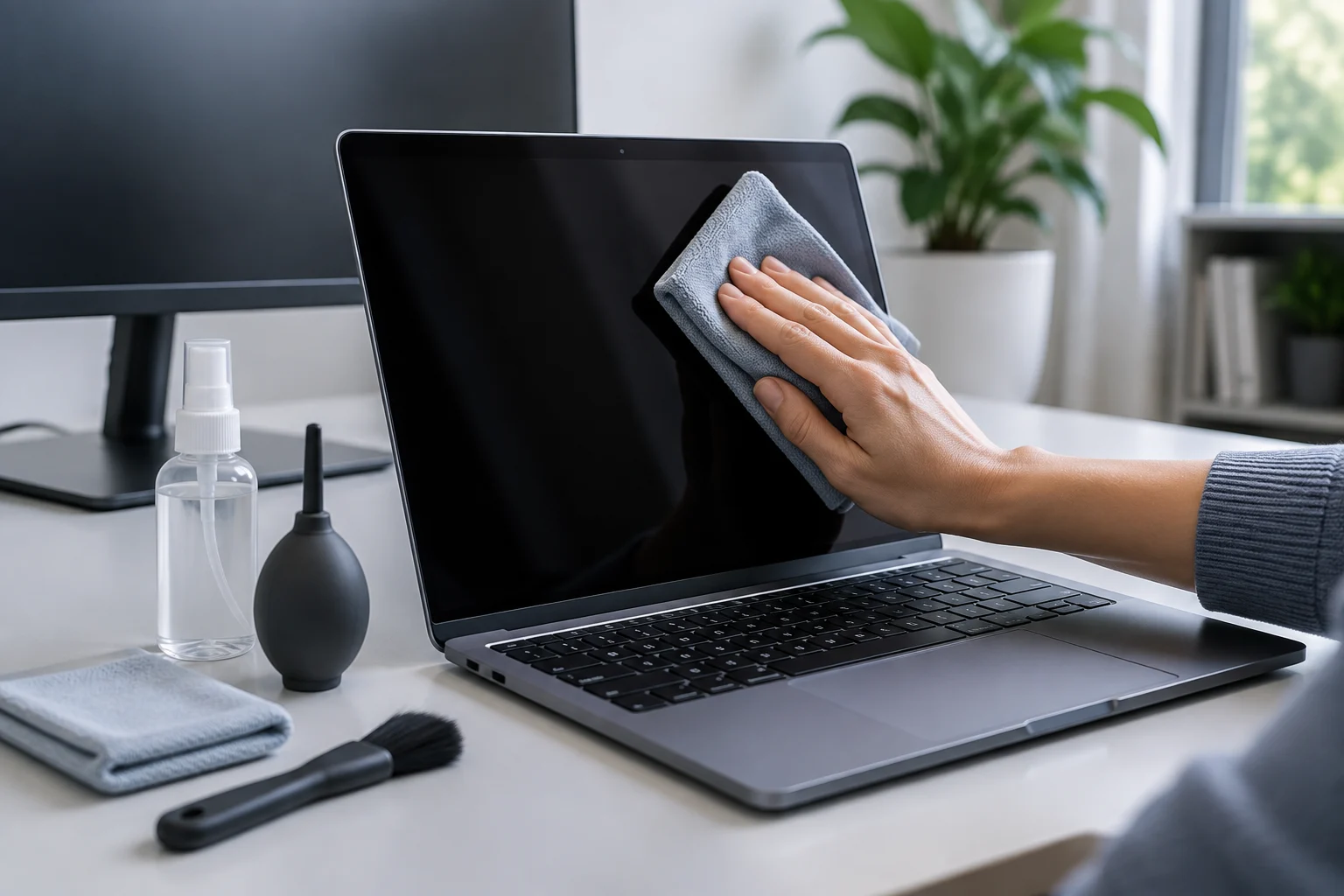
There is no single recipe for every surface
A cleaning kit can seem like a simple purchase: a cloth, perhaps a brush, and some kind of liquid. The risk lies in treating the screen, keys, case and openings on the device as if they were interchangeable. Each area has different materials and functions, and instructions can vary even between models from the same brand. So start by identifying the device and surface you need to clean, rather than choosing the product with the most accessories. Knowing the difference also helps you rule out items you do not need and focus on the right method for each area.
The screen needs particular care because it may have a coating that should not be rubbed with just any fabric or dampened with just any formula. A keyboard, by contrast, has gaps through which fibres, dust or liquid can enter; ports are openings, not surfaces into which you should insert a cotton swab or tool. The case may also have different finishes. An accessory suitable for one area is not automatically approved for the others. Manufacturer recommendations are instructions for their own devices, not universal certification of third-party cloths or liquids. Apple, Microsoft and Dell publish cleaning guidance for their products; consult the guidance for the specific model and give priority to any special instructions for its screen or coating. This guide compares buying criteria, but does not replace that check. (Apple: https://support.apple.com/en-us/103258; Microsoft: https://support.microsoft.com/en-us/surface/setup/clean-and-care-for-your-surface; Dell: https://www.dell.com/support/kbdoc/en-us/000133659/dell-technologies-recommendations-to-keep-your-equipment-clean)
Before you buy: identify the model and find its instructions
First, look for the laptop or monitor’s commercial name and, if possible, its model number. On the manufacturer’s support website, find the cleaning instructions for that product or product family; also check any documentation specific to the screen. It is not enough to know the brand: instructions for a glass screen should not automatically be transferred to another screen with a different finish or treatment. Identifying the model before buying helps prevent a general recommendation from being mistaken for one that necessarily applies to every device from that brand.
Manufacturers’ general support pages are useful references, but their scope matters. The linked Microsoft guide covers Surface devices; Dell’s page is guidance for Dell equipment, while Apple provides general instructions as well as pages for particular surfaces. If a general recommendation and the model’s guide differ, follow the most specific, current instruction for the device, or contact the manufacturer’s support team if you cannot tell which surface you have. Before adding a liquid to your basket, check whether the manufacturer allows that type of product and how it says to apply it. Read the full label: ingredients, compatible surfaces, warnings and directions for use. A marketing claim such as “safe for screens” does not by itself establish that a product is suitable for a particular coating. If the label does not clearly identify surfaces and restrictions, it is not a good choice for a device whose finish you do not know. When in doubt, comparing the label with the official guide is more useful than relying only on the product name or packaging.
Cloths, brushes and accessories: buy for a purpose
For surface cleaning, a clean, soft cloth is usually the simplest purchase. When comparing options, look for fabric described as suitable for delicate surfaces, without rough seams or labels in the area that touches the device, and washable according to its own instructions. The word microfibre describes a type of fabric, but does not guarantee that every cloth made from it is harmless to every screen: the cloth’s condition, trapped dirt and pressure while wiping also matter. Inspect it before use and set it aside for its intended task rather than assuming the material alone determines whether it is suitable.
A cloth reserved for the screen helps prevent dust or greasy residue from the keyboard ending up on it. You do not need to buy a bulky set: two separate, clean cloths without residue may be more practical than a kit containing pieces you will not use. Do not reuse a cloth that has touched household cleaning products or that has visible particles on it; the aim is to remove dirt, not drag hard particles across the finish. Keeping cloths separate also makes it easier to know which one has been used on each area and reduces the chance of transferring residue between surfaces. A soft brush may help remove surface dust from accessible areas, but it does not make cleaning a keyboard or port risk-free. Choose soft, secure bristles, with no metal parts or tips that could come loose. Do not put tools into connectors or push dust inside. If the manufacturer gives a specific procedure for the keyboard or openings, use that rather than improvising with kit accessories. Buy for a specific need, not for the number of pieces.
Liquids and wipes: compatibility before promises
Liquids are the part of a kit for which checking instructions matters most. Recommendations differ by brand and surface. Apple provides general guidance for its products and separate instructions for certain nano-texture glass displays, illustrating why you should not assume that one rule applies to every finish. Microsoft and Dell also publish instructions for their own devices. Before using a solution, confirm that the device guide permits it on that particular area. (Apple: https://support.apple.com/en-us/103258; nano-texture display: https://support.apple.com/en-us/104948) The existence of general guidance does not remove the need to check whether there is a specific instruction for the surface you intend to clean.
If the documentation permits dampening a cloth, follow the stated method exactly and keep liquid away from edges, openings and the keyboard. Do not apply the product directly to the device unless the model’s instructions explicitly say to do so. Do not mix cleaners or adapt a household recipe: a formula that works on ordinary glass is not necessarily compatible with a screen coating or case. How you apply a product matters as much as which product you choose, so do not replace the specified procedure with a general habit. Wipes also need to be checked for their ingredients and for the surfaces the manufacturer declares compatible. A label saying “electronics” or “for screens” does not replace the laptop or monitor’s own instructions. If compatibility is unclear, the prudent choice is not to use that wipe on the screen and to consult the official guide. Caution is not an absolute guarantee against damage; it is a way to reduce the chance of using an unsuitable product. If the guide does not clearly mention that type of wipe or the relevant surface, there is no need to test it to find out whether it is suitable.
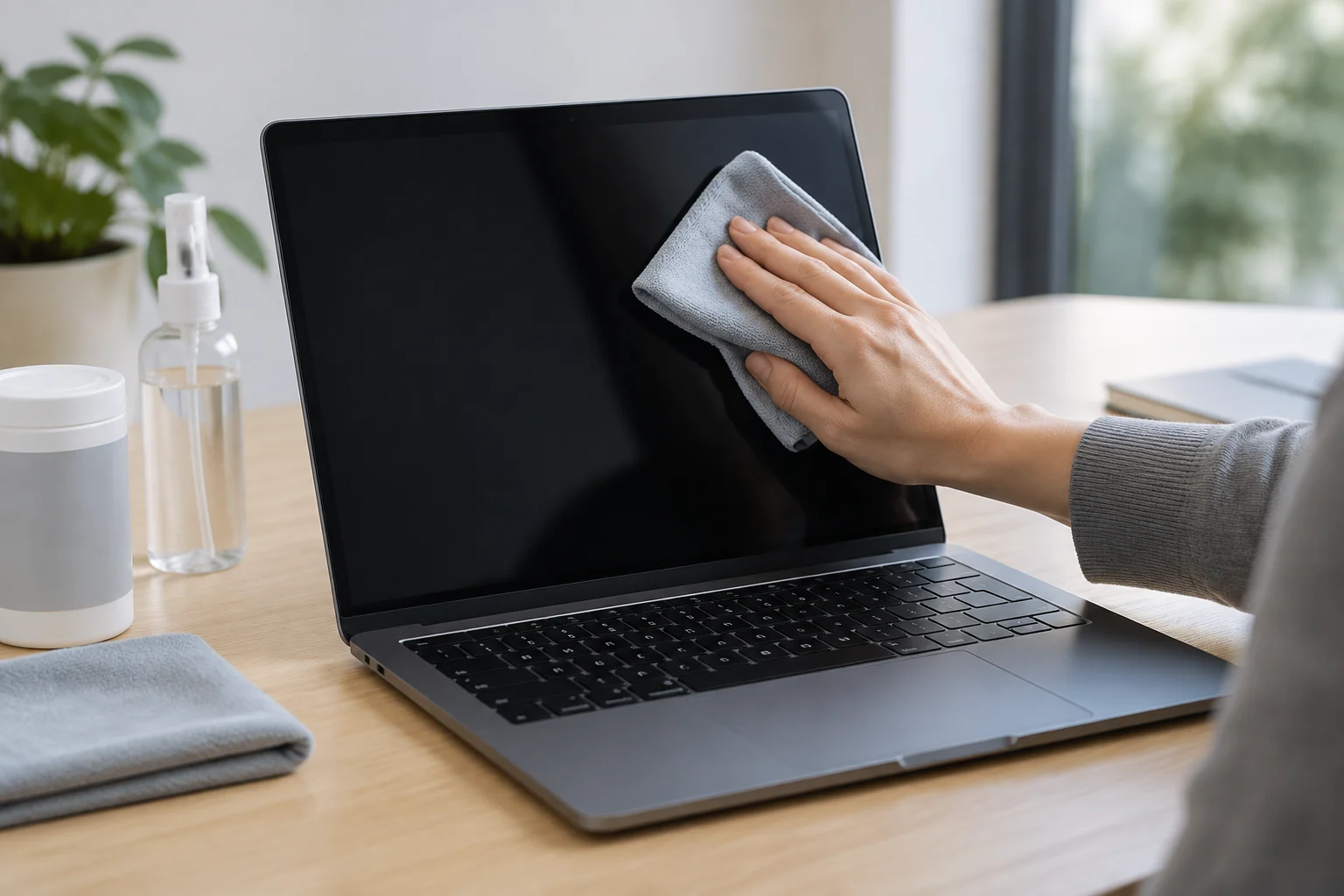
Mistakes to avoid
The easiest mistake to prevent is cleaning while the device is on or connected when the instructions recommend shutting it down and unplugging it. Switching it off can also make it easier to see dust and marks without the lit screen or device operation distracting you. Check the manufacturer’s guidance on the battery, power and drying times; do not assume every device requires exactly the same procedure. Taking a moment to find those instructions before starting helps you avoid improvising while cleaning.
Avoid rough materials, abrasive sponges and heavy pressure. A small piece of debris under a cloth can scratch a surface as you wipe, so it is more sensible to remove loose dust carefully first and use a clean cloth. Do not scrape a mark with a card, fingernail or tool: the fact that it looks stuck does not justify applying more force. If it does not come off using the permitted method, consult the specific instructions for that type of dirt rather than persisting. Do not spray directly onto the screen or keyboard, pour liquid along an edge, or insert objects into ports either. Excess moisture can travel inside, and a rigid accessory can damage contacts or finishes. The precise details—including permitted products and instructions for persistent marks—depend on each guide. If you cannot confirm that a method is compatible, stop before trying it.
A minimal, adaptable shopping list
For most basic household cleaning, start with the essentials: one soft, clean cloth reserved for delicate surfaces; another cloth for the case or contact areas; and, only if needed, a soft brush for accessible dust. You do not need to buy liquid in advance. If the model’s instructions allow it, you can add a solution or wipe that clearly identifies compatible surfaces and restrictions. This way, the purchase suits the device and the intended cleaning, rather than obliging you to use items merely because they came in the box.
Before paying, check this list:
- Model identified: you know which official guide to consult and which screen or finish you have.
- Suitable cloth: it is clean, has no trapped dirt and has no rough parts that touch the surface.
- Accessory justified: every item has a defined task and will not be used to push debris into ports or slots.
- Compatible liquid: the label does not conflict with the device guide, and the application method is clear.
- Instructions available: you know how to switch off the device, which areas to avoid and what to do if dirt does not come off easily.
If you only want to remove dust and light fingerprints, a cloth may be enough and the rest of the kit may add no value. For a persistent mark, special coating or dirt inside a connector, consult the specific procedure instead of increasing pressure or using more liquid. Apple, Microsoft and Dell’s official guides are starting points for their respective products; the final choice should match the actual model, not a generic rule found online. (Apple: https://support.apple.com/en-us/103258; Microsoft: https://support.microsoft.com/en-us/surface/setup/clean-and-care-for-your-surface; Dell: https://www.dell.com/support/kbdoc/en-us/000133659/dell-technologies-recommendations-to-keep-your-equipment-clean)