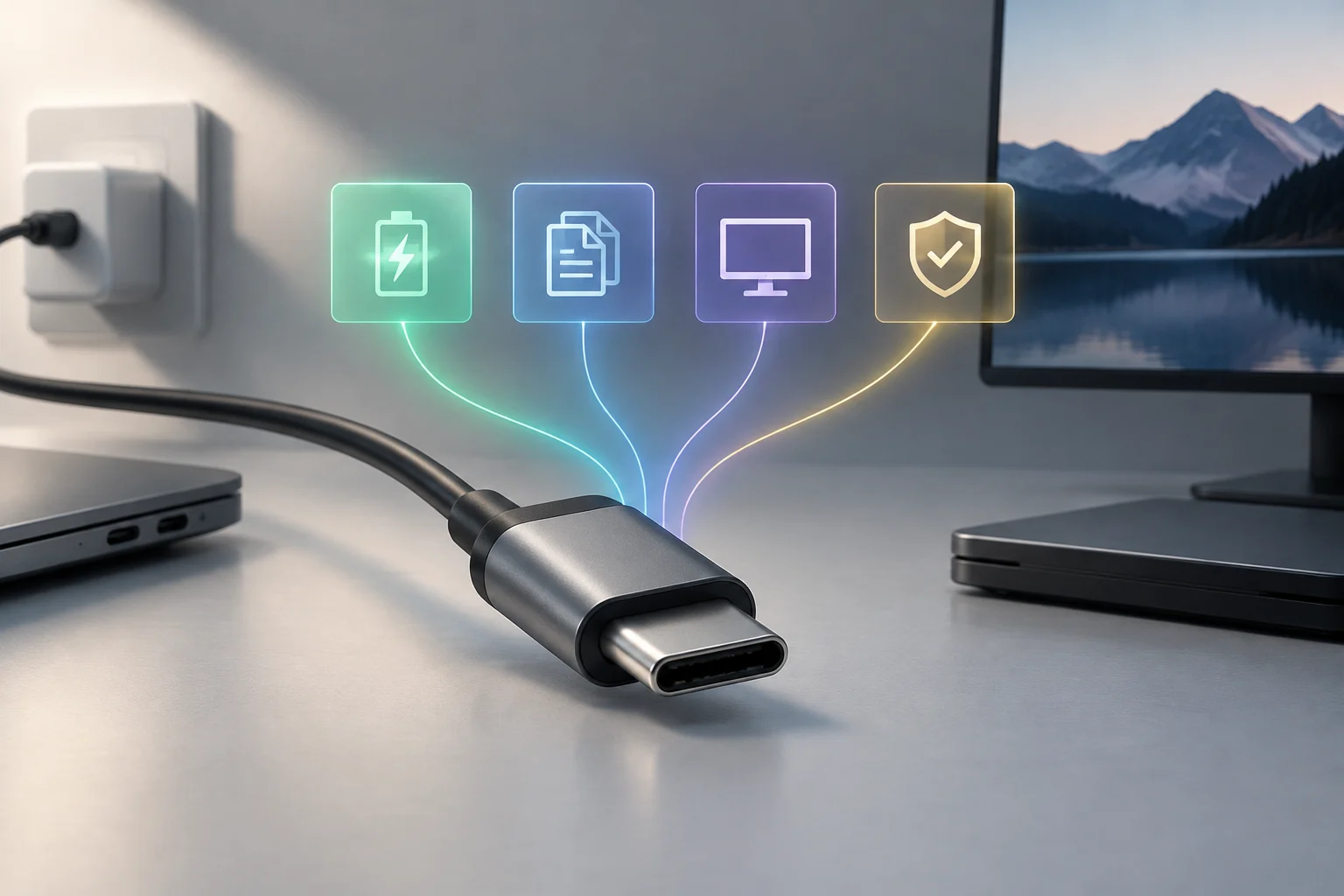
USB-C describes the connector, not all its capabilities
The oval, reversible connector can make different cables look interchangeable. But having USB-C at both ends does not confirm that two cables provide the same charging power, data speed or video compatibility. The connector is only one part of the specification: to choose well, identify what you expect the cable to do and check that both the cable and the devices support that function. USB-IF documentation distinguishes requirements for connectors and cables from power-delivery and transmission capabilities. USB Type-C Cable and Connector Specification.
A useful product listing should identify, at a minimum, the supported functions and the relevant values for each one. If it only says “USB-C”, “fast charging” or “high speed”, important questions remain unanswered. Do not assume that a power figure guarantees video, or that a data-transfer figure confirms high-power charging. These are separate dimensions: one may suit your needs while another does not. The same applies when a listing uses a broad description without explaining the specific capability behind it; check the detailed specifications before treating the wording as a confirmed feature.
The connected equipment matters too. A phone, computer, charger, monitor or adapter may impose its own limits. As a practical rule, the final function depends on the complete chain: source device, intermediate accessory, cable and destination device. Check the specifications for every component instead of relying only on the cable’s appearance or the most prominent figure on its packaging. A cable can be suitable for one task and not another, and a compatible-looking connector does not resolve that distinction. Where your setup involves an adapter or dock, include it in the check rather than treating the cable in isolation.
Charging glossary: watts, amps and USB Power Delivery
Watt (W) expresses power; volt (V) and amp (A) describe voltage and current. In simple terms, power is related to the product of voltage and current, but a maximum wattage figure does not mean that the device will receive that power continuously. Actual charging depends on negotiation between compatible equipment and on its limits. Look for the cable’s stated maximum and compare it with what the charger and device require, rather than relying on a generic “fast charging” promise. A single number is useful only when you know which component it describes and whether the other parts of the setup can support the intended charging arrangement.
USB Power Delivery, abbreviated USB PD, is a power-management system documented by USB-IF. Its appearance in a product listing does not remove the need to confirm the capabilities of the cable and the other equipment. USB-IF’s official page on USB Charger (USB Power Delivery) provides context about the technology; it is not, by itself, a specification sheet for every cable sold by retailers. USB Charger (USB Power Delivery).
What to check in the listing
- Maximum power in watts and, if stated, the conditions under which it is available.
- Declared compatibility with USB PD, if your charger and device need it.
- The capabilities of the charger and device: the cable’s figure does not, by itself, increase the power the other components support.
- Whether the manufacturer clearly identifies the exact model rather than combining details for several products in a family.
Fast charging is an insufficient description unless it is accompanied by a power rating or specific compatibility information. Also avoid inferring that a “charging” cable will handle high-speed data transfer or video; check those functions separately. If the listing provides a maximum but says nothing about the conditions or model, consult the manufacturer’s documentation before relying on it for a particular setup.
Data glossary: speed and marketing names
Data-transfer speed is usually expressed in gigabits per second (Gb/s). This is a nominal link capability, not a promise that you will copy files at that rate in every situation: both devices, the protocol in use and other system limits all play a part. Read the exact figure and the name of the technology it refers to instead of relying on words such as “fast” or “pro”. A clear listing should make it possible to tell what data capability is being claimed and which product the claim applies to.
USB standard names and revisions can be confusing, and marketing conventions are not always obvious to shoppers. For that reason, look for a stated speed or an identifiable designation in the listing, then confirm that the connected devices support it. USB-IF documentation brings together information about cables and connectors; use it as a technical reference and cross-check it against the manufacturer’s description of the specific product. Cables and Connectors.
The advertised maximum speed is not necessarily the speed you will get from every port. A cable may fit physically and still operate at a lower capability because of equipment limitations. If you need to move large files, check the port specifications on both devices and confirm that the cable listing states the required data level. A seller’s unexplained figure, with no standard or product reference, is incomplete information rather than independent confirmation. Also distinguish the cable’s stated capability from the result of a particular transfer: the latter depends on the connected system as a whole.
Video over USB-C: end-to-end compatibility
A USB-C port does not, by itself, guarantee video output. The computer or phone must support it, the cable must be suitable for transmission, and the display or adapter must accept the signal. The physical connection can fit even if one of those conditions is missing. Look for an explicit manufacturer statement about video or the supported technology, and also consult the manual for the device that will send the image. A cable description alone cannot establish that a particular computer, phone or display supports the complete connection.
When a listing gives a resolution or refresh rate, do not interpret it separately from the rest of the setup. Check which combination each component supports and whether an adapter is required. Do not turn compatibility stated for one model into a universal rule for all equipment with that type of port. The decisive check is specific to the two devices and the cable you intend to use. If the product description leaves the supported configuration unclear, consult the manufacturers’ documentation rather than assuming that the connector shape settles the question.
Thunderbolt and USB-C are not synonyms: USB-C identifies the connector type; Thunderbolt is a technology that can use that connector. Manufacturers describe their cables and conditions of use in product documentation. For example, Apple publishes separate information for certain Thunderbolt cables; that documentation illustrates why the exact model must be checked, but it does not certify other cables that look similar. Apple Thunderbolt Pro Cables.
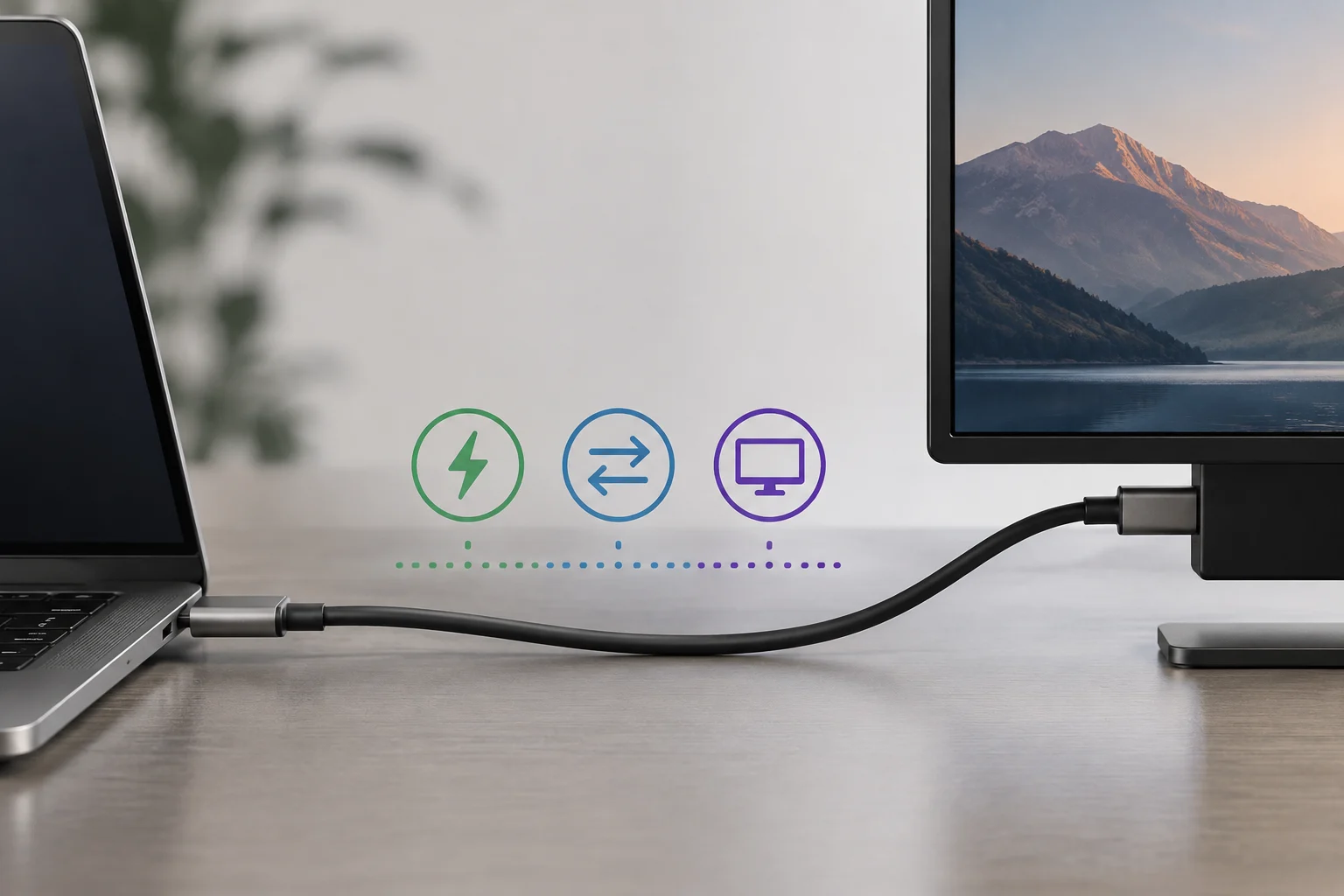
Certifications, logos and what they really mean
A logo can communicate conformity with a particular programme, but it should not be treated as a guarantee of every function imaginable. Read what it certifies, which organisation supports it and whether it applies to the specific cable. USB-IF provides information about logo licensing; consult the official source for the programme’s terms and scope instead of inferring that any similar-looking symbol proves testing or approval. USB-IF Logo License.
Certification and marketing descriptions are different kinds of evidence. A seller’s claim about power, transfer or compatibility should be checked against an identifiable specification that applies to the model being purchased. If a listing mentions an approval, look for the product name and, where available, the relevant entry in USB-IF’s official tool. The organisation’s product search is a place to check, but a result—or the absence of one—should not be interpreted without considering how the product is identified and what the listing covers. USB-IF Product Search.
Do not confuse a brand label with a technical category. A recognised brand does not mean all its cables have the same specifications, and a word such as “certified”, without a verifiable organisation, reference or scope, is not enough to tell you what was evaluated. The most useful basis for comparison is a combination of an identifiable model, separately stated capabilities and checkable documentation. Keep the certification question distinct from the performance question: a mark’s stated scope may not answer every practical question about the setup you intend to use.
Practical checklist before you buy
Start by deciding on the main use. For charging, compare the device’s power requirements with what the charger and cable can provide. For data, identify the speed you need and confirm that both ports support it. For video, check that the source device allows display output and that the cable and monitor or adapter are compatible. If you need several functions, check each one; do not assume that a single specification covers the rest. A cable can meet one requirement without meeting another, so keep the checks separate even when one product listing discusses them together.
Before paying, review these points in the listing and the equipment documentation:
- Intended use: charging, data, video or a combination.
- Identification: the cable’s exact make and model, not just the connector shape.
- Charging: maximum power and relevant USB PD compatibility.
- Data: stated speed and the standard or designation behind it.
- Video: explicit compatibility and the limits of the connected devices.
- Certification: the organisation, programme and whether the reference can be verified.
- Conditions: length or other manufacturer-stated characteristics that may affect your setup.
If an important detail is missing, do not fill the gap with an assumption based on price, thickness or appearance. Find the manufacturer’s official product information and compare it with the equipment documentation. If sources disagree, prioritise technical information specific to the model and contact the seller or manufacturer before buying. An incomplete listing does not prove that a cable is incompatible, but it does not confirm the advertised performance either. Keep a note of the exact model and the specific capability you need; that makes it easier to compare documentation without confusing different versions or products in the same range.
Sources and limitations: reading incomplete claims
This guide brings together criteria for evaluating product descriptions and refers readers to USB-IF and manufacturer documentation. It does not compare individual retail cables or present original test results. USB-IF pages document the organisation’s specifications, programmes and resources; Apple documentation concerns its devices and accessories. None of those sources automatically demonstrates the performance of a cable from another brand or of a model that has not been identified precisely.
In practice, a retail page may summarise features, while a technical specification or manual explains compatibility and limits in greater detail. Check the date and version when a source lists revisions. If the available documentation does not let you confirm a capability, the appropriate conclusion is that it has not been verified by those materials—not that it is necessarily false. The statements here are limited to principles supported by the linked sources; they do not replace the specifications for the particular device. This distinction matters when product descriptions use broad wording but do not identify the precise cable model or operating conditions.
In short: choose based on a stated, compatible function, not on the connector or a slogan. For each purchase, check the cable, charger, equipment and display, where applicable. That review may seem more involved than comparing a single number, but it avoids the most common mistake: assuming that two USB-C cables are equivalent because they fit the same port. Treat each claimed function as a separate item to verify, and use the documentation for the exact products in your setup.