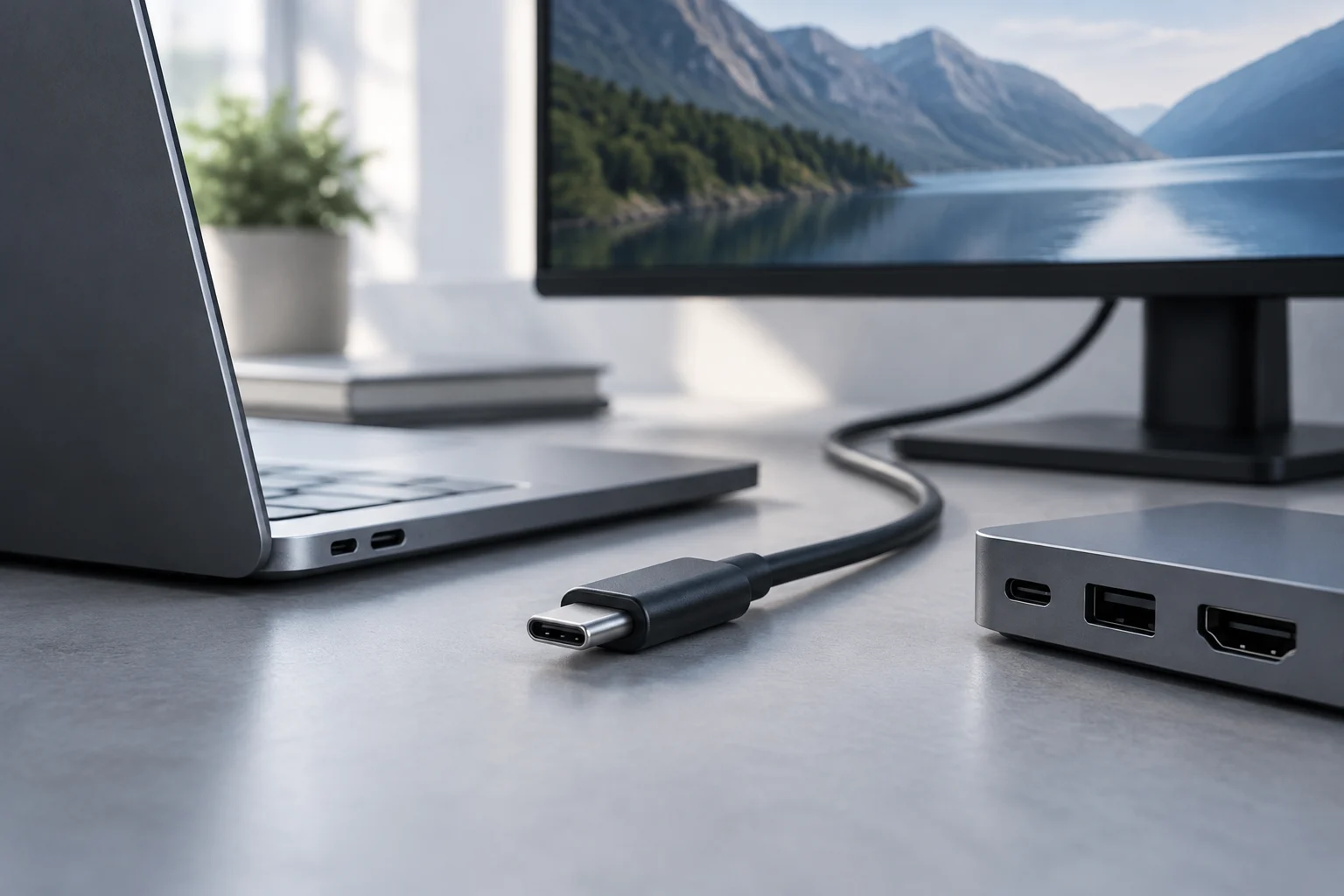
The shape of the connector doesn’t tell the whole story
USB-C identifies a connector type. Seeing an oval, reversible socket lets you recognize the physical connection, but it is not enough to know which functions the manufacturer implemented on that port. The shape alone does not certify video, data speed or charging power. Each of those capabilities depends on what the devices support and, where applicable, on the cable connecting them. USB-IF documentation distinguishes connectors and cables from the specifications and functions that may accompany them. USB-IF: cables and connectors.
This distinction helps avoid confusing two different questions: whether a plug fits into a socket, and whether the connection can perform the task you have in mind. The connector answers the first question. To answer the second, identify the functions offered by each component and check that they match what you need. The fact that a cable fits easily does not tell you which signals it supports or how the connection will work. It is useful to treat physical fit as an initial check, not as evidence of functional compatibility. A product description that says only “USB-C” may identify the connector while leaving the performance and supported uses unspecified.
The difference matters when connecting equipment that appears to fit but may not meet the same need. An external drive might transfer files even if the port cannot send an image to a monitor. A charger might power a device, but not necessarily at the power level you expected. Physical compatibility is only the first filter; it should not be confused with functional compatibility. In other words, getting some response when two products are connected does not prove that you are using all the capabilities you wanted. Check the specific task separately, whether it is transferring data, displaying an image or powering equipment. The useful question is not just “Does it have USB-C?” but “Does this combination support the feature I need?” USB-IF: cables and connectors.
Separate data, video and power
To evaluate a connection, break the question into three parts: what data it transfers, whether it delivers a picture, and how it handles power. These capabilities may involve the same physical connection, but they are not interchangeable. The presence of one does not prove the presence of the others. That is why a description such as “USB-C compatible” is not enough to decide whether a laptop can connect to a monitor with a single cable. Work out which of the three functions matters to you, then look for evidence of that particular capability in the documentation for every component in the connection.
Data: look for a stated capability
If your goal is to transfer files, check which speed or protocol is specified for the port and for the other components in the connection. A generic reference to USB-C identifies only the connector type; it does not specify that capability. Writing down the requirement that matters to you—for example, the stated speed—makes it easier to compare the information for the computer, peripheral and cable instead of treating the connector’s name as sufficient. Check the exact product documentation, since a general description may not identify the capabilities of a particular port or configuration.
For video, one documented possibility is DisplayPort Alt Mode, which allows a USB-C connection to carry DisplayPort signals when the devices are compatible. The specification for this alternate mode is hosted by USB-IF, and VESA has published information about its compliance testing. The relevant check is whether the source port and the monitor input support the specific feature, not merely whether both have a USB-C socket. VESA document at USB-IF. The presence of this mode in the documentation for a particular product is what lets you assess that video path; the shape of the socket alone does not settle the question. VESA: compliance testing.
The cable is part of compatibility too
The complete connection includes the source device, the cable and the peripheral. For a feature to be available, the elements involved in providing it must support it. A laptop that supports video output does not resolve the question on its own if the cable is not specified for the required connection mode; likewise, a capable cable cannot add a feature that the computer’s port does not implement. You cannot infer compatibility by inspecting just one component. Check each part against the task you want to perform, and make sure the specifications refer to the exact products involved rather than to devices that merely look similar.
Check the cable separately
Review the cable’s product information separately: the connector types at both ends, its stated data capabilities and, if you need video or charging, explicit indications for those functions. Do not assume that all USB-C cables are equivalent because they share the same connector. If the manufacturer provides a model number or technical specification sheet, use it to distinguish that cable from other products with a similar appearance. It is worth recording the exact reference, so you do not mistakenly attribute to your cable a capability that was listed only in the description of a similar product. A listing that mentions USB-C without stating a relevant function may leave an important question unanswered.
Checking the cable does not replace checking the computer or the peripheral. It is an intermediate check: it can tell you whether that component is described for the intended use, but cannot by itself confirm that the devices at the other ends support the feature. For a video connection, for example, you still need to verify the source port’s capability and the display’s input. For power, compare what the connection provides with what the equipment requires, based on the specifications from the manufacturers. Include any adapters or docks in this assessment, because they are also part of the connection path and their stated capabilities may affect the result.
Where to find the answer for each device
Start by identifying the full model of the computer or host device. On the manufacturer’s support page, in the manual or in the product specifications, look for the ports section and the functions associated with each one. If there are several USB-C sockets, do not assume they are identical: check whether the document distinguishes their capabilities or identifies each port in an illustration. General information about a product family may not be enough to confirm the configuration of a specific variant. Where possible, use documentation that matches the complete model designation and the exact device you have.
Computer or host device
The product name and full model number are useful because they help you find documentation for the device in front of you. If the manual includes a port diagram, use it together with the written specifications: the position of a socket can help you match the description to the port you intend to use. If the document does not clarify an important capability, do not treat the lack of detail as confirmation. Contact the manufacturer’s support team or ask it to specify the function for that model and port. When asking, describe the intended use—such as video output or charging—so the answer addresses the actual requirement rather than USB-C in general.
Next, review the peripheral. For a monitor, check which inputs it supports and what its manufacturer says about video over USB-C. For storage, look for the connection requirements and the stated interface. For a dock, confirm which input and output ports it supports and what limitations are documented. Avoid turning a compatibility statement for one model into a claim about an entire product range. Checking each product individually also prevents you from assuming that two monitors or docks with a similar appearance offer the same connection options. The exact model matters for the peripheral just as it does for the computer.
Checklist before buying or connecting
Before paying or connecting anything, state your need specifically. “I want to use a monitor” is less useful than “I need this laptop to send video to this monitor using this cable.” “I want to charge it” also requires knowing what power or profile each product supports. This precision helps distinguish a necessary feature from a vague description and reduces the risk of making a purchase based on connectors looking alike. Being specific also makes it easier to ask the manufacturer: you can ask about a defined combination, rather than about generic USB-C compatibility. If you are comparing products, write down the model numbers and the feature each one must support.
Use this short checklist to resolve the main questions:
- Note the exact model of the host device and find the capabilities of the port you plan to use.
- Check the peripheral’s specifications for the input and function it requires: data, video, power or a combination.
- Review the cable’s model and stated capabilities; include adapters or docks in the check.
- Compare the requirement with the manufacturer’s documentation and, where it helps interpret a feature, the relevant standards document.
- If a decisive detail is missing, request written confirmation from the manufacturer or choose a combination whose compatibility is explicitly stated.
Finally, verify the cable and any adapter by model or product reference, then compare the requirements of all three elements. Official sources and standards documents can clarify what a technology means; the manufacturer’s product information specifies what a particular product implements. VESA documentation about DisplayPort Alt Mode, for example, explains the context of the standard, but does not automatically certify that a specific laptop or cable includes it. Distinguishing the definition of a technology from the specifications of a device prevents you from treating a general source as proof of a feature in a particular product. VESA document at USB-IF.
If the connection doesn’t work as expected
If an accessory does not work as expected, that does not automatically identify the cause. A feature may be missing from the port, cable or peripheral, or there may be a condition of use described in their manuals. Before replacing parts, review the specifications for each component and, when possible, test a combination whose compatibility has been confirmed. For example, changing a cable without checking the port does not let you conclude that the new cable will solve the problem; the verification needs to cover the complete connection. Check that any adapters, docks or intermediate devices are included in the setup you are assessing.
First, review which feature you expected and which component was supposed to provide it. Then compare the information available for each component with that need. If the documentation cannot resolve an important question, the next step is to ask the manufacturer for confirmation for the exact model, rather than infer the answer from the connector’s appearance or from a general description. The purpose of this guide is not to replace model-specific verification, but to show which questions to ask and where to look for answers that can be checked.