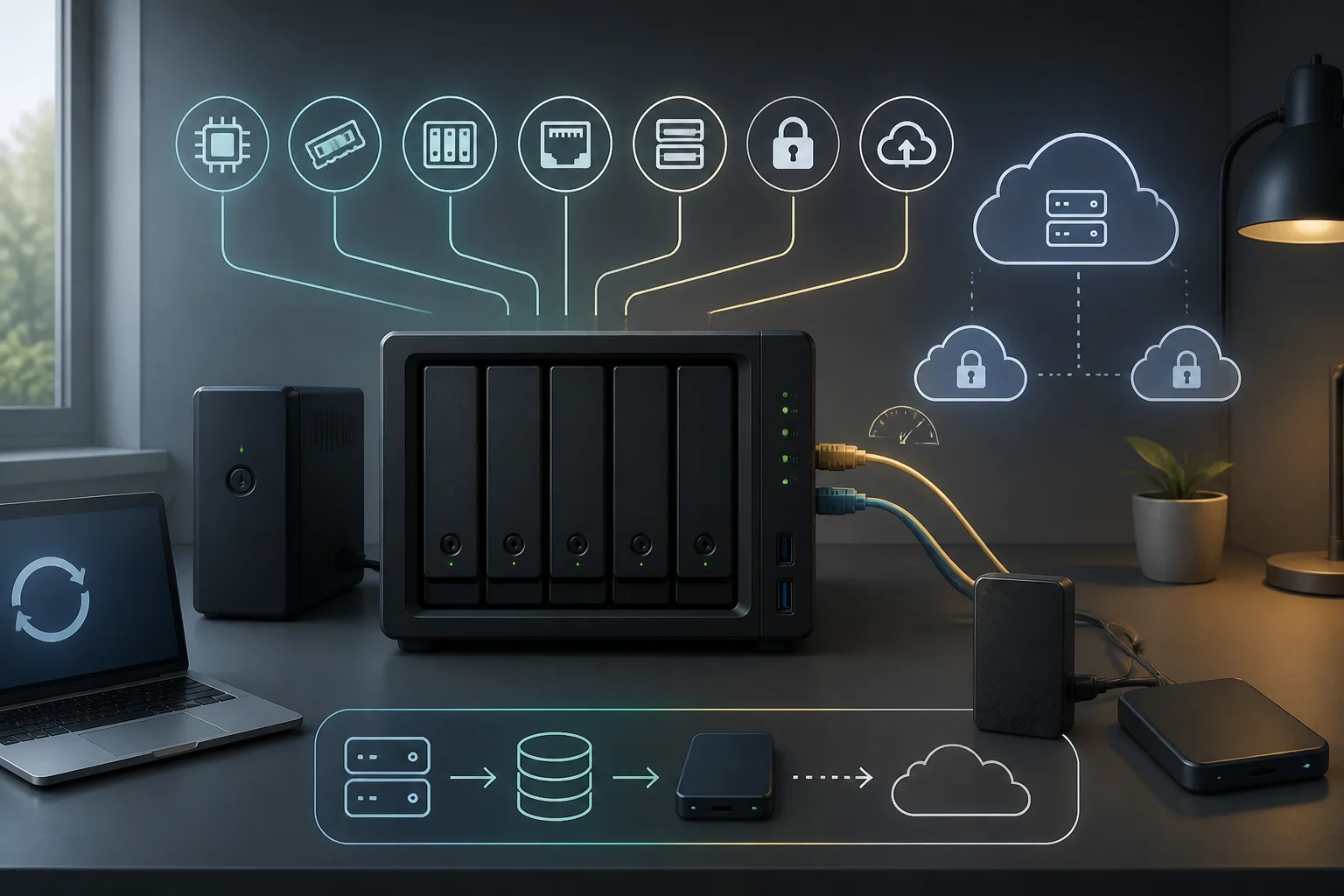
Why a NAS and why now: risks, 3‑2‑1 and 3–5 year costs
A modern NAS is more than a “disk on the network”: it centralizes photos and documents, serves media, and above all enables a 3‑2‑1 strategy with verifiable off‑site copies. Public guidance against ransomware recommends frequent backups and at least one disconnected or off‑site copy to withstand malicious deletions or encryptions. Compared with rising fees in personal clouds, a well‑sized NAS typically pays for itself in 3–5 years if you add users and local services without per‑device subscriptions.
In its most practical form, the 3‑2‑1 rule means keeping at least 3 copies of your data, on 2 different types of media, with 1 copy stored away from your home or office. In a home or prosumer setup, the NAS plays the role of central repository and task orchestrator: it holds the primary copy, takes frequent snapshots, and pushes copies to an external destination. The key is not just copying, but restoring with confidence; that’s why it pays to schedule periodic recovery tests and verify integrity with checksums before considering any strategy “good”.
There is also an organizational angle. Before you spend, define your goal: only backup and family album, or also networked editing, IP cameras, containers, and multi‑site sync? That scope determines bays, CPU/RAM, ports, and file system. In 2026, asking for 2.5GbE and immutable snapshots isn’t a whim: they are foundations for fast copies, reliable recovery, and ransomware hardening. The critical investment isn’t flashy apps but provable features: encryption, snapshots, and automation of external backups. A well‑configured NAS reduces friction: clear permissions, overnight jobs, email reports, and exportable logs that prove backups ran and can be rolled back.
Key decisions before you buy: bays, chassis, noise and power draw
Buy for five years: if 2 bays suffice today but you intend to grow, a 4‑bay chassis avoids forced migrations and lowers cost per TB. Choose trays with damping and a 120 mm fan to reduce noise in living rooms or home offices. Prioritize efficient PSUs and low‑vibration drives; idle consumption weighs more on the bill than peaks. Consider gradual disk replacement with higher‑capacity units without downtime, and ensure the chassis supports hot‑swap if you plan to keep it on continuously.
Evaluate physical footprint and airflow. A NAS with room for M.2 SSDs or extra bays lets you add cache or a fast tier without sacrificing 3.5" drives. Check the datasheet for expandable RAID support and the ability to grow pools without reinstalling. Avoid closed models where RAM isn’t upgradable or disk compatibility documentation is missing. Placement matters too: a cabinet with limited airflow can raise temperatures and noise; put the unit on a firm surface, with free space at the back and dust filters that are easy to clean.
Think about day‑to‑day use. Features like drive hibernation, fan curve control, and scheduled power on/off help tame power and noise. At the same time, weigh the impact on backup jobs: overly aggressive hibernation can break backup windows or increase wake‑up latency. A sensible balance is to allow light sleep, keep the system alert during backup hours, and log clearly when and why a disk leaves hibernation.
CPU and RAM (and when to ask for ECC): ARM vs x86, AES‑NI/ARMv8 Crypto, transcoding and containers
For sustained encryption and off‑site copies, ask for hardware crypto acceleration: Intel AES‑NI on x86 or ARMv8 Cryptographic Extensions on ARM. This reduces CPU load when encrypting folders/volumes and when using HTTPS/S3 to cloud storage. If you plan to use OpenZFS (TrueNAS/QuTS hero) with compression, verifications, and intensive snapshots, consider generous RAM and, when budget allows, ECC memory to minimize silent errors. It isn’t an absolute requirement for ZFS at home, but it’s a common recommendation when you want maximum integrity.
Architecture choice depends on usage. For containers, a 4‑core x86 with AES‑NI and 8–16 GB RAM leaves headroom for light Docker/Kubernetes, media indexing, and backup services. On modern ARM with crypto‑ext, 4–8 GB can handle encrypted backups and basic services, but video transcoding and virtual machines call for x86 with a suitable iGPU. Remember that real‑time transcoding isn’t free: it can saturate the CPU if multiple users trigger it at once; when possible, favor direct play and reserve transcoding for exceptional cases.
On any platform, plan for 30–40% free RAM for filesystem caches and metadata: you’ll get better stability and consistent performance than chasing benchmark “spikes”. That reserve helps ARC/L2ARC in ZFS and directory/attribute caches in Btrfs. If you intend to enable compression and aggressive integrity verification, prioritize RAM over extra CPU: scrubs and verification tasks benefit more from ample, fast memory than from a marginal clock bump.
Storage: CMR vs SMR HDDs for RAID, SSD cache/tier and when NVMe makes sense
For RAID arrays or verified pools, prioritize CMR (conventional PMR) drives. Device‑managed SMR can degrade rebuilds and sustained workloads; vendors maintain official tables to distinguish technologies by model. Always confirm in the NAS vendor’s compatibility matrix and in the drive’s datasheet. Also, when you mix capacities, review how your platform allocates parity and usable space: the smallest drive usually sets the pace in homogeneous groups.
Add SSDs as read/write cache or as a tier for projects with many small files or photo libraries. Integrated M.2 NVMe avoids consuming 3.5" bays. Define block sizes and alignment from the start: in ZFS, the combination of compression and ARC/L2ARC can speed repetitive reads; in Btrfs, periodic scrubs and checksums guard against silent corruption. Avoid caches that are too small and amplify writes; pick SSDs with suitable endurance (TBW) for the intended role. If the NAS allows TRIM on SSDs, enable it to sustain performance and, if your workload is write‑heavy, consider some over‑provisioning to extend SSD lifespan.
Remember rebuild times grow with capacity. A RAID with large drives will take longer to resilver/rebuild after failures, during which performance drops and operational risk rises. That reinforces the value of extra bays, hot spare policies where appropriate, and recent off‑site copies to absorb worst‑case scenarios. It also helps to choose drives with vibration profiles and firmware tuned for NAS use (e.g., error recovery timings appropriate for arrays).
RAID/SHR/RAIDZ and filesystems: Btrfs vs ZFS — what each demands and what you gain
If you choose the Synology ecosystem, Btrfs brings efficient snapshots, checksums, and inline scrubbing; plus, DSM 7.2 adds immutable snapshots and WriteOnce on supported models. In TrueNAS and QNAP QuTS hero, OpenZFS offers RAIDZ, end‑to‑end verification, ARC/L2ARC, and an intent log (ZIL/SLOG) for resilience. The trade‑off with ZFS is its appetite for RAM and CPU in certain features (e.g., deduplication). In fact, deduplication rarely makes sense for home libraries unless you can dedicate abundant memory and accept a constant overhead.
Btrfs and ZFS are copy‑on‑write, which enables fast snapshots and point‑in‑time restores. In ZFS, RAIDZ requires planning vdevs and expansion by groups; in Btrfs/SHR, expansion can be more flexible depending on the model. Check the vendor’s notes on how to schedule scrubs, snapshot limits, and package compatibility (e.g., Time Machine expects SMB and certain volume formats). Also define retention policies: keeping many small, frequent snapshots offers more recovery points, but it’s wise to purge them with logic (for example, by age or by count) so as not to waste space on metadata.
Network and ports: ask for 2.5GbE (802.3bz), link aggregation, SFP+ and Wi‑Fi limits
Asking for at least 2.5GbE in 2026 is reasonable: the 802.3bz standard defines 2.5/5GBASE‑T over existing Cat5e/Cat6 cabling and was approved in 2016. Even if your devices are 1GbE today, a 2.5GbE switch will speed backup windows, RAW photo ingestion, or light network editing. If your NAS has dual ports, LACP (802.1AX/802.3ad) helps spread flows across concurrent clients. In mixed environments, enable auto‑negotiation and ensure the switch supports a hashing mode that plays well with SMB/NFS.
For 10GbE, models with SFP+ or RJ‑45 10GBASE‑T unlock faster local copies and video ingest. Wi‑Fi 6/6E can peak high, but its shared nature and client variability make a wired 2.5GbE link deliver steadier, more predictable performance for backup and restore tasks. If all your clients are wireless, set expectations: latency, interference, and contention affect backup more than casual browsing. Tweaks like MTU/Jumbo Frames only help if the entire path supports them; prioritize stable links and reliable switches before tuning packet sizes.
Security and resilience: per‑folder/volume encryption, immutable/WORM snapshots, users/ACLs, 2FA, auditing and alerts
Verify your NAS supports AES‑256 encryption at shared‑folder and/or volume level, with key management and controlled mounting at boot. This protects against physical disk theft and adds a defense layer alongside in‑transit encryption (TLS). Also review advanced access controls (ACLs) and log export to syslog/CSV for auditing. Be clear on how encrypted volumes behave on reboot: auto‑mount is convenient, but it means that if the unit powers up unattended, data is mounted; in some cases you’ll prefer entering the key manually or via a secure manager.
Immutable snapshots or WORM block changes and deletions for a defined window, even if a privileged account is compromised. QNAP, Synology, and TrueNAS document options to immobilize snapshots and harden backups. Enable 2FA for the admin panel and email/app notifications for critical events. For clean recovery after power outages, integrate a UPS over USB or SNMP that enables automatic shutdown and periodic restore tests, not just backups. Also set alerts for capacity, temperature, and S.M.A.R.T. failures so you can intervene before an incident turns into data loss.