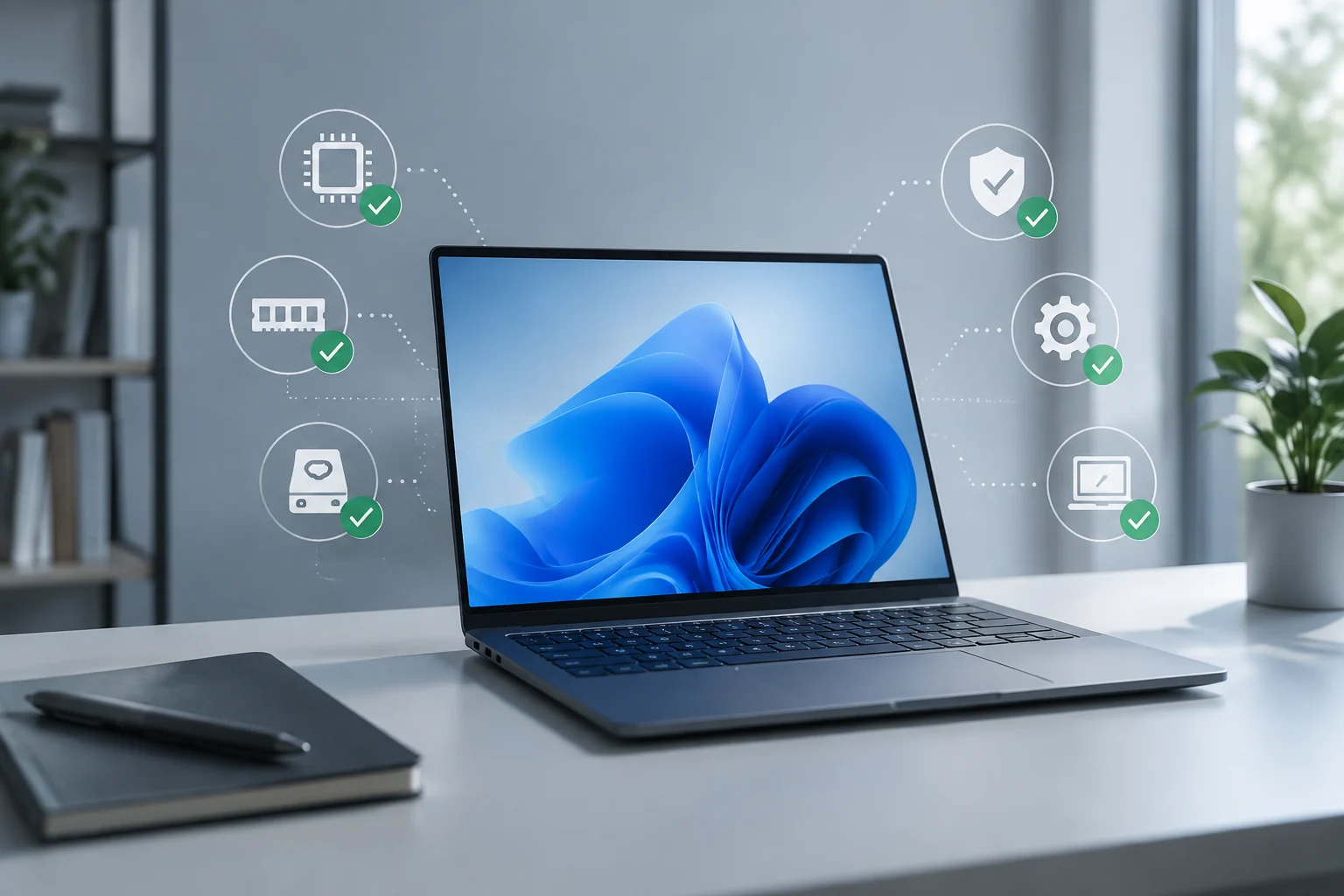
Compatibility and support are different questions
Before upgrading a laptop, it is worth separating two checks. The first is whether the device meets Windows 11’s requirements; the second is whether the specific version of the operating system installed on it is still within its support period. A favourable answer to one does not automatically settle the other. Microsoft maintains separate pages for system requirements and supported Windows versions, so both aspects need to be checked (Windows 11 requirements; supported Windows versions).
There is also a third timeframe that should not be confused with the first two: support from the laptop manufacturer. Microsoft’s documentation can help establish whether Windows recognises the device’s requirements and what lifecycle applies to an operating-system version, but it does not, on its own, confirm how long the manufacturer will provide drivers, repairs, or assistance for a particular model. For that, you need the exact model and the manufacturer’s documentation. A laptop being sold as “Windows 11 compatible” is not enough to infer all of those timeframes.
A practical way to approach the decision is to gather three details: the laptop’s full model name, the compatibility-check result, and the edition and version of Windows installed. If you are considering a purchase, ask for these details about the specific unit, not just the product family. A series may include different configurations, and a retailer’s shortened listing may not document every relevant component.
What to check in the official specifications
Microsoft publishes a list of minimum requirements for Windows 11. The items to review include the processor, memory, storage, firmware, Secure Boot, and TPM; graphics and display requirements are also specified. The general minimums are 4 GB of RAM and 64 GB of storage, but meeting those two figures does not by itself make a laptop compatible: every applicable requirement matters (specifications and requirements; system requirements).
The processor calls for particular care. The clock speed or number of cores shown in a product listing is not enough to confirm eligibility: check the exact model against Microsoft’s current compatibility information. The same applies to phrases such as “TPM available” or “Secure Boot compatible”: verify the device’s actual status rather than inferring it from a generic sales description. A hardware requirement that is present but disabled or not recognised may produce a different check result from the one suggested by the product listing.
Do not mix basic system requirements with optional features. A particular Windows 11 feature may require additional hardware and may not be available on every laptop that meets the minimum requirements to install the operating system. If a specific feature matters to you—for example, a security function or an artificial intelligence capability—check its requirements separately rather than treating it as proof of general compatibility.
Use PC Health Check and confirm the result
Microsoft provides the PC Health Check app to check whether a computer meets Windows 11 requirements. Its support page explains how to use the app and view eligibility (PC Health Check guide). It is a useful first step for a laptop you already own: it reports the device’s status without requiring you to interpret every specification individually.
The result evaluates the computer as it is configured and recognised at that moment. It does not replace a further check if hardware or firmware is changed; Microsoft provides specific guidance on checking eligibility again after hardware changes (check after changing hardware). If the app flags a requirement that is not met, note which one before deciding what to do. A specific message is more useful than a general conclusion based on the processor name.
If PC Health Check does not give a clear answer, compare the information with the laptop manufacturer and Microsoft documentation. A second-hand computer, a modified installation, or changed components can make the current configuration harder to interpret. If you are considering buying a laptop, ask the seller for a screenshot or check of the exact unit, and make sure it matches the model and configuration being offered. The tool cannot tell you the computer’s quality, future performance, or manufacturer support.
The support lifecycle depends on the installed version
“Windows 11” alone does not identify a support end date. Microsoft publishes version and lifecycle information to show which editions and versions remain supported, along with the applicable periods. To check a laptop, identify its exact edition and version and compare them with current documentation; do not rely on the operating system’s generic name (supported versions; release health).
The Windows 11 release information page brings together release details and references related to its versions (Windows 11 release information). These pages are more appropriate for checking a version’s status than the purchase date or the laptop’s approximate age. The date the computer was bought does not, on its own, determine how much support remains for the operating system installed on it.
The end of support for a Windows version does not necessarily mean the end of assistance from the laptop manufacturer. These are separate policies, documented by different organisations. For the full picture, check Windows’ lifecycle with Microsoft and, separately, the relevant model’s support page from its manufacturer. One of these timeframes should not be presented as a substitute for the other.
If the device does not meet the requirements or the information is incomplete
If the check indicates that the laptop does not meet a requirement, first identify which one and confirm that the information describes the current configuration. In some cases, a firmware setting or hardware change can affect eligibility; in others, the cause may be a genuine limitation of the computer. It is not advisable to apply a generic fix without knowing the specific requirement and consulting the manufacturer’s documentation. Microsoft explains that eligibility can be checked again after hardware changes, but this does not mean that every laptop can be upgraded (check after hardware changes).
If the computer is compatible, upgrade using an installation method documented by Microsoft, and pay attention to the guidance for the device (ways to install Windows 11). Before you begin, save a copy of important files and make sure you can access the computer’s recovery information. Eligibility does not guarantee that every app, peripheral, or driver will work in the same way after upgrading; those items may need to be checked separately.
If the device is not compatible, or the evidence is inconclusive, do not treat a forced installation as official confirmation of compatibility. For a purchase, ask for the exact model reference, the full component list, and verifiable confirmation from the seller or manufacturer. For a laptop already in use, compare the tool’s message with the manufacturer’s support information before changing firmware or components. The priority is to understand the limitation and its consequences, not to bypass it blindly.
Checklist before upgrading or buying
A brief review can prevent a partial specification from being mistaken for a definitive answer. For a laptop in use, start by checking the model, Windows edition, and version; then run PC Health Check and keep the result. If a hardware or firmware update changes the configuration, check again and consult the relevant instructions from Microsoft and the manufacturer.
When buying, make sure the specifications apply to the configuration being offered, not just to another variant in the same product family. Confirm the exact processor and the remaining requirements, and ask for clarification if the listing does not allow you to verify compatibility. If the seller advertises Windows 11 preinstalled, that is useful information, but it does not replace checking the model or provide a future support end date by itself.
Finally, check the status of the Windows version and the manufacturer’s support separately. The strongest conclusion combines device details, an eligibility check, and up-to-date official sources. If any of these elements is missing, state that limitation: compatibility, operating-system support, and laptop support are related checks, but they are not interchangeable.