The router as the first point of privacy control
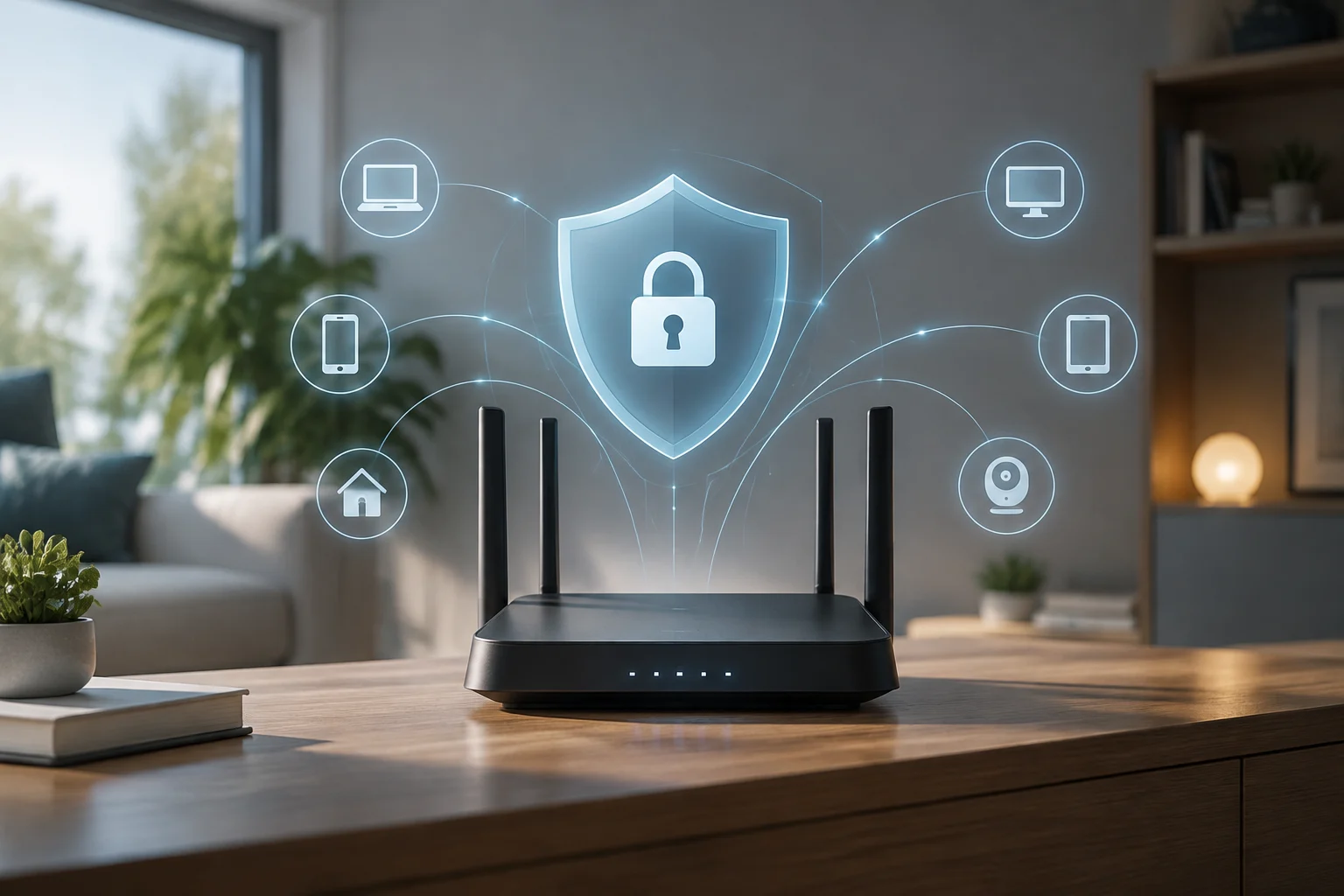
The home router acts as the home’s digital gateway: it manages traffic from every connected device, from smartphones to smart appliances. Although each device has its own settings, the router occupies a central position because it channels connections throughout the home and makes it possible to apply security and privacy policies collectively.
This centralized management does not mean that a router can solve every security problem on its own, but it does make it a key protection point for the local network. Decisions made there—for example, which encryption options are enabled or how DNS queries are handled—can affect several devices at once instead of requiring separate changes on each one.
According to INCIBE, smart-home connectivity carries risks if it is not managed properly, including loss of privacy and unauthorized remote control. Devices connected to the network may be exposed to these risks, so it is worth treating router configuration as a first line of defense, not as an absolute guarantee.
Configuration determines, among other things, what data leaves the network and how it is protected in transit. That is why, when choosing a device, it is useful to look beyond speed and coverage: its available security options and the ability to keep them up to date are also relevant specifications.
Requirement 1: Check for WPA3 encryption
Introduced in 2018 by the Wi-Fi Alliance, WPA3 is the latest security standard for wireless networks. The change matters because access keys protect the connection between devices and the router, and the method used to authenticate that connection affects how resistant it is to attempts to guess the password.
WPA2 uses AES encryption, which is stronger than the TKIP used in WPA, but it was vulnerable to the KRACK attack in 2017. WPA3 incorporates SAE (Simultaneous Authentication of Equals), an authentication method that significantly hinders brute-force attacks against weak passwords. This does not make choosing an appropriate password any less important, but it does provide stronger protection during authentication.
To check compatibility, consult the specification sheet for the specific model and its user manual; the brand name or the fact that the router is recent is not enough. Look for an explicit reference to WPA3 and check which modes can be enabled through the web administration interface. Availability may vary between models from the same manufacturer.
Many modern routers offer WPA3 or a mixed WPA3/WPA2 (AES) mode. The latter allows older devices that do not support WPA3 to stay connected, while compatible devices can use the newer standard. Before selecting this option, check the manufacturer’s guidance to understand how mixed mode works on that particular device.
On some older models, a firmware update may add WPA3. However, not all earlier devices are compatible, and an update should not be assumed: support needs to be confirmed in the manufacturer’s documentation. If the option is not shown, the manual or support service can clarify whether the device supports it.
Requirement 2: DNS management and query privacy
The DNS system translates domain names typed into a browser into IP addresses that locate services on the Internet. When these queries are not encrypted, third parties can intercept them and learn which domains were requested, potentially revealing part of a browsing history. Protecting queries is therefore separate from Wi-Fi encryption: it concerns information about the destinations being requested.
Setting up private or encrypted DNS on the router, using DoH (DNS over HTTPS) or DoT (DNS over TLS), protects those queries while they are being transmitted. It can also help prevent unwanted filtering or monitoring by service providers. To use it, the router must offer the relevant option, and the selected DNS service must support the mode being configured.
The AEPD recommends that families consider privacy when configuring home DNS and choose solutions that comply with data-protection regulations. It also notes that setting DNS on routers or devices can be effective in protecting minors, but requires families to participate actively. This measure should be understood as part of everyday network management, not as a replacement for family supervision.
Services such as DNS4EU and CleanBrowsing offer filtering and encryption profiles that can be configured on a router to cover the home network. The choice should take account of the available options, privacy, and the family’s needs; filtering and encryption are related but not identical functions, so it is worth checking what the selected profile provides.
It is also important to check what happens on each device. Some may use built-in DoH and send queries through a service other than the one configured on the router. That detour can mean the central configuration does not cover every query, so reviewing individual settings helps clarify how domain names are actually resolved across the network.
Requirement 3: Firmware updates and long-term support
A router’s security depends to a great extent on the manufacturer releasing security patches regularly. Firmware is the software that controls how the device operates; if it does not receive updates, known vulnerabilities may remain uncorrected and compromise the home network. That is why the end-of-support date is relevant information, not a minor purchasing detail.
When comparing options, look for manufacturers that provide long-term support and proactively publish security updates. Checking the date of the latest available update indicates whether the device is still maintained, although it should be considered alongside the support policy: a recent update by itself does not show how long the manufacturer will continue fixing problems.
INCIBE emphasizes that keeping operating systems and programs up to date is essential for fixing known vulnerabilities. For a router, this recommendation means checking the installed firmware version, looking for the latest version, and confirming the manufacturer’s policy for that model.
Devices that have reached EOL (End of Life) stop receiving security patches. Once that happens, newly discovered vulnerabilities may have no available fix, and the router can become a persistent weak point in the network. For this reason, it is advisable to avoid models whose support has ended and to check the product life cycle before buying.
Updates are also part of maintenance after purchase. Periodically checking for a new version and installing it according to the manufacturer’s instructions helps keep firmware current; this is an ongoing task, like reviewing which devices are connected and whether security options still meet the household’s needs.
Practical comparison: specifications to look for and avoid
When comparing routers, focus on specifications that directly affect privacy and security. The specification sheet and manual can confirm whether the necessary features are available, while the support policy helps assess whether they can be maintained. The table below summarizes the main criteria and why they matter:
| Specification | Recommended criterion | Reason |
|---|---|---|
| Wi-Fi encryption | WPA3 or WPA3/WPA2 (AES) | Protection against KRACK and brute-force attacks |
| DNS support | DoH/DoT or DNSSEC | DNS query encryption and integrity verification |
| Updates | Active support and regular patches | Fixing known vulnerabilities |
| Administration interface | Restricted access and a strong password | Preventing unauthorized access to the router |
The table is a guide to comparing models, not a guarantee that they all provide the same features in the same way. In particular, DNSSEC and DoH/DoT are not equivalent: DoH and DoT encrypt queries, while DNSSEC is concerned with integrity verification. Check exactly what the router supports and which option is being enabled.
It is also important to distinguish an advertised feature from a setting that can actually be applied. For example, WPA3 compatibility should be reflected in the modes available on the device; DNS support should specify which protocols or services it supports; and maintenance claims should apply to the model, not just to a general promise from the brand.
Final checklist for purchase and initial setup
Before buying, verify that the specific model supports WPA3 and offers advanced DNS configuration options. Consult the specification sheet and, if the description is unclear, the user manual. Also check the support policy and the date of the latest firmware update to avoid choosing a device that has already stopped receiving patches.
After purchase, initial setup should include these steps:
- Change the factory-set administration password to a strong password.
- Disable WPS.
- Update the firmware to the latest available version.
- Configure the desired private DNS and review the filtering options.
- Enable WPA3 or, if needed for older devices, mixed WPA3/WPA2 (AES) mode.
Make these changes through the router’s administration interface and follow the manufacturer’s instructions. If mixed mode is used, the aim is to make it easier for older devices to connect without preventing compatible devices from using WPA3; before changing the setting, it is useful to check which household devices need to connect.
Network security is an ongoing process, not a one-time configuration. Periodically reviewing connected devices helps maintain an overview of which equipment uses the network, while checking for updates helps address known vulnerabilities. DNS policies may also need adjusting as the family’s needs change.
Agencies such as INCIBE and AEPD recommend configuration and maintenance practices that contribute to a more private and secure home network. Applying them consistently—keeping firmware current, monitoring connections, and reviewing DNS—helps ensure that initial decisions remain useful over time.