What you can infer from a specification sheet
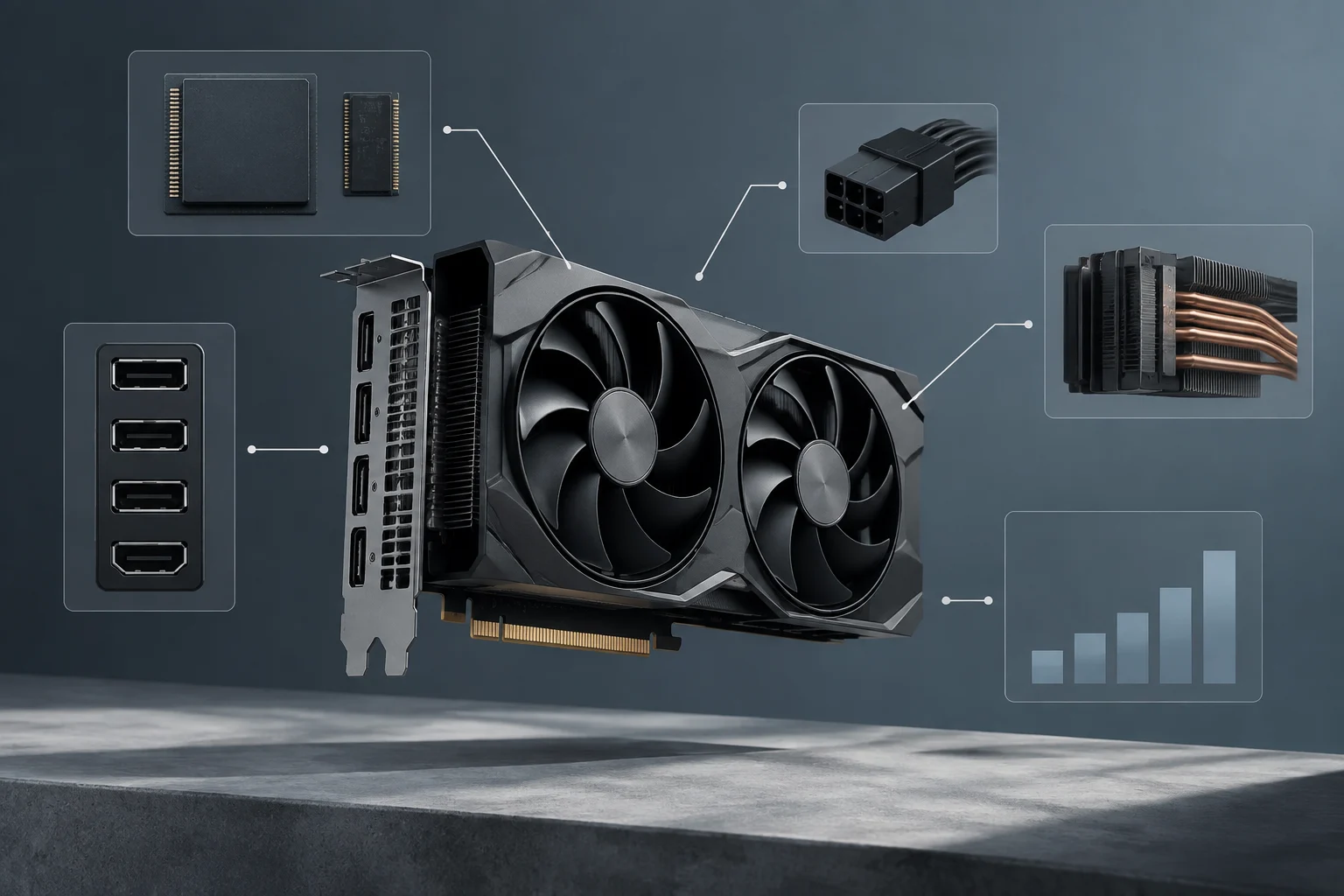
A specification sheet helps answer specific questions: which connections a card offers, how much memory it includes, what its dimensions are and what power supply its manufacturer recommends. On its own, it is not a speed test. A higher figure in one category does not prove that a GPU will perform better in every game, resolution or creative application. The first useful step is to separate compatibility from performance.
Start by defining the uses and conditions that matter: the games you play, the resolution, the work applications you use, your monitor and the rest of your PC. Then use the specifications to rule out physical or connection incompatibilities. Only after that does it make sense to look for benchmark results that match those conditions. A sound comparison does not turn a specification into a conclusion that the specification cannot support.
The manufacturer’s official product page should be the reference for information about its own model, but check the card’s full name. A GPU family can include cards from different brands and variants with different designs, dimensions and power limits. A chip specification sheet and the specification sheet for a retail graphics card do not always answer the same questions. For clearance, power connectors and display outputs, identify the exact card model—not just the graphics processor series.
Memory: capacity, type and bandwidth
Video memory is commonly described using several figures that refer to different things. Capacity, usually expressed in GB, indicates how much local memory the card has. The type identifies the memory technology. Bandwidth describes a transfer rate and depends on more than one parameter, so it should not be confused with capacity. None of these figures, considered alone, is a general measure of GPU performance.
More capacity can matter when a game or application needs to store more graphics data, but it does not show that a card is faster in every workload. Nor does it mean that the GPU has more computing capability. Conversely, a card with less memory is not automatically ruled out: how much that limitation matters depends on the program, settings and task. The useful question is not “How many GB does it have?” but “Is that enough for my use, and what evidence supports the answer?”
When comparing two specification sheets, note each measurement separately and make sure it applies to the retail variant you intend to buy. Do not infer bandwidth from capacity, or treat the name of a memory technology as a performance score. If the sheet omits a figure, do not fill it in by intuition: look for manufacturer documentation or acknowledge that the comparison is incomplete. Even when two products share a figure, that does not prove they will deliver the same experience in a particular application.
Power and power supply: check the card and the PSU
Power requirements call for a distinction between the consumption attributed to the card by its manufacturer and the requirements of the whole system. A recommended PSU rating is not automatically the GPU’s power consumption: the PSU also has to serve the processor, other components and the conditions of the system. In addition, the wattage printed on a PSU is not enough by itself to establish suitability. Check both the graphics-card manufacturer’s recommendation and the specifications of the PSU you already own.
The card may require one or more power connectors. Before buying, confirm that the PSU has the specified connectors and that the cables can reach them without improvised solutions. Consult the documentation for the specific PSU and card; do not base the decision on an old forum post or a general rule about connectors. Designs and requirements change between generations and models.
Intel’s power-supply design guide discusses PCI Express graphics-card connectors from the perspective of its platform and recommendations. It is a useful technical reference for understanding why power and connections must be checked as part of the system, but it does not replace the requirements published for a specific card. Two PSUs with the same rated wattage are not necessarily equivalent in every respect relevant to your build. To complete the check, review the model, available connectors, GPU manufacturer’s recommendation and PSU documentation.
Display outputs, monitor and compatibility
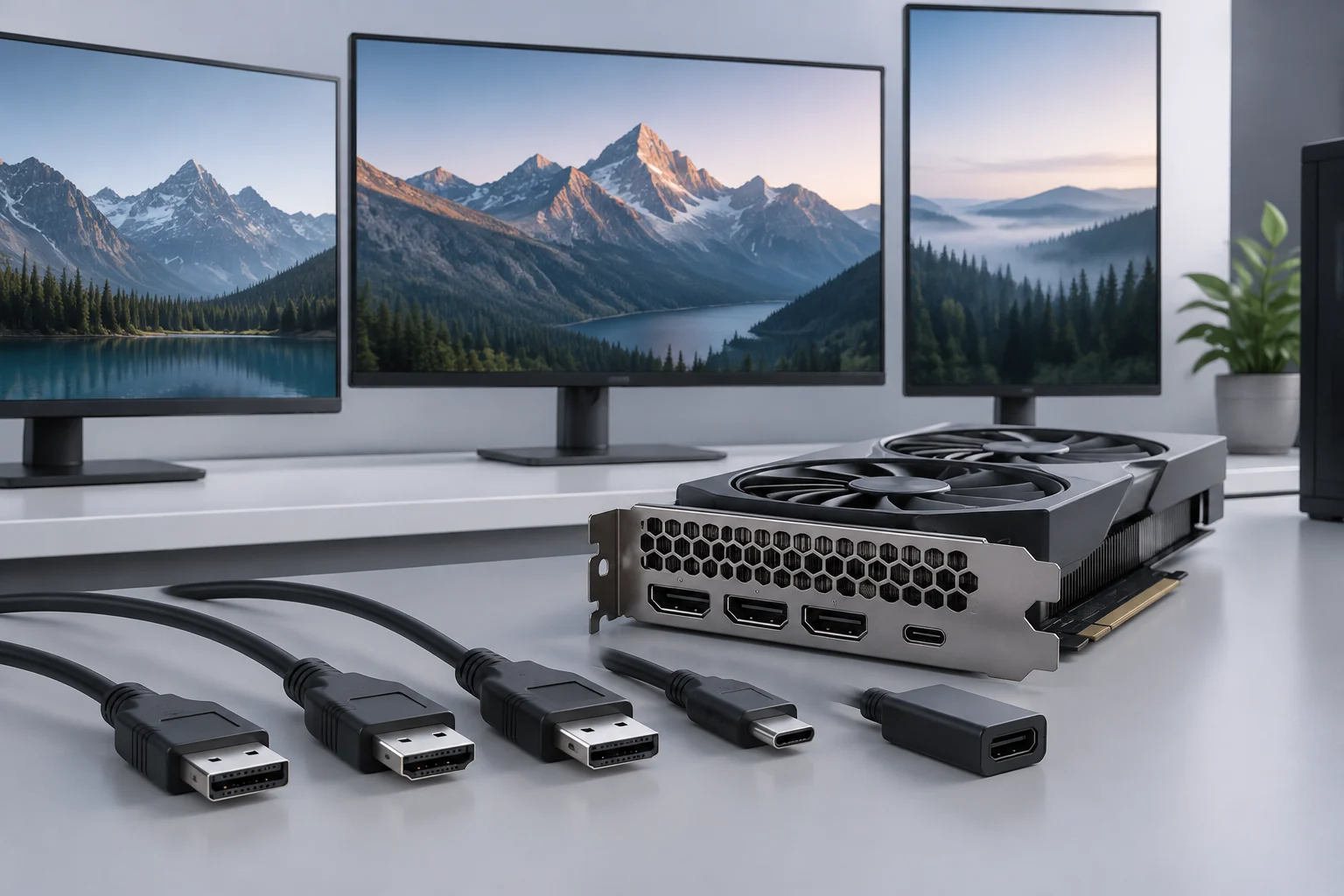
A physical output addresses only part of compatibility. Check which connectors the exact model includes and which ones the monitor has; then consult the documentation for the supported capabilities at the resolution and refresh rate you want. The presence of a connector alone does not guarantee every combination of resolution, refresh rate and monitor features. The cable, adapter and system configuration may also matter.
Do not assume that all cards in the same series have the same set of outputs. Graphics-card makers may offer different designs based on the same GPU family. For that reason, consult the specification sheet for the exact retail product rather than a generic image or a chip’s product page. If you need multiple monitors, check the number and type of available outputs and the conditions the manufacturer specifies for using them.
PCI Express is an expansion interface defined through PCI-SIG specifications. Read compatibility with the motherboard, card and system model in mind rather than assuming that a generation label answers every performance question. An interface version or connector type is no substitute for application benchmarks. For a purchase, distinguish three checks: whether the card can be installed, whether it can connect to the display, and whether its performance is suitable for the task.
Why independent benchmarks are necessary
Specification sheets describe features; benchmarks record results under particular conditions. To estimate gaming performance, look for reviews that state the titles, resolution, graphics quality, hardware configuration and measurement method. For content creation, the tests should match the applications and operations you will actually use. One result does not automatically represent performance across every workload.
Benchmark aggregators can be a starting point for finding models or comparisons, but examine how their results are produced and what they measure. For example, PassMark publishes graphics-card benchmark tables; a score of this kind is a result under its methodology, not a guarantee of performance in every game or program. Compare relevant, transparent tests—not numbers without context.
When reading a review, check whether cards were tested at equivalent settings and which version of each game or program was used. If an important decision depends on the result, look for more than one test, and distinguish average performance from other characteristics such as power consumption, noise or temperature when those are measured and explained. Do not combine scores from different methodologies as though they were one scale. If the configuration or procedure is not published, treat the result cautiously rather than as a universal measurement.
Pre-purchase checklist
A brief, reproducible comparison helps prevent a striking figure from steering your purchase. First collect specification sheets for the exact models and note which information comes from the manufacturer and which comes from independent testing. If a retailer omits a detail, return to the manufacturer’s documentation; a product listing can help identify a variant, but it does not replace an official specification.
Use this checklist before deciding:
- Identify the exact variant, including the card maker and full model name.
- Check the dimensions and the space available in the case.
- Verify the power connectors, published requirements and compatibility with your PSU.
- Compare the video outputs with the monitor, cable and configuration you intend to use.
- Keep memory capacity, memory type and bandwidth separate.
- Look for independent tests of the games or applications that matter to you.
- Note the resolution, settings and platform used for each test, and do not mix results from different methods.
Keep the conclusion proportionate to the evidence: an official specification sheet can verify many compatibility conditions and describe components; a well-documented benchmark can help assess performance in a particular workload. No single specification predicts overall performance on its own. When information is missing, leave the comparison open rather than turning an assumption into a recommendation. That caution does not prevent a choice; it helps ensure the choice fits your actual PC, monitor and use instead of a figure taken out of context.