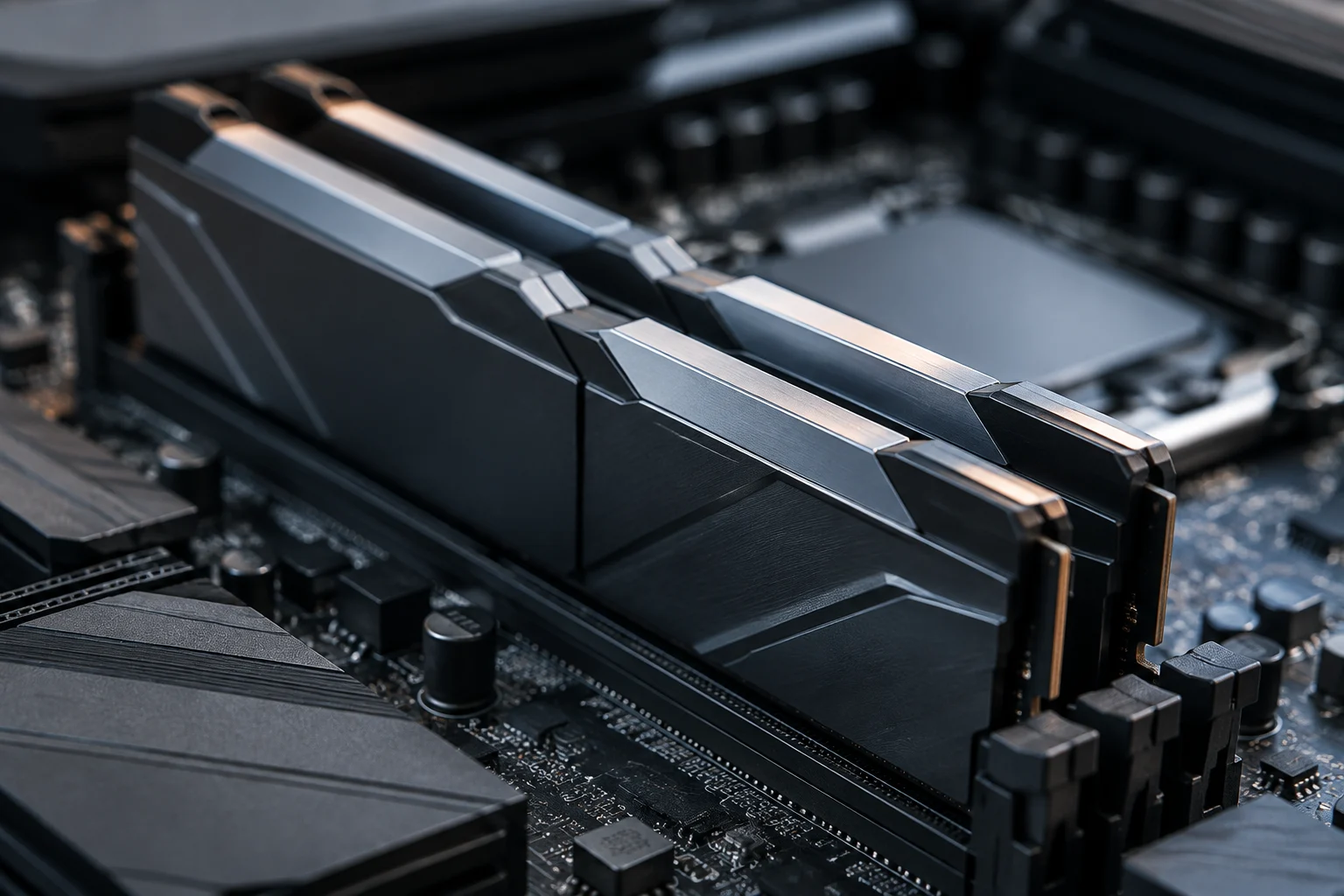
The number on the box does not tell the whole story
When buying RAM, it is easy to focus first on a figure such as “DDR5-6000” or “DDR4-3200.” That label describes an advertised transfer rate for the module, but it does not by itself confirm the speed at which it will run in your computer. The system may start with more conservative settings and require a configuration profile to get close to the kit’s specification. The effective speed depends on the combination of memory, processor, motherboard and applied settings. A number on a product label is therefore a starting point for checking compatibility, not proof of the operating speed you will see after installation.
For DDR memory, the transfer rate is usually expressed in MT/s: millions of transfers per second. This should not be confused with clock frequency, which is expressed in MHz. For example, a rate of 6000 MT/s does not mean that the clock runs at 6000 MHz: DDR technology transfers data twice per clock cycle. Monitoring tools may therefore show a frequency close to half the commercially advertised rate. Check which unit each specification sheet or utility reports before comparing numbers. A displayed value that looks lower is not necessarily evidence of a problem if it is reporting clock frequency rather than the effective transfer rate.
Speed is not the only useful specification. Note the generation—DDR4 or DDR5—the total capacity, number of modules, stated latencies and voltage where listed in the documentation. Compatibility starts with the generation and platform: a DDR5 module cannot replace a DDR4 module in a motherboard designed for DDR4, even though both are desktop memory modules. To check a purchase properly, compare the kit’s specifications with those of the processor and motherboard instead of looking for an isolated maximum figure. The precise kit and intended module configuration matter as much as the headline rate.
What XMP and EXPO profiles do
Many memory kits include one or more profiles stored on the module. Intel calls its memory-profile technology XMP (Extreme Memory Profile); AMD uses EXPO (Extended Profiles for Overclocking) on compatible platforms. These profiles bundle settings such as transfer rate, timings and voltage so that the UEFI can apply a predefined configuration instead of relying solely on more cautious automatic values. Intel’s documentation describes XMP as a way to apply memory profiles through system settings. The profile is a convenient preset, but it does not change the need to check that the complete platform can use the selected settings.
The presence of a profile does not necessarily mean that it is active. On many motherboards, memory may start with automatic settings that are slower than the rate advertised for the kit. To use the profile, enter the UEFI/BIOS and select the relevant option. It may be called XMP, EXPO, memory profile, or have a name specific to the motherboard manufacturer. The menu location and wording vary by model, so consult the motherboard manual before changing settings. If there are multiple profiles, do not assume they are interchangeable; check what each one specifies and select only the option supported by your platform.
Activating a profile changes operating parameters from the basic automatic configuration. Even if a kit is advertised for a particular rate, the result must be validated on the complete platform: processor, motherboard and module compatibility all matter, as does stability after the change. Do not assume that every profile will work in every computer, or that it will produce a noticeable improvement in every task. The nominal speed is a technical specification; its practical effect requires a controlled performance comparison. A profile being selectable is not, by itself, evidence that a system has been tested or that it will remain stable under every workload.
The processor and motherboard set practical limits
Start by identifying the processor’s exact model and consulting the manufacturer’s official specifications or support page. Intel, for example, publishes information about supported memory types and speeds for its desktop and laptop processors. Those pages help distinguish the memory support specified by the manufacturer from figures advertised for a kit using an overclocking profile. Do not apply the figure for one processor to another model in the same family: consult the specifications for the exact model. Desktop and mobile processors may also have separate support information, so check the page for the correct segment as well as the model.
Next, review the motherboard’s product page and manual. Check the supported memory generation, number of slots, supported capacities, recommended slot population and, if the manufacturer provides a compatibility list, the kit’s exact part number. The motherboard and processor matter together; a motherboard advertising a high rate does not guarantee that every CPU will reach it with every module combination. Limits can vary with the number of modules and the installed configuration. The board’s listed capability should therefore not be read as a guarantee for every processor, kit and slot arrangement.
Before buying, cross-check these details in this order:
- Generation: DDR4 or DDR5, matching the motherboard.
- Processor model: official memory specifications for the exact model.
- Motherboard: manual, recommended slots and published compatibility information.
- Specific kit: capacity, number of modules, rate and XMP or EXPO profile.
- Planned configuration: number of installed modules and occupied slots.
Intel’s specification pages and support articles are useful references for its own processors; for the motherboard, the primary source is its manufacturer. The available sources here do not document specific motherboard, processor or kit models, so it is not possible to recommend a universal combination or state a specific supported rate. Check the documentation for the parts you actually own or plan to buy rather than inferring support from a product family name or a headline figure.
How to verify the active configuration
The first place to check is the UEFI/BIOS. Look for memory information or the profile settings screen and confirm whether the profile is shown as enabled. Some interfaces display the transfer rate; others show clock frequency or a description of the selected profile. Record the value and its unit, then compare it with the kit label. If the UEFI shows approximately half the commercial number, it may be expressing the clock in MHz rather than the rate in MT/s: do not automatically conclude that the memory is running at half the expected speed. Check the interface’s terminology and, where necessary, the motherboard manual.
In Windows, Task Manager provides a quick view of installed memory and, depending on the system and computer, its speed. For a more detailed check, you can use a reliable hardware-reading utility, but interpret its field carefully: some tools report the actual clock, while others report an effective rate. General instructions for checking installed memory do not replace the manufacturer’s documentation and do not certify that a profile is stable. When comparing a utility’s reading with a product label, first establish whether both are expressing the same measurement and unit.
A cautious check after changing the UEFI is to return to the operating system, confirm that the full capacity is recognized and review the value reported by the chosen tool. If the computer does not boot, restarts or reports errors, return to the UEFI and disable the profile or restore the previous settings as described in the motherboard manual. Do not manually increase voltages or change extra parameters just to pursue a number. A speed reading confirms a reported setting; by itself, it does not demonstrate stability or superior performance. Keep to the documented recovery procedure rather than making additional changes whose effects you cannot verify.
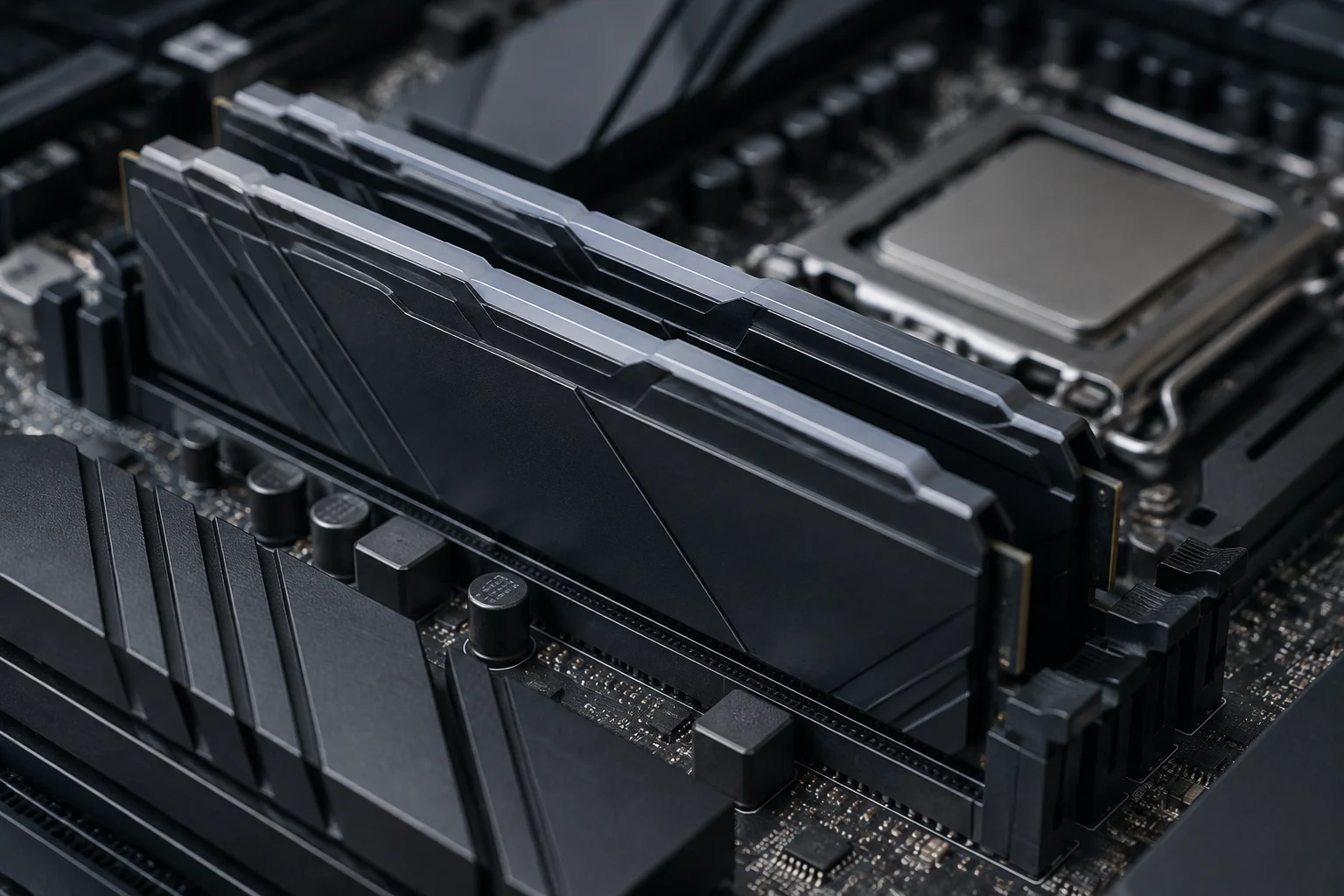
Speed, timings and sensible comparisons
Comparing two modules by MT/s alone can lead to incomplete conclusions. Latency, total capacity, number of modules and platform also matter. A higher rate can come with different latency timings; moreover, overall responsiveness depends on the application and other components. Without comparable tests using the same processor, motherboard, configuration and workload, it is not rigorous to promise how much a faster kit will improve a game or application. The advertised rate is one characteristic among several, not a standalone prediction of performance in every use case.
Capacity answers a different question: how much memory the system can use before it has to rely on slower mechanisms or limit tasks. Speed does not make up for insufficient capacity, and more capacity does not automatically mean a higher transfer rate. It is also worth following the slot recommendations in the manual. Two modules installed in the specified positions may behave differently from a configuration with more modules; specific support depends on the platform and cannot be inferred from the kit label alone. Check the guidance for the exact board and processor combination.
For a useful comparison, first define the goal—required capacity, compatibility and stability—and treat the transfer rate as one variable. Do not mix results from different computers or compare a configuration with a profile enabled against one using automatic settings as if the difference came solely from the memory. Specifications describe product characteristics; controlled tests describe results in a particular scenario. No performance measurements are provided here, so any quantitative claim about gains would go beyond the available evidence. A careful comparison needs a consistent setup and workload, and should distinguish observed results from expectations based on the printed rate.
Checklist before buying or enabling a profile
Before buying, write down the motherboard and processor models, confirm DDR4 or DDR5, and consult their official specifications. Check the exact number of modules in the kit and its total capacity; if the motherboard manufacturer publishes a validated memory list, look up the complete part number, not just the product family. A match on that list is a specific reference, but it does not replace reading the manual or guarantee the same result in every configuration. Make sure the planned number of modules and slot arrangement also follow the board’s guidance.
Before enabling XMP or EXPO, save or note the current settings and make sure you know how to reset the UEFI according to the manual. Change the relevant profile, restart, and verify the capacity and speed using a source that clearly indicates whether it reports MHz or MT/s. If errors occur, return to automatic settings. The availability and activation of a profile should not be presented as a guarantee of stability: that conclusion depends on the actual configuration and checks that have not been performed in this article. Avoid adding manual voltage or timing changes to a basic verification process.
The final decision can be summarized in three questions: does the generation match; do the processor and motherboard document support for the planned configuration; and does the system report the expected rate with the appropriate profile enabled? If any answer is uncertain, prioritize the manufacturers’ documentation and a conservative configuration over chasing the maximum printed on the box. This guide explains how to interpret and verify settings; it is not a test of memory modules or a buying recommendation for a specific model. Keep the distinction between a listed capability, a selected profile and a verified result clear throughout the process.