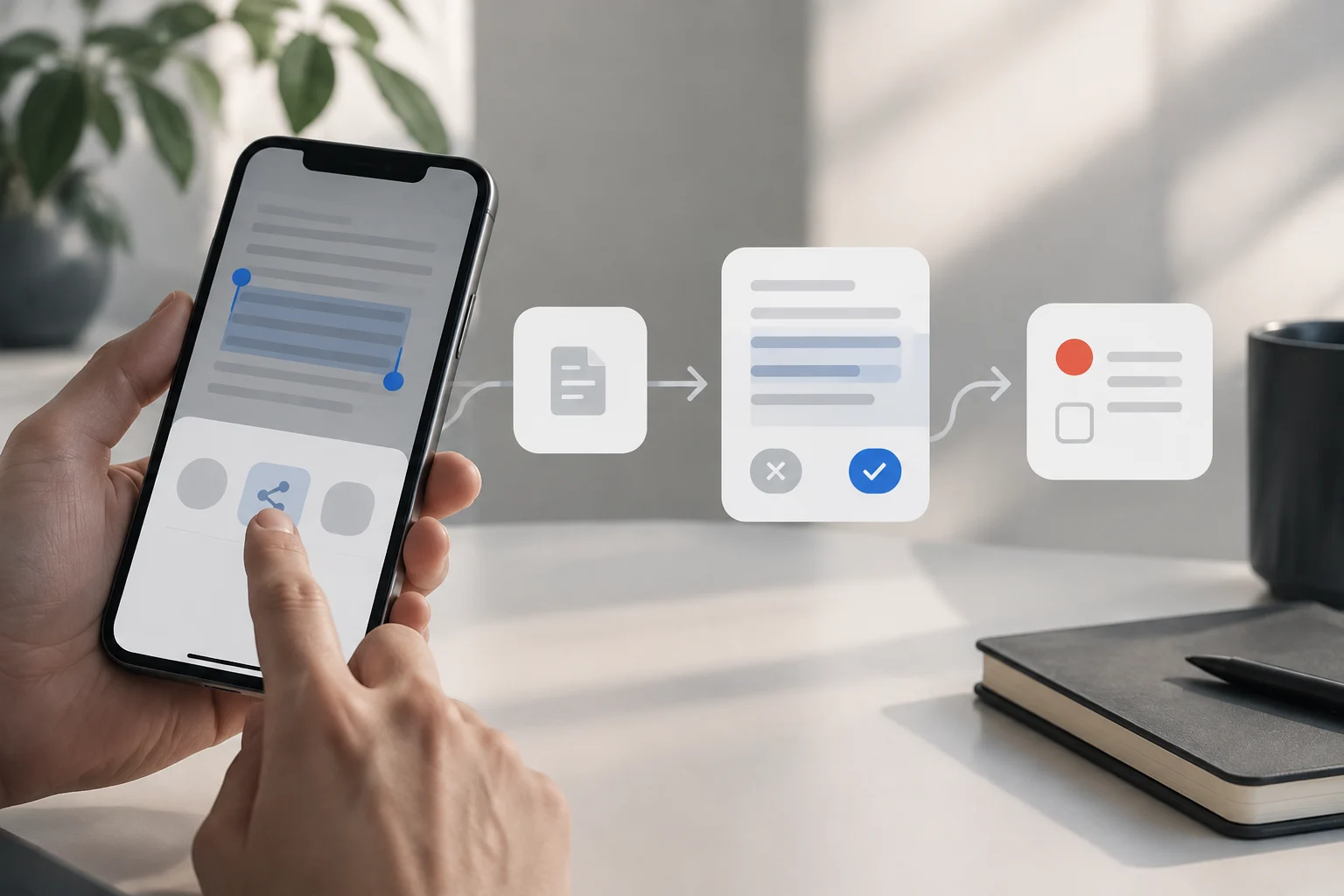
Automations, running, and confirmation
You do not need to add a personal automation for a shortcut to work from Share. Open an app, choose content, and run the shortcut manually from the Share sheet; that process is different from an automation, which is configured around a trigger. Keeping these mechanisms separate also clarifies what you are testing: if the shortcut does not receive a selection correctly, first check its input settings and the source app rather than blaming an automation that is not part of the workflow.
If you later want a workflow that starts in response to an event, configure it separately and check how that trigger behaves on its own. An automation has its own conditions and run options; it is not simply another way to open a shortcut from Share. Keeping the two mechanisms distinct helps you locate problems: a failure to receive shared content does not mean an automation is broken, and a successful test from Share does not verify how a trigger behaves.
Apple documents that some personal automations can run without asking for confirmation and explains that the available options depend on the trigger and configuration. That does not mean every shortcut that creates a reminder will run without interaction. Running without asking applies to compatible automations; it is not required to start a shortcut manually from Share, and it does not mean you can assume the content will be processed as expected without checking it. For a workflow that processes shared content, keep a review step before creating the task: this lets you check the title and information to be saved before the shortcut continues to Reminders. The useful confirmation happens before the item is created, not in a later notification that can no longer prevent its creation.
Make the shortcut appear in Share
In the shortcut’s details, turn on the option to show it in the Share sheet and set the input types it will accept. For a text-focused workflow, limit the input to the relevant type. This setting defines what kind of content the shortcut can receive and may affect whether it appears among the available options when you try to share something. If you cannot see it in the sheet, check both that it is enabled for Share and that the selected content type is compatible with its settings.
Limiting input does not convert other formats into text or guarantee that every app will provide the same selection. Check what the shortcut receives from each app: it may be text, a URL, or another supported item. Apple documents that received content is passed to the shortcut’s first action, so do not assume that everything visible on a page will be transferred. A page may display more information than the app shares at that moment. Receiving a link is not the same as extracting the full text of a page.
Also decide what should happen if the shortcut starts without input. Shortcuts lets you configure how it responds when there is no input—for example, it can stop, ask for content, use the clipboard, or continue. These options are not interchangeable: continuing may let the workflow proceed without the snippet you expected, while stopping or asking for content makes the missing input explicit. Choose the behavior that suits your use and check it on your device before saving the reminder. This helps prevent different content from accidentally being treated as the original selection.
Prepare the text and review the details
Add an action that lets you inspect the input before creating the reminder. The “Show Alert” action can display a dialog with information from an earlier action; use it before creation to check what the workflow received. The alert lets you see the content that has reached that point and decide whether it makes sense to continue. Do not assume it will necessarily show the text of a page: if the app shared a URL, that may be the information displayed.
If you want to change the title, add an action that asks for that information and check on your device what options it offers. This helps distinguish the shared content from the title you ultimately want to save. Make sure the requested text is the value assigned to the reminder’s title; asking for input does not by itself change the content the shortcut received or guarantee that other fields will be filled in.
Next, add the Reminders action to create the item and assign the reviewed text to its title. If you want to keep the source, you can include the URL in the notes when the input and available actions allow it; verify the result. The source will be retained only if the workflow receives a link and its configuration lets you add it where you want. Do not assume a URL will be available when the app shared only text, or that the full contents of a page will accompany the link. Treat the date as information you enter or confirm, not as an automatic interpretation of any time expression on the page. The presence of words such as “tomorrow” in the text does not mean the shortcut has confirmed a reminder date.
Review before saving
To stay in control, put creation after the review and check the title, list, and date before continuing. The order matters: first the content is received, then it is inspected or the title is prepared, and only afterwards is the item created in Reminders. If you change the order and creation happens before the alert, the alert no longer works as a pre-save check and cannot prevent the reminder from already being created.
An alert lets you inspect the information and decide whether to continue or cancel; do not present it as a full editor for every reminder field. Decide which details you want to check and where they are assigned in the creation action. If you need a title that differs from the received text, ask for it and review that value; if you want to add a URL or confirm a date, check those details separately. The alert helps make the information available at that point visible, but it does not replace the actions needed to prepare the fields.
During testing, confirm that the item appears in the intended list and that its title matches what you reviewed. If the input does not contain the information you expected, stop the workflow or change your decision before creating the reminder. This check does not make source apps share more information; it shows what actually arrived and helps prevent you from accidentally saving the wrong title or source.
Privacy and limitations
The contents of a webpage, email, or note may be sensitive. Share only the necessary excerpt, and review the actions you have added before running the shortcut with private information. Pay particular attention to actions that send or save information: limiting input types helps define when the shortcut is offered, but is not, by itself, a privacy guarantee. Input settings determine content compatibility; they do not make everything the workflow might do with that content harmless.
The workflow depends on what the source app provides and on the actions available on your device. As a result, a selection that works in one app may arrive differently from another app. Test its behavior with harmless content before using it regularly, and observe what happens both when text is present and when input is missing or a link arrives. This lets you adjust the review step to what your device actually receives, without assuming that every app shares the same kind of item. The benefit is fewer steps while keeping the final decision in your hands.
Test it from a selection
Test the shortcut with a sentence you can discard. Open an app that lets you share text, select a few words, and look for the shortcut in the Share sheet. This first check confirms that it is enabled for Share and appears for the type of selection you made. If it does not appear, check those settings before changing the rest of the workflow; a mismatch between the content and the accepted types can affect availability.
Inspect what reaches the first action. If you receive a URL instead of the selected text, decide whether to use it, ask for a title, or stop the workflow. Do not treat the link as if it automatically included the full text of the page. If no content arrives, check the setting for missing input and make sure the chosen behavior is what you expected. The point of this test is not to make every app produce the same output, but to learn what each one provides before trusting it with important information.
Then check in Reminders that the title and details match what you reviewed and that the item was created in the expected place. If something is wrong, review what the first action received and how the values were assigned to the creation action. Repeat the test with another app: success in one application does not guarantee compatibility with all of them. When you are finished, delete the test reminder if you no longer need it.