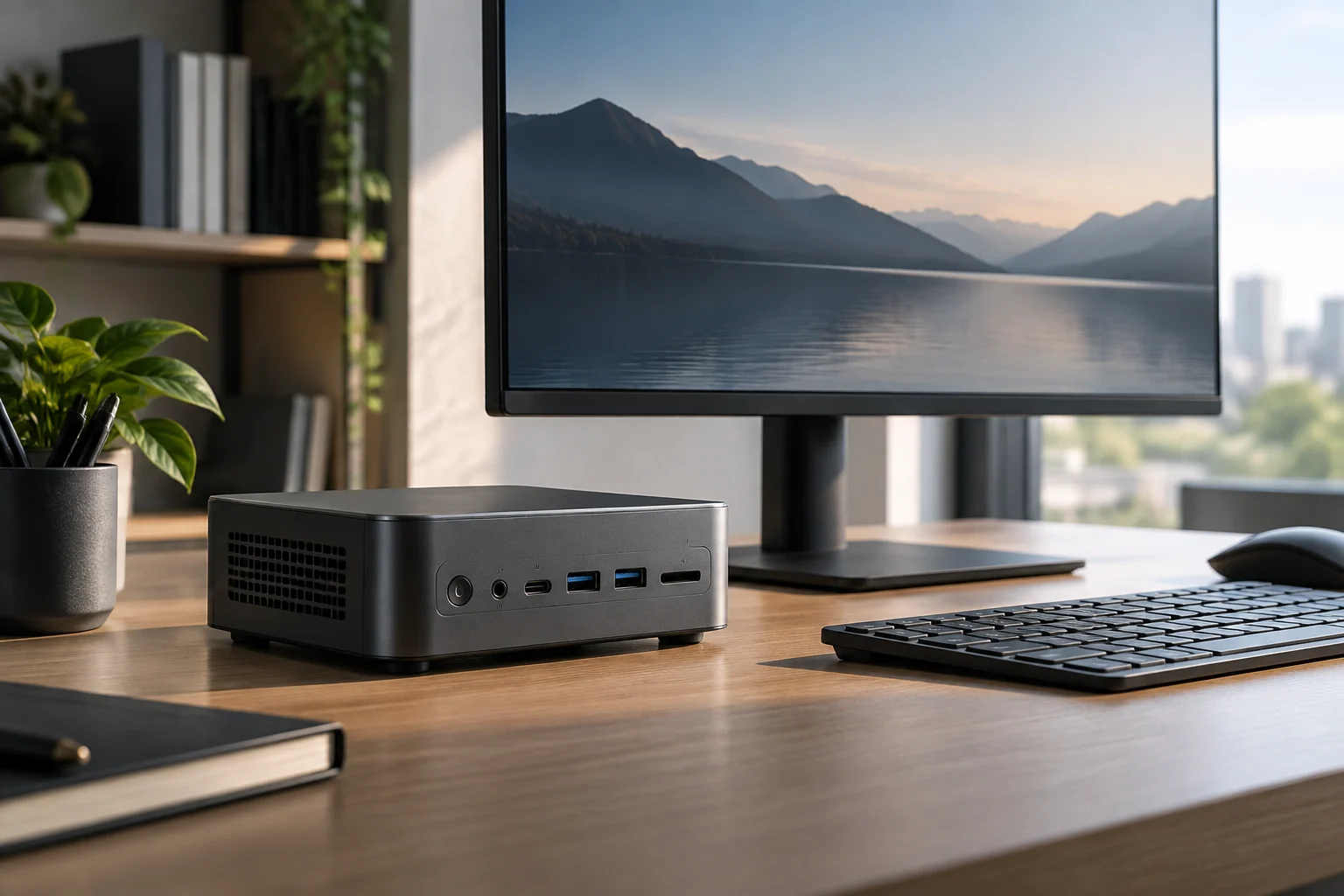
Start with your workload and peripherals
Before comparing processor names or memory figures, write down what you expect the computer to do and what you need to connect. A computer for documents, browsing and video calls has different requirements from one intended for video editing, running development tools or keeping several demanding applications open. Rather than turning those tasks into a promise about performance, use them to determine which specifications you need to verify and which questions remain open.
Make an inventory of the peripherals you already own as well: monitor or monitors, keyboard, mouse, external storage, headphones, printer and network connection. Practical compatibility depends on the whole setup, not just on whether the computer has a recent processor. A connection missing from the specification sheet, or a video output that does not match your display, may mean buying adapters or changing how you work.
A short checklist before looking at models
- Define your main applications and whether you usually run them at the same time.
- Note how many displays you use and which inputs they support.
- Identify the devices you will connect over USB, wired networking or audio.
- Decide whether you need room for large files or will use external storage.
This checklist does not, by itself, determine how much computing power you need. It helps filter out unsuitable configurations and prevents an eye-catching figure from distracting you from a simple requirement—for example, having the right type and number of connections.
Processor: a specification sheet is not a performance test
The processor name and its specifications are a starting point, not a complete prediction of how the computer will perform in every task. Check the exact model, not just the product family, as well as the configuration being sold by the manufacturer. A specification sheet may describe components or maximum frequencies; it does not necessarily explain what performance the system will sustain under a prolonged workload or how it will behave when several tasks run simultaneously.
In a compact chassis, it is particularly important not to treat an advertised figure as a guarantee of sustained performance. Assessing that requires independent tests of the specific model, using a methodology that explains the workload, duration and test conditions. If no such data are available, the correct conclusion is that sustained performance has not been established by the specification sheet—not that the computer will perform either poorly or well.
The workload matters too: a computer can respond differently depending on the application, configuration and concurrent tasks. Intel’s documentation on CPU usage addresses diagnosing high usage, but cannot by itself establish how a specific mini PC will perform. Do not compare processors using a single isolated figure; look for contextual information about the complete system, rather than assuming equivalence between different products. (Intel’s guide is a reference from the processor manufacturer, not an independent review of the mini PC.)
Memory and storage: verify expandability for the exact model
The amount of installed RAM is only one part of the decision. Check whether the memory is upgradeable, the maximum supported capacity and the type of configuration the manufacturer describes for the exact model and variant. Do not assume that two computers with similar names or appearances share the same internal layout. If the documentation does not explain how the memory is installed or whether it can be replaced, treat that feature as unconfirmed.
A general Intel guide to RAM can help explain why memory should be considered in light of usage, but it does not confirm the upgrade options of a specific commercial computer. For that, look for the maintenance manual, official specifications or a support response associated with the model. Distinguish between included RAM, maximum supported RAM and RAM the user can replace: these are not interchangeable details.
Storage capacity and access
Check the capacity of the included SSD and whether the manufacturer documents a second slot or replacement of the drive. The factory capacity does not prove that internal space is available for adding another SSD; likewise, the ability to replace a drive does not confirm that a second one can be installed. If the specification sheet lists only one capacity, record that capacity and do not assume expandability. For large files, compare that figure with your needs and also consider the cost and convenience of external storage, without attributing an undocumented feature to the computer.
Ports, displays and networking: translate the specifications to your desk
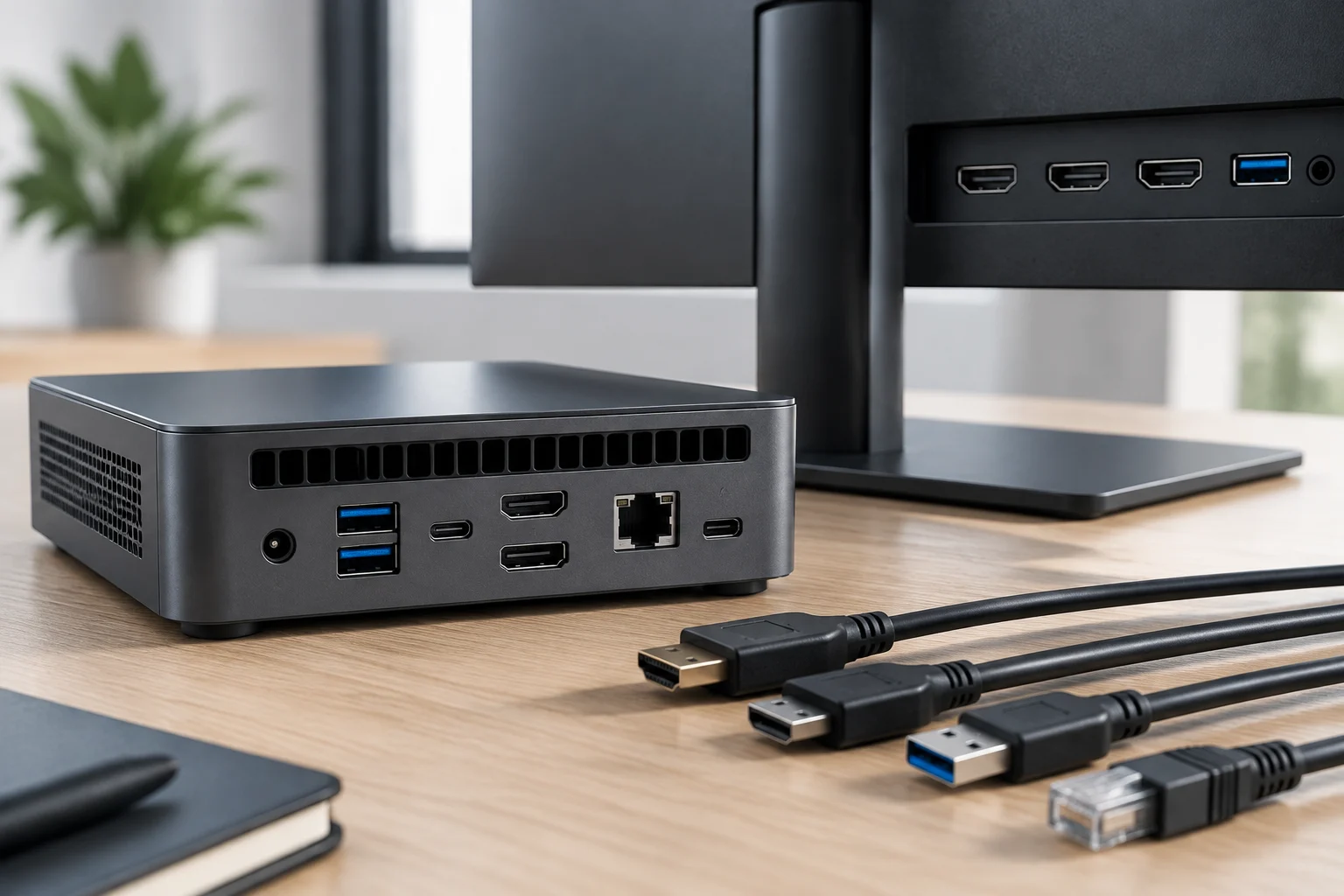
Read the connection list port by port. Check how many USB ports there are, which types are specified and whether their functions are documented; the shape of a connector is not enough to infer all its capabilities. For displays, verify the available video outputs and compare them with your monitor’s inputs. If you plan to use more than one display, look for explicit confirmation that the configuration supports that combination; do not infer it solely from the number of connectors visible in a photograph.
Check networking in the same way: identify whether the model documents Ethernet, wireless connectivity or both, and compare those details with your home or office setup. Also note how power is connected and what is included in the retail configuration. A picture of the chassis can help locate ports physically, but it does not replace the specifications: a photo may hide connections, show a different variant or fail to clarify the function of each one.
A compact comparison is more useful than a list of product names. Fill it in from official specifications and mark anything you cannot find as “unconfirmed”:
| Check | What to record | What not to assume |
|---|---|---|
| Video | Listed outputs and the displays you need | Undocumented resolution or monitor combination |
| USB | Number, type and described functions | That every port offers the same capabilities |
| Network | Listed network connections | That a particular wireless connection is included |
| Expansion | Supported memory and storage | That internal space allows components to be added |
Operating system, drivers and support lifecycle
Before buying, check which operating system is included with the configuration and whether the manufacturer provides drivers, manuals and firmware for the model. The manufacturer’s support page can be a starting point for these resources, but the existence of a general portal does not prove that updates are available for every computer or that they will cover any operating system indefinitely. Find the support page for the specific model and confirm that it applies to the exact one you are considering.
Motherboard firmware plays a part in starting the computer and initializing the system. ASUS describes these functions in its BIOS update documentation, which also warns about precautions related to the process. This makes published support a practical criterion: it is sensible to find the instructions before relying on an update, and to follow official guidance if you perform one. It does not mean that you should update without a specific reason or that an update guarantees a particular improvement on every computer.
For specialist applications or older peripherals, check operating-system compatibility and the availability of the relevant driver separately. A driver page for a different product or operating system does not confirm compatibility with your mini PC. Support must be checked for the model and operating system, not for the brand in the abstract. If an application has its own requirements, consult its developer too: recommended requirements for a game, for example, are not the same as a general assessment of the computer.
What the specification sheet does not reveal—and how to finish comparing
A specification sheet lets you compare declared features, but it is no substitute for testing the computer. On its own, it cannot establish fan noise, temperatures under load, sustained performance, stability over a full day of use or responsiveness with a particular combination of programs. Those aspects require measurements or independent tests of the model and configuration. If they are unavailable, keep the uncertainty visible rather than turning an expectation into a fact.
Evidence also has limits in scope. A manufacturer’s general recommendation about RAM or processors does not verify the internal configuration of a product made by another manufacturer. A generic support page does not confirm the update policy for a specific model. And a retail specification sheet may describe a different variant from the one offered by a store. Record the full name, configuration and, where available, model identifier so that you do not combine information from similar-looking computers.
Final checklist
- Use: Are your usual applications and tasks clear?
- Configuration: Are the exact processor, RAM and SSD for the variant listed?
- Expansion: Is there documentation confirming what can be changed and the maximum supported capacity?
- Connections: Do the video outputs, ports and network options match your actual peripherals?
- Support: Have you found drivers, manuals and firmware for that model and operating system?
- Independent evidence: Are there tests of the model for noise and sustained performance, or do those points remain unconfirmed?
When comparing several candidates, keep separate columns for “manufacturer confirmed”, “observed in an independent test” and “not documented”. This helps prevent advertised specifications from being mixed up with measured results. If a decisive feature remains unverified—for example, the expansion you need or compatibility with a display—ask the manufacturer for confirmation before buying. The soundest choice is not the mini PC with the highest figure, but the one that meets your verifiable requirements without relying on assumptions.