The RAM figure does not tell the whole story
Two laptops advertised with the same amount of RAM may offer very different upgrade options. In one, all the memory may be integrated into the motherboard; another may have removable modules; and a third design may combine integrated memory with one or more slots. A product listing that says only, for example, “16 GB” does not by itself tell you which of these applies.
The difference matters if you want to keep the computer for several years, add memory later or replace a faulty module. But upgradeability is not automatically a decisive advantage: it depends on the intended tasks, the price of the initial configuration and the terms of service. The practical question is not just how much RAM is included, but what part can be replaced and which configurations the exact model supports.
It is also worth distinguishing physical capacity from performance. Documentation may identify the memory type, layout and supported limit, but that alone is not enough to predict how much a particular application will improve after an upgrade. The outcome depends on the processor, workload, configuration and other components; without comparable tests, specifications should not be turned into a promise of speed.
Three common designs: integrated, removable and hybrid
Integrated or soldered memory is fixed to the motherboard and cannot be changed like a conventional module. If the manual documents only integrated memory and lists no slots or module-removal procedures, that is a relevant sign, although the absence of information from a summary page does not by itself prove that no option exists. Consult the full manual and documentation for the configuration being purchased.
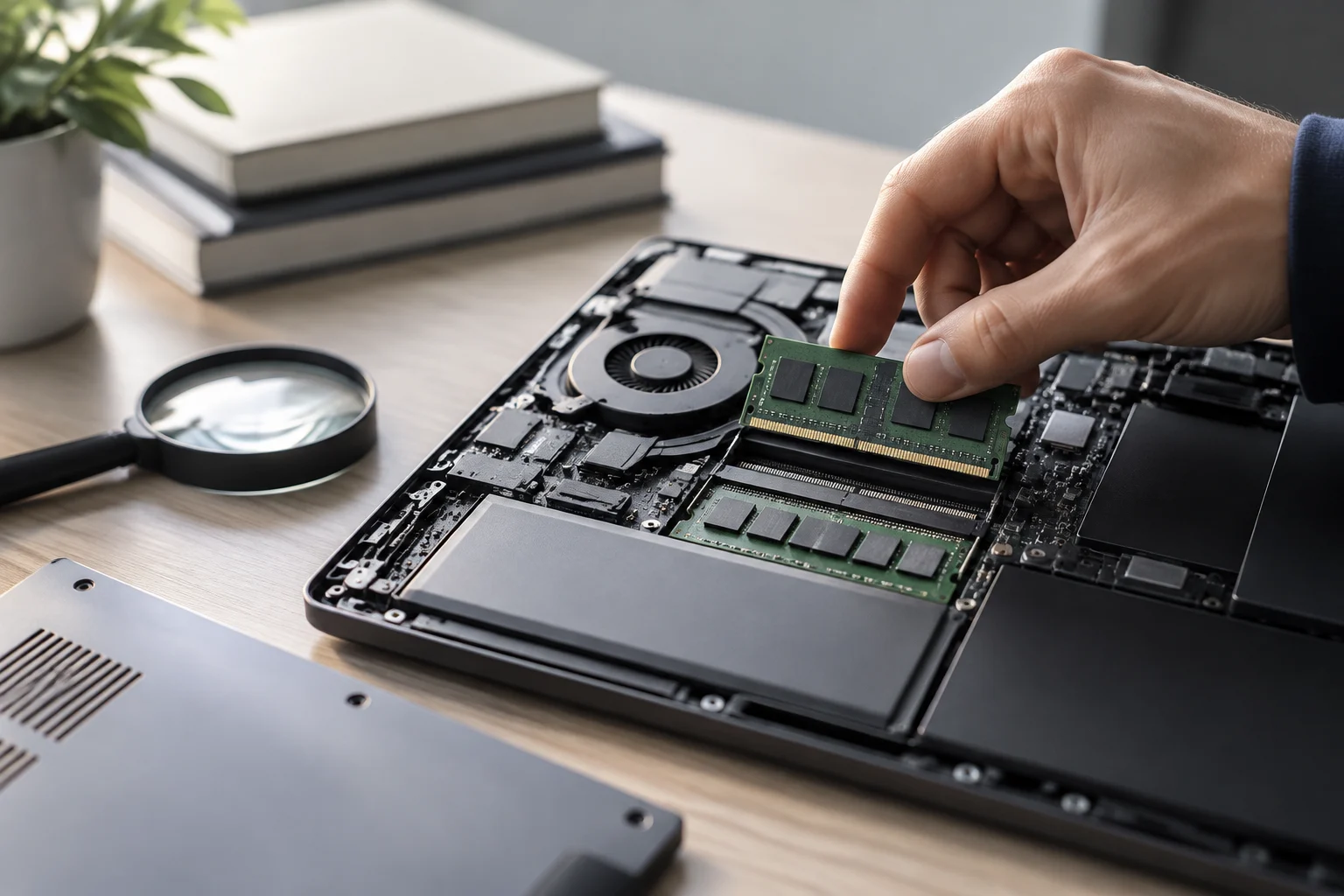
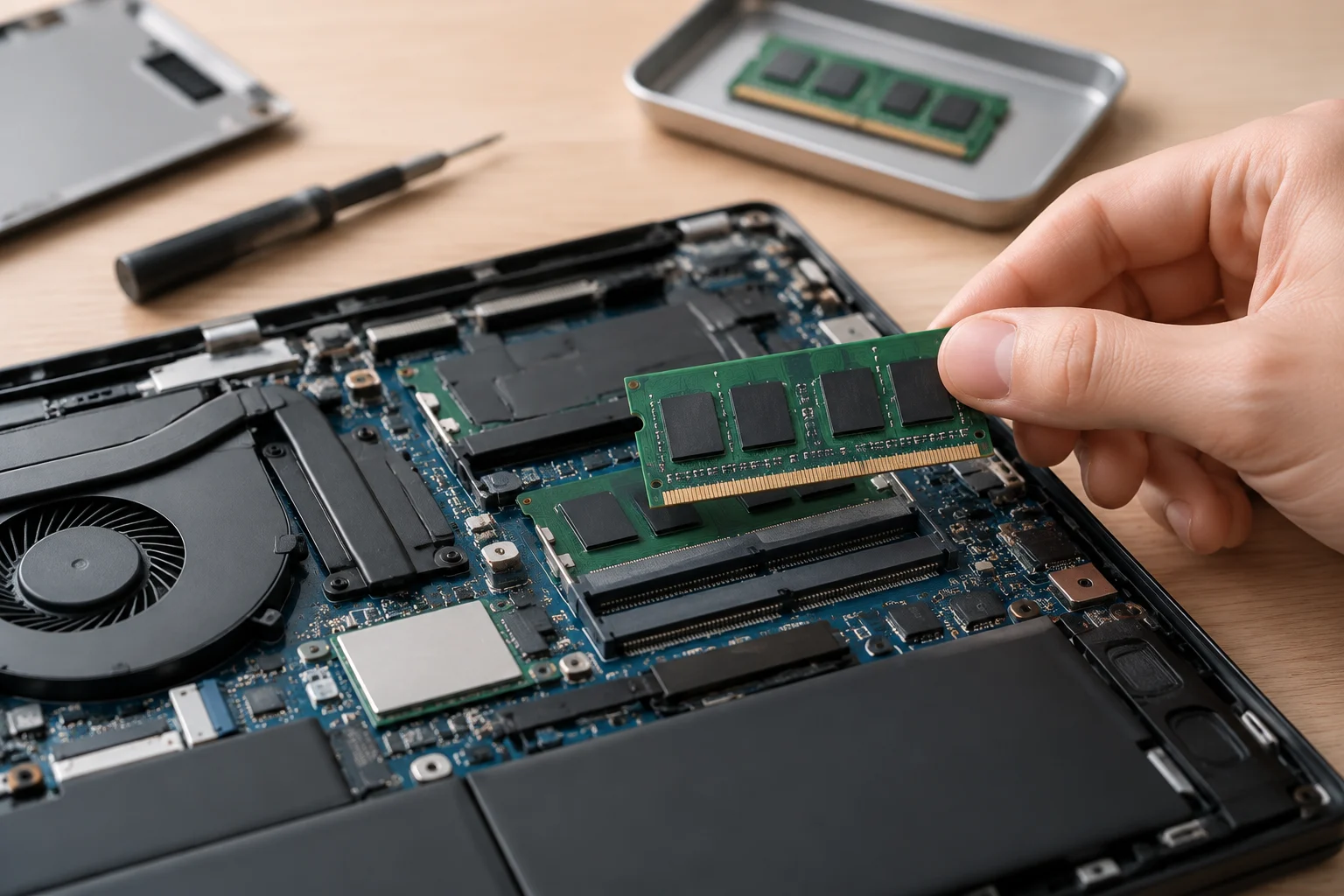
Removable memory is installed in slots and may be replaced or expanded, if the manufacturer permits it. Finding removal instructions is not enough: also check how many slots there are, how many are occupied, what capacity the computer recognizes and which combinations it supports. An empty slot does not guarantee compatibility with every module on the market.
In a hybrid configuration, some RAM is integrated and more can be installed in a slot. In this case, the upgrade limit may be lower than the total maximum shown in some listings or generic references. The model documentation should clarify the allocation and supported configurations; if it does not, the prudent response is to note the uncertainty, not infer the answer from photographs, similar product names or specifications for another computer in the range.
Find the complete model in the official documentation
Start by identifying the laptop’s precise name and variant, not just its product family. A series may include configurations or models with different internal designs. The model number, product reference or configuration identifier can help you find the correct manual on the manufacturer’s support site. Retail pages are useful for comparing offers, but they may summarize or mix information from different variants.
In the manual, look for sections on memory, specifications, module installation or removal. For example, a Dell manual for the Pro 16 PC16250 has a section titled “Memory”; other manuals from the same brand document memory and the procedure for removing a module separately. The presence of removal instructions is evidence that the manual covers a removable module for that computer, but it should not be used to attribute the same feature to another model with a similar name.
Read the figures alongside their conditions. The maximum limit may apply to a particular configuration, and a table may specify capacity per slot or supported combinations. If the manual describes only one configuration or does not identify the installed memory, do not fill the gaps with information from a retailer or a review of another variant: note what is missing and ask the manufacturer or seller to confirm before buying.
Check slots, modules and supported capacity
You can review the documentation in an orderly way as follows:
- Confirm the computer’s exact identifier and make sure the manual matches that variant.
- Find the memory section and note the installed capacity, memory type and configurations listed by the manufacturer.
- Check whether it specifies integrated memory, the number of slots and removable modules; distinguish “total slots” from “available slots.”
- Read the service procedure and any safety warnings before considering an intervention.
- If the listing, manual and seller give conflicting information, ask for written confirmation for the product reference you intend to buy.
Documentation may show steps for accessing a module, but that does not mean every buyer should open the computer. The work may require tools, experience and attention to electrical precautions; warranty and service policies also depend on the manufacturer and market. This article does not provide disassembly instructions: its purpose is to help verify the stated options and avoid assuming that an operation is easy or covered.
It is also important to distinguish the maximum supported capacity from the maximum offered in the factory configuration. The manual may state that the model supports more memory than the specific unit for sale, but an actual upgrade depends on module layout, free slots, compatibility and manufacturer restrictions. Do not buy a module based only on a maximum-capacity figure: confirm the type, form factor, number of slots and supported combination in documentation for the same variant.
What it means for cost and long-term use
If the RAM is upgradeable, it may be possible to buy a more modest initial configuration and add memory later. That makes sense only if the future upgrade price, the work required and the maximum capacity fit your budget and expected use. If the memory is integrated, choosing an appropriate capacity from the outset may be more important, because the manual does not provide for replacing it like a conventional module.
The possibility of upgrading does not necessarily mean you should put it off. The cost and availability of compatible modules can change, and a later intervention brings its own costs and risks. Conversely, paying for more memory upfront may not be the best choice if your workload does not need it. Documentation helps you compare upgrade options; it cannot predict each person’s future needs.
To compare two laptops, record the factory capacity, the integrated portion, total and free slots, the documented maximum and the upgrade conditions in one list. If any field is missing, mark it “not confirmed.” That label is more useful than treating an incomplete listing as proof that the computer is upgradeable or that its memory is soldered.
What manuals confirm—and what they do not
An official manual is a sound source for learning which procedures and configurations the manufacturer documents for a model. It may confirm that removable modules are present, describe a service operation or list supported capacities. By itself, it does not prove that every unit sold has an identical layout if variants exist, or that a third-party part will work in every combination.
Documentation has limits: some support pages show a section heading or table of contents without displaying its tables in a summarized view; some product listings omit the number of slots. In such cases, the available material is not enough to establish the limit or upgradeability with confidence. A missing statement is not the same as a negative confirmation, and an instruction associated with one specific model should not be extrapolated to an entire range.
A physical inspection could resolve a discrepancy for a particular unit, but no disassembly or test has been carried out here. This guide is an analysis of documentation, not a hands-on evaluation of laptops. Its conclusions are therefore limited to what the manufacturer documents and to precise identification of the computer; where the evidence is insufficient, the right response is to request the exact product reference or leave the feature unverified.