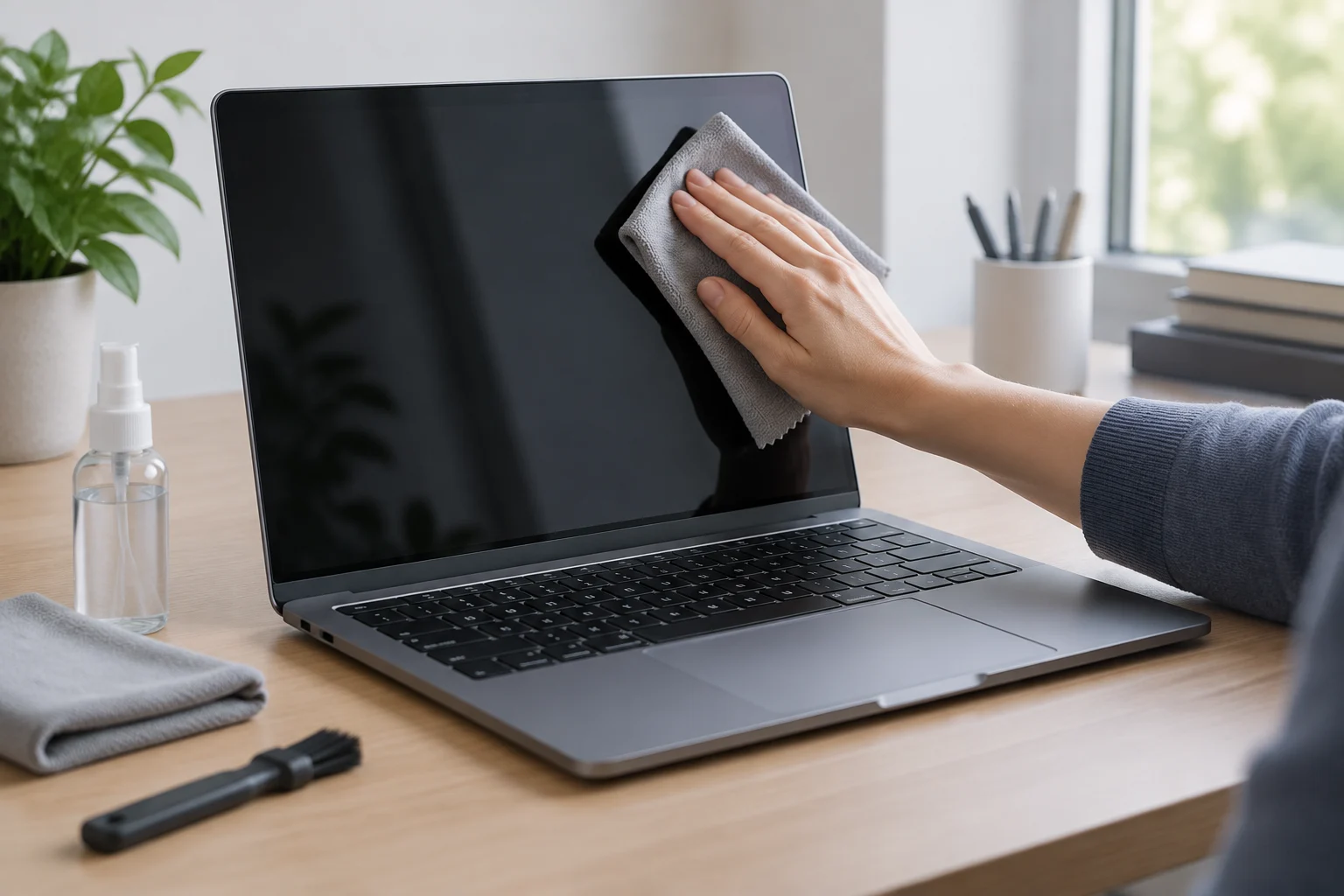
1. What should you check before you begin?
The most useful advice is also the least flashy: identify the exact model and consult its manual or the relevant support page. Instructions can vary depending on the finish, screen type, keyboard, and components in the device. A cleaning guide published by a manufacturer for a product family applies to those products; it does not prove that the same method is suitable for every laptop. The manual for your model is the starting point, not a formality that can be replaced by generic advice.
Look for instructions specifically covering the screen and case, and check whether the manufacturer distinguishes routine cleaning from disinfection. Also review which materials it recommends, whether it permits any liquid, and how it says to apply it. If the documentation does not cover a particular area or product, do not treat silence as permission: avoid improvising and contact the manufacturer’s support team. This matters especially if your device has a touchscreen, special coatings, or a detachable keyboard.
Official support pages show why this check matters. Apple publishes separate instructions for MacBook screens, keyboards on certain laptops, and general cleaning of its products; Microsoft organizes its care guidance for Surface. These are not interchangeable recipes: they are documentation for their respective brands and products. Some precautions may overlap, but that does not erase differences between models.
2. How should you turn off and prepare the device?
Before cleaning, shut down the laptop and disconnect its charger and any connected accessories. This reduces the chance of pressing keys, touching controls, or pulling on a cable as you work. If your device’s manual specifies a different preparation procedure, follow that procedure. Do not clean a laptop while it is on just because the dirt looks superficial: stopping use prevents an accidental keypress from triggering an unwanted action and makes it easier to inspect each area calmly.
Place the device on a stable, clean, dry surface, leaving enough room to move it without holding it by the screen. If you need to reposition it, do so carefully and do not force the hinges or latches. In maintenance documentation for a specific model, Lenovo recommends not opening the screen with force and warns that disassembly and repair should be performed by authorized technicians. That instruction does not define the conditions for every laptop, but it reinforces a sensible rule: exterior cleaning does not require opening the device.
Prepare only the materials expressly permitted by the instructions that apply to your model. Do not pour or spray liquid directly onto the laptop unless the official guide explicitly says to; even then, follow the described method and keep liquid away from openings. If you cannot find clear instructions for a product, do not test it by guesswork. Being cautious does not mean choosing the strongest cleaner; it means sticking to a method that is authorized and easy to control.
3. How should you clean the screen and case?
Treat the screen separately from other surfaces. Before wiping it, identify what the manufacturer recommends for your model’s panel and whether it warns about coatings or substances. Apple, for example, maintains a dedicated guide to cleaning Mac screens; Microsoft publishes screen-care instructions for Surface. The existence of these instructions shows why you should check the specific product category and brand, not that you should automatically transfer their methods to another device.
If your laptop’s guide permits a cloth, use it as directed and do not apply unnecessary pressure. Do not scrape stuck-on marks with fingernails, cards, or rigid objects: you could scratch the surface. Nor should you assume that a household wipe, glass cleaner, or disinfectant is compatible just because it seems gentle. If a mark does not come off using the approved procedure, stop and check official support before repeating it with greater pressure or adding another product. More friction does not mean safer cleaning.
The case, palm rest, and lid may use materials and finishes different from those of the screen. An instruction that is valid for the panel therefore may not apply to the entire cover. Clean each surface only with the method the manufacturer assigns to that area, and keep liquid away from seams and slots. When in doubt, prioritize removing loose dust with a permitted material rather than wetting or rubbing a surface whose tolerance you do not know.
4. What should you do with the keyboard, vents, and ports?
For the keyboard, consult instructions written specifically for it: Apple’s guide for MacBook and MacBook Pro keyboards, for example, is intended for those products, while Microsoft provides advice for its own keyboards and accessories. Do not apply guidance for an external keyboard to one built into a laptop. If keys are sticky, something has fallen between them, or a key is behaving abnormally, do not remove the keys unless you have official instructions that apply to your model.
When cleaning the tops of the keys, do not let liquid collect around their edges, and do not put tools into the gaps between them. Do not pour liquid into vents, ports, connectors, card slots, or ventilation openings. These areas may lead to the interior or contain delicate contacts, and surface cleaning is no reason to push dirt inside. If the manufacturer authorizes a method for removing dust from an opening, follow its conditions exactly; if it does not, do not improvise with pointed objects or a blast of air whose pressure or distance has not been specified.
Distinguish between cleaning the outside surface of a port and removing debris from inside it. The first task may be limited to removing visible dirt around the opening without inserting anything; the second may require tools, disassembly, or expertise beyond basic home cleaning. There is no universal instruction for every connector and design. If debris is compacted, there are signs of corrosion, or an accessory no longer fits correctly, leave the work to a service provider. Do not treat a port as an accessible slot to scrape.
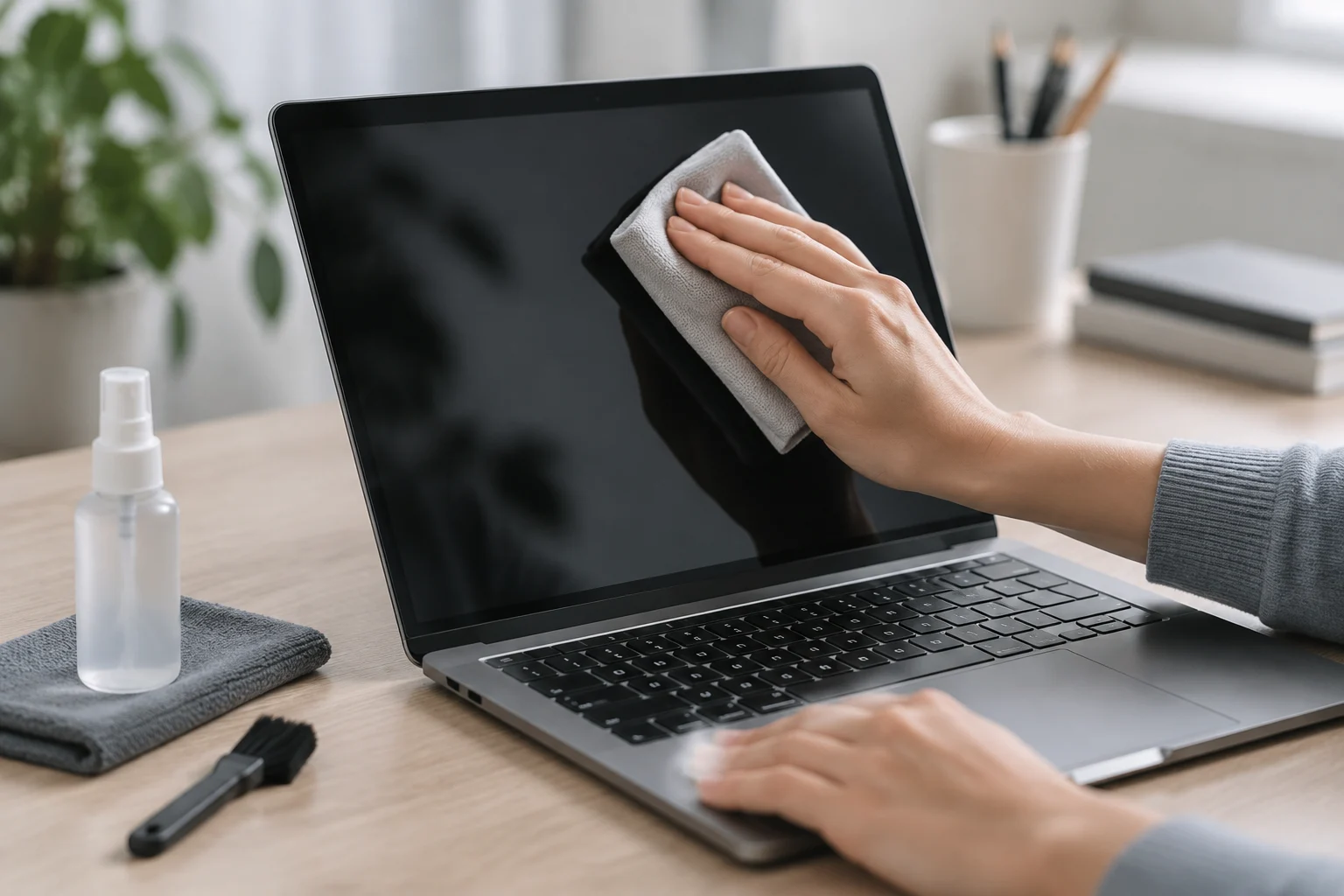
5. Which products or methods should you avoid?
Avoid products that your model’s manual does not authorize, particularly when their ingredients or application method are unclear. A cleaner marketed for glass, screens, or electronics is not thereby confirmed as suitable for your laptop’s coating. Do not mix products or increase their concentration to try to remove a stubborn mark. When the instructions explicitly distinguish routine cleaning from disinfection, preserve that distinction and do not treat the two as equivalent operations.
Do not spray directly onto the screen, keyboard, or body of the device unless the manufacturer says to do so for that model; liquid can run into seams and openings. Avoid soaking a cloth, scrubbing hard, using scouring pads, or applying abrasive objects. It is also best not to use vacuums, pressurized air, or cotton swabs in connectors on your own initiative: without specific instructions, you cannot assume that their force, shape, or contact is harmless for every design.
The advice to avoid undocumented methods does not mean that every cleaning product will damage every laptop. It means compatibility and risk depend on the device and method, and the available information cannot certify a recipe suitable for every brand. When there is no clear authorization, stopping is safer than experimenting. If the manual does not resolve your question, ask the manufacturer and identify the model and area you want to clean.
6. When should you contact a service technician?
A simple exterior clean should not turn into an improvised repair. Seek professional advice if liquid has entered the device, dirt is trapped in an opening, the keyboard has become sticky, or marks remain on a screen after using the approved method. You should also stop if a part seems loose, a key is stuck, or a port shows visible damage. Continuing to scrub in these circumstances may make the problem worse and will not tell you what has happened inside.
Do not open the case to clean fans or components unless the manufacturer’s service instructions are intended for your model and you have the necessary training. The Lenovo maintenance guide mentioned here assigns disassembly and repair to authorized technicians; that warning belongs to the cited documentation, but it is a reminder that a home-cleaning guide is not a substitute for a repair procedure. If the device is covered by a warranty or service plan, check its terms before opening it or taking it to an unauthorized repair shop.
In short, identify the model, turn it off, disconnect it, and treat each surface according to its own instructions. No cloth, liquid, or method can be recommended without qualification for every screen, case, keyboard, and port. The manufacturer’s guide turns generic cleaning into an informed decision; if there has been a spill, internal debris, or damage, the sensible choice is to seek assistance. This article offers general guidance, not a service procedure or a guarantee of compatibility for a particular device.