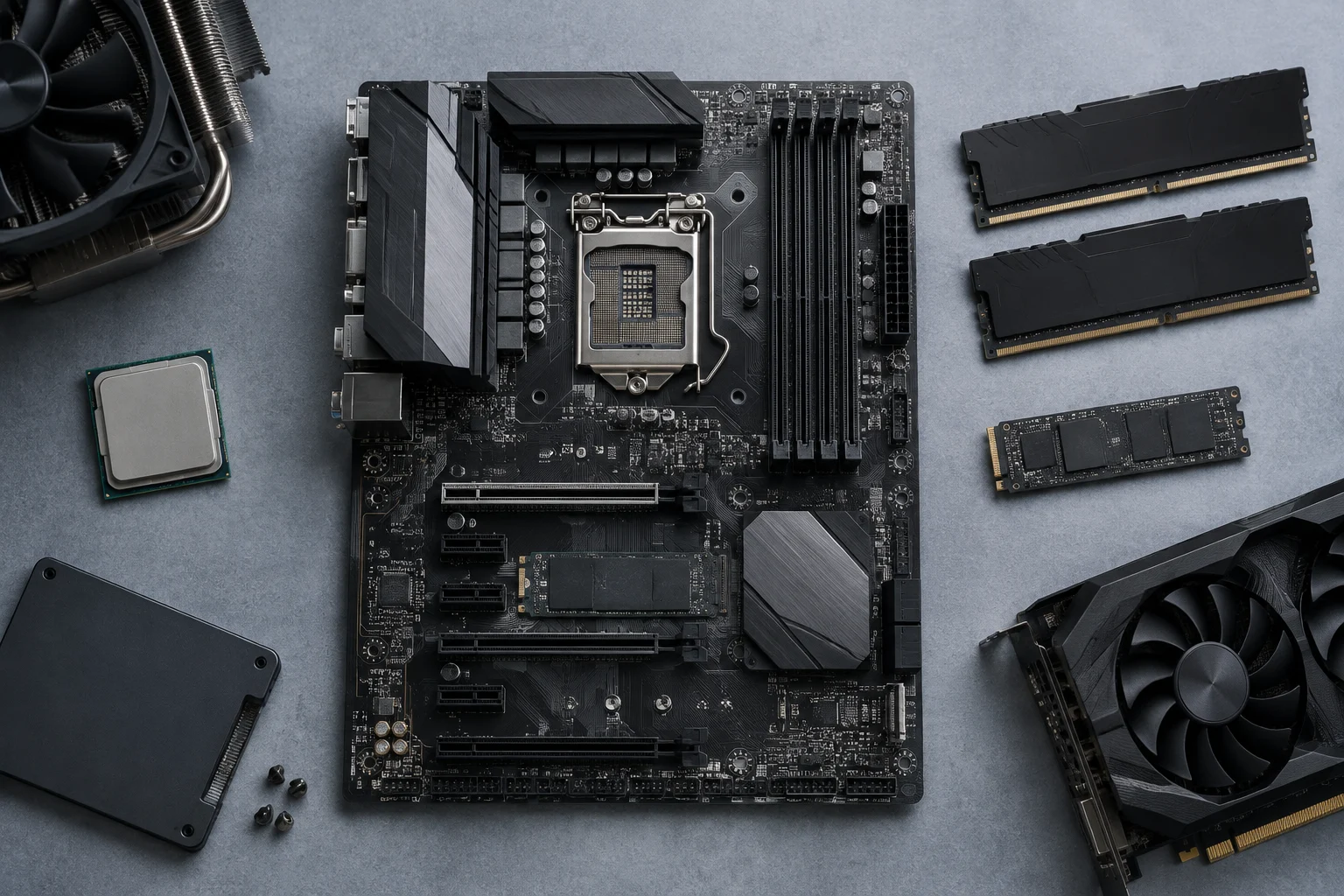
Start with the parts you already have
Comparing motherboards is of limited use if you base the decision on a chipset name, price, or an isolated list of connections. First, write down the parts the system must keep or add: processor, memory kit, graphics card, storage drives, case, and—if already selected—power supply. Then turn each requirement into a specific check in the specification sheet or manual for the exact model. A board is a candidate only when its documentation supports the combinations you need; two products sharing a family name or similar number is not enough evidence.
Keep three questions separate, as they are often conflated. Physical compatibility asks whether components fit and connect, for example at the socket or inside the case. Documented compatibility asks whether the manufacturer lists the combination in its documentation, such as a processor on the support list or a memory module on a compatibility list. Capabilities are the features the product advertises, such as networking, ports, or bus generations. A yes to one question does not automatically answer the others. This guide is a method for reading documentation, not a model ranking or a recommendation based on our own testing.
Socket, chipset, and processor support
Start with the processor’s full model name and the socket specified for the board. The socket is a basic fit and connection requirement, but matching names are not enough: check the official CPU support list for the exact motherboard. Also check whether the manufacturer specifies a minimum BIOS version for your chosen processor. A board may belong to a compatible platform and still require a particular firmware version before it recognizes a specific CPU. Do not assume that the unit available in a shop already has that version.
The chipset helps describe a platform and its functions, but it does not replace the processor support list or the manual. Two boards with similar chipsets can differ in slots, connections, power delivery, firmware, or resource allocation. Nor should a product name be taken as a guarantee that every platform feature has been implemented on a particular board. Product pages, such as those published for models in the ASUS TUF GAMING families, help locate product specifications; the useful approach is to open the page for the exact model and compare it with support documentation, rather than extrapolating from another model in the same series.
Record the full CPU name, specified socket, confirmation in the compatible-processor list, and any BIOS requirement separately. If the list is unavailable, cannot be checked, or refers to a different product revision, treat that as an unknown to resolve with the support page or manufacturer before buying. Compatible does not necessarily mean that every configuration will deliver the same performance: that depends on more components and conditions than a motherboard specification sheet alone can establish.
Memory: type, capacity, and configuration
For memory, compare at least four details: supported generation or type, number of modules and slots, stated maximum capacity, and the speeds listed by the manufacturer. A memory product’s marketing name may not identify its type clearly, so note the kit’s exact model and compare it with the motherboard specifications. Also check whether the total-capacity figure applies to the whole board or to a particular configuration. A published maximum does not prove that every individual module or every module combination will work.
Separate the motherboard specifications from those of the processor and the memory kit itself. A frequency published as a board capability does not guarantee that a particular kit will run at that speed in every configuration. Effective speed may depend on the processor, module count, slot arrangement, BIOS, and memory settings. If the manufacturer provides a list of tested or validated modules, use it to confirm the exact part number. If you cannot find your kit there, its absence alone does not prove incompatibility, but the combination is less fully documented.
When comparing two boards, make a row for each verifiable detail: memory type, published maximum capacity, slots, supported module configurations, and stated speed. Do not turn a speed figure on its own into a measure of overall performance or a guarantee. If you are upgrading, check whether the existing memory is listed by model and whether slots will remain free for future expansion. If you plan to reuse mixed modules, note that this combination needs its own check; you cannot infer support solely because both modules carry a similar generation label.
PCIe, M.2, and shared resources
For expansion, count the slots you actually need and check their specifications in the manual. The physical number of connectors alone does not explain the speed or link width each provides, or whether they can all operate simultaneously with other devices. Distinguish a PCIe slot intended for an expansion card from an M.2 connector for storage; both are forms of internal expansion, but they are not interchangeable. Also compare the device’s form factor and any dimensions or mounting requirements documented by the manufacturer.
For M.2 drives, identify the supported device type, the length that can be installed, and the operating conditions specified for each connector. Some manuals explain that certain ports share resources or that one configuration changes the availability of another connector. If you find such a note, include it in your comparison and map out the intended build: graphics card, M.2 drives, and additional cards. If the manual does not clarify lane allocation or simultaneous operation, do not infer the answer from the slot count; leave the question open and contact support.
Expansion cards also need careful checking. An add-in product may depend on a slot with suitable resources and compatibility; a connector that appears to fit is not enough. ASUS’s official page for the Hyper M.2 x16 Gen 4 Card illustrates why a motherboard and a separately sold accessory should be distinguished, and why the documentation for each part should be checked. You do not need to choose that product to use this method: confirm compatibility among the card, slot, and resource layout in the manual for the specific motherboard.
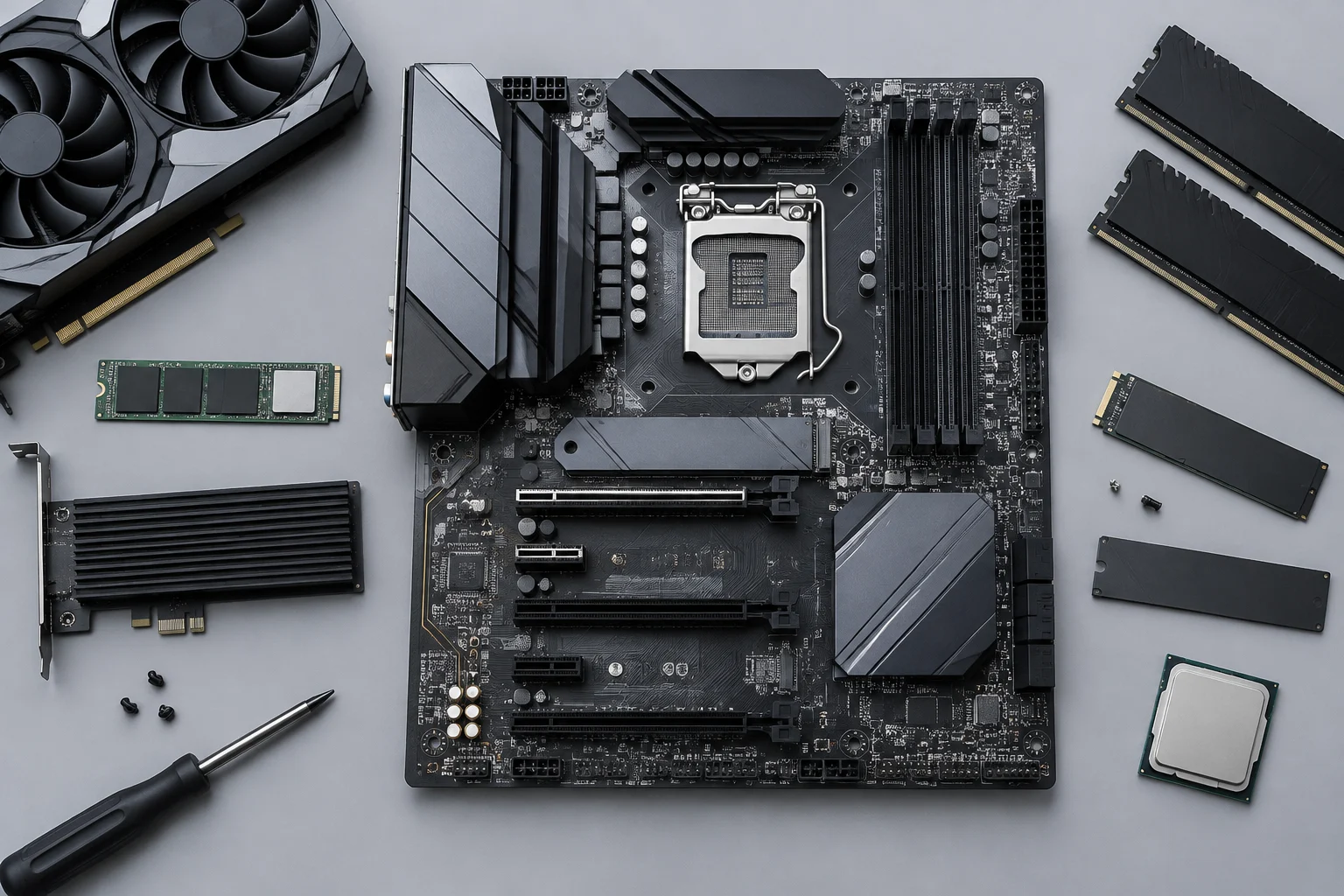
Connectivity and form factor: compare useful ports
Make a connection checklist based on real use: rear USB and internal headers for case ports, wired or wireless networking, audio, fan connectors, and video outputs. For each, verify both the type and the quantity and location. A specification sheet may mention a connection without making clear whether it is on the rear panel or requires an additional internal header. Also check which video outputs the board offers and the conditions under which they can be used; do not assume the motherboard will provide an image if the chosen processor does not provide the necessary graphics capability.
The motherboard’s form factor must match the formats supported by the case and the space available for cards and cables. Compare the published dimensions and form factor, then check the case documentation for the relevant support. Beyond simply fitting, consider whether slots and connections will remain accessible with the planned graphics card, radiator, or other components installed. A board with more connectors is not automatically the better choice if the case lacks compatible headers or the connections you need are blocked by the planned configuration.
Assess each connection against a specific need: for example, how many USB devices will be connected, whether integrated wireless networking is required, or how many internal drives you will install. Avoid adding up ports as though every port had the same practical value. The official specification sheet lists the model’s capabilities, while the manual can clarify location, conditions, or limitations; the sources complement each other. If an important detail is missing from the available documentation, do not fill the gap by analogy with another board in the same family.
BIOS and a verifiable decision table
The BIOS affects processor recognition and system configuration, so check the version required for the CPU and the update method documented for the exact model. If the board includes a processor-free update feature, verify the feature’s name, procedure, and requirements in the manual; do not assume every board uses the same process. Also confirm which firmware file applies to the correct model and revision. An incorrectly applied update can prevent startup, so the manufacturer’s documentation is more useful than generic instructions written for another board.
To compare models, use a simple table with one column per board and rows for socket, confirmed CPU, required BIOS, memory, PCIe slots, M.2, shared resources, connectivity, and form factor. Add the URL of the specification sheet, support list, or manual where you verified each item, as well as the date you checked it. Mark each cell as confirmed, not applicable, or pending; do not fill gaps with assumptions. This makes it easier to see which model meets essential requirements and which differences are merely extra features you may not use.
Before deciding, review unknowns that could change your choice: a processor absent from the list, an unknown BIOS version, an unchecked memory kit, unclear simultaneous slot use, or a form-factor mismatch with the case. If an essential requirement remains unconfirmed, ask the manufacturer or seller using the exact motherboard and component models. Comparison does not require turning every specification into a performance promise: its purpose is to rule out documented incompatibilities and make uncertainties explicit. This limitation is deliberate; without tests of a specific configuration, claims about stability, temperature, or speed are not warranted.