What the refresh rate really tells you
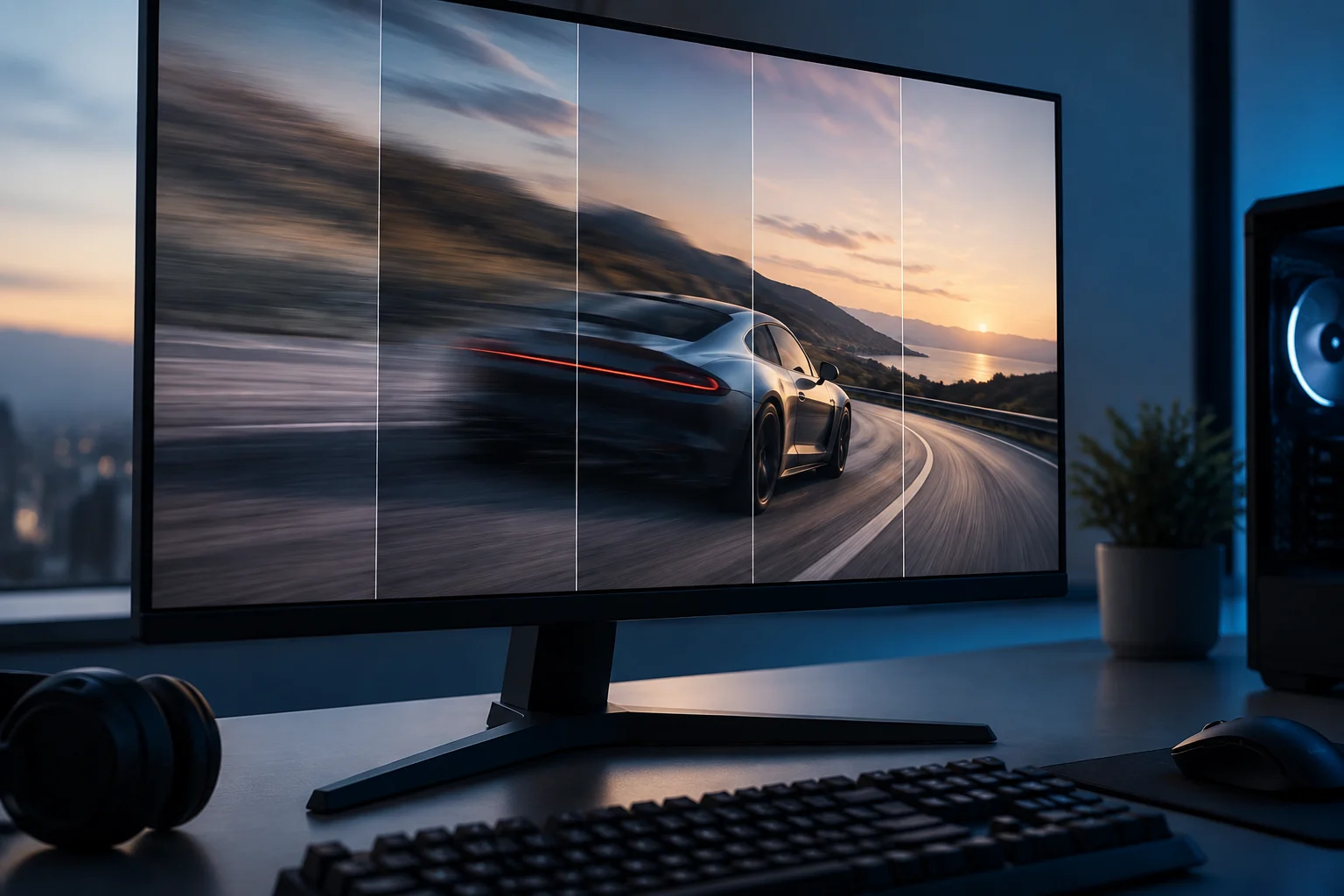
The refresh rate indicates how many times per second a display can update its image, and is measured in hertz (Hz). A 144 Hz monitor can update up to 144 times per second in a compatible mode. This figure describes a display capability: it does not mean that a game produces 144 images every second, or that all content is shown at that rate. The number of images an application produces depends, among other things, on the system and its workload. When reading a specification sheet, it is therefore useful to separate what the display can do from what the source is generating at that moment.
Three figures that are often mixed together in specifications should be kept distinct: the panel’s maximum refresh rate, the refresh rate available for a particular resolution and connection, and the frame rate delivered by the source. A computer might generate fewer frames than the monitor can show; a fast display might also be configured to run at a lower refresh rate. The Hz figure is an operating limit for the stated mode, not a universal promise of smoothness. To know which figure matters, identify the mode you intend to use and check whether the connection and settings let you select it.
A high refresh rate can allow more updates to be displayed in a given interval, but it does not by itself determine motion clarity, pixel response, input lag or image quality. Nor does it replace considerations such as resolution, contrast, ergonomics or uniformity. When comparing two monitors, read refresh rate alongside resolution mode and the other specifications; if a product sheet highlights only a large number, useful context is missing. In other words, this figure describes one aspect of display behavior, not the entire user experience.
VRR, Adaptive-Sync and commercial names
At a fixed refresh rate, the display updates at a set pace. With variable refresh rate (VRR), the update pace can adjust to the source’s frame delivery within a compatible range. The aim is to reduce synchronization defects such as screen tearing, and to avoid forcing the display to follow a fixed cycle whenever the frame rate varies. VRR does not make a slow GPU faster by itself, nor does it guarantee that every game will run without stutter. The feature’s usefulness depends on the source and display being able to coordinate in the mode being used.
Adaptive-Sync is a technology associated with VESA standards and DisplayPort; VRR also appears as the name of an HDMI feature. G-SYNC, in turn, is an NVIDIA technology, and NVIDIA distinguishes displays with G-SYNC from VRR monitors validated under the G-SYNC Compatible label. These names relate to variable synchronization, but they should not be treated as interchangeable certifications: each has its own compatibility requirements and conditions. VESA also runs a certification and logo program for variable-refresh display performance. The similarity between the terms indicates that they address a related function, but it does not justify assuming that a product meets every program’s requirements.
The VRR range deserves as much attention as the maximum Hz figure. If a specification gives a range, its endpoints indicate the frequencies within which the manufacturer says the feature operates; outside that range, behavior may differ. Some configurations use low frame rate compensation (LFC) to maintain synchronization when the frame rate falls below the range, but availability and behavior depend on the implementation. Do not infer LFC support from a generic VRR label alone: check the monitor and GPU documentation. Reviewing the published limits helps determine whether the stated range suits the frame rates you expect to use, without confusing maximum refresh rate with variable operation at all times.
Compatibility depends on the entire chain
For a feature to work, the display, graphics card, system, driver and connection being used all have to support it. An HDMI input and a DisplayPort input on the same monitor do not necessarily offer identical modes or features. Likewise, the fact that an interface specification includes VRR does not prove that every product with that connector implements it, or that it does so at every advertised resolution and refresh rate. Compatibility should be checked for the complete setup being connected, rather than inferred from a single component.
Start by identifying the exact model and consulting its manual or mode table. Then check which output the GPU provides and what system or driver requirements the manufacturer specifies. Finally, verify the particular resolution-and-refresh-rate combination, and enable the relevant feature in the display menu and GPU software if the instructions call for it. NVIDIA, for example, documents different requirements for G-SYNC and G-SYNC Compatible displays, as well as steps for enabling the feature in its control panel. Checking these requirements before buying helps distinguish an advertised feature from one you can actually activate with your available equipment.
A practical checklist helps you avoid relying on a single label:
- Display: exact model, inputs and published VRR range.
- GPU and software: stated compatibility, operating system and required driver.
- Connection: the port used at each end and a cable suitable for the desired mode.
- Mode: resolution and refresh rate together, not each value considered separately.
- Settings: feature enabled in the monitor menu and in the system or driver, where applicable.
Cables also matter for carrying signals within their capabilities, but buying one with an impressive label does not expand the monitor’s or GPU’s capabilities. The aim is to confirm that all components support the same mode, not to infer this from the name of a connector version. Check the setup end to end: an advertised monitor capability is not enough if the GPU output or selected mode does not support it.
How to read specifications, labels and tests
Look first for tables of supported modes, not just the marketing headline. Check whether the maximum refresh rate is available through a particular input, whether it changes with resolution, and whether the specification distinguishes the native refresh rate from alternative modes. On displays with several profiles, a high-refresh mode may involve a different resolution. VESA provides for compatibility with dual-mode displays, but that feature does not mean that every monitor has it. A mode table shows these conditions more concretely than an isolated number in a product name or summary.
Certification labels can help narrow down options, but they do not replace the model’s specification sheet. VESA describes its Adaptive-Sync program as a performance-testing certification; NVIDIA explains that G-SYNC Compatible identifies VRR displays validated by the company. Even so, confirm the setup you intend to use: a label does not automatically prove compatibility with every combination of GPU, operating system, port, application and refresh rate. It makes sense to use labels as clues for narrowing the field, then check the manual and the specific requirements of your equipment.
Independent tests can provide information that a brief specification sheet omits, such as the observed range, stability, panel response or differences between modes. Treat them as evidence about the tested model and conditions, not as a guarantee for every unit, driver or system. Check that the review covers the same model number and, where regional variants exist, the relevant version. No independent instrumented tests of specific monitors were supplied for this analysis; therefore, it does not attribute measured results or propose a ranking. Keeping this limitation in mind helps avoid presenting as verified performance that has not been measured here.
A buying decision based on how you use it
For gaming, first decide on the resolution and refresh-rate level your system can reasonably sustain in the games you care about. Then look for a monitor whose available mode includes those values and verify that its VRR range is appropriate. There is no universal combination: GPU power, game type and the balance you prefer between detail and frame rate all affect the decision. The maximum figure may be less useful than a compatible, well-documented implementation in the modes you will actually use. Compare products on the basis of your expected use rather than chasing the highest number without checking whether the rest of the system can take advantage of it.
For work, refresh rate can also affect how scrolling and movement feel, but a numerical difference should not be turned into a promise of comfort. Resolution, size, reflection handling, ergonomics and connectivity may matter more in day-to-day use. If you connect the monitor to a laptop, also check which output the computer supports and whether the port in use transmits an image in the expected mode; the connector’s physical shape is not enough to establish its capabilities. Consulting the laptop and monitor documentation lets you verify a shared mode without assuming that every port with the same shape offers the same features.
In short, compare complete modes, not isolated specifications. A well-checked purchase brings together the panel, GPU, software, connection and resolution in a compatible configuration. If the documentation does not clarify a relevant limit, treat it as uncertain and ask the manufacturer before assuming the feature will be available. This check does not eliminate every difference between products, but it helps base the decision on the modes and features you will actually be able to use.