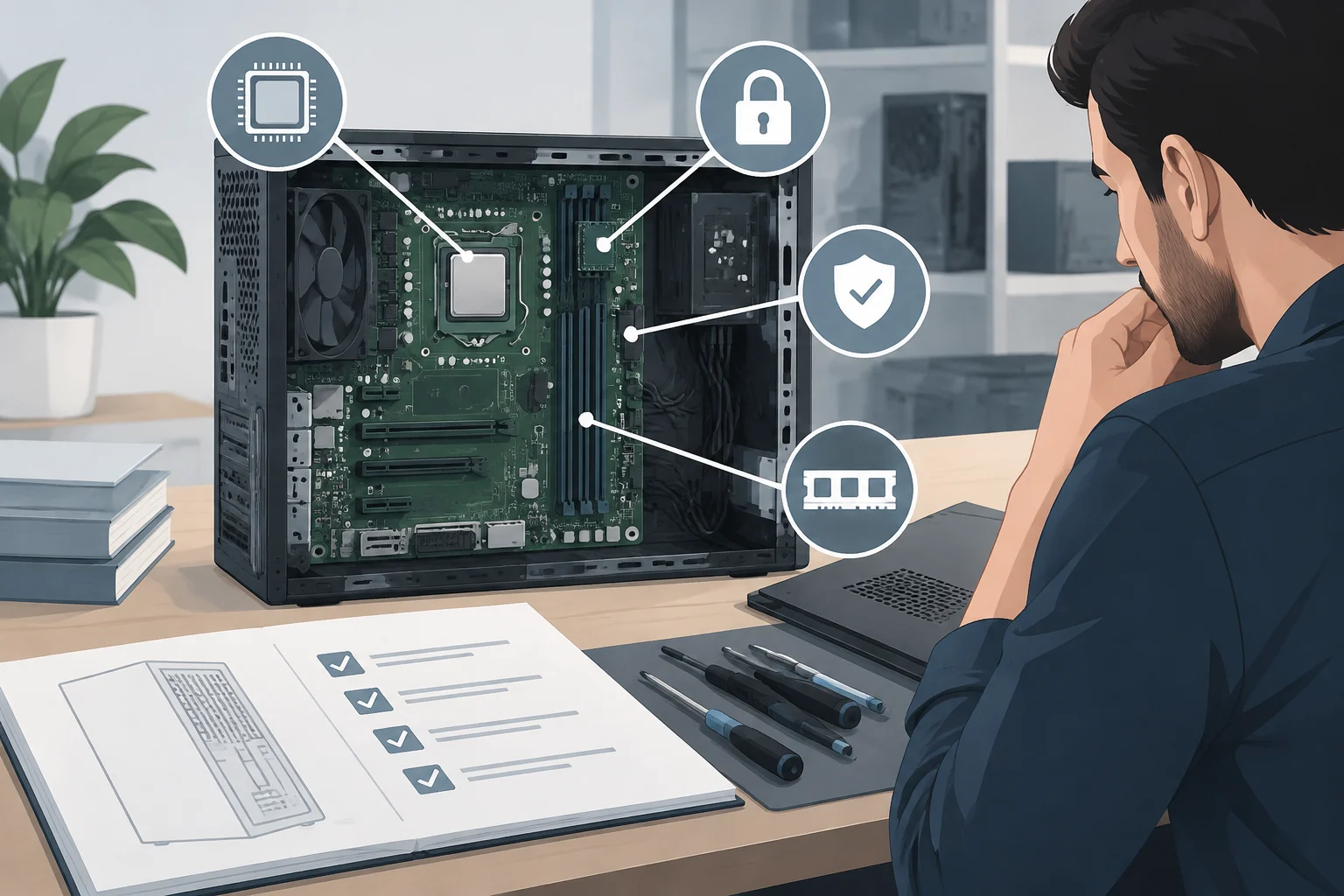
Upgrade options: check documentation for the exact model
Memory and storage can affect how useful a computer is, but you cannot infer its upgrade options from the name of a product family alone. Before buying, look for the manufacturer’s documentation for the exact model, and ask the seller which configuration the individual unit includes. Do not carry over information from another computer in the same product family unless you have confirmed that it is the same variant. A difference in variant can change the documented specifications, so check the complete identifier before making a decision.
The manufacturer’s documentation can help establish what the model supports, but it does not prove that a particular unit still has all its original components or any free slots. The seller should clarify what is installed in the specific unit being offered. These are separate checks: one concerns the model’s documented capabilities, while the other concerns what you will actually receive. For example, knowing that a model supports a certain configuration does not mean that configuration is included or that there is room to add more components.
Ask the seller to specify the installed memory, storage and any components that have been replaced. Compare those details with documentation for the exact model and variant. If the documentation is unavailable or does not clarify a feature, do not treat the upgrade option as confirmed. The model’s theoretical capacity is not the same as the configuration you will receive, and it does not guarantee that upgrading will be economical. Without information about the individual unit and its options, you cannot accurately assess the cost or usefulness of an upgrade.
Compatibility is a specific condition, not an impression
When comparing refurbished desktops, it helps to separate three questions: whether the hardware meets Windows 11 requirements, whether the installed version is still receiving updates, and whether the manufacturer’s documentation confirms the upgrades you are interested in. These questions are related, but they are not interchangeable. A store listing that says “Windows 11 ready” does not necessarily identify the exact configuration or explain how it was checked. Assess each point separately rather than treating a single label as an answer to every question about the computer. Keeping this distinction clear helps you avoid confusing a compatibility claim with information about support or physical configuration.
Microsoft publishes the Windows 11 system requirements and provides the PC Health Check app to assess whether a device is suitable. The app and requirements page help you check compatibility, but they do not replace identifying the computer or tell you about its physical upgrade options. A suitability assessment and the documentation for a model answer different questions. The first gives guidance on system requirements; the second lets you check which features the manufacturer says the model supports.
For a refurbished unit, the name of a product family is not enough to identify the configuration of the individual computer. The useful question is therefore not just “what series is it?” but “which processor and configuration does this unit include?” Ask for details about the specific computer, and treat them as unverified if the listing gives only a generic name. If the model number is missing, ask what additional information the seller can provide before comparing computers. The more precisely the unit is identified, the easier it is to compare the listing with the relevant documentation.
Processor: identify the complete model
Write down the processor’s exact designation, including its letters and numbers, and compare it with the official Windows 11 compatibility documentation. A GHz figure or a marketing label such as “Core i5” or “Ryzen 5” is not enough on its own to verify whether a particular processor is compatible. The complete designation allows a more specific check than a product family or isolated figure. Keep the model as it appears, without shortening it, so that your lookup matches the component being advertised.
Ask the seller for a system screenshot or inventory, or for a model identifier that lets you look up the computer. If the listing says only “Intel i5” or “AMD Ryzen,” do not treat that as a guarantee of compatibility. If the listing and the information provided do not match, ask for clarification before relying on those details. It is better to resolve discrepancies before buying than to infer an omitted specification from a marketing name. If the seller cannot specify the processor, that point remains unverified.
An automated check can be useful as an initial filter, but it cannot by itself identify the unit you will receive. Before buying, request verifiable information about the model; once the computer arrives, check the actual unit. The sequence matters: first identify the advertised hardware, then verify the computer you received. This makes it easier to spot any difference between what was offered and what arrived, without confusing general product information with the details of that particular unit.
TPM 2.0 and Secure Boot: check both support and status
Windows 11 requires TPM 2.0. Microsoft provides instructions for enabling it and checking whether it is available on a computer. If a description mentions TPM without specifying the version, that does not confirm that the TPM 2.0 requirement is met. A generic mention may not be enough to complete this check, so ask for the precise version before treating the requirement as satisfied.
Do not assume that “has TPM” means “meets the requirement.” If you can access the computer, check the security processor information in Windows. If you do not have it yet, ask whether the seller confirms TPM 2.0 and how it was checked. A vague description does not provide the same certainty as a specific confirmation of the version. If the reply does not distinguish the version, leave the point unresolved instead of assuming it has been settled.
Windows 11 requirements include UEFI and Secure Boot capability. A listing that merely mentions an installed copy of Windows does not by itself prove that Secure Boot is available or enabled. Ask about both points separately: TPM 2.0 on the one hand, and Secure Boot capability on the other. Documented compatibility reduces uncertainty, but it does not certify the refurbished unit’s physical condition or final configuration. Checking one requirement also does not replace checking the other, so record the answers separately.
Compatibility does not mean indefinite support
Windows 11 is maintained by version and edition, and support end dates can differ. Find out which edition and version are installed and check their end-of-servicing date, rather than interpreting “Windows 11” as a promise of unlimited updates. Technical compatibility addresses whether a device meets certain requirements; the maintenance date concerns the lifecycle of a specific version. For that reason, the operating system’s name, without its version and edition, is not enough to establish the applicable support period.
Microsoft states that Windows 11 21H2 Home and Pro stopped receiving servicing on October 10, 2023. That date does not describe support for every version. Check the lifecycle information for the edition and version you are considering instead of applying one version’s date to another. An offer that specifies only “Windows 11” may not provide enough information to assess how much support remains for the included installation. Ask for the exact details and compare them with the relevant official reference.
Also distinguish operating-system support from manufacturer support. The fact that Windows can be installed does not by itself show which drivers the manufacturer provides for each component or what commercial warranty comes with the offer. Check these points in the model documentation and the terms of sale. Information about the Windows version, drivers and warranty may come from different sources and should not be treated as a single confirmation. Record each detail separately so that a technical check is not mistaken for a support commitment or commercial coverage.
A document checklist before comparing prices
Before comparing offers, collect the exact model, full processor designation, RAM, storage, and Windows edition and version in writing. Compare the general requirements with Microsoft’s information; request specific confirmation of TPM 2.0 and Secure Boot; and look for manufacturer documentation to verify advertised upgrades. If the store does not provide enough detail, treat that lack of transparency as an uncertainty. A more detailed listing does not by itself guarantee that the computer is in good condition, but it makes it easier to verify what is being offered. Putting the details in a list also makes it easier to compare several offers without relying on general impressions or similar-sounding labels.
Check the warranty, return policy, included components and condition of the computer separately. Operating-system compatibility does not tell you about wear, defects or the remaining useful life of a refurbished unit. No specific commercial offer has been checked here, so there is no basis for identifying a fair price or recommending a seller or model. Those matters require examining the terms and the unit on offer; they cannot be inferred from Windows 11 compatibility. A price comparison is useful only if you also know what configuration and conditions each offer includes.
A prudent decision combines official requirements, verifiable information about the unit and the manufacturer’s documentation. After receiving the computer, check its suitability on the device itself. This lets you distinguish official compatibility, advertised configuration and actual condition, which can be verified only by inspecting the unit. Keeping those three references separate prevents a marketing label or generic specification from being taken as proof of more than it establishes. A label can be a starting point, but the decision should rest on details about the individual computer and the relevant checks.