What Fall Detection Actually Does
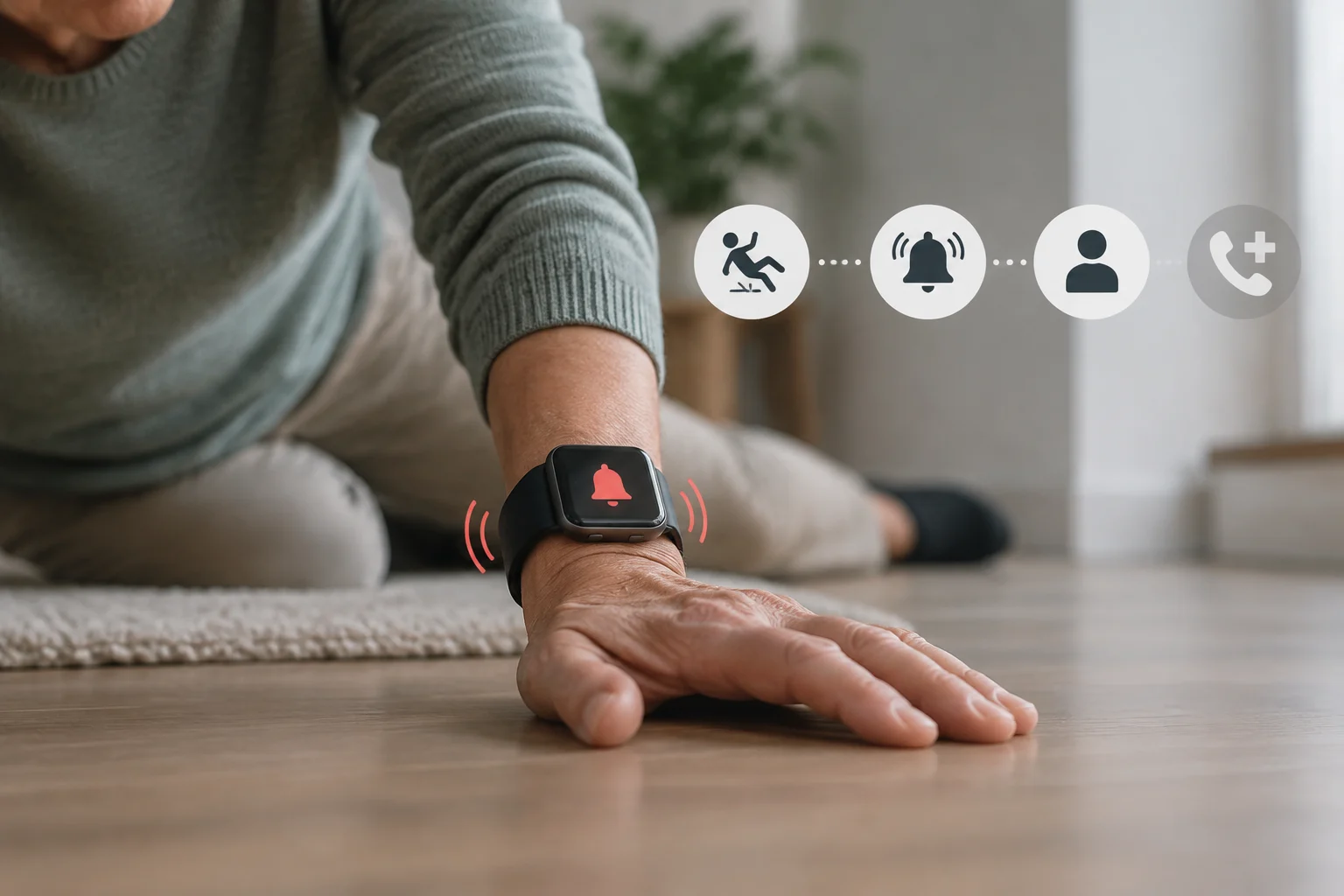
On compatible models, Fall Detection attempts to recognize an incident and offers a way to request help. Depending on configuration and connection conditions, the watch may start a call if the person does not respond. It is an emergency-assistance feature, not a guarantee that every fall will be detected or that help will arrive. Enabling the setting and being able to communicate an alert are separate conditions.
Both Apple and Google emphasize that this feature does not detect every fall. The watch interprets patterns captured by its sensors, but those patterns do not always distinguish a fall from other sudden movements. The system may therefore miss a fall or classify a high-impact activity, such as some exercises or an accidental impact, as a fall, which can lead to false calls.
It is best understood as an additional safety net, not a guarantee that assistance will be available or that the watch will recognize every incident. Its usefulness depends on detecting the movement, meeting setup and connectivity requirements, and the user being unable to respond to the alert.
Setting Up Fall Detection on Apple Watch
On the iPhone, open the Watch app and go to My Watch > Emergency SOS. There you can turn Fall Detection on or off and choose whether it is always on or only on during workouts. Select the setting that fits how you use the watch.
This setting determines when the watch will try to recognize a fall, but it does not replace the other requirements for starting a call. Once the feature is enabled, remember that the system may issue an alert and wait for a response before calling; it does not mean every detected movement will automatically become an emergency call.
Also check that Wrist Detection is enabled on Apple Watch. To do so, open Settings on the watch, tap Passcode, and turn on Wrist Detection. This setting must be enabled for Fall Detection to make automatic calls to emergency services. Review it alongside the Emergency SOS configuration, especially after changing watch settings or setting up the device again.
Fall Detection is available to people aged 18 or over. If you entered your age when setting up Apple Watch or in the Health app and are 55 or over, the feature turns on automatically. Apple recommends checking that your date of birth is correct in Medical ID and your Health profile.
Setting Up Fall Detection on Google Pixel Watch
On Google Pixel Watch, press the crown, open Personal Safety and select Fall Detection. You can also use the Google Pixel Watch app on your phone: go to Settings > Safety and emergency > Fall Detection and turn the feature on.
If you do not respond to the alert and a call is made, Pixel Watch may share your location with emergency services. To do this, you must have granted the Personal Safety app the “While in use” location permission.
During setup, review the permission requests shown on the device. Do not assume location sharing has been sent merely because an alert appears. Check the app settings after reinstalling it or changing phones. If the screens on your version differ from the help instructions, consult the guidance for your specific model and region rather than assuming another watch has the same menus.
Fall Detection is available to adults, not minors. In most countries, a person is considered an adult from age 18, although in some places the age is 21. The feature is not available in every country and depends on network connectivity and other factors.
The Emergency Process: What Happens After Detection
When Apple Watch detects a hard fall, it taps your wrist, sounds an alarm, and displays an alert. This sequence is intended to notify you and give you a chance to respond. If the watch detects that you are moving, it waits for your response and does not call automatically. The on-screen alert does not, by itself, mean emergency services have been contacted.
If you remain still for about one minute, Apple Watch starts a 30-second countdown while tapping your wrist and sounding an alert that grows louder. You can cancel the call during this interval. If the countdown ends without a response, the watch automatically calls emergency services, provided the necessary requirements are met, including Wrist Detection being enabled and a connection being available.
On Google Pixel Watch, the device waits about 30 seconds after detecting a fall. It then vibrates, sounds an alarm, and asks whether you want to call emergency services. If you do not respond, the watch continues the process and, after another 60 seconds without a response, calls emergency services using an automated voice message.
If the alert was triggered by mistake and you can respond safely, use the cancellation options shown on the watch. Read the device instructions beforehand: do not deliberately fall or make test calls to emergency services. An alert, a call in progress, and a notification received are different states; do not assume a request for help has been completed just because you hear an alarm.
Connectivity and Coverage Requirements
Detecting a fall and being able to communicate it are separate conditions. Before relying on the feature, check what connection your model requires, whether it needs the paired phone, and which services are available in your area. Having the setting enabled does not guarantee there is a way to complete a call everywhere. Review the configuration you will actually use, not only the features advertised for the product family.
Cellular versions have their own activation, network, and setup requirements. Check carrier conditions and country or regional restrictions, especially if you use the watch away from your phone or while travelling. An LTE specification does not guarantee every emergency call on every network. Availability needs to be checked for the specific model and service.
For the Wi-Fi version of Pixel Watch, Google’s help instructions require the paired phone to be nearby and connected over Bluetooth to call emergency services. Check this link in the setup you intend to use. Do not assume the conditions for an LTE version apply to a Wi-Fi version: consult the documentation for the device you have.
LTE versions of Pixel Watch can call emergency services without the phone, provided they have an active LTE connection. During the call, Pixel Watch may share your location through an automated voice message if you have granted the relevant permission. Calls and safety features depend on connectivity, network conditions, and country or region; check which options are available where you are.
Technical Limitations and Practical Considerations
It is essential to understand that Fall Detection is not infallible. Apple warns that Apple Watch may not detect every fall and that high-impact activity can trigger the feature by mistake. Google also says Pixel Watch may not detect every fall and that high-impact activities may trigger detection. These limitations mean the feature cannot be treated as a medical assessment or as assurance that the watch will recognize every risky situation.
For that reason, you should not rely exclusively on this feature for personal safety. The watch may provide support if you cannot place a call yourself, but it does not replace other forms of assistance or remove the uncertainty about whether a particular fall will be detected. It is also sensible to become familiar with the alerts and settings before relying on them.
Keep the information the system would use in an emergency up to date, and review communication requirements in advance. If you change phones, carriers, or countries, check the watch settings again. Features on a nearby device do not transfer automatically to the watch: verify the specific feature and its requirements, not just the product’s commercial name.
Basic Checks Before Relying on the Feature
| Check | What to review |
|---|---|
| Activation | Feature and mode available on a compatible watch. |
| Wrist Detection on Apple Watch | Setting enabled for automatic calls. |
| Location on Pixel Watch | Relevant permission for sharing location during a call. |
| Connectivity | Requirements for the model, phone, carrier, and area. |
This list helps you review the setup, but it does not certify that every fall will be detected or that help will arrive. If you need help and can request it through another safe means, do not wait for the watch to act.