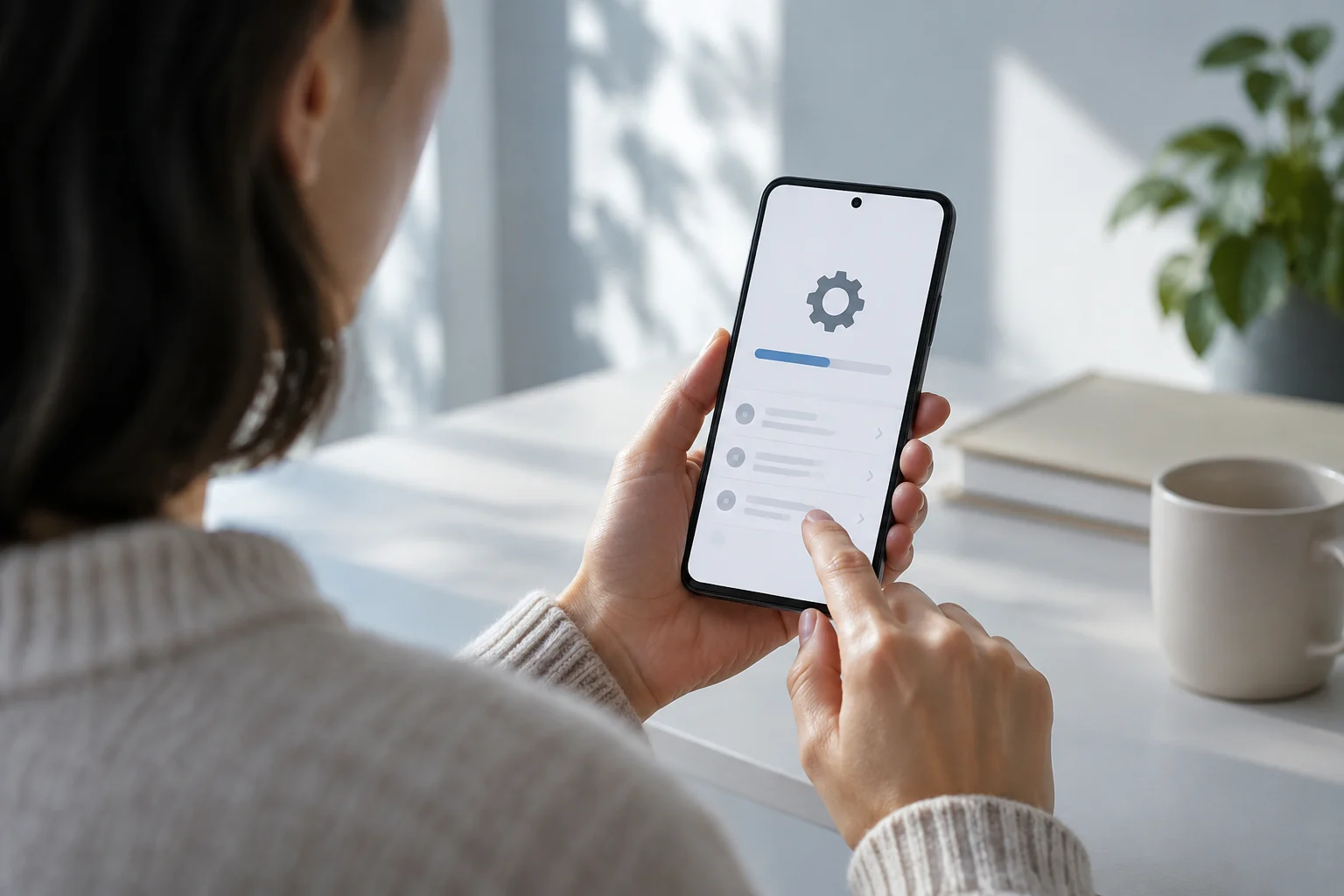
A checking guide, not an announcement
You can check in your phone’s settings whether its system has an update available for that device. This guide brings together Google’s instructions for Android and Apple’s for iPhone and iPad; it does not announce a new release or confirm that a particular version is available for every model. The pages consulted explain how to check and start the process, but do not provide a universal rollout schedule.
That distinction matters: an update existing for a family of devices does not prove that it is already being offered on every handset. Your own device’s screen is the starting point for finding out whether a download is available at that moment. If you are trying to verify a recently announced version, also check the manufacturer’s official date and release notes: the general instructions in this guide do not replace that verification.
In other words, this explains how to check availability, not how to infer it from news about other phones. The result applies to the device in front of you and to the time when you check. Keeping those two aims separate—following the steps and confirming the scope of a release—helps avoid conclusions that support instructions do not substantiate.
How to check for an Android update
On Android, open Settings and look for the system update section. The exact route and wording can vary by phone and system version; if you cannot find the option, use the search function included in many settings menus and enter “update.” Google’s help explains how to check your Android version and look for updates, but does not specify an identical route for every brand.
Because menus vary, instructions written as one fixed sequence of screens may not match what you see on your phone. Rather than interpreting a different label as meaning the feature is absent, look for the system-related section or use Settings search. Google’s documentation is a reference for checking, even though how it is presented depends on the device.
When an option to check for or download an update appears, follow the instructions shown on the device. The Android help page also lets you check the installed version; this is useful for distinguishing the current system from a pending-update notification. Do not interpret the absence of an offer as proof that the phone has the latest version available: it only means that the screen is not offering an update at that moment, based on the check you performed.
How to check for an update on iPhone or iPad
On an iPhone or iPad, open Settings > General > Software Update. Apple’s guide says that this screen lets you check whether an update is available and start installing it. If the device shows an offered version, review the information displayed and use the controls there to continue; you do not need a third-party app for this basic check.
Apple also provides a guide to updating the system on iPhone or iPad. Consult that documentation if you need information about the process itself, rather than assuming that every device will show exactly the same message. The relevant screen is Software Update: a carrier settings update, for example, is a different process and should not be confused with an iOS or iPadOS update. Apple documents these matters separately.
So, if you want to know whether an operating system update is available, check that specific screen and read what it says. Do not treat a notice about carrier settings as a substitute for that search: these are different matters with separate documentation. This distinction helps identify which kind of change is being checked without assigning a notice a meaning it does not have.
If no update appears
A result showing no available update is not, by itself, enough to determine the reason. The cited support pages explain how to search for updates, but the evidence gathered does not allow a particular result to be attributed to the connection, storage, model, carrier, or rollout policy. Therefore, avoid diagnosing the phone from a single screen or promising that a specific option will solve the problem.
You can check methodically without jumping to conclusions: return to the update screen and read the full message; check the installed version; and consult the official guide for the relevant system and device. If the screen offers a download, follow its instructions. If it does not and you need to know whether your model will receive a specific version, look for official information for that model or contact the manufacturer. Do not download update files from unknown sites simply to force an installation.
It is important to distinguish what the screen shows from why it shows it. The first can be observed directly; the second is not resolved simply by repeating the search. Note the message and consult official information related to the device to continue checking without turning a possibility into a diagnosis.
What to verify before drawing a conclusion
Before saying that a phone is up to date, note the model, system version, and when you checked. These are different details: the installed version describes the software currently on the device; availability indicates what the device offers when checked. A useful comparison must refer to the same system and the relevant model, not a version mentioned in news about another device.
Recording these details makes a later check more precise. If you check the screen again, you can distinguish a change in the installed version from a change in what is being offered. And if you are looking for information about an announced version, the model prevents you from comparing your phone with references for a different device. This is not about assuming the update will arrive, but about asking a question that applies to your device.
Support pages can be updated, and menu routes can change with the software. For a service article, therefore, reopen the official links on the editing date and confirm that they still describe the current procedure. The scope of this guide is deliberately limited: it explains where to check, not which devices will receive an update or when. This caution avoids presenting a general instruction as if it were a universal availability notice.