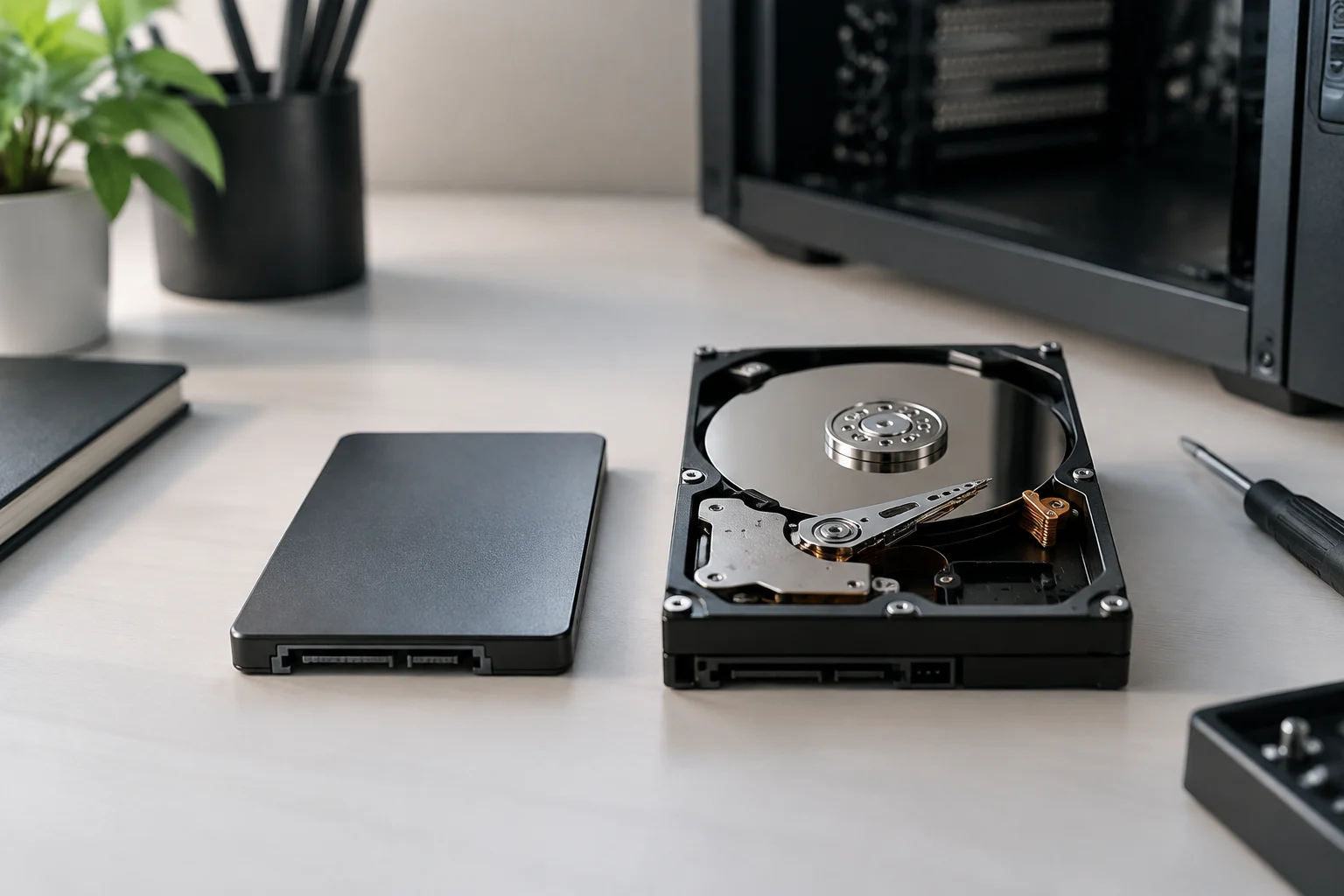
The essential difference: flash memory versus mechanical storage
An SSD stores data in flash memory and does not need spinning platters or moving heads to read it. An HDD, by contrast, stores information on magnetic platters and accesses it using mechanical components. This difference helps explain why the type of drive can affect how responsive a computer feels: to locate a file, a mechanical drive must physically position its read head, whereas an SSD accesses electronic cells. Architecture guides the choice, but it is not enough to compare specific models.
This distinction is especially useful for understanding why two drives can behave differently even though both store the same kinds of files. The HDD’s mechanical operation is part of how it finds data; an SSD reads from flash memory. Knowing the underlying principle, however, cannot by itself predict the result of a particular task. You also need to consider the drive you choose and the computer in which it will be installed.
In practice, an SSD is usually the more suitable option when the priority is reducing waiting times while starting the operating system, opening applications or working with many small files. An HDD can make sense for storing large amounts of data when frequent, fast access is not the main concern. Treat this as general guidance, not a guarantee: results also depend on the model, interface, computer and task. A slow or poorly connected drive does not become fast simply because it is an SSD, and the HDD label alone does not specify a particular capacity or performance level.
Access patterns matter more than a single figure
A sequential transfer figure describes how much data can be read or written in an orderly sequence under specific conditions. On its own, it does not represent what you will notice when starting a computer, loading a project or opening a folder containing thousands of documents. Those tasks are also affected by random access, latency, file sizes and simultaneous operations. Comparing two drives using only their advertised peak speed can therefore lead to the wrong conclusion.
The difference between an orderly operation and a series of accesses to scattered files matters when interpreting specifications. A sequential transfer is more like reading or copying data arranged in a sequence; an everyday task may involve finding items of many sizes and performing several operations. A prominent figure in a product specification can therefore be relevant to one use and say little about another. Read it as a measurement under a particular condition, not as a summary of the whole experience.
Before choosing, think about the work you want to speed up. If you are installing an operating system and applications, you are likely to care about how the drive handles small and varied operations. If you move video or copy large files, sustained transfers and available capacity become more important. For storage you consult only occasionally, cost per capacity may matter more than opening time. “Fast” does not describe a single workload: a useful test should resemble your use and compare drives under equivalent conditions.
Compatibility: form factor, connection and available space
Before buying, find out what your computer supports. Check the physical form factor it can take, the available interface and whether there is a free slot or port. SSDs come in different form factors and use different connections; the fact that two drives are both described as SSDs does not mean they are interchangeable. An external drive also raises the question of which connection is available and how you intend to use it. If you have a laptop, consult the computer manufacturer’s specifications or service documentation before opening it or ordering a part.
It is worth checking compatibility before comparing prices or performance, because a drive that cannot be installed or connected will not solve the problem. The name of the technology is no substitute for checking form factor and interface: they describe different aspects. If the documentation does not make clear which option your computer supports, look up the exact computer model and the relevant instructions instead of relying only on a drive’s appearance or a generic sales description.
Also check the capacity you need and the space you will actually be able to use. The operating system, applications and temporary files take up part of a drive, and leaving some room avoids having to reorganize it immediately. If you are moving your system to another drive, find out separately how to make a backup and transfer or reinstall the operating system: buying the device does not take care of that process. Computer compatibility is a prerequisite, not a secondary benefit. Estimating how much space your files and programs already occupy can help you avoid a purchase that is too small from the outset or unsuitable for its intended use. A simple checklist can reduce mistakes:
- Note the exact computer model and consult its documentation.
- Confirm the supported form factor, interface, bay or slot, and capacity.
- Decide whether the drive will be internal or external, and used for the system or for archives.
- Check which data you need to migrate and where you will keep a backup copy.
Cost per capacity: compare specific offers
To compare costs, take the price of drives you can actually buy and divide it by their stated capacity. Do this in the same market and around the same date, and compare products with similar capacities. Cost per unit of capacity is a useful aid, not the verdict: a drive may offer less space yet be better suited to a role that needs a quick response. It is also worth including the cost of adapters, an external enclosure or installation if those are necessary in your case.
For the comparison to be useful, try to choose products with similar purposes and capacities that are not so different as to distort the calculation. The result can rank offers by relative cost per capacity, but it does not automatically account for other aspects of the purchase, such as the connection your computer requires or whether the drive meets your main need. Use it as one factor in the decision rather than turning it into a rule that determines which technology to choose by itself.
It is not responsible to claim that every HDD costs less or that an SSD always offers better value without identifying models, capacities and current prices. Prices change with the market, retailer, promotions and availability. The evidence consulted also does not provide a comparable set of current SSD and HDD prices for this case, or a shared independent test that would rank drives by performance. This guide therefore does not present prices or speeds as universal. Compare specific models and offers, not two broad labels.
Which drive best fits each situation
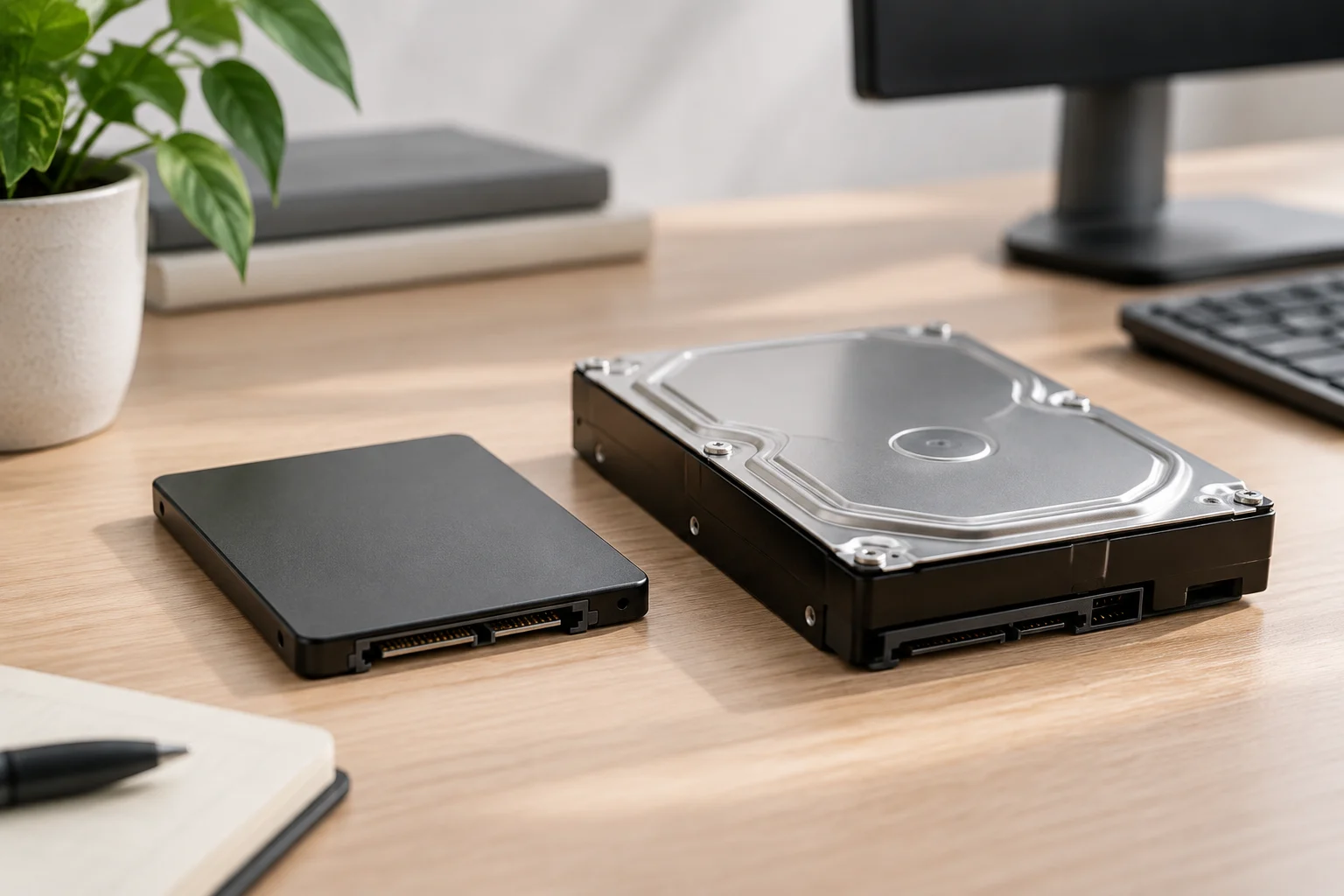
For a computer that takes a long time to start, or applications that you open frequently, an SSD is usually a reasonable choice if the computer is compatible and the drive has enough capacity. If you already have a small SSD for the system, adding another drive can let you separate applications and files, although there is no one configuration that is optimal for everyone. Consider how much space your programs and projects take up, and whether storage is actually the bottleneck you are trying to address.
That last check helps prevent you from blaming storage for every delay you notice while using the computer. Adding a drive makes sense if the improvement you want is related to accessing your data and the way you use it. It is also worth checking how much space remains on your current drive: the capacity you need and the operations you perform help you define the purchase more clearly, though neither guarantees a particular result on its own.
For large files you consult from time to time—for example, a video library or historical documents—an HDD can be a practical option if the priority is bringing together a lot of capacity on a limited budget. Do not mistake it for a complete backup: a second drive that remains permanently connected can be exposed to the same accidents, theft or damage as the computer. To protect important information, keep separate copies and verify that you can restore them. In either case, additional storage is not a substitute for a backup strategy. Checking that a copy can be recovered is part of protecting it: keeping a copy without testing it does not confirm that it will work when needed, so include verification in your backup plan.
If your use combines active programs with a large archive, you could consider an SSD for the material you use often and an HDD for data you consult less frequently. This combination is an option, not an obligation: take into account its total cost, available space and the added complexity of organizing data. First decide what needs to improve—responsiveness, capacity or cost—and then check the computer and the models available. The best drive is the one that meets your specific need without compromising compatibility or data protection.
Limits of the comparison and final decision
Differences in architecture explain general tendencies, but they cannot reveal a drive’s exact performance. SSDs vary in flash memory, controller and design; Solidigm, for example, describes SSDs with QLC NAND for certain read-intensive workloads. That example is a reminder that even within one category, designs can target different profiles. It does not show that all QLC SSDs behave the same way or are the right choice for every home computer.
HDDs also differ in ways the category name does not reveal, and test results can vary with the computer, interface, capacity, workload and method used. The sources consulted support the general distinction between flash and mechanical technologies, but do not offer a universal, current and controlled comparison of models for this use. The conclusion must therefore remain deliberately limited: choose according to task, compatibility and observed price, and consult tests that identify the exact models before paying a premium for an advertised figure.
In practice, the decision can be summarized as a sequence: define the kind of access and capacity you need; confirm what the computer supports; and compare available models using prices and tests that refer to those specific drives. If published information does not state the conditions behind a figure or the model it refers to, do not treat it as an exact prediction of your experience. This keeps the comparison within its limits and helps rule out unsuitable options without turning a general trend into a performance promise.