What it means to update automatically or manually
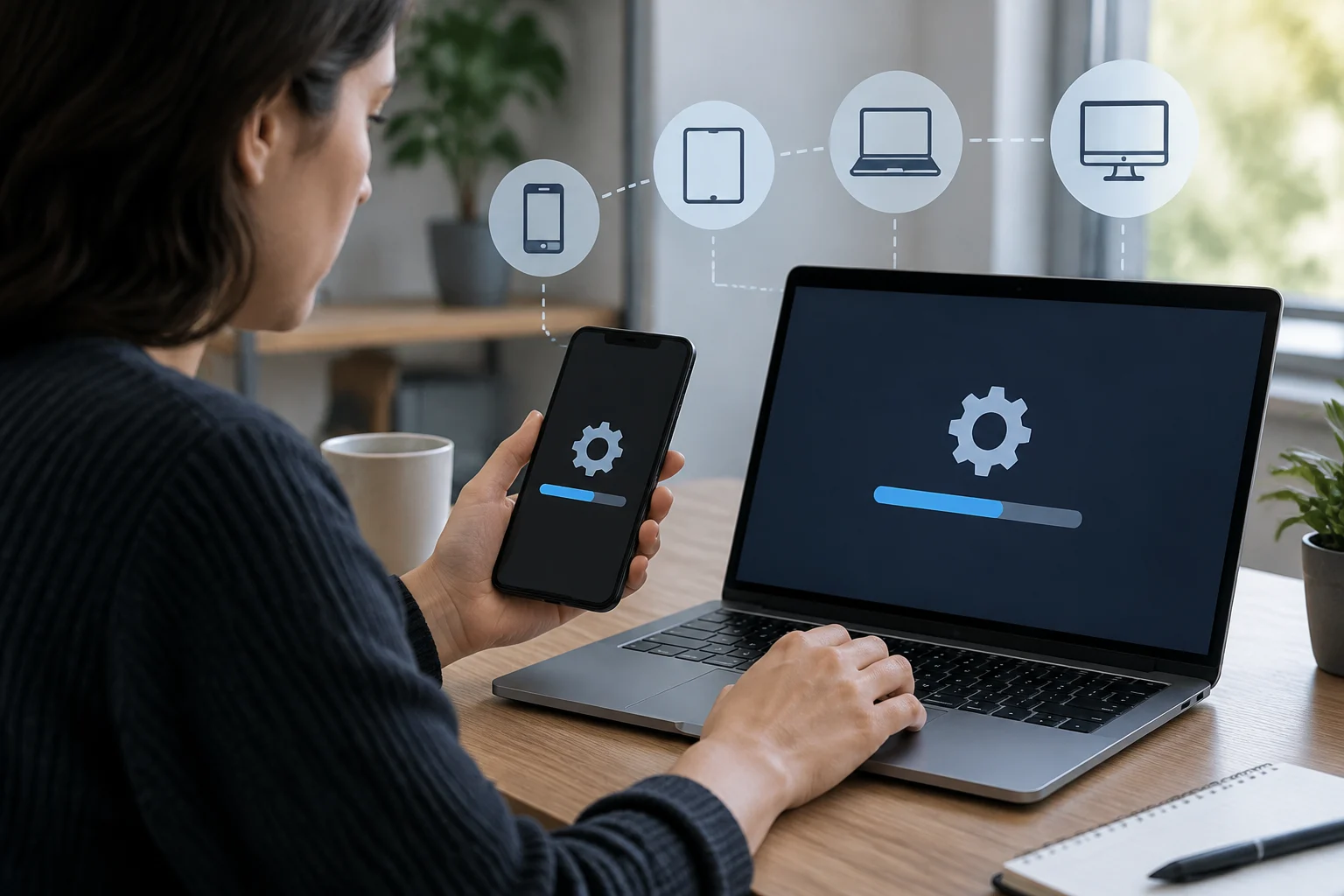
The decision is not simply between keeping a device up to date and letting it become obsolete. It is about who starts the installation and when: depending on the available settings, the system can download or install an update, or you can check for new releases and start the installation when it suits you. Details vary by platform, version, manufacturer, and configuration; “automatic” does not necessarily describe the same behavior on every device.
It is also worth distinguishing system updates from app updates. A system update changes platform components and may require restarting the device; an app update affects that application and is usually managed through its store. These controls are not interchangeable: enabling or checking one does not mean the other follows the same schedule. On Android, for example, Google’s documentation explains how to check the system version and its updates, while apps are managed separately.
Automation reduces the practical risk of forgetting to check, but it is not a guarantee of immediate installation: availability for the device, connectivity, storage, battery charge, and—in managed devices—the administrator’s policies can all play a part. Manual checking gives you more control over timing, but creates a recurring task. The useful choice is the one that combines a realistic checking routine with an installation time that will not interrupt your use.
Advantages and limits of each method
Automatic updates suit people who want to reduce outstanding tasks and do not need to approve every installation. They are especially practical on a personal device used every day that stays connected and can restart outside working hours. As a security principle, installing software updates is advisable: the National Cybersecurity Alliance explains that updates can fix security issues and recommends keeping software current. That does not mean every update will install immediately or that they all contain the same things.
Manual checking may suit you if the device is critical for a particular activity, you need to choose when it restarts, or you want to review what the system is offering first. But control does not mean postponing updates indefinitely. If you dismiss every alert and have no reminder, manual checking can turn into a missed update. Nor should pausing or postponing be treated as protection: it only changes when installation is attempted, subject to what each platform allows.
A simple rule for deciding
Choose automation if your priority is not to rely on memory and you can let the device complete the process when it is available. Choose scheduled checking if you need to coordinate restarts or monitor changes; in that case, set a recurring date and check system alerts. Either way, do not assume the setting should be configured identically on all your devices: a phone, tablet, and PC may have different controls and conditions. For a work or school device, check with technical support first; managed policies may determine when updates are offered or installed.
Android: check the system without assuming every menu is the same
On Android, start in Settings and look for the system update section; its name and location may vary by brand and version. Google’s guide explains how to check the Android version and look for updates, and its documentation warns that steps may vary between devices. A path you saw on another phone is therefore a useful pointer, not a guarantee that the labels will be identical on yours.
For a manual check, connect the phone to a stable network, make sure it has sufficient battery, and open the system update option. If the device says an update is available, review the information shown and follow the on-screen instructions. If no update appears, that does not necessarily mean one is overdue: availability may depend on the model and the manufacturer’s rollout. Google does not document a universal date that applies to every Android device; for specific timelines, consult the manufacturer’s support.
System and app updates are separate checks
Apps are usually updated through Google Play and may have separate automatic-update settings. An Android update does not replace checking apps, and the reverse is also true. If you prefer manual control, open the store and review available updates; if you choose automation, check which setting is enabled in the store instead of inferring it from the status of system Settings. Phones managed by an organization may have specific system-update rules; Android Enterprise documentation describes management options for device administrators, not universal instructions for every home user.
iPhone and iPad: check for software updates
For an iPhone or iPad, Apple’s documentation places update checking in Settings, under General and Software Update. There you can see whether a version is available and review the automatic settings offered by your device. The exact labels and visible options may vary with the installed version; if the path does not match, search Settings for “Software Update” or consult Apple’s current guide rather than instructions copied from a different system.
The automatic option is convenient if you do not want to depend on visiting the update screen regularly. Manual checking is reasonable when you would rather review the alert and choose when to start installation. Before installing, consider whether you can leave the device connected and unused during the process, and check that there is enough space if the device requires it. You do not have to turn every check into an immediate decision to install: what matters is not letting a one-off check become a permanent postponement.
Apple also documents updating through a computer as an alternative in certain circumstances. That procedure is not interchangeable with the Android or Windows menu: follow the instructions for the relevant model and computer. This guide does not set a minimum version or a schedule for all iPhones and iPads, because compatibility and availability depend on the device. Use the device’s own update screen and Apple’s documentation as your reference for what is being offered at that time.
Windows: use Windows Update and plan the restart
In Windows, Microsoft says updates are managed through Settings and Windows Update. From there, you can check for available updates and follow the instructions to install them. Labels and the organization of options may change between versions; the support page consulted covers Windows 10 and Windows 11. If your PC’s controls do not match, first check which edition and version you are using, then consult the applicable official support.
Timing matters particularly on a computer used for work, study, or running active services. Before starting an installation, save documents, close tasks you cannot interrupt, and check whether the system requests a restart. If you need to plan, use the pause, scheduling, or restart options actually available in your version rather than assuming all PCs offer the same setting. An organization’s options may be controlled by its administrators.
Manual checking means returning to Windows Update periodically; automation can reduce that burden, but users still need to pay attention to alerts and pending restarts. If the computer says it must restart to complete an update, do not confuse a finished download with a completed installation. Save your work and choose a time when you can allow the restart, following the instructions displayed by Windows. For installation problems, use Microsoft’s support page and the system’s own error messages, not update tools from unknown sources.
How to choose and maintain a sustainable setting
There is no single preference that is best for everyone. You can decide by asking three questions: can the device install and restart without interrupting something important? Will you remember to check manually? Is there a work or school policy that determines the process? If you often postpone alerts and the device can update when you are not using it, automation may be more realistic. If you need to supervise every restart, manual checking may suit you, provided you establish a routine.
A short checklist helps prevent confusion between platforms:
- Identify the device, operating system, and installed version.
- Open the system update section in Settings.
- Check separately how apps are updated.
- Read whether a download, installation, or restart is pending.
- Set aside time to install; save your work and connect the device if the instructions recommend it.
- If menus differ, consult the manufacturer’s official help and check again after changing versions.
Follow a periodic routine you can maintain, for example when reviewing other digital maintenance tasks; there is no need to treat an undocumented frequency as a universal requirement. A manual policy without a reminder is fragile, and an automatic policy does not remove the need to respond to storage, connectivity, or restart alerts. Security benefits from not ignoring updates, but this guide does not assess the contents of a specific release or promise that every device will receive an update on the same date. Availability, support, and options depend on the device and provider.