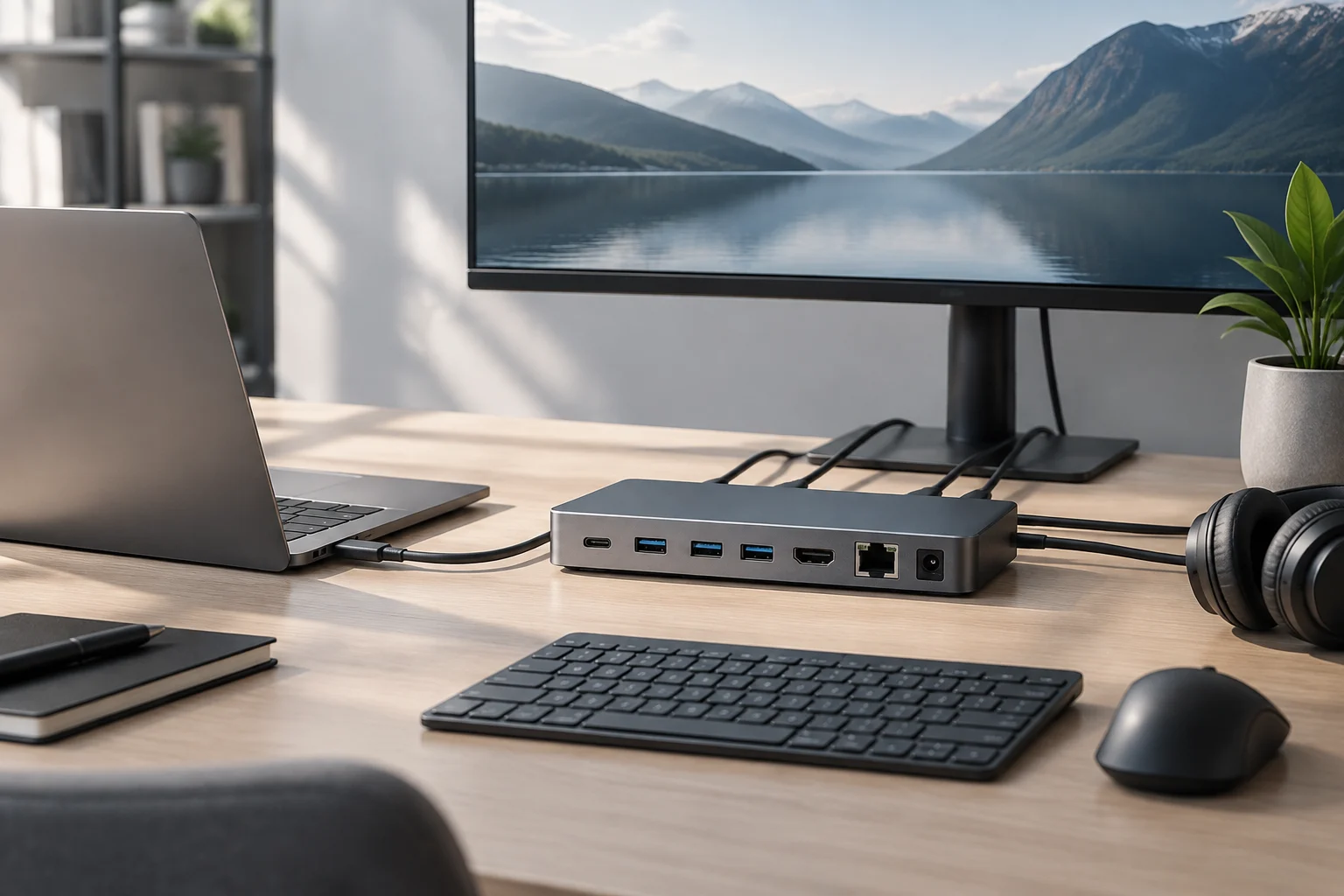
Start with what you need to connect
A USB-C dock can bring together connections that would otherwise take up several of your laptop’s ports: for example, a display, USB peripherals, a network connection, or external storage. Its usefulness does not depend only on how many connectors it has. It also matters whether the laptop sends video through its port, whether the dock supports the display you want to use, and whether its power delivery is suitable for your computer. The USB-C shape alone does not guarantee any of these functions.
Before comparing models, write down your actual setup: how many displays you will connect, their planned resolution and refresh rate, which peripherals you will use at the same time, and whether you want to charge the laptop over the same cable. Separate essentials from optional features. A dock with many connectors may be a poor choice if it lacks an essential function, while a simpler option may be enough if you only need more USB connections and one display.
Think of this list as a complete configuration, not a collection of separate features. For example, note which connections must work simultaneously and which you will use only occasionally. That makes it easier to compare product specifications against a specific need instead of being swayed by the number of ports or a headline feature that may not matter for your computer.
USB-C describes the connector, not all its capabilities
USB-C identifies a reversible connector type, but it is not a complete specification of what each port can do. Two laptops with the same connector shape may differ in data transfer, video output, and the ability to receive power. So marketing phrases such as “USB-C compatible” do not, by themselves, establish whether a dock will provide the display, charging, or speed you want.
Look up the technical specifications or manual for the exact laptop model, not just the page for a product family. Identify each port and the functions documented by the manufacturer: these may include Thunderbolt, USB4, DisplayPort over USB-C, video output, or USB Power Delivery charging. Apple, for example, publishes pages for identifying Mac ports as well as specifications for individual models; for Surface devices, Microsoft describes the conditions for connecting displays and charging. These documents show why you should verify the specific computer instead of inferring capabilities from the port’s appearance.
Check each function separately
- Data: the stated USB type or generation and documented speed, if listed.
- Video: whether that port supports display output and any published limits.
- Power: whether the port accepts charging and what requirements or restrictions the manufacturer specifies.
- Protocol: if USB4 or Thunderbolt is listed, also confirm which version the laptop supports and which version the dock requires.
This check prevents you from treating one capability as proof of another. For instance, a port’s support for data does not confirm that it also sends video; similarly, the ability to connect a display does not, by itself, determine the speed of the other ports. Record what the documentation confirms for the port you plan to use, and keep unresolved questions separate rather than filling in gaps by comparison with another laptop model. If the specification says only “USB-C” and does not clarify an important function, consider that function unverified. Consult the manual, the model’s support page, or the manufacturer before buying. Missing information does not prove that the function is impossible; it simply means you cannot safely assume it is available.
Video: compare both ends of the connection
When choosing a dock for a display, compare the specifications of the laptop, dock, and monitor. The dock’s product page may advertise a resolution or number of displays, but the result depends on whether the laptop can produce that signal and whether the connection and monitor support it. Verify the resolution and refresh rate you want under the specific conditions listed by each manufacturer; do not assume that the maximum figure remains available when you connect multiple displays or use other ports at the same time.
Also check how the signal is transmitted. Some docks use video capabilities available over USB-C; others may depend on Thunderbolt or on compression or processing technology that requires software. If a dock advertises two displays, look for the resolution and refresh rate it specifies for each, the operating system it supports, and the connection it uses. A general “dual display” claim is not enough to ensure that both displays will work in the mode you need.
When checking limits, distinguish a maximum figure from the setup you actually plan to use. The stated resolution for one display does not necessarily confirm the same result with two connected. Likewise, operating-system or connection requirements are part of compatibility, not minor details. Check that the documentation describes the set of displays you will use, rather than a possibility that applies under different conditions, such as a different connection or fewer active displays at once. The complete chain is only as capable as its most restrictive component: laptop, dock, cable, and display. If the laptop manufacturer documents a maximum for external displays, a dock with a higher stated maximum does not remove that limit. Nor should you assume that every USB-C cable carries every signal or speed; check that the included or selected cable is specified for the required function. To avoid buying on the basis of one isolated figure, look for a documented configuration that matches your resolution, refresh rate, and number of displays.
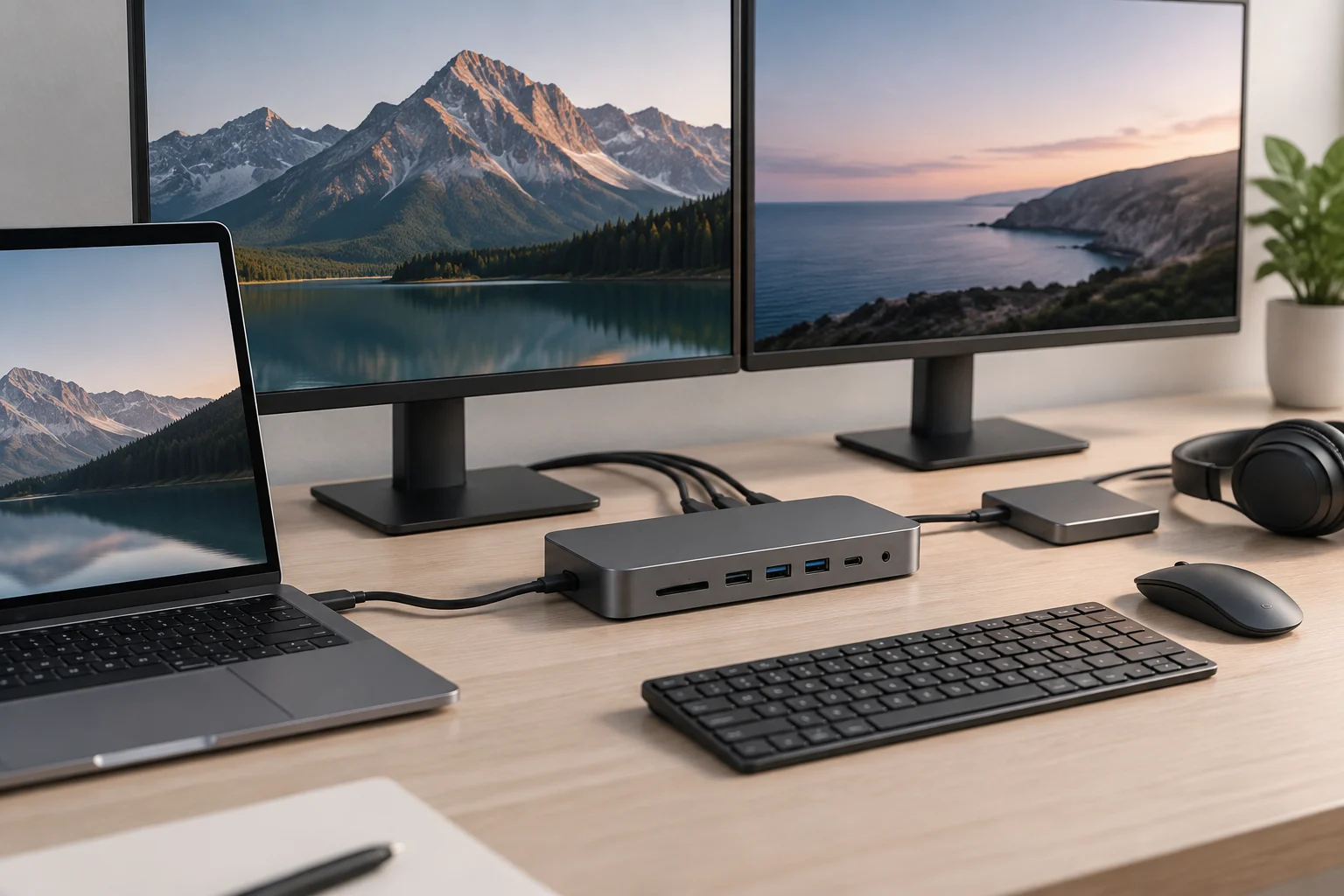
Power and ports: check usable wattage and limitations
If you want to charge the laptop through the dock, compare the power recommended or required by the computer manufacturer with the output the dock specifies for the connected computer. Do not confuse the power of the adapter that supplies the dock with the power the dock delivers to the laptop: these can be different values. If the dock shares power between its ports or peripherals, check how its specifications describe this. USB Power Delivery is the standard associated with USB power negotiation; its presence does not mean all chargers, cables, and devices provide the same power.
For a useful comparison, find the figure for output to the laptop rather than relying on the most prominent number on the packaging or product page. The dock may need its own power supply and still deliver a different amount to the computer. If several figures or conditions are listed, check what situation each one refers to. The aim is to confirm that the combination meets the published requirements for your model, not to assume that two products mentioning USB Power Delivery will behave alike.
Also check whether the dock includes its own power adapter or runs on power from the laptop. In the latter case, connected ports may use power otherwise available to the computer; behavior depends on the product and its documentation. A higher rated wattage does not, by itself, guarantee faster charging: the laptop must support the relevant mode, and the manufacturer may specify particular charging conditions. If you cannot find comparable figures or clear limits, do not assume the dock replaces the laptop charger. Make an inventory of ports and peripherals before you pay. Count the USB-A or USB-C ports you need, and note whether you rely on Ethernet, a card reader, audio, storage, or a second video output. Check whether one connection shares resources with another or whether the specifications impose restrictions when several functions are used at once. A concrete list reveals gaps better than comparing the total number of connectors: two docks with the same count may offer very different combinations. This inventory also helps confirm that all your devices can remain connected as expected, without unplugging one to use another. Prioritize the ports you need every day and verify any conditions for simultaneous use specified by the manufacturer. If a particular connection is essential, look up its name and limitations in the documentation for the model rather than treating all connectors with the same shape as equivalent.
USB-C, Thunderbolt, and USB4: decide based on documentation
Thunderbolt and USB4 are not synonyms for the connector’s shape; they are technologies or specifications that can enable particular capabilities when both the laptop and dock support them. For a Thunderbolt dock, confirm that the computer supports the required version and that the product says it works with that combination. The Thunderbolt technology community maintains documentation and product listings, but compatibility should be checked in the specifications for the dock and computer, not inferred from the appearance of a cable or connector.
Check the version at both ends: a label mentioning Thunderbolt or USB4 does not confirm that the required version is present in both the laptop and dock. It is also important that published compatibility applies to your type of computer and the functions you want to use. A product catalog can be a useful reference, but the specific product description and computer documentation are what let you assess that particular combination.
Some Thunderbolt docks may support certain USB-C laptops that do not have Thunderbolt, but that does not mean they will work with every function or at the same performance. One example documented in the Thunderbolt catalog describes a Thunderbolt 3 dock with USB-C compatibility for specified laptops; this is a particular case, not a universal rule for all docks. Read which ports remain active, which capabilities are retained, and which operating systems are included in the stated compatibility. ### Checklist before buying
- Identify the exact laptop model and consult its manual or official specifications.
- Confirm video over the chosen port and verify resolution, refresh rate, and number of displays.
- Compare the power delivered by the dock with the laptop’s charging requirements.
- Count the connectors you need and check restrictions on simultaneous use.
- Confirm USB4 or Thunderbolt version and compatibility on both devices, if applicable.
- Verify the cable, power adapter, and operating system required by the dock.
- If a decisive specification is missing, ask the manufacturer for written confirmation or choose an alternative with clear documentation.
The documentation may not resolve details of a particular laptop, dock, cable, and monitor combination. In that case, the prudent choice is not to extrapolate from a label, but to postpone the purchase until you have a verifiable answer. The best dock is not the one that promises the most ports: it is the one that documents the functions your computer can actually use.