Before you start: check whether your account has the feature
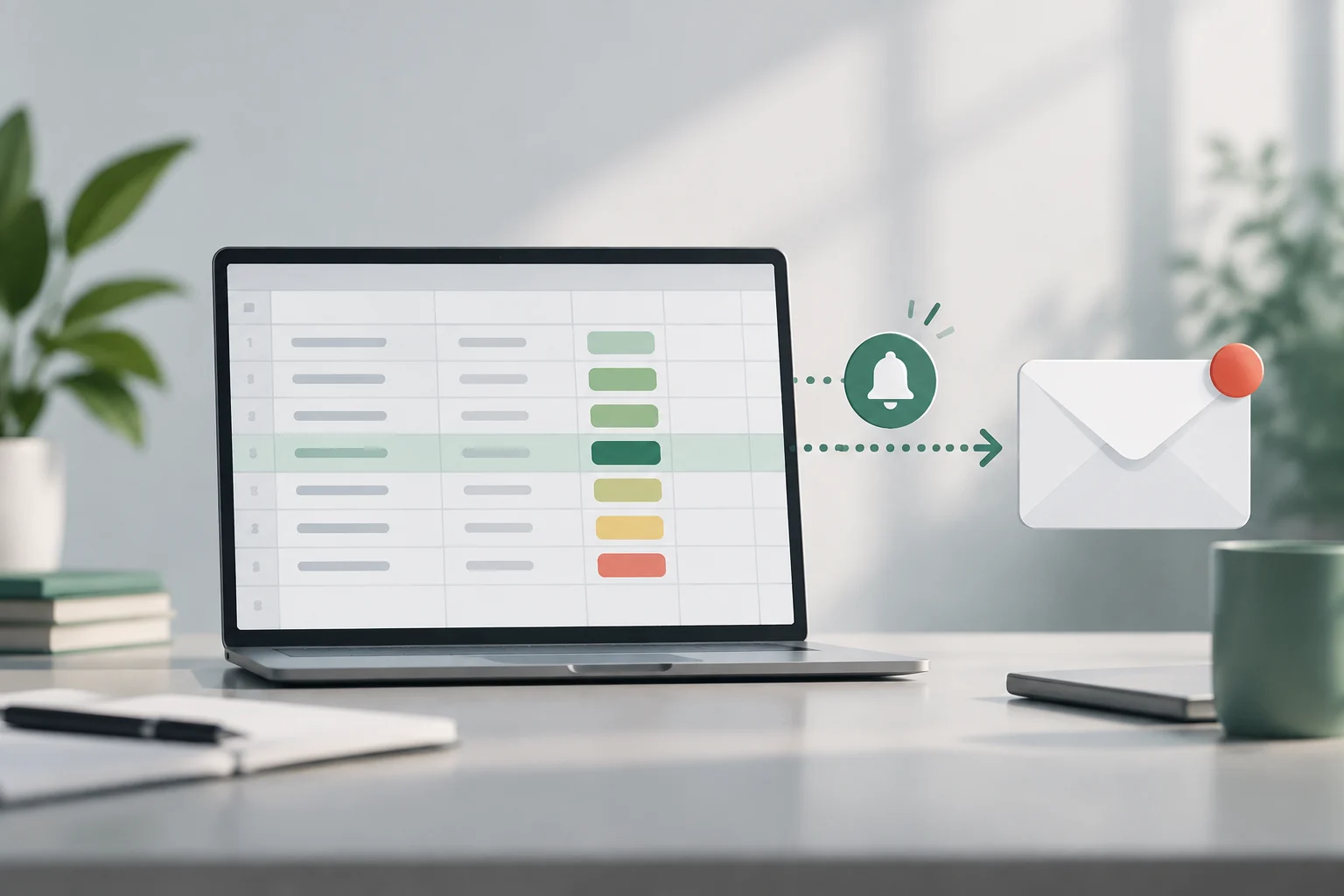
Google Sheets conditional notifications send emails when a cell’s value changes in a column or range you selected. They can help track shared tasks, review requests, or spot a row moving to a status such as “Complete,” without repeatedly checking the sheet or writing code. They are not a guarantee of real-time monitoring: Google warns that messages may be delayed and that several changes may be combined into one email. Treat them as a practical heads-up, not as a critical alert system. In other words, they can reduce manual checking, but they do not replace a process that requires an immediate, verifiable response. If a missed or late message would cause a serious problem, plan a separate way to monitor that workflow rather than assuming the notification alone will provide dependable coverage.
Before designing the rule, check whether Tools > Conditional notifications appears in the menu. Google says the option is available only for certain work or school accounts; if it does not appear, it recommends contacting your administrator. The feature also does not support group email addresses or recipients outside Google, such as Outlook or Yahoo accounts. Therefore, having access to a shared sheet does not mean you can necessarily configure the feature or notify anyone you choose. Availability depends on the account type and its settings. Check these requirements first so you do not build a workflow that you cannot later put into operation.
Prepare a simple, consistent sheet
For this example, create a table with columns such as “Task,” “Owner,” and “Status.” Add a few test rows and enter statuses consistently—for example, “Pending,” “In progress,” and “Complete.” This preparation is more than a matter of visual order: the rule we set up will look for a specific value, so differences in spelling—such as “complete” in lowercase or “Complete ” with a trailing space—can prevent a match. If there is more than one acceptable way to name the same status, standardize it before creating the alert. Consistent values also make it easier to test the rule later. Decide in advance whether status labels should use a particular capitalization, spacing, or wording, and use that convention throughout the sheet. That small step makes the condition easier to understand and reduces avoidable mismatches.
Also consider who should receive messages and what information they need. The notification may include row data, the old and new values, the name of the person who made the change, and nearby cells; the content may vary depending on the recipient’s access to the sheet. Avoid including information in those rows that is unnecessary for tracking, and check the permissions of people who will receive the email. A useful alert does not need to expose more context than necessary. The tool notifies people about changes; it does not replace reviewing who can see the document. Treat email as an extension of the information available in the sheet, and limit the shared context to what genuinely helps interpret the change. Before enabling a rule, consider whether the message could reveal information to a recipient who should not see it, and adjust the sheet’s access or contents as appropriate.
Create a rule for the “Complete” status
Open the sheet on a computer and select Tools > Conditional notifications. The menu may also be available by right-clicking a cell. Choose “Add rule” and, if it will help you identify the rule later, give it a descriptive name such as “Completed tasks alert.” In the field that specifies which column or range to watch for changes, select “Status.” If the sheet is organized as a table that supports the “In this table” option, you can select it; otherwise, use the relevant range or column. A clear name is useful if you later need to review or edit several rules. Take a moment to ensure that the selected area includes the status cells you intend to monitor and does not accidentally include unrelated data.
To restrict the alert to the status you want, add a condition and choose the equivalent of “Text is exactly”; enter “Complete.” Then, under the notification action, specify who will receive the message: you can add supported individual addresses or select a sheet column containing addresses. If you select a custom range to monitor and use an address column, Google requires the two ranges to be the same size. Review the rule before saving: the watched column should be “Status,” and the condition should check the final value you care about, not a different column by mistake. This reduces the chance of receiving alerts about changes unrelated to the intended case. Read the configuration from top to bottom before saving, because the watched area, matching condition, and recipient setting each control a different part of the notification.
Choose recipients and understand who sends the alert
Recipients can be entered manually or taken from a column containing addresses or people, depending on the options shown in the editor. Google’s documentation says that only individual Gmail or Google Workspace email addresses can be added; group addresses and accounts outside Google are not supported. If a task needs to notify someone who uses another provider or a distribution list, this feature does not directly cover that case. Before setting up the workflow, verify that the intended people appear as valid recipients and have appropriate access to the file. Do not assume that an address listed in the sheet will automatically be able to receive alerts. If a recipient cannot be selected or the address is not accepted, confirm that the account meets the stated requirements rather than repeatedly changing the rule without checking its eligibility.
It also matters who is associated with sending the message: the email is sent on behalf of the person who configured the rule or the person who edited it most recently. In a shared sheet, agree on who administers notifications and who is responsible for maintaining them. If that person changes, review the rule and its recipients rather than assuming the original configuration will continue to represent the team’s process. Clarify responsibility before relying on the alert, especially if status changes trigger follow-up work or require a response. Making it clear who reviews the configuration helps prevent the team from unknowingly relying on an outdated rule. It is also useful to decide who will test the setup after changes to the sheet, since a modified column layout or recipient list may affect whether the alert still serves its intended purpose.
Run a controlled check and review the history
Test the rule with a row that does not affect real work. Manually change a cell in “Status” to another value and then to “Complete,” and check that both the trigger—a change in the selected column—and the text condition are satisfied. If the email does not arrive immediately, do not instantly conclude that the rule is broken: Google warns that delays can occur and that several changes may be consolidated. Also check that the address is spelled correctly, is supported by the feature, and that you saved the right rule. A controlled test lets you check the configuration without disrupting the tracking of real tasks. If possible, use a clearly identified test row and restore it afterward so the test itself does not confuse other people who use the sheet.
To investigate, open Tools > Conditional notifications > View trigger history. The history covers the last 30 days and indicates successful, failed, or partial executions. A successful execution means that the rule was triggered; it does not guarantee that the message will arrive immediately, and the email might not be sent if the changes are undone. This distinction helps separate the rule’s operation from delivery of the alert. If you need proof that someone received and acted on a notification, do not use this mechanism alone as a compliance record: check the email process and keep operational tracking separately. The history helps diagnose rule activity within its available period; by itself, it does not prove that each person received or responded to a message. When troubleshooting, compare the event shown in the history with the edit you made and the condition you configured before changing the rule.
Limits and when to consider another automation
Notifications may not trigger for formatting changes, even when the content seems equivalent; Google gives the example of changing a number from 2.5 to 2.50. They also may not detect values changed by external sources, such as linked data or a formula like IMPORTRANGE. Volatile functions, meanwhile, may recalculate when the sheet changes and fail to generate alerts while the document is closed. A rule focused on manual status edits may therefore suit a simple tracker, but do not assume it watches every indirect change or recalculation. The difference between editing a cell directly and obtaining a new value through another route matters when deciding which changes the alert should cover. Check how the values in your own sheet are produced before relying on the rule, especially if formulas or imported data determine the status.
If you need more specific logic, recipients outside Google, or more controlled management, you may need to evaluate another tool or an Apps Script solution. That alternative requires you to assess its permissions and configuration; do not automatically assume it will be simpler or more reliable. The choice depends on which changes must be detected, who can authorize and maintain the system, and what level of logging or delivery you need. For a basic alert after a manual edit, start with the native rule and document its limits; for a critical process, design an alternative that you can test and monitor. Before changing tools, define the kind of change and level of tracking you expect, because those determine whether the native rule is sufficient or another solution is needed. Keep the people responsible for the workflow involved in that decision, and make sure the chosen approach can be checked in practice.